Adding a ChatLab chatbot to your IdoBooking website allows guests to get answers from your chatbot's training directly on your site. Checking live availability requires the separate IdoBooking integration.
Before you start
Create and train your chatbot before sharing it with customers. For installation, you also need permission to edit and publish the website. See How to create your first chatbot.
Which guide should I follow?
IdoBooking clients typically use one of two setups:
-
You have your own website (separate from IdoBooking) - Follow the general guide: Adding chatbot to your website. ChatLab supports HTML, WordPress, Wix, Webflow, Shopify, WooCommerce, and other platforms.
-
You use the IdoBooking Showcase page ("wizytowka") - Follow the steps below to add the chatbot through the IdoBooking admin panel.
Adding ChatLab to your IdoBooking Showcase page
Step 1 - Copy the embed code from ChatLab
- Log in to ChatLab and select the chatbot you want to embed
- Click the Deploy tab
- In the Select Platform panel on the right, click HTML Code
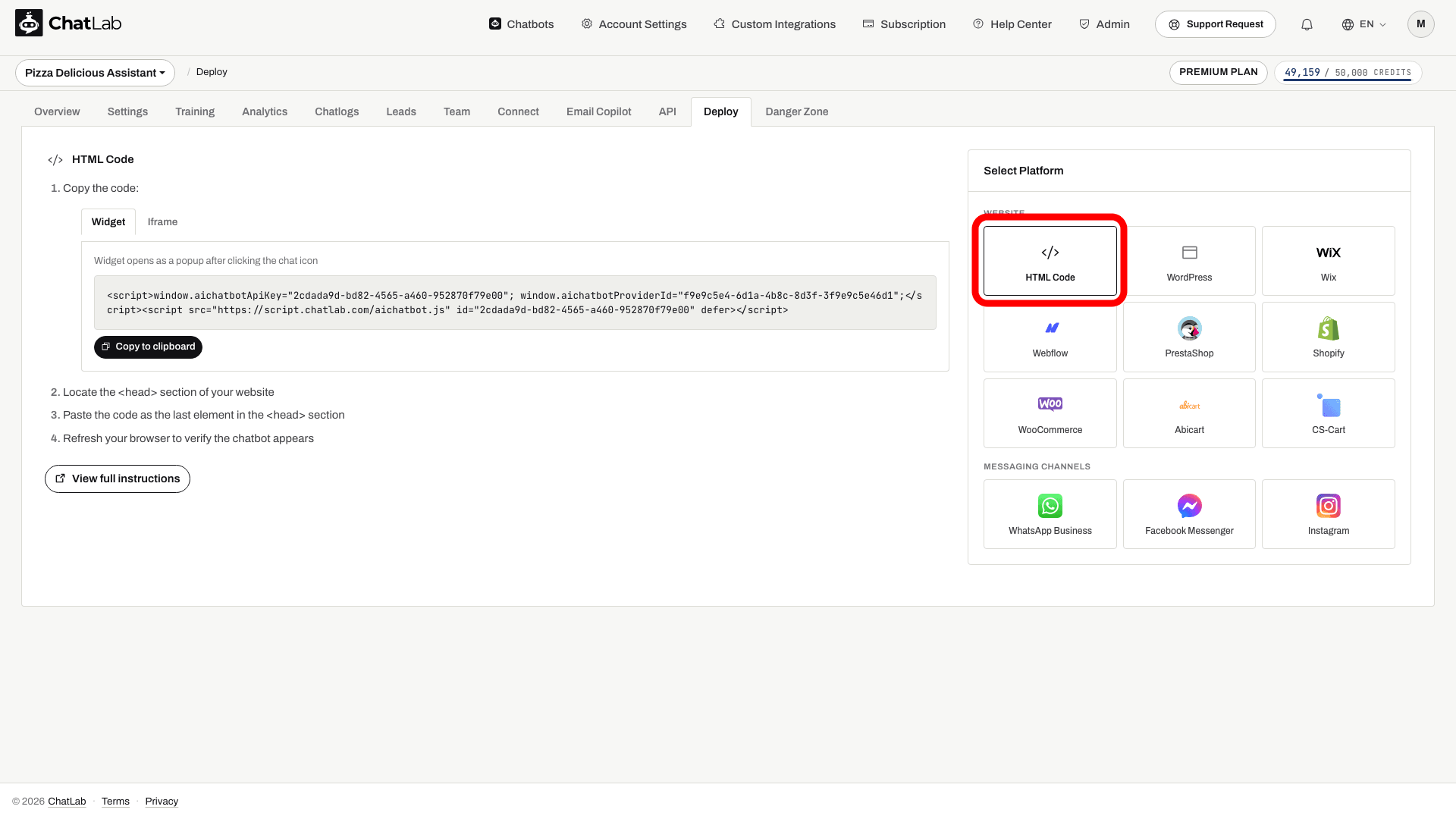
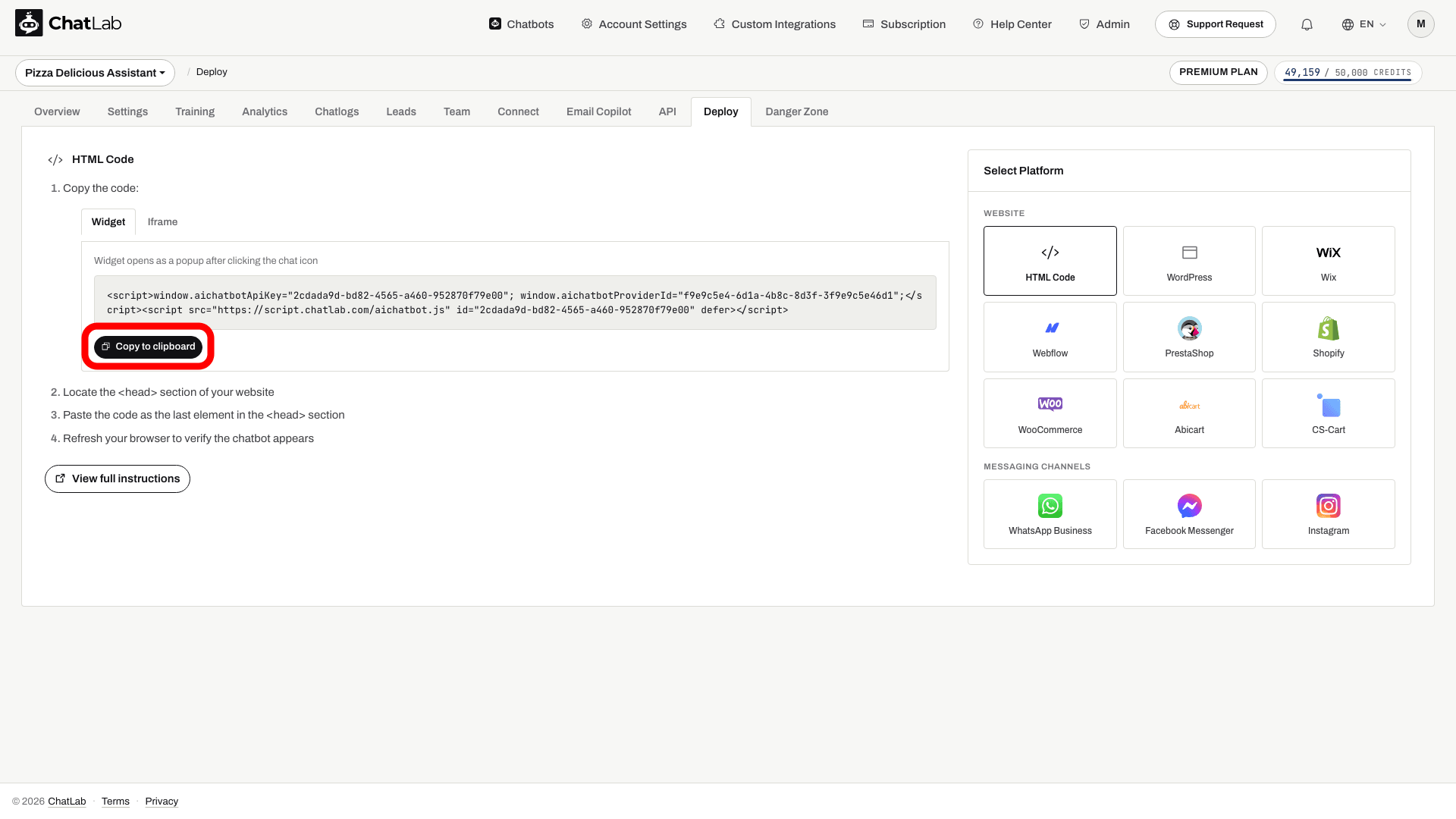
- Select Widget for this installation. See What is the difference between widget and Iframe? for a comparison
- Click Copy to clipboard
Step 2 - Open the Showcase page settings in IdoBooking
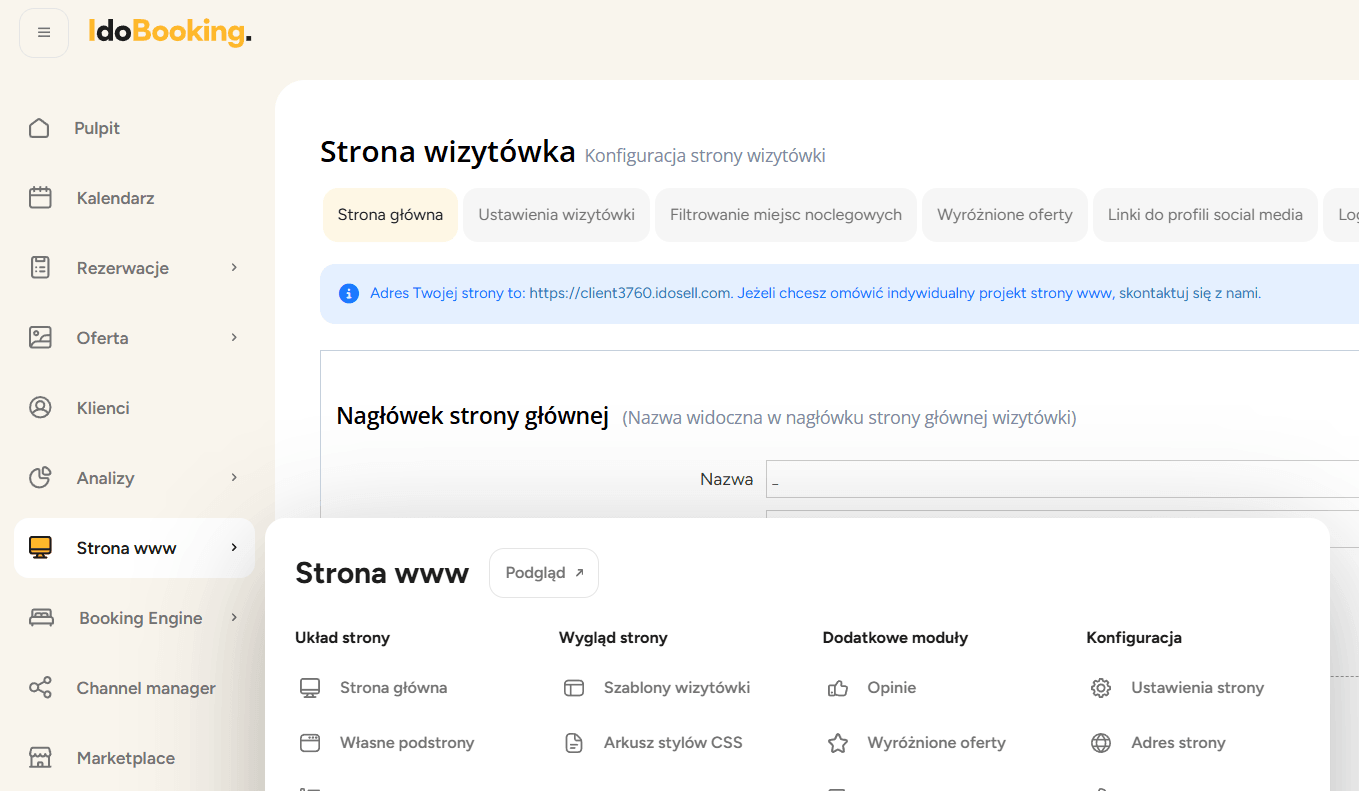
- Log in to your IdoBooking administration panel
- From the menu, select Strona www
- Choose Strona główna
Step 3 - Paste the chatbot code
- Scroll down to the Dodaj własny kod HTML/JavaScript section
- Paste the ChatLab code you copied in Step 1 into this field

Step 4 - Save changes
Click Zapisz zmiany to save your changes.
Verifying the installation
After saving, open your IdoBooking Showcase page in a browser. You should see the chat icon appear in the corner of the page. Click the icon and send a test message to confirm everything is working.
Combining with the IdoBooking integration
For the best guest experience, pair the chatbot widget with the IdoBooking integration. While this article covers adding the chat widget to your website, the integration connects your chatbot to the IdoBooking reservation system so it can check real-time availability, display room details, and assist with bookings.