GDPR regulations require websites to obtain user consent before processing personal data or loading marketing-related scripts. ChatLab provides two ways to address this, and you can use either or both depending on your needs.
Approach 1 -- In-Widget Privacy Consent. Require visitors to accept your Privacy Policy directly inside the chat widget before they can start a conversation or submit personal information.
Approach 2 -- Load After Consent. Prevent the chatbot script from loading at all until the visitor grants cookie/marketing consent through your Consent Management Platform (CMP).
Approach 1: In-Widget Privacy Consent
ChatLab has built-in consent settings that let you require visitors to accept your Privacy Policy before interacting with the chatbot. The widget itself handles the consent flow -- no external tools needed.
Accessing the settings
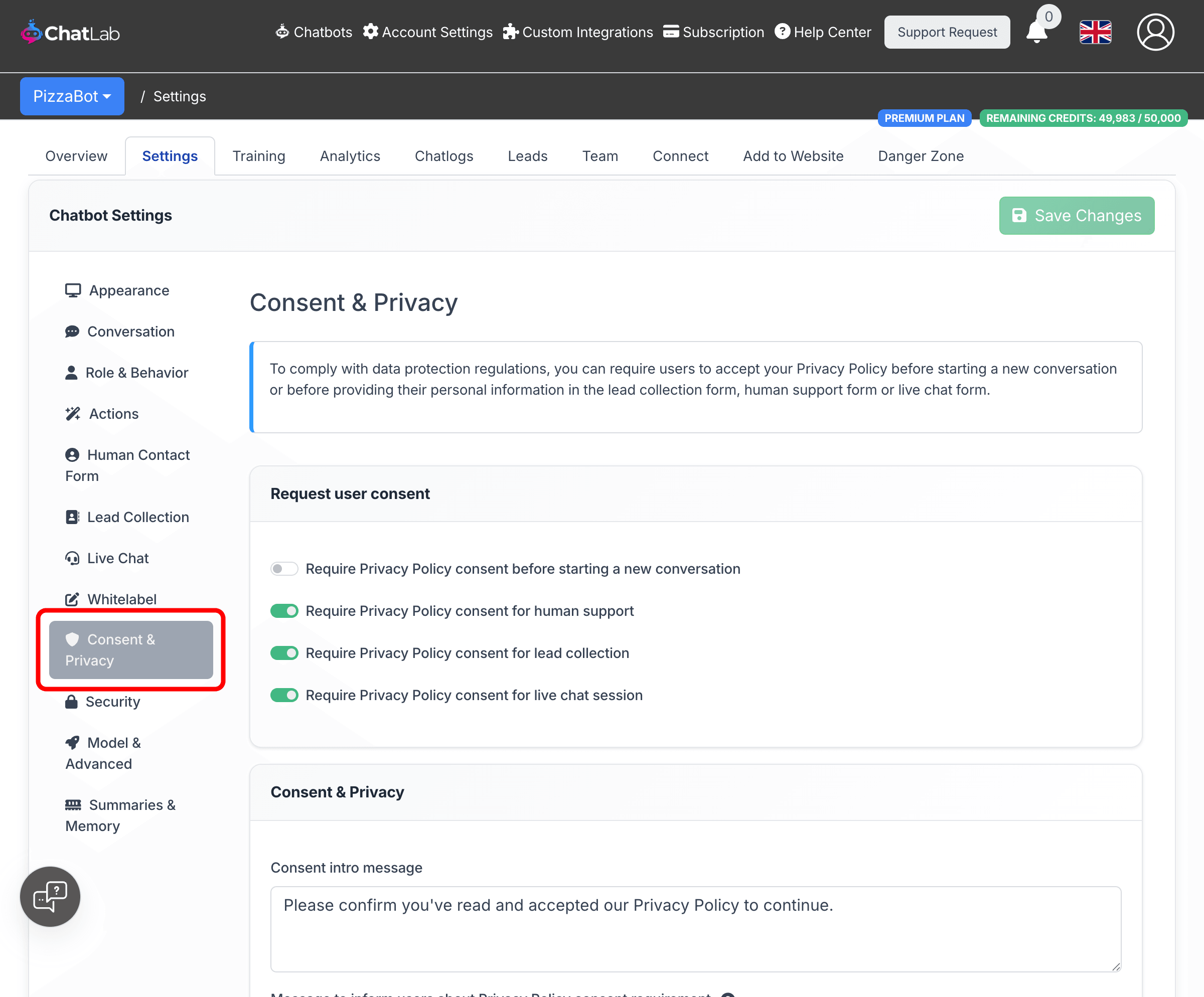
Open your chatbot in the dashboard, go to the Settings tab, then click Consent & Privacy in the left sidebar.
Consent toggles
The Request user consent card has four toggles.
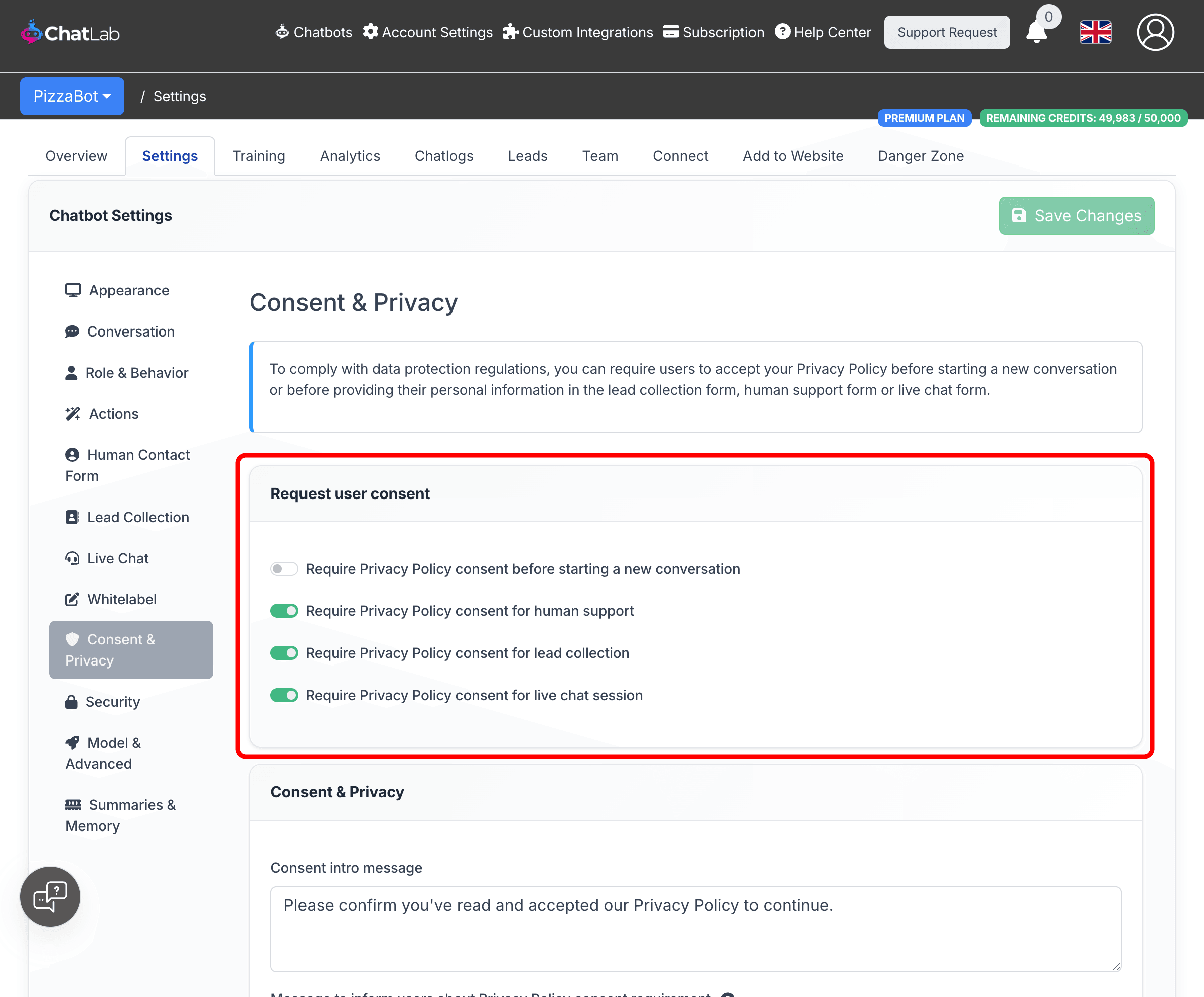
- Require Privacy Policy consent before starting a new conversation -- When enabled, visitors must accept the policy before sending their first message. This is the broadest option: it automatically covers all forms (lead collection, human support, and live chat), so the other three toggles become disabled.
- Require Privacy Policy consent for human support -- Adds a consent checkbox to the human support contact form.
- Require Privacy Policy consent for lead collection -- Adds a consent checkbox to the lead collection form.
- Require Privacy Policy consent for live chat session -- Adds a consent checkbox to the live chat form.
If you only need consent for specific interactions (for example, only when collecting personal data via leads), enable the individual toggles instead of the "new conversation" toggle.
Customizing the consent messages
Below the toggles, the Consent & Privacy card lets you configure what visitors see.
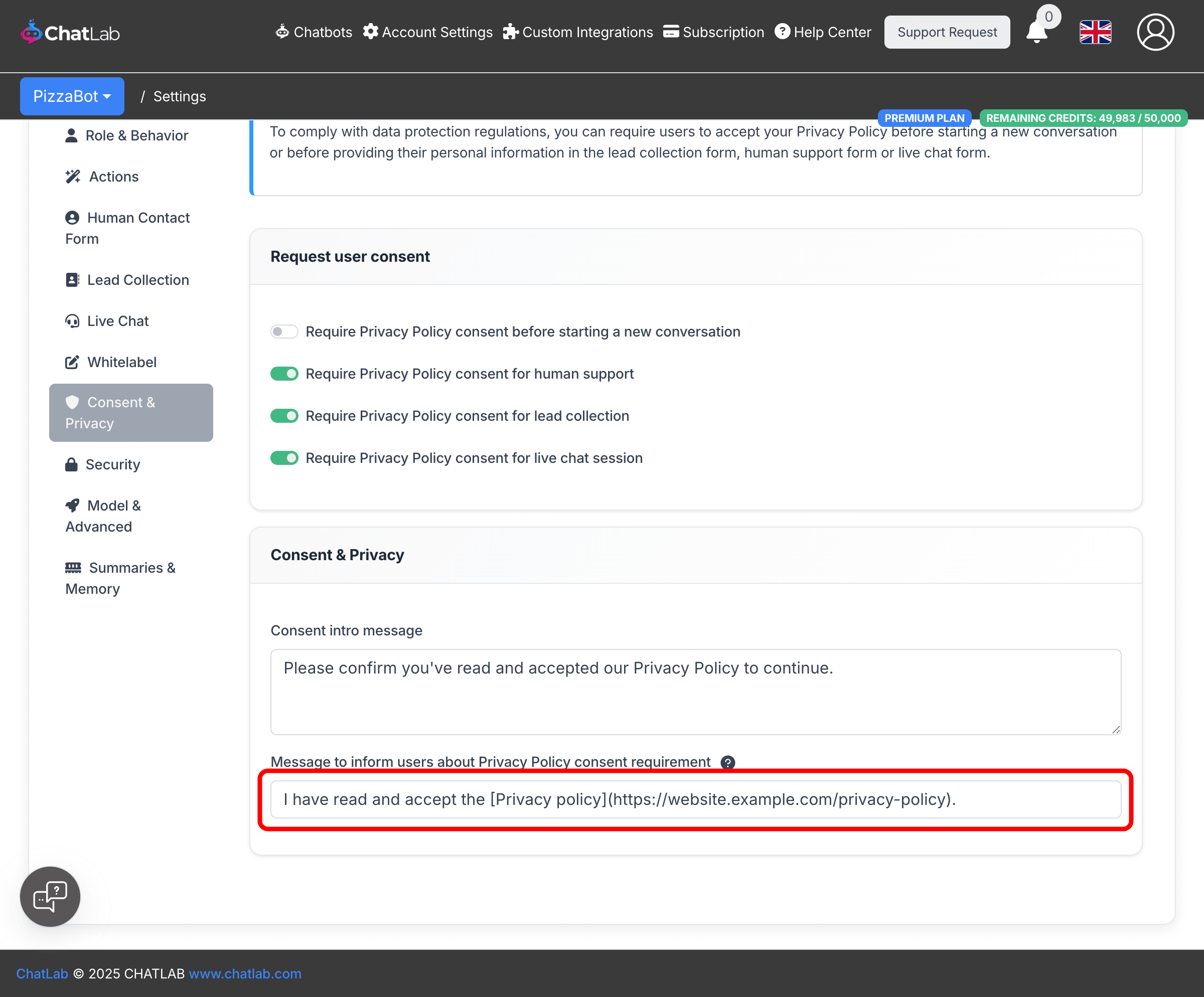
- Consent intro message -- The text displayed above the consent checkbox. For example: "Please confirm you've read and accepted our Privacy Policy to continue."
- Message to inform users about Privacy Policy consent requirement -- The checkbox label text. Use markdown to include a link to your privacy policy:
I have read and accept the [Privacy Policy](https://www.example.com/privacy-policy).
After configuring, click Save Changes.
Approach 2: Load After Consent (CMP Integration)
If you classify the chatbot as a marketing tool under your cookie policy, you should prevent the ChatLab script from loading until the visitor grants consent. This requires integration with a Consent Management Platform.
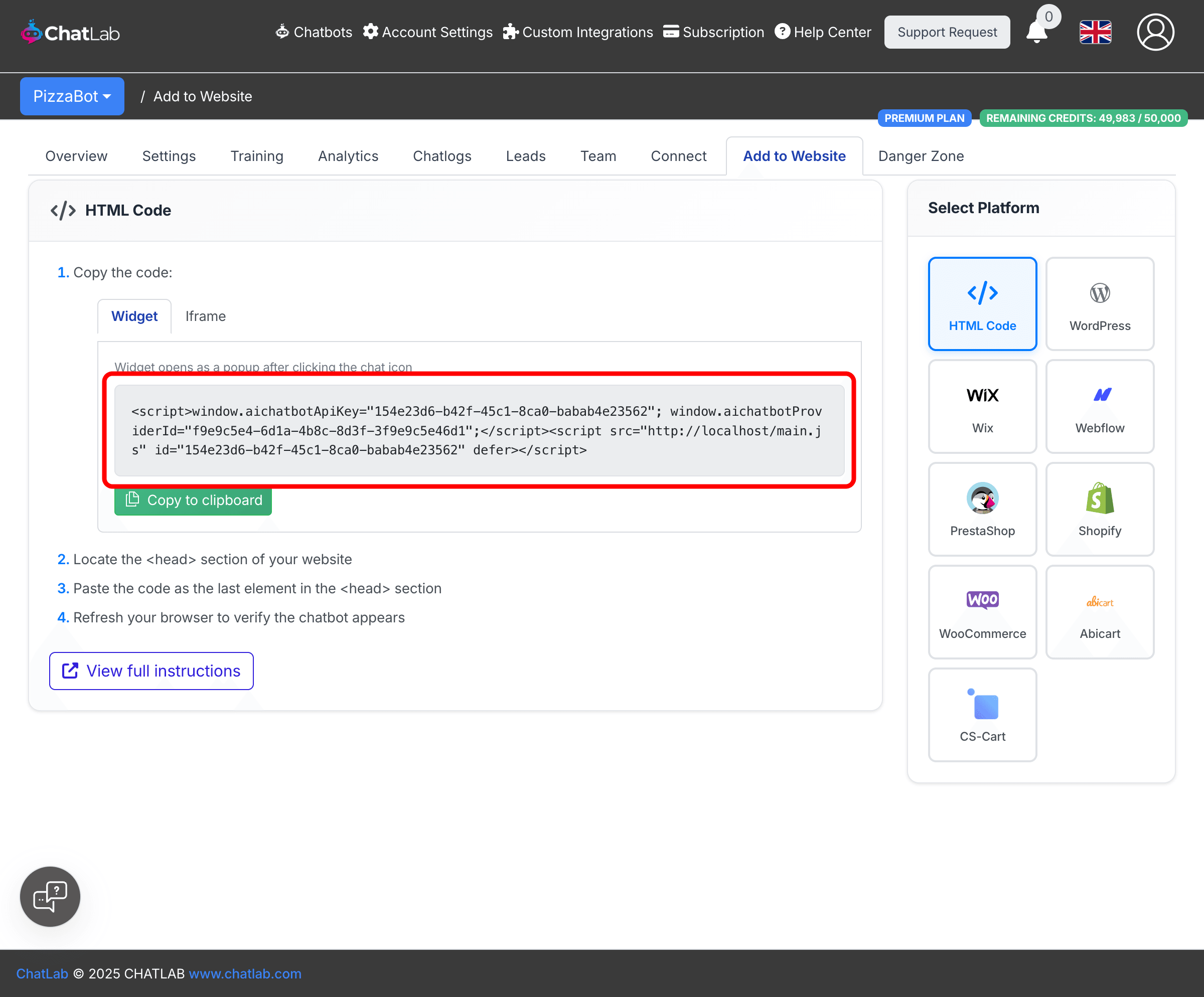
Default ChatLab embed code
The standard ChatLab embed code looks like this:
<script>
  window.aichatbotApiKey = "YOUR_API_KEY_HERE";
  window.aichatbotProviderId = "YOUR_PROVIDER_ID_HERE";
</script>
<script src="https://script.chatlab.com/aichatbot.js" id="YOUR_API_KEY_HERE" defer></script>
This code loads immediately when the page opens, regardless of the visitor's consent preferences.
You can find your API Key and Provider ID on the Add to Website tab of your chatbot.
Below are tested methods to delay the script until consent is granted using CookieBot, Usercentrics, and Google Tag Manager.
CookieBot
Step 1: Declare the loader in a blocked script
Add the following script to your page. CookieBot blocks it until the visitor gives marketing consent.
<script type="text/plain" data-cookieconsent="marketing">
  window.loadChatLab = function () {
    if (document.getElementById("YOUR_API_KEY_HERE")) return;

    window.aichatbotApiKey = "YOUR_API_KEY_HERE";
    window.aichatbotProviderId = "YOUR_PROVIDER_ID_HERE";

    var script = document.createElement("script");
    script.src = "https://script.chatlab.com/aichatbot.js";
    script.defer = true;
    script.id = "YOUR_API_KEY_HERE";

    document.body.appendChild(script);
  };

  window.unloadChatLab = function () {
    var existing = document.getElementById("YOUR_API_KEY_HERE");
    if (existing) existing.remove();
    delete window.aichatbotApiKey;
    delete window.aichatbotProviderId;
  };

  window.loadChatLab();
</script>
Step 2: Listen for consent changes
<script>
  function checkCookiebotConsent() {
    if (Cookiebot.consents?.marketing && typeof window.loadChatLab === "function") {
      window.loadChatLab();
    } else if (typeof window.unloadChatLab === "function") {
      window.unloadChatLab();
    }
  }

  window.addEventListener("CookiebotOnConsentReady", checkCookiebotConsent);
  window.addEventListener("CookieConsentDeclaration", checkCookiebotConsent);
</script>
Usercentrics
Step 1: Register a custom service
In your Usercentrics dashboard, create a new service:
- Name: ChatLab
- Category: Marketing
- Behavior: Block execution until consent is granted
Step 2: Declare the loader
<script>
  window.loadChatLab = function () {
    if (document.getElementById("YOUR_API_KEY_HERE")) return;

    window.aichatbotApiKey = "YOUR_API_KEY_HERE";
    window.aichatbotProviderId = "YOUR_PROVIDER_ID_HERE";

    var script = document.createElement("script");
    script.src = "https://script.chatlab.com/aichatbot.js";
    script.defer = true;
    script.id = "YOUR_API_KEY_HERE";

    document.body.appendChild(script);
  };

  window.unloadChatLab = function () {
    var existing = document.getElementById("YOUR_API_KEY_HERE");
    if (existing) existing.remove();
    delete window.aichatbotApiKey;
    delete window.aichatbotProviderId;
  };
</script>
Step 3: Listen for consent changes
<script>
  function checkUsercentricsConsent() {
    var services = window.UC_UI?.getServicesBaseInfo?.() || [];
    var hasConsent = services.some(
      function (s) { return s.name === "ChatLab" && s.consent.status === true; }
    );

    if (hasConsent && typeof loadChatLab === "function") {
      window.loadChatLab();
    } else if (typeof unloadChatLab === "function") {
      window.unloadChatLab();
    }
  }

  window.addEventListener("UC_UI_INITIALIZED", checkUsercentricsConsent);
  window.addEventListener("UC_UI_CONSENTS_UPDATED", checkUsercentricsConsent);
</script>
Google Tag Manager
If you use GTM with any CMP tool (CookieBot, Usercentrics, or another), you can load ChatLab conditionally through tags and triggers.
Step 1: Create the Load tag
- Go to Tags > New
- Set Tag Type to Custom HTML
- Name the tag Load ChatLab
- Paste this HTML:
<script>
  window.loadChatLab = function () {
    if (document.getElementById("YOUR_API_KEY_HERE")) return;

    window.aichatbotApiKey = "YOUR_API_KEY_HERE";
    window.aichatbotProviderId = "YOUR_PROVIDER_ID_HERE";

    var script = document.createElement("script");
    script.src = "https://script.chatlab.com/aichatbot.js";
    script.defer = true;
    script.id = "YOUR_API_KEY_HERE";

    document.body.appendChild(script);
  };

  window.loadChatLab();
</script>
Step 2: Create the Unload tag
- Create another Custom HTML tag named Unload ChatLab
- Paste this HTML:
<script>
  window.unloadChatLab = function () {
    var existing = document.getElementById("YOUR_API_KEY_HERE");
    if (existing) existing.remove();
    delete window.aichatbotApiKey;
    delete window.aichatbotProviderId;
  };
  window.unloadChatLab();
</script>
Step 3: Create the consent trigger
- Go to Triggers > New
- Name the trigger Consent - Marketing Accepted
- Set Trigger Type to Custom Event
- Set Event name to
CookieConsentDeclaration - Under This trigger fires on, choose Some Custom Events with the condition:
CookieConsent marketing equals true - Assign this trigger to the Load ChatLab tag
Step 4: Create the revoke trigger
Follow the same steps to create a trigger for when marketing consent is denied, and assign it to the Unload ChatLab tag.
Summary
- For in-widget consent: Go to Bot Settings > Consent & Privacy and enable the appropriate toggles. Customize the consent message and add a markdown link to your privacy policy.
- For load-after-consent: Replace the default embed code with a conditional loader that only runs after your CMP confirms marketing consent has been granted.
- You can combine both approaches for maximum compliance -- delay script loading until cookie consent, then also require privacy policy acceptance inside the widget.