What are AI Actions?
AI Actions extend your chatbot's functionality beyond answering questions. They allow your chatbot to perform tasks automatically during conversations, such as collecting leads, searching products, checking order status, escalating to live chat, and calling external APIs.
How to Access AI Actions
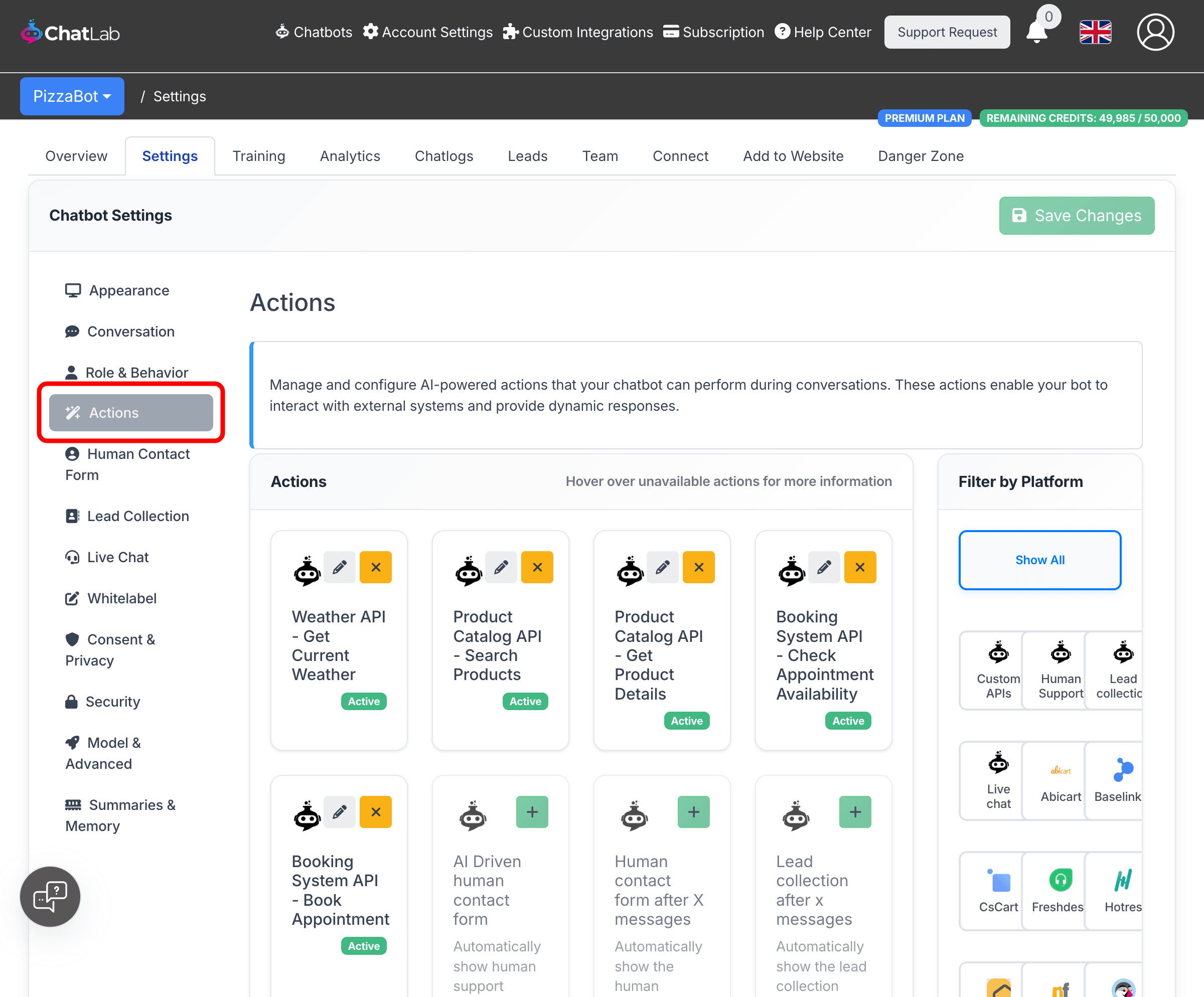
From the main dashboard, select your chatbot, click the Settings tab, then click Actions in the sidebar.
Understanding Action Tiles
Each action is displayed as a tile showing its name, a short description, and its current status. Actions appear in three states:
-
Active (green badge) -- The action is enabled and the chatbot can use it during conversations. Active actions show an Edit (pencil) button and a Deactivate (orange X) button.
-
Inactive (grey badge) -- The action is available but not currently enabled. Click the green Activate button to enable it.
-
Not connected (greyed-out tile) -- The action requires an integration that has not been set up yet. Click the Connect/Setup button to go to the Connect tab and configure the required integration first.
Filtering by Platform
The Filter by Platform sidebar on the right lets you narrow the list of actions to a specific platform or category. Available filters include:
- Custom APIs -- Your custom API integration actions
- Human Support -- Human contact form triggers
- Lead collection -- Lead capture actions
- Live chat -- Live chat escalation triggers
- E-commerce platforms -- Shopify, WooCommerce, Prestashop, Shoper, CsCart, Wix, Abicart
- Business platforms -- Baselinker, Beds24, Freshdesk, Hotres, IdoBooking, Mews, NFHotel
Click Show All to display every action.
Enabling and Configuring an Action
Step 1: Activate the Action
Find the action you want to use and click the green Activate button. A configuration dialog opens.
Step 2: Configure the Action
The configuration dialog contains up to three sections, depending on the action type.
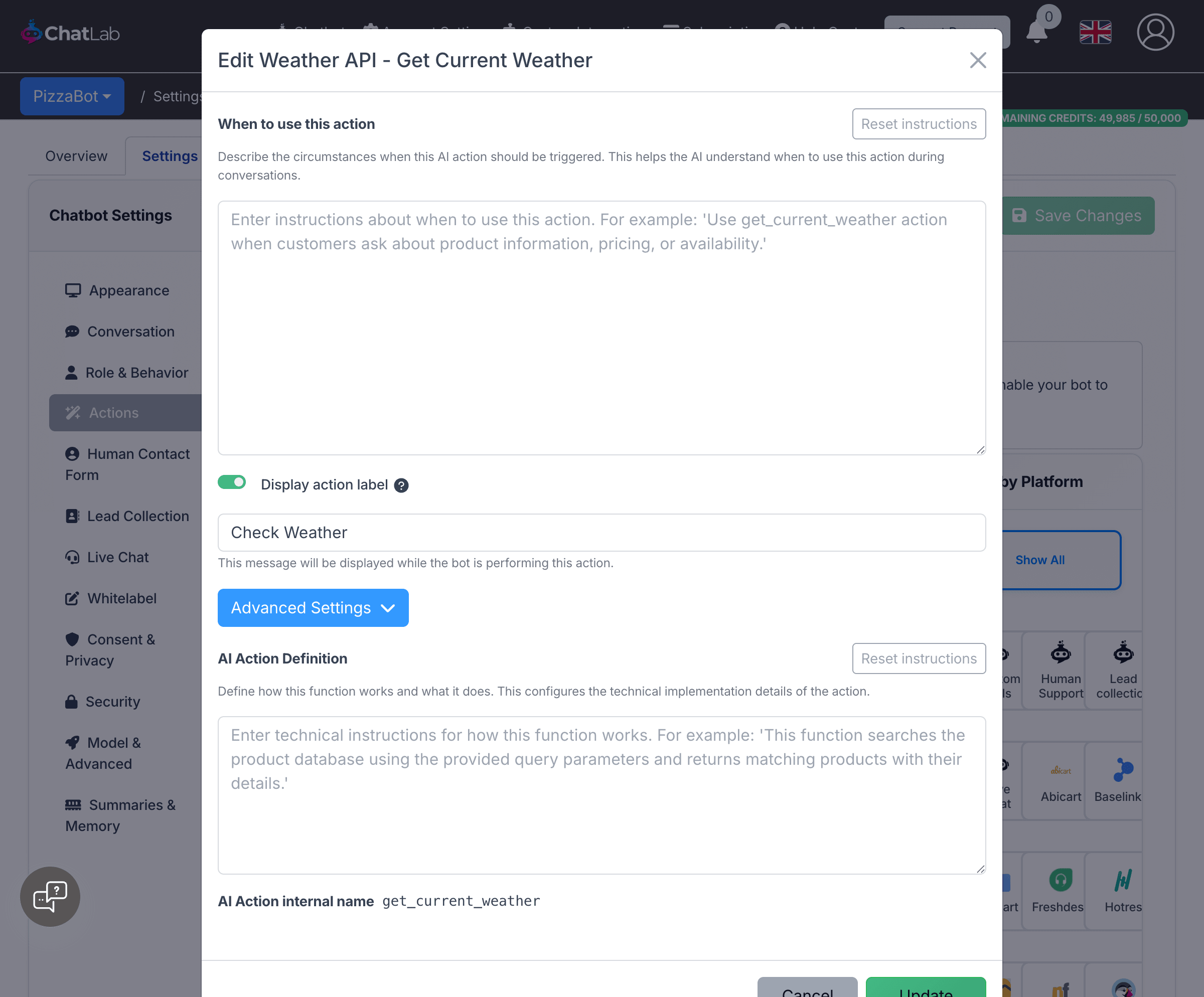
When to use this action -- Describes the circumstances when the AI should trigger this action. Pre-built actions come with sensible defaults. For custom actions, write clear instructions explaining the conversation scenarios that should activate the action.
Example:
"Use this action when the customer asks about product availability, pricing, or specifications. Trigger phrases include 'do you have...', 'how much is...', or 'tell me about a product'."
Display action label -- A toggle that controls whether a status message appears in the chat while the action runs. When enabled, enter a short label such as "Searching products..." or "Checking availability..." that the visitor sees during execution.
Advanced Settings (expandable section):
-
AI Action Definition -- Defines the technical behavior of the action. Pre-built actions have this configured automatically. For custom API actions, describe the function's purpose and reference the parameters the chatbot needs to collect from the conversation. Do not include integration details like URLs or HTTP methods -- only describe what the function does and which parameters it needs.
-
AI Action internal name -- A read-only identifier used internally by the AI model. Useful for referencing in trigger prompts (e.g., "Use the
get_product_detailsaction when...").
Click Enable (for new activations) or Update (for edits) to save your changes.
Pre-Built Action Categories
Human Support
- AI Driven human contact form -- Automatically shows the human support contact form when the AI detects the visitor needs human help
- Human contact form after X messages -- Shows the contact form after a set number of messages
Lead Collection
- Lead collection after X messages -- Displays the lead collection form after a set number of messages
- AI driven lead collection -- AI picks the best moment to ask for contact details
- Smart AI lead detection -- Quietly detects lead information from the conversation text
Live Chat
- AI triggered live chat -- Automatically starts a live chat session when the AI determines the visitor needs real-time help
E-Commerce Integrations
Product search and order tracking actions for Shopify, WooCommerce, Prestashop, Shoper, CsCart, Wix, and Abicart. These require the corresponding integration to be connected first (Settings > Connect).
Business Platform Integrations
Actions for Baselinker, Beds24, Freshdesk, Hotres, IdoBooking, Mews, and NFHotel. These include order details, ticket management, room and apartment search, booking availability checks, and reservation lookups.
Custom API Actions
You can create your own actions that call external APIs.
-
Go to Custom Integrations in the main menu to define your API endpoint, HTTP method, headers, and parameters
-
Return to your bot's Settings > Actions -- your custom API actions appear in the action list under the Custom APIs filter
-
Activate and configure them the same way as pre-built actions
When writing the AI Action Definition for custom actions, focus on describing what the function does and which parameters the chatbot should collect from the conversation. Do not repeat integration details (URL, headers, authentication) that are already configured in the Custom Integrations page.
Best Practices
- Be specific in trigger prompts -- Clearly describe the exact scenario and include example user phrases
- Avoid trigger overlap -- Make sure different actions have distinct trigger conditions so the AI picks the right one
- Keep action labels short -- Use present continuous tense ("Searching products...", "Checking order status...") and stay under 50 characters
- Enable only what you need -- Too many active actions can confuse the AI about which one to use
- Test in a live chat -- After configuring, test the action by chatting with your bot to verify it triggers correctly
- Use Reset instructions -- If your custom prompt is not working well, click Reset instructions to restore the default and start fresh