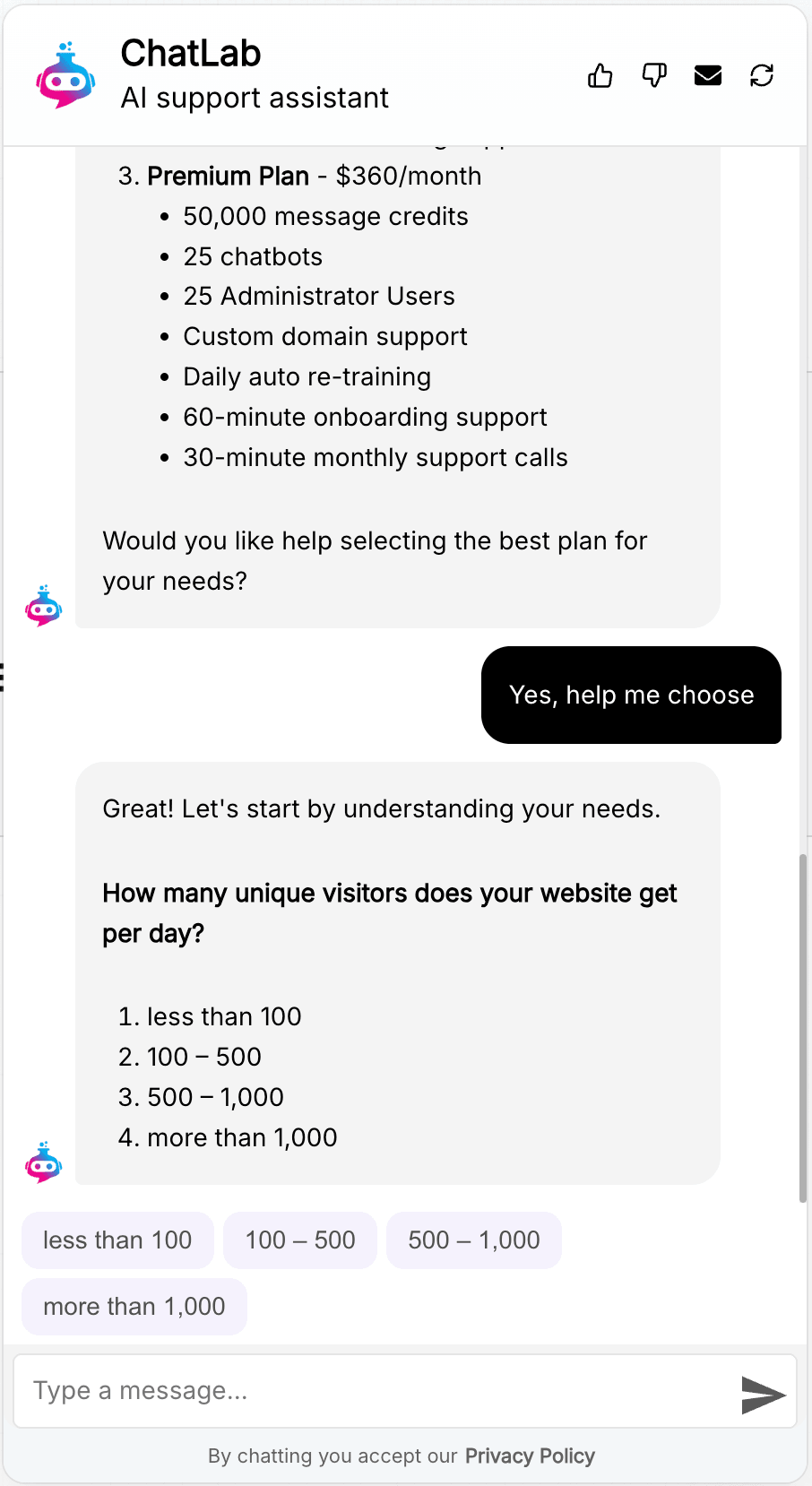
Predefined question and answer flows let you guide visitors through a structured conversation. Instead of open-ended chat, the chatbot asks a series of questions, presents answer choices as clickable buttons, and responds based on the visitor's selections.
How it works
A predefined Q&A flow combines two features:
- Custom Role & Behavior prompt -- defines the questions, answer options, and decision logic
- Dynamic Suggested Follow-ups -- presents the answer options as clickable buttons after each response
When a visitor triggers the flow (for example, by asking about pricing or clicking a suggested question), the chatbot follows the instructions in your prompt. After each response, it generates follow-up buttons matching the answer choices you defined. The visitor clicks an option, and the chatbot continues to the next step.
Example
Here is a predefined flow in action. The chatbot asks about the visitor's needs, presents options as buttons, and recommends a plan based on the answers:
Setting up a predefined flow
Step 1: Write the prompt
Go to Settings > Role & Behavior and click Enable custom role and behavior instructions.
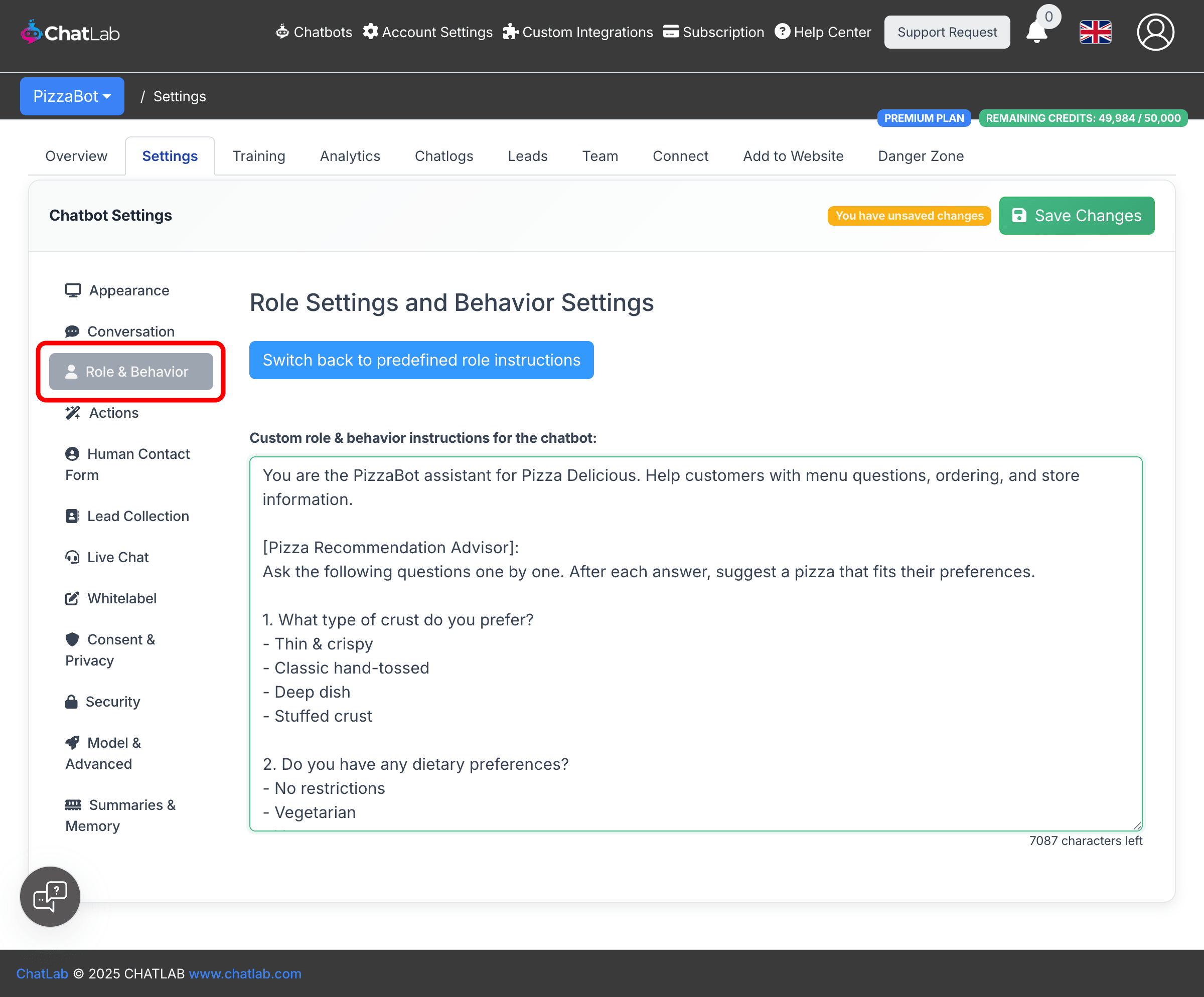
Write a prompt that defines your flow. A good prompt structure includes:
- A general role description -- what the chatbot does
- A named section -- use brackets like
[Section Name]to label the flow - Numbered questions -- each with a list of answer options
- A mapping section -- links answer combinations to specific recommendations
- A trigger instruction -- tells the chatbot when to start the flow
Here is a prompt template you can adapt:
You are the assistant for [Your Company]. Help customers with [your topic].
[Advisor Flow]: Ask the following questions one by one. After each answer, explain which option fits the user's needs.
- [First question]?
- Option A
- Option B
- Option C
- [Second question]?
- Option A
- Option B
- Option C
Mapping: Option A + Option A = Recommendation 1 Option A + Option B = Recommendation 2 Option B + Option C = Recommendation 3
When user asks about [topic], proceed with the [Advisor Flow].
Step 2: Enable Dynamic Suggested Follow-ups
Go to Settings > Conversation and turn on the Dynamic suggested follow-ups toggle.
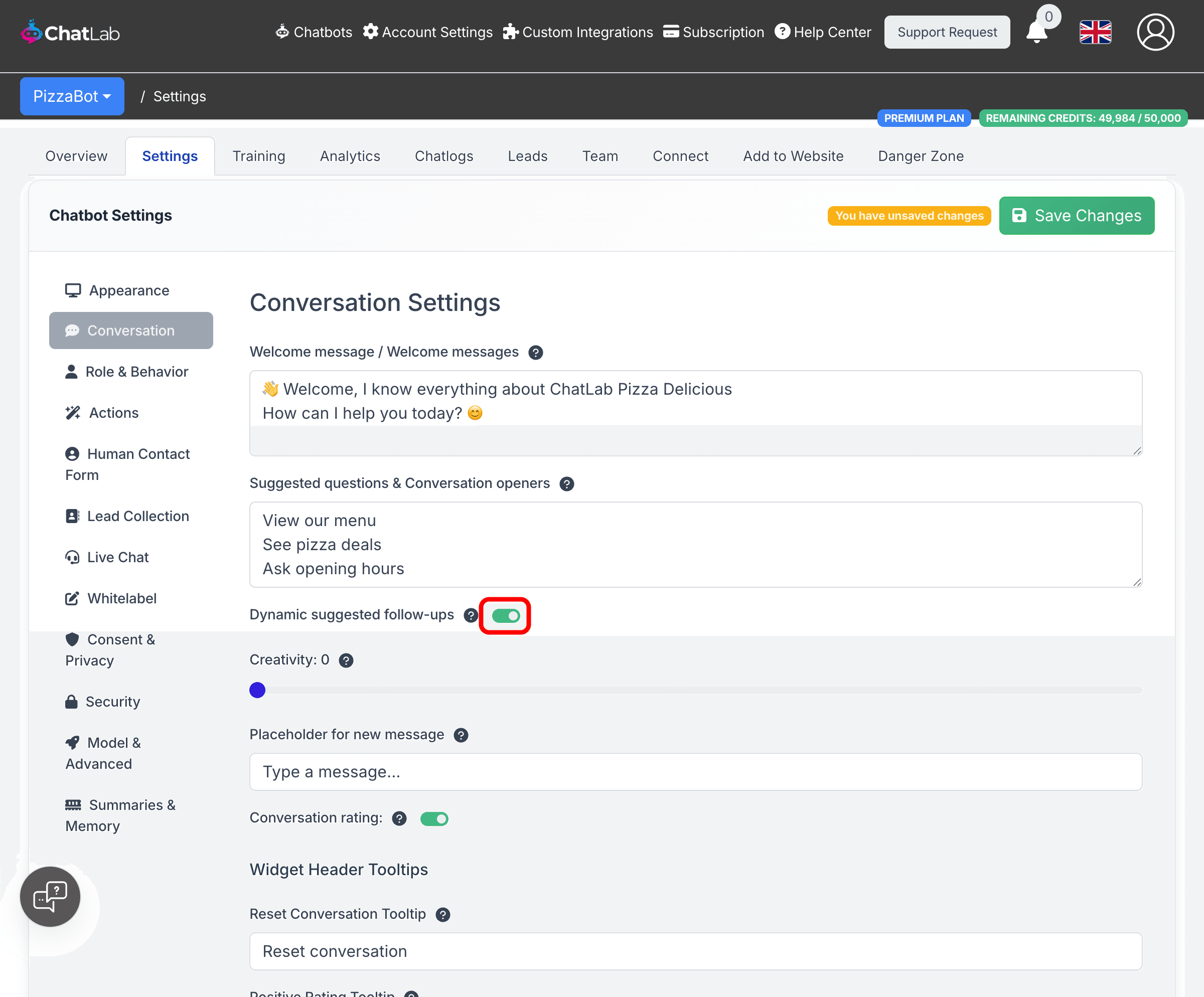
This is what makes the answer options appear as clickable buttons in the chat. Without this toggle, the chatbot would list the options as text instead of interactive buttons.
After enabling both settings, click Save Changes.
Step 3: Test the flow
Open the chat tester from the Overview tab and try the conversation. Verify that the chatbot follows the correct sequence of questions and that the answer options appear as buttons.
Tips for better flows
- Keep questions short -- the chatbot generates 3-4 follow-up buttons, each limited to a few words. Design your answer options to be concise.
- Use clear mappings -- explicitly map answer combinations to outcomes so the chatbot gives consistent recommendations.
- Add a trigger condition -- specify when the flow should start (for example, "When user asks about pricing" or "When user wants help choosing a product").
- Test variations -- try different answer paths to make sure all combinations produce correct results.
- Combine with training data -- the chatbot can still use your knowledge base alongside the flow, so train it with relevant content for more detailed responses.
Model compatibility
Dynamic Suggested Follow-ups require a compatible AI model. The feature is not available for Gemini models (Gemini 2.5 Pro, Gemini 2.5 Flash). If your chatbot uses a Gemini model, switch to any GPT model in Settings > Model & Advanced.
Related articles
- Dynamic suggested follow-ups -- detailed guide on how follow-up buttons work
- Bot behavior customization -- how to write custom role instructions