You can share your chatbot with clients, collaborators, or testers via a direct link -- no website embedding required. Recipients can interact with your chatbot immediately, without needing a ChatLab account.
Where to find sharing links
Select your chatbot and open the Overview tab. Scroll down to the Try out & share row on the left side of the page.
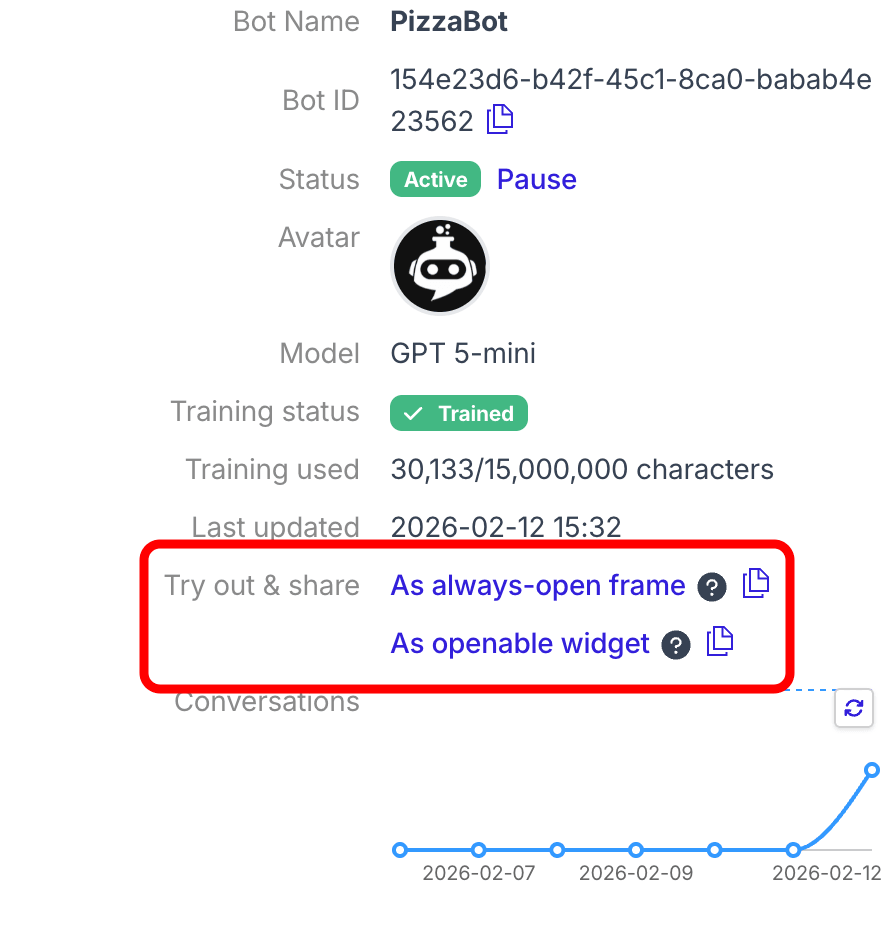
Sharing options
There are two sharing modes, each with a clickable link and a copy icon:
-
As always-open frame -- opens a page with the chatbot displayed in a large, always-visible frame in the center of the screen. Best for demos and focused testing sessions.
-
As openable widget -- opens a page with a chat icon in the corner. Clicking the icon opens the chatbot in a popup window. This replicates how visitors experience the chatbot on a real website.
For each option, you can:
- Click the link text to open a preview in a new browser tab
- Click the copy icon next to the link to copy the URL to your clipboard, then share it via email, chat, or any other channel

What recipients see
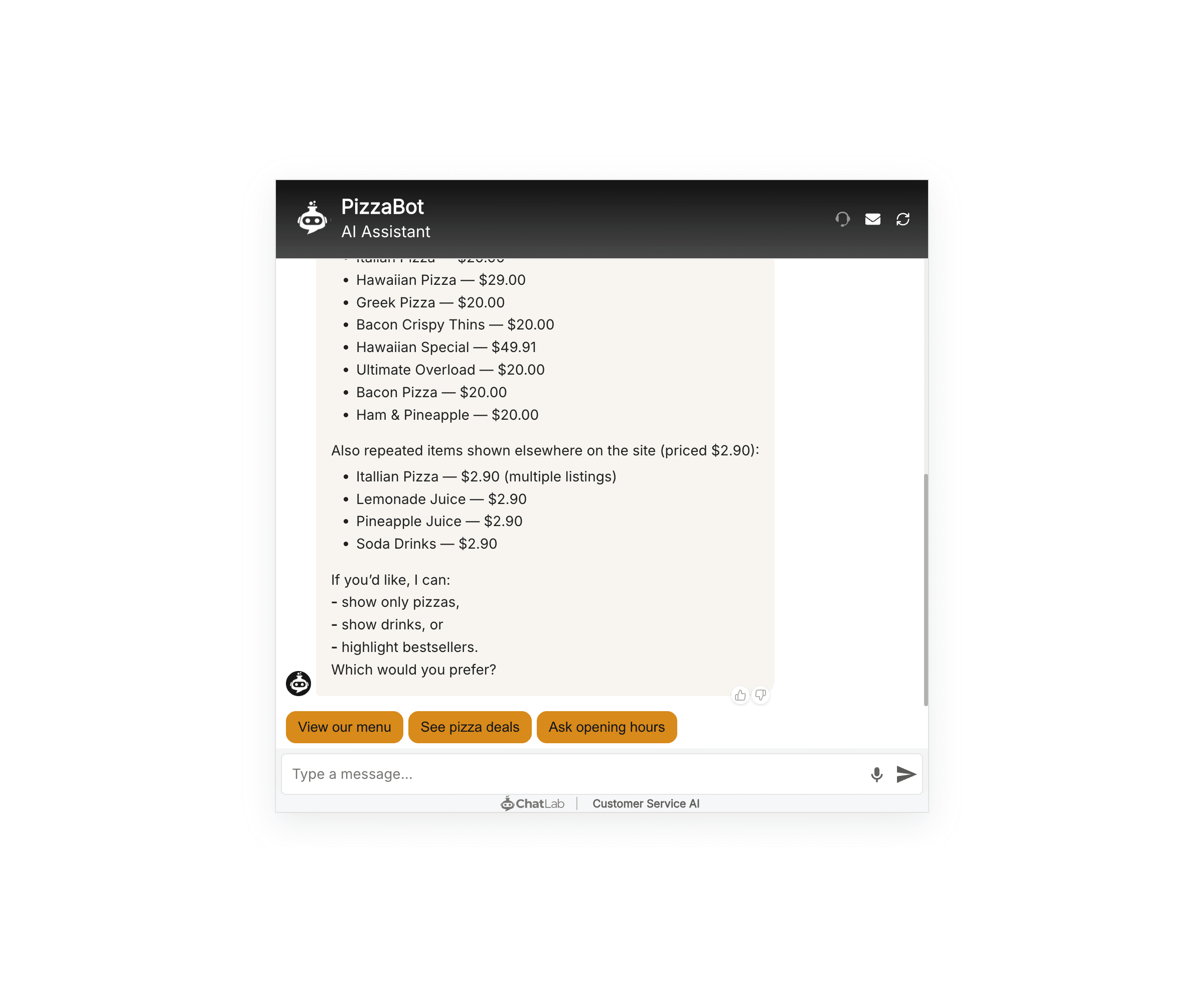
When someone opens a sharing link, they see your chatbot on a clean, empty page -- fully functional with all your training, settings, and customizations applied. Here is an example of the always-open frame mode:
Important notes
- Sharing links are for testing and sharing only. Do not paste a sharing link into your website code. To embed the chatbot on a website, use the code snippet provided in the Add to Website tab.
- Sharing links use your chatbot's live configuration. Any changes you make to settings, training, or appearance are reflected immediately for anyone using the link.
- Conversations through sharing links consume message credits just like regular chatbot conversations.