ChatLab offers two ways to add a chatbot to your website: as a widget or as an iframe. Both use the same chatbot with the same training data and settings, but they differ in how the chatbot appears on your page.
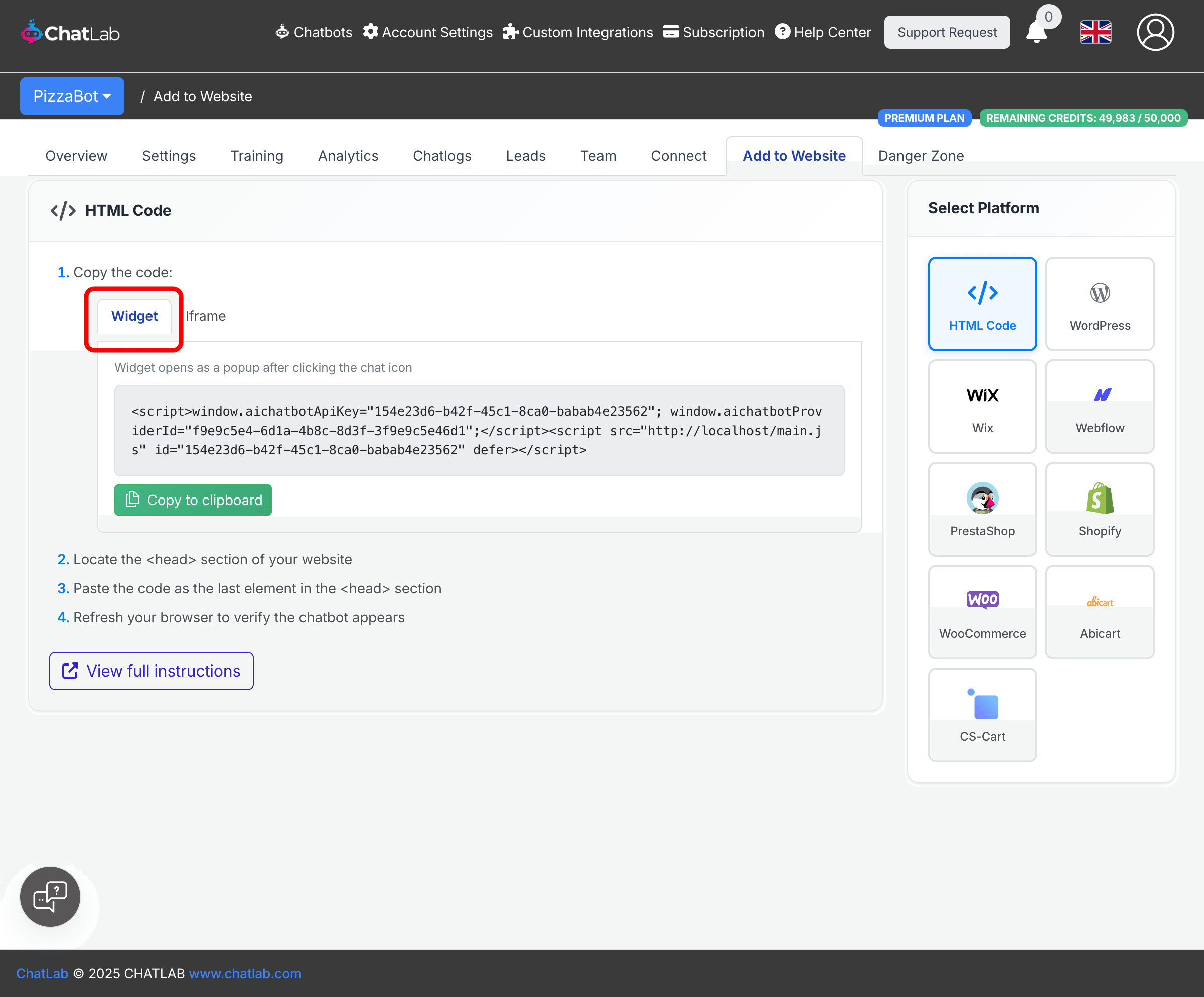
Widget
The widget adds a chat icon to a fixed position on your page (bottom-right by default). Visitors click the icon to open a chat popup. The chat window can be closed back to the icon at any time.
Key characteristics:
- Appears as a launcher icon in the corner of the screen
- Opens as a popup when visitors click the icon
- Stays available across all pages where the code is installed
- Supports customization of the icon position, auto-open behavior, welcome message bubbles, and minimized display mode (Settings > Appearance)
Iframe
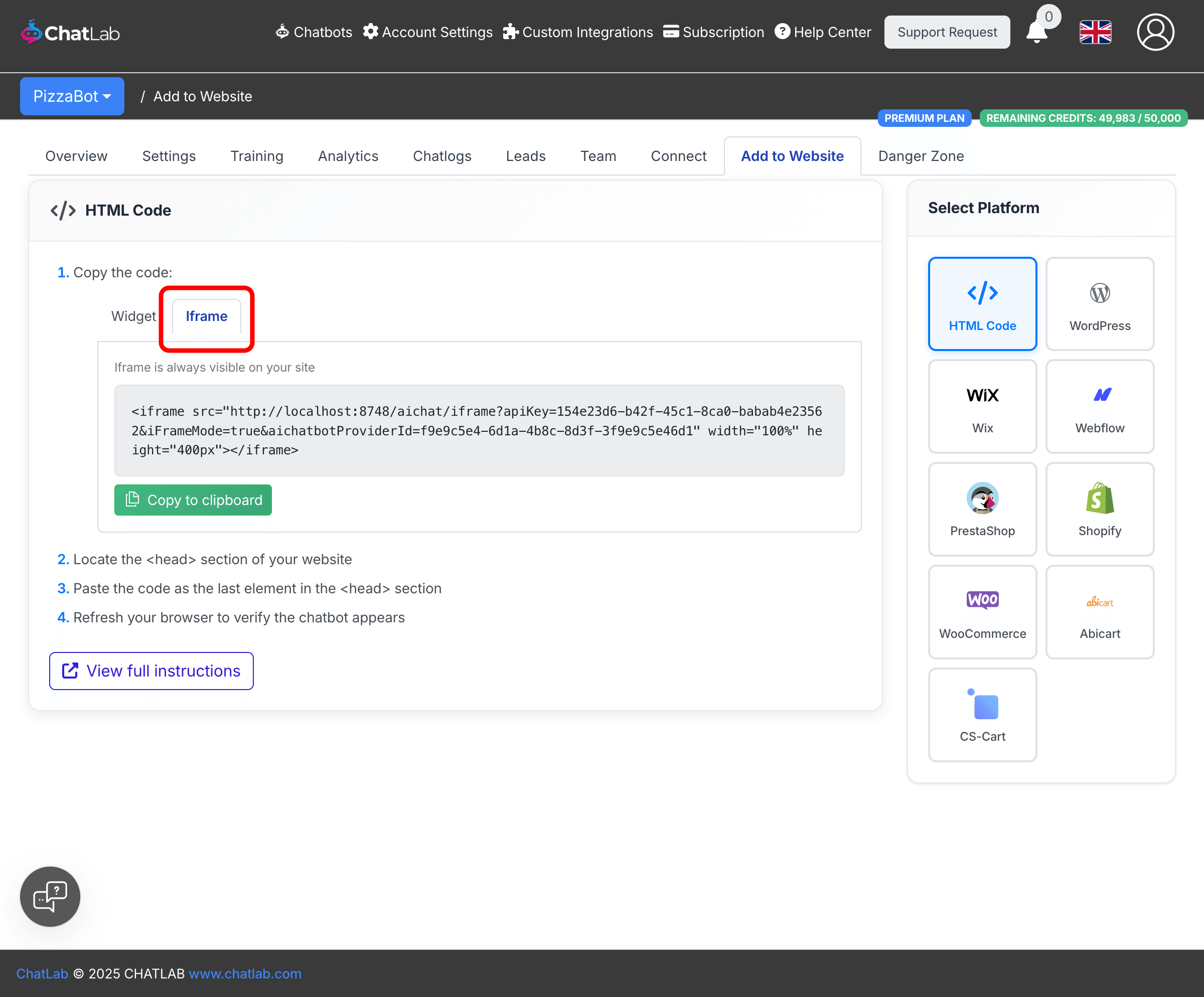
The iframe embeds the chatbot directly into your page content. The chat window is always visible and can be surrounded by other elements on the page.
Key characteristics:
- Always visible on the page without needing to click an icon
- Embedded in the page flow alongside other content
- Adjustable size -- you can set the
widthandheightattributes in the embed code to fit your layout - Best for dedicated pages where the chatbot is a central element, such as a support page or landing page
Where to select widget or iframe
- Select your chatbot from the dashboard
- Click the Add to Website tab
- Choose the Widget or Iframe tab to see the corresponding embed code
- Click Copy to clipboard and paste the code into your website
Trying both modes
You can preview both modes without embedding any code. On the Overview tab, find the Try out & share row and click either link:
- As always-open frame -- opens the chatbot in iframe mode
- As openable widget -- opens the chatbot in widget mode with the launcher icon

For more about sharing these preview links, see Sending a link to your chatbot.
Which should I choose?
- Choose widget if you want the chatbot available on every page without taking up screen space. Visitors can open the chat when they need help and close it when they are done.
- Choose iframe if you want the chatbot to be a visible part of a specific page layout, such as a help center, contact page, or product page where the chatbot is always ready for interaction.