The Summaries & Memory feature enables your chatbot to generate conversation summaries, build client profiles, and use this information in future conversations. This allows the chatbot to recognize returning visitors and recall topics from previous interactions.
💡 Enabling conversation summaries costs 5 message credits per conversation. The cost is charged once when the summary is first generated.
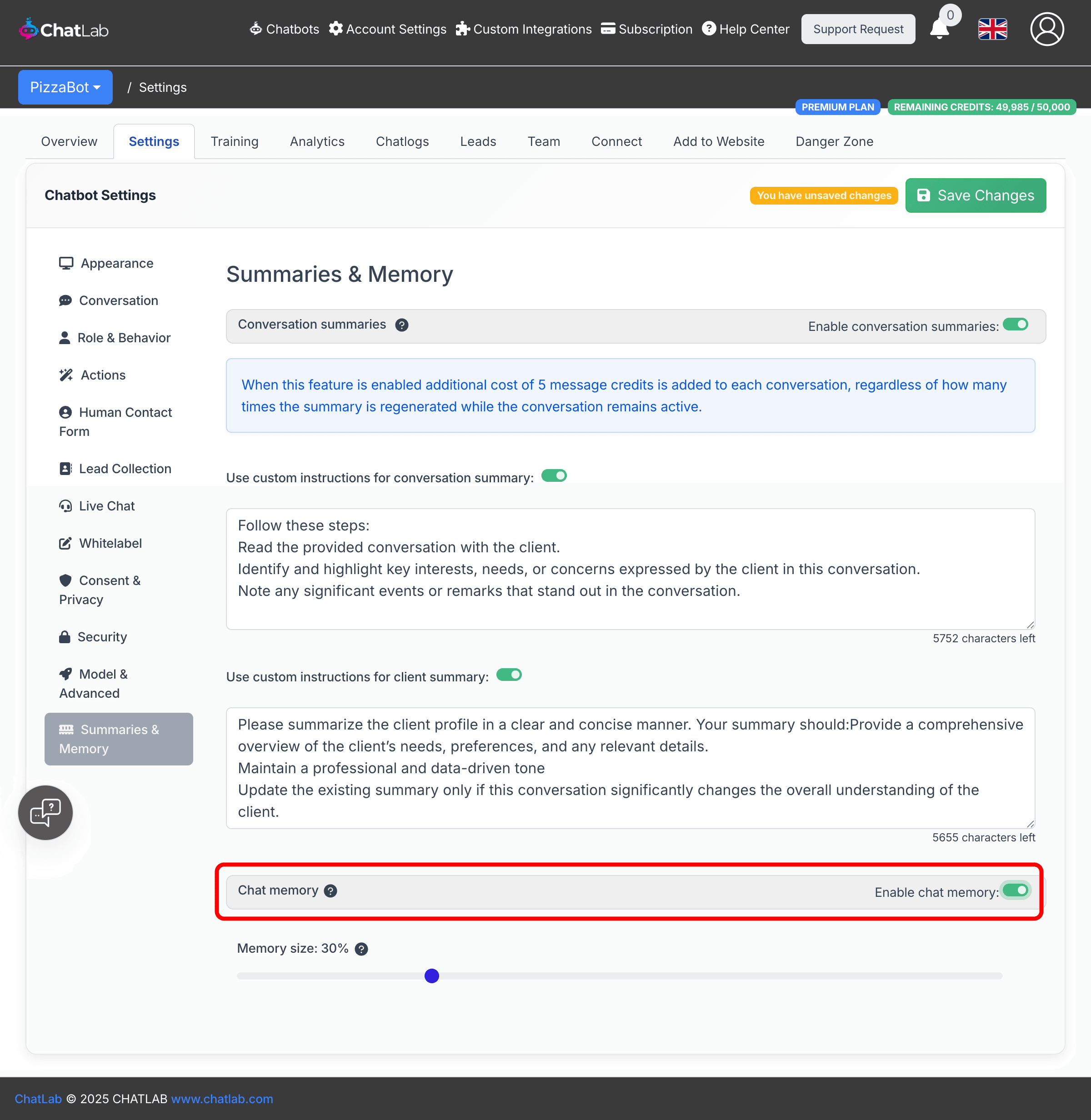
Where to find these settings
Select your chatbot, click the Settings tab, then select Summaries & Memory in the left sidebar.
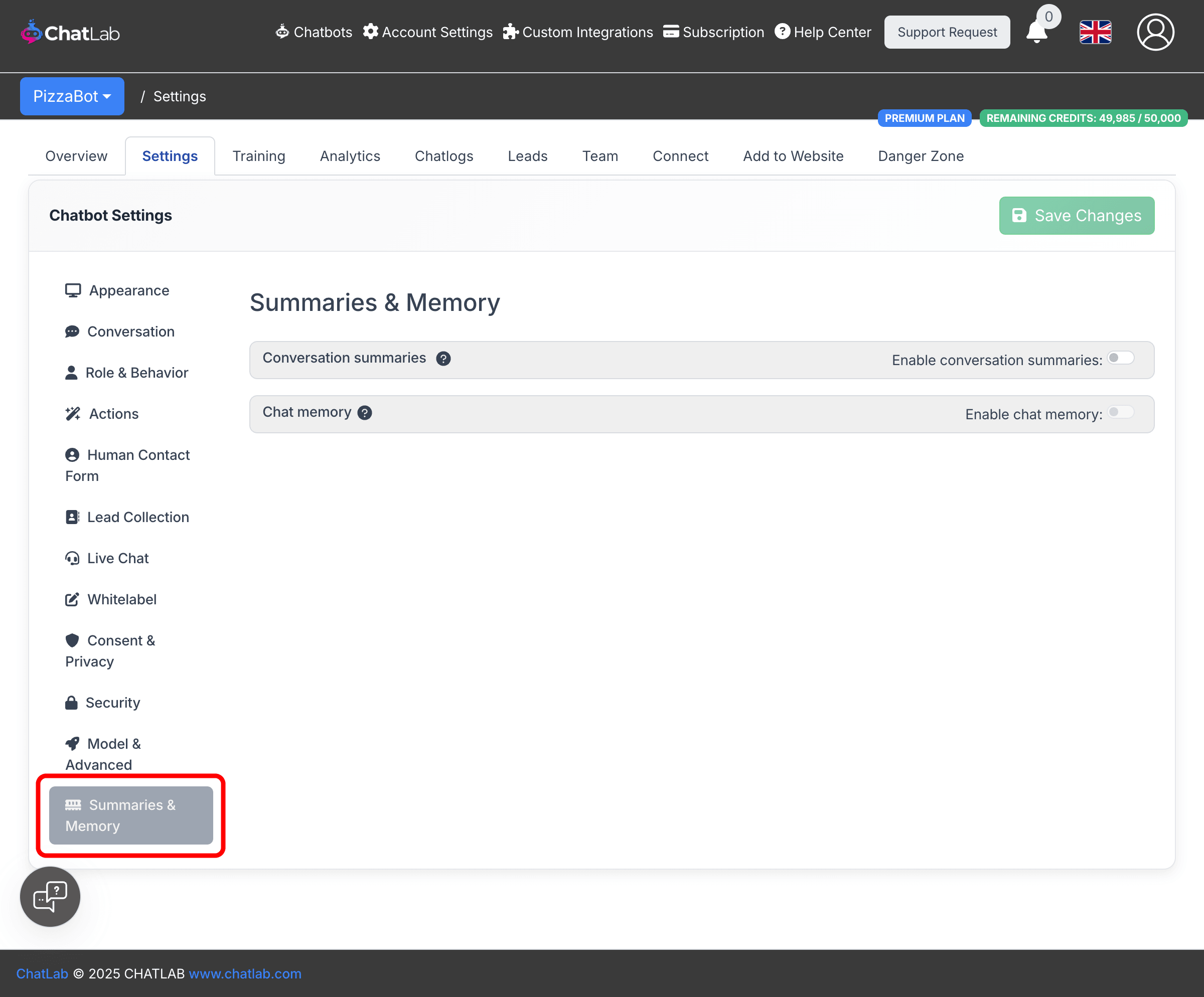
Conversation summaries
Conversation summaries are AI-generated overviews created automatically after each conversation ends (approximately 2 minutes after the last message). They capture key topics, client needs, and significant details from the conversation.
To enable conversation summaries, toggle Enable conversation summaries (Settings > Summaries & Memory).
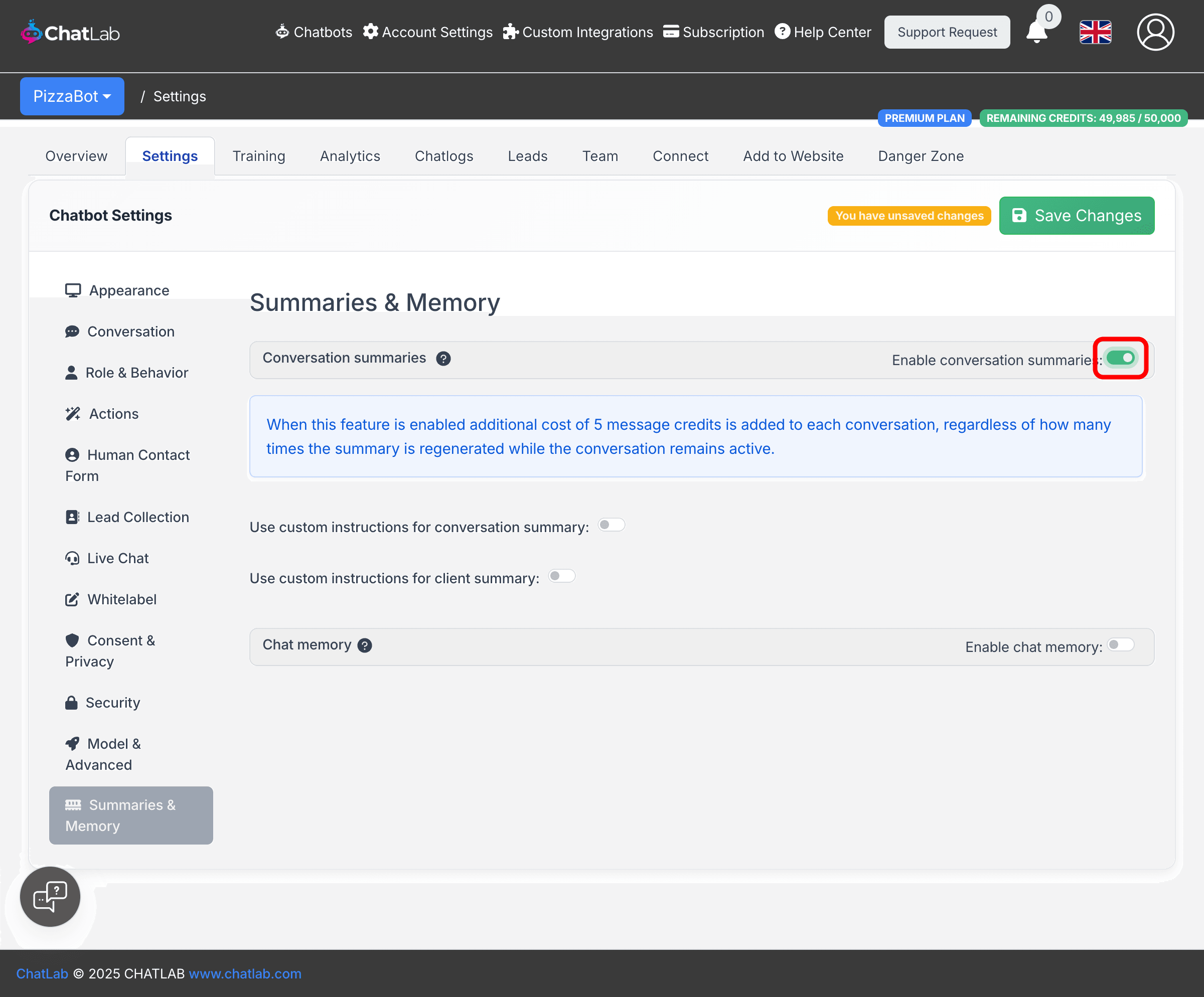
Once enabled, two additional options become available:
- Use custom instructions for conversation summary -- control what information the AI captures about each conversation
- Use custom instructions for client summary -- control how the AI builds an overall profile of each client across all their conversations
Toggle either option to reveal a text field where you can write your own prompt. Default instructions are provided as a starting point.
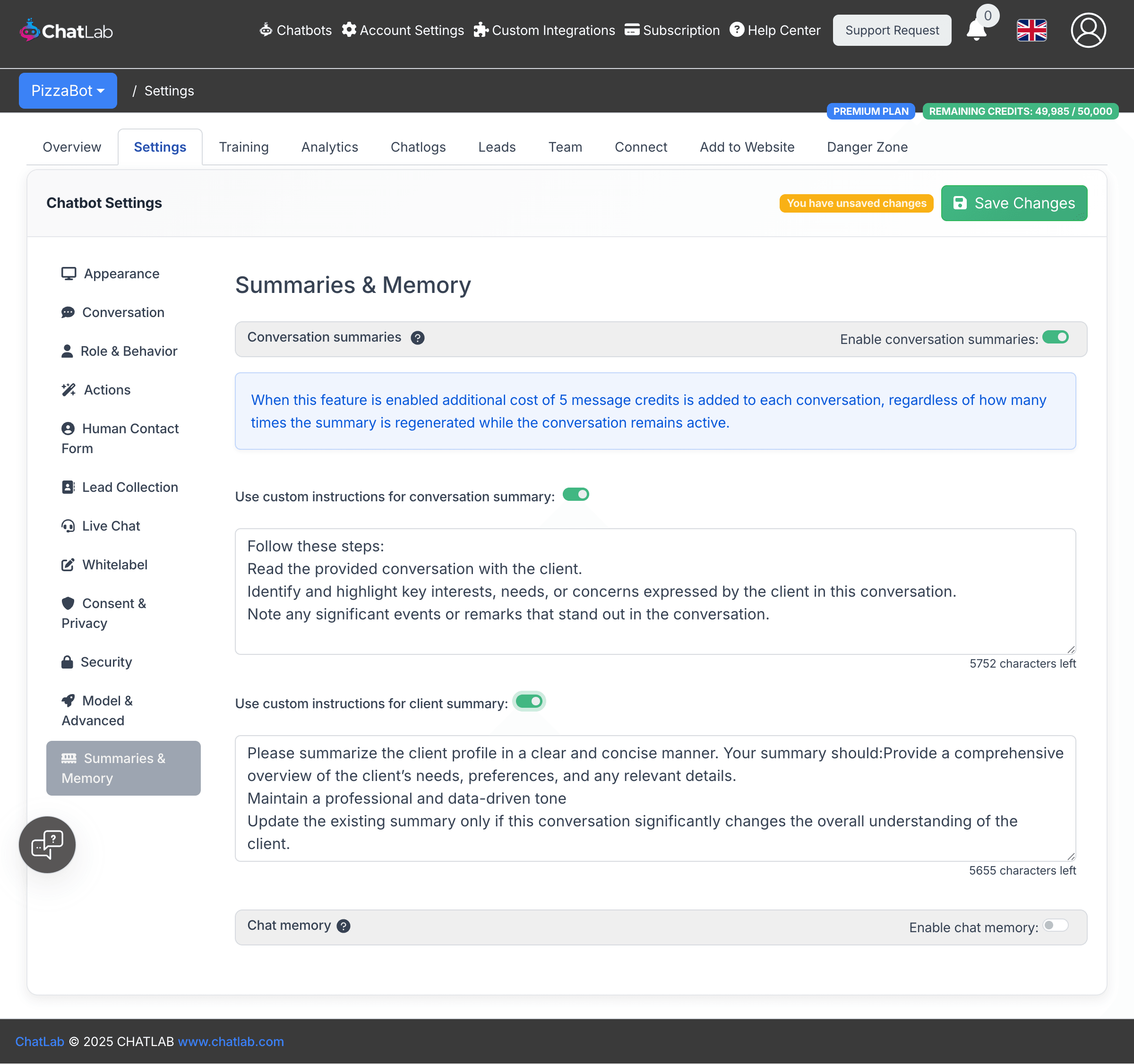
Conversation summary
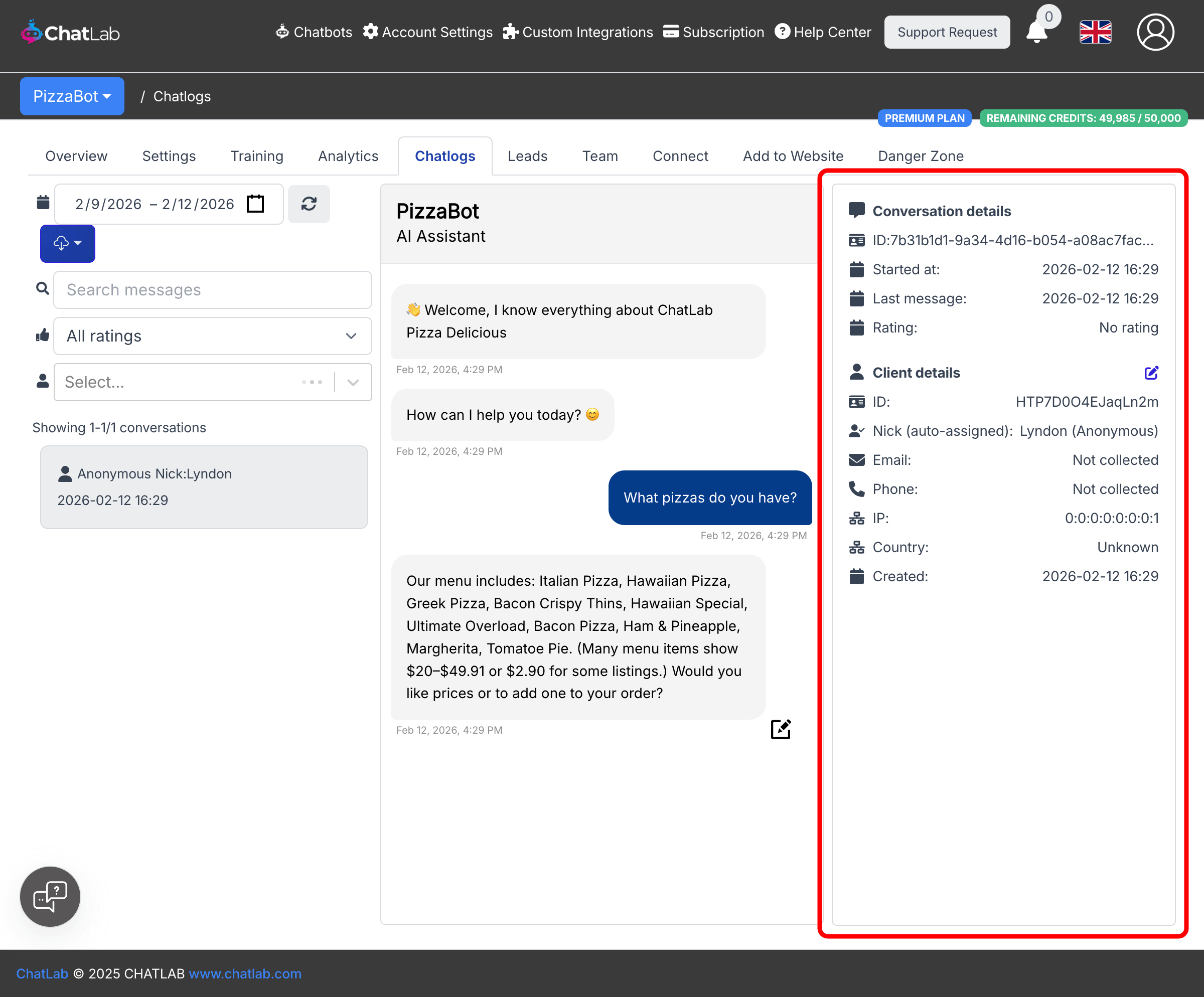
Each conversation gets its own summary describing what was discussed and how the chatbot helped. You can review these summaries in the Chatlogs tab by selecting a conversation -- the summary appears in the details panel on the right.
Client profile
The client profile is a cumulative summary built from all conversations with the same visitor. It tracks needs, preferences, and relevant details over time. The profile updates after each new conversation. You can view client profiles in the Chatlogs tab alongside conversation details.
Customizing summary instructions
When you enable custom instructions, you can tailor the prompts to focus on information that matters to your business. For example:
- Focus only on identified client needs or product interests
- Track specific preferences or requirements mentioned across conversations
- Capture sentiment or satisfaction indicators
The prompt limit is 6,000 characters.
Chat memory
Chat memory allows the chatbot to use conversation summaries and client profiles when responding to returning visitors. Without memory enabled, summaries are generated but not used during conversations.
To enable chat memory:
- Enable Conversation summaries first (required).
- Toggle Enable chat memory (Settings > Summaries & Memory).
- Adjust the Memory size slider to control how much of the context window is reserved for historical information.
Memory size
The memory size slider (10% to 90%) controls how the context window is divided between historical information and the knowledge base. For example, with a 16,000-token context and memory set to 30%:
- 30% (4,800 tokens) is reserved for client profile and past conversation summaries
- 70% (11,200 tokens) is available for the knowledge base, current conversation, and instructions
Higher memory values give the chatbot more access to past conversation context but reduce the space available for knowledge base retrieval. A value between 20% and 40% works well for most use cases.
💡 Larger context sizes benefit memory the most. You can increase context size in Settings > Model & Advanced. See Extending chat context size for details.
Activity reports by email
ChatLab can send you regular email summaries of your chatbot's activity. Reports include information about leads, messages, credits, and duration of conversations, along with AI-generated Conversation Insights that summarize your conversations, highlight the most frequent questions, and surface other key insights.
Two report types are available:
- Daily report - a summary of chatbot activity from the past 24 hours, sent every day.
- Weekly report - a weekly conversation summary digest, sent on a day of your choice.
To configure reports, go to Account Settings > Reports and switch between the Daily and Weekly tabs. See Daily Summary Email for more details.
Summaries and AI insights in your language
You can choose the language of AI insights and conversation summaries. Go to the Settings > Model & Advanced settings of your chatbot to select the language you prefer. This applies to both conversation summaries and client profile summaries.