Che cos'è la valutazione della conversazione?
La valutazione della conversazione consente ai visitatori del tuo sito web di lasciare un feedback sulla conversazione usando i pulsanti pollice in su e pollice in giù sotto l'ultima risposta di testo del chatbot. Questo feedback ti aiuta a individuare le risposte che necessitano di miglioramenti.
Come abilitare la valutazione delle conversazioni
- Dalla dashboard principale, seleziona il tuo chatbot.
- Vai su Settings > Chat Conversation (Impostazioni > Conversazione chat).
- Nella sezione Conversation behavior (Comportamento della conversazione), attiva l'interruttore Conversation rating (Valutazione della conversazione).
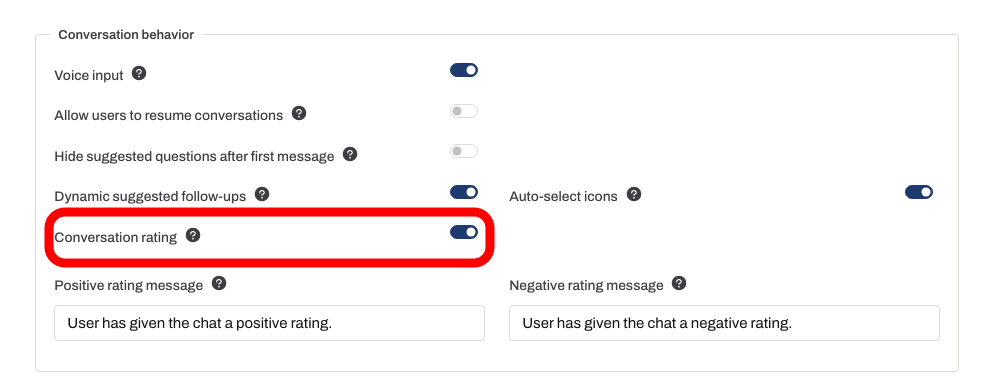
Le impostazioni si salvano automaticamente. Attendi la conferma Saved (Salvato), quindi apri Overview (Panoramica), invia una domanda e controlla i pulsanti sotto la risposta. Utilizza Positive rating message (Messaggio di valutazione positiva) e Negative rating message (Messaggio di valutazione negativa) nella pagina delle impostazioni per personalizzare il testo di conferma (fino a 255 caratteri ciascuno).
Testo del tooltip
I pulsanti di valutazione utilizzano testi del tooltip predefiniti:
- Valutazione positiva: "I like the response"
- Valutazione negativa: "I don't like the response"
Questi tooltip non sono più modificabili nell'interfaccia di amministrazione. Se in precedenza hai impostato tooltip personalizzati per il tuo bot, sono ancora salvati e continuano a essere visualizzati nel widget.
Il tooltip per azzerare la conversazione si configura separatamente in Settings > Appearance > Chat Header > Reset conversation tooltip (Impostazioni > Aspetto > Intestazione chat > Tooltip per azzerare la conversazione).
Come appare ai tuoi visitatori
Valuta una conversazione
Attiva la valutazione delle conversazioni. La conferma configurata viene mostrata dopo che il visitatore sceglie pollice su o pollice giù.

Assistente: Puoi trovare la fattura nell'email di conferma dell'ordine.
Riproduci l'esempio o leggilo qui sotto. Non viene utilizzato alcun dato reale dei clienti.Il bot completa una risposta.
La riproduzione va in pausa quando questo esempio esce dallo schermo. Questa è una simulazione, non una chat dal vivo. I comandi del widget all'interno della riproduzione non sono interattivi.Leggi l'esempio completo
- Il bot completa una risposta.
Assistente: Puoi trovare la fattura nell'email di conferma dell'ordine.
- Vengono mostrati i comandi di valutazione della conversazione.
Vengono mostrati i comandi di valutazione della conversazione.
- Esempio: il visitatore sceglie una valutazione positiva.
Esempio: il visitatore sceglie una valutazione positiva.
- Mostra la conferma configurata.
Assistente: Grazie per il tuo feedback.
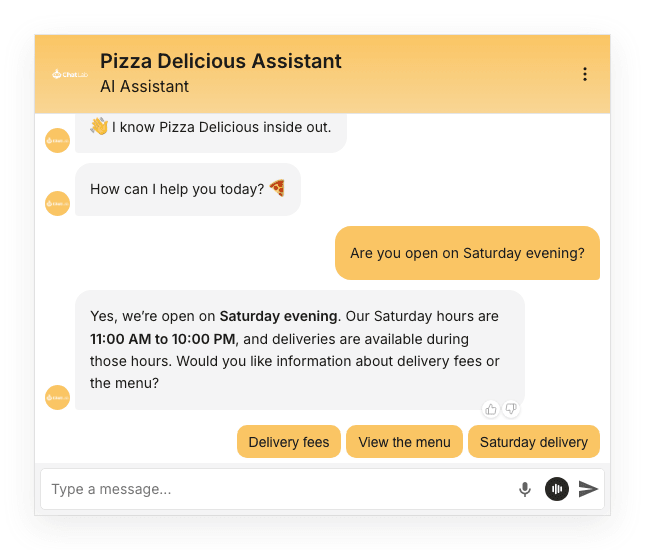
Quando la valutazione della conversazione è abilitata, sotto l'ultima risposta di testo del chatbot compaiono i pulsanti con il pollice in su e il pollice in giù, dopo che il visitatore ha inviato un messaggio.
Visualizza lo screenshot statico
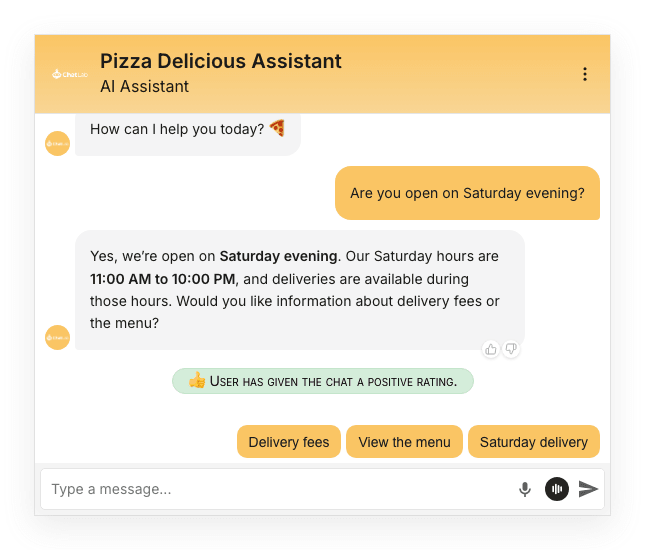
Quando un visitatore fa clic su uno dei pulsanti di valutazione, nella conversazione compare un messaggio di conferma.
Visualizza lo screenshot statico
Gli utenti possono modificare la propria valutazione in qualsiasi momento facendo clic sull'altro pulsante.
Esaminare le valutazioni in Chatlogs
Puoi filtrare le conversazioni in base alla valutazione nella scheda Chatlogs (Registri chat). Usa il menu a discesa della valutazione per visualizzare solo le conversazioni valutate come Positive (Positive) o Negative (Negative). La valutazione è visibile anche nel pannello Conversation details (Dettagli della conversazione) sul lato destro di ciascuna conversazione.
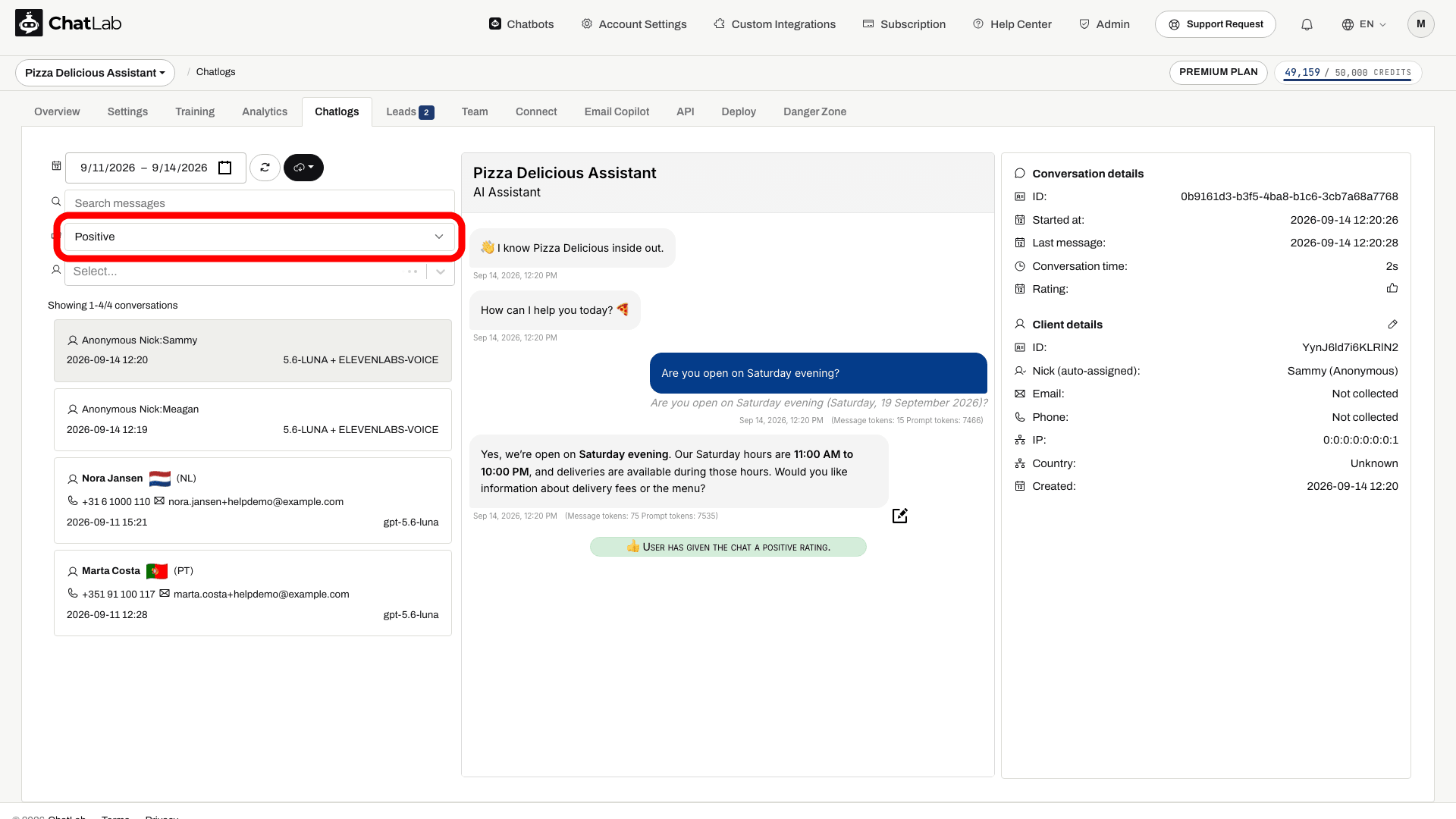
Se trovi conversazioni con feedback negativi, puoi aggiungere correzioni per migliorare le risposte del tuo chatbot. Scopri di più su come aggiungere e modificare le correzioni.