Die Appearance-Einstellungen (Erscheinungsbild) steuern, wie das Chat-Widget Ihres Chatbots für Besucher auf Ihrer Website aussieht - die Kopfzeile, die Farben und Schriftarten von Nachrichten, das Launcher-Icon, der Begrüßungsbildschirm, die Widget-Größe und mehr. Hier passen Sie das Widget an Ihre Marke an.
Sie benötigen einen Chatbot, bevor Sie ihn gestalten können. Wenn Sie noch keinen erstellt haben, beginnen Sie mit Wie Sie Ihren ersten Chatbot erstellen.
Wo Sie die Appearance-Einstellungen finden
Wählen Sie Ihren Chatbot aus und navigieren Sie zu Settings > Appearance (Einstellungen > Erscheinungsbild). Klicken Sie auf der ChatLab-Hauptseite auf Chatbots, öffnen Sie Ihren Chatbot, öffnen Sie den Reiter Settings und wählen Sie dann Appearance im linken Menü.
Auf der rechten Seite wird eine Live-Vorschau Ihres Widgets angezeigt, die sich aktualisiert, sobald Sie Einstellungen ändern.
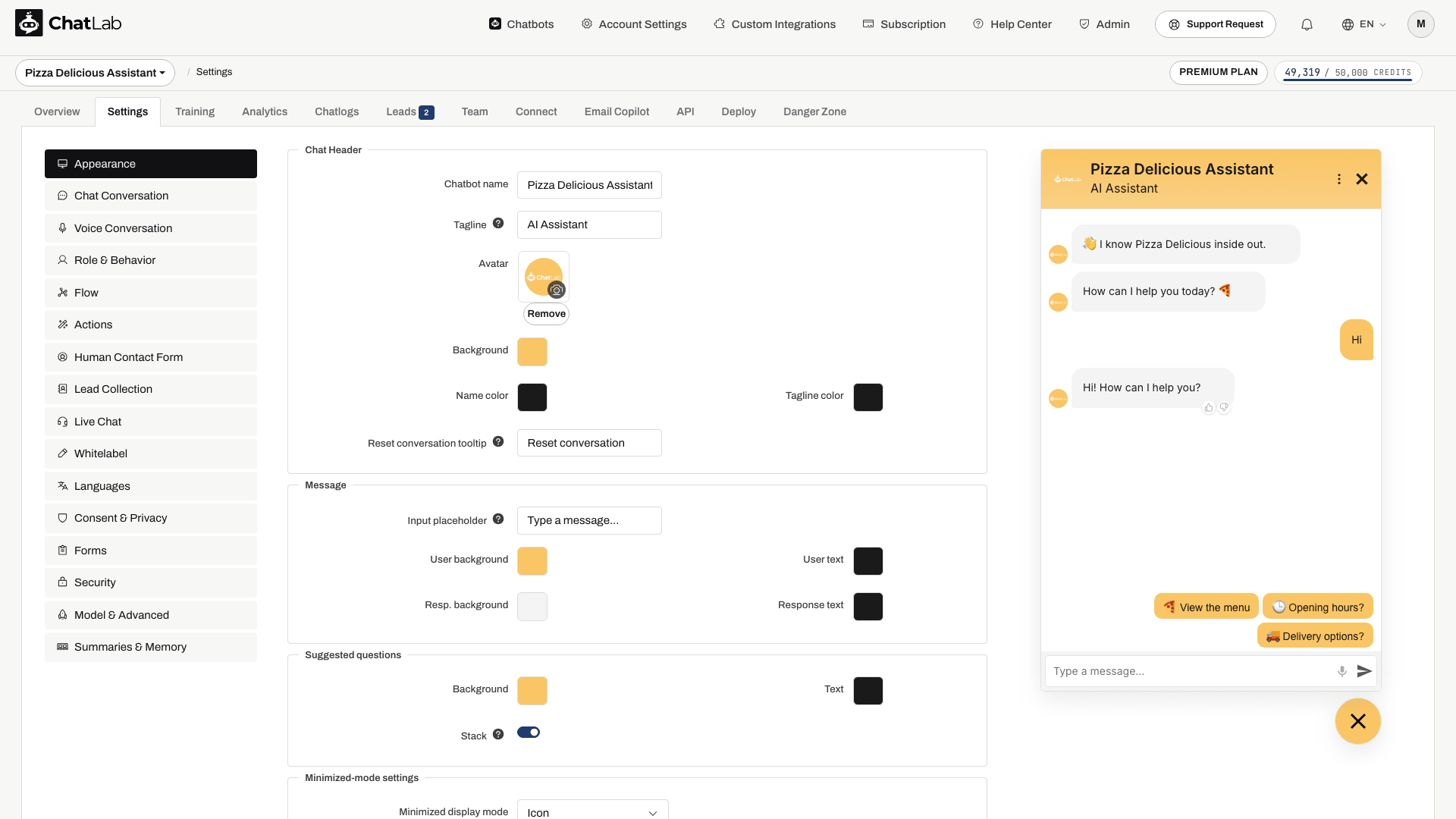
Chat Header
Konfigurieren Sie das Aussehen des oberen Bereichs Ihres Chat-Widgets:
- Chatbot name (Chatbot-Name) - der im Chat-Header angezeigte Name (max. 60 Zeichen)
- Tagline (Untertitel) - optionaler Untertitel unter dem Namen des Chatbots (max. 60 Zeichen)
- Avatar - laden Sie ein eigenes Bild hoch, das Kunden während der Interaktion mit dem Chatbot sehen. Verwenden Sie die Schaltfläche Remove (Entfernen, unten hervorgehoben), um das aktuelle Bild zu löschen.
- Background (Hintergrund) - Hintergrundfarbe des Header-Bereichs
- Name color (Namensfarbe) - Textfarbe des Chatbot-Namens
- Tagline color (Untertitelfarbe) - Textfarbe des Untertitels
- Reset conversation tooltip (Tooltip zum Zurücksetzen der Konversation) - Tooltip-Text, der angezeigt wird, wenn Besucher mit der Maus über die Schaltfläche zum Zurücksetzen der Konversation im Widget-Header fahren (max. 40 Zeichen, Standard "Reset conversation")
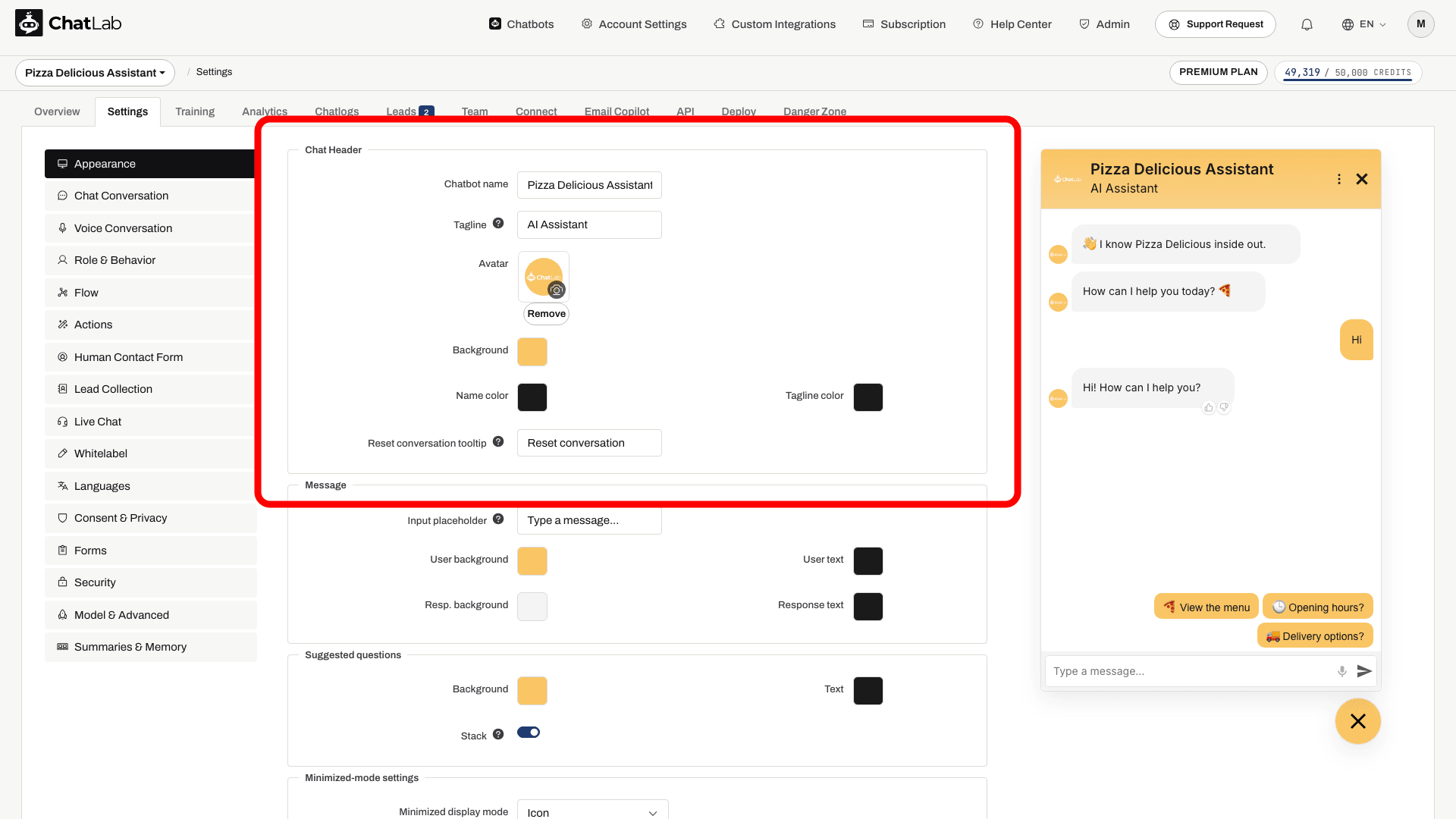
Message
Passen Sie das Eingabefeld für Nachrichten und das Aussehen der Konversationsnachrichten an:
- Input placeholder (Eingabe-Platzhalter) - Platzhaltertext im Eingabefeld für neue Nachrichten am unteren Rand des Widgets (max. 50 Zeichen, Standard "Type a message..."). Nutzen Sie ihn, um Besucher zum Tippen zu animieren.
- User background (Benutzer-Hintergrund) - Hintergrundfarbe der vom Besucher gesendeten Nachrichten
- User text (Benutzer-Text) - Textfarbe der Besuchernachrichten
- Resp. background (Antwort-Hintergrund) - Hintergrundfarbe der Chatbot-Antworten
- Response text (Antwort-Text) - Textfarbe der Chatbot-Antworten
Die Schriftgröße von Nachrichten wird im Abschnitt Typography zusammen mit der Schriftart des Widgets festgelegt.

Suggested Questions
Vorgeschlagene Fragen sind vorgefertigte Prompts, die Besucher anklicken können, um ein Gespräch zu beginnen. Die Fragen selbst verfassen Sie unter Settings > Chat Conversation (Einstellungen > Chat-Konversation); hier gestalten Sie das Aussehen der Schaltflächen:
- Background (Hintergrund) - Hintergrundfarbe der Schaltflächen für vorgeschlagene Fragen
- Text - Textfarbe der Schaltflächen für vorgeschlagene Fragen
- Stack (Stapeln) - wenn aktiviert, werden längere vorgeschlagene Fragen vertikal untereinander gestapelt, anstatt eine horizontale Scrollleiste anzuzeigen
Die Textgröße für vorgeschlagene Fragen wird im Abschnitt Typography festgelegt.

Einstellungen für den minimierten Modus (Minimized-Mode Settings)
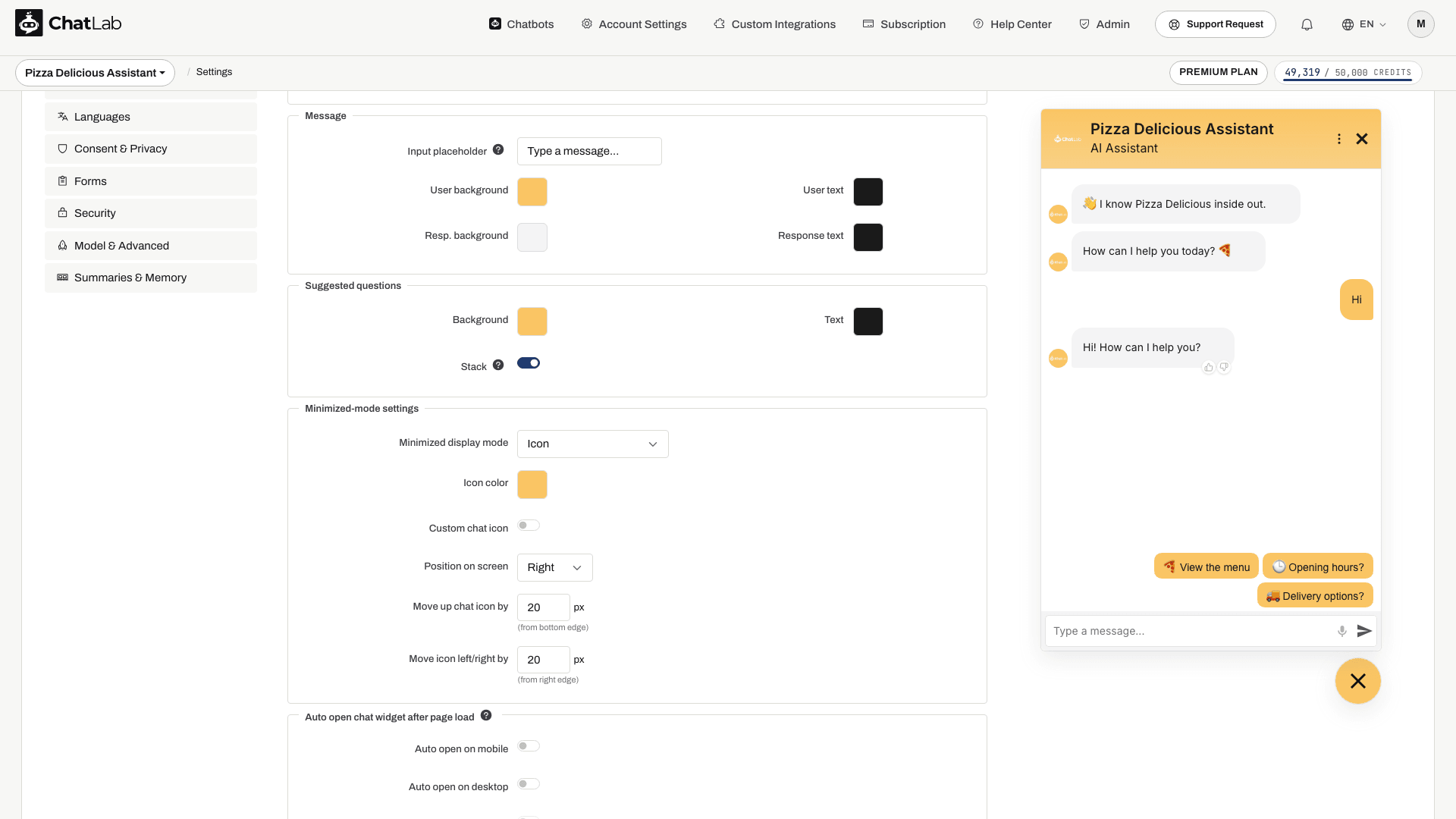
Legen Sie fest, wie das Chat-Widget minimiert dargestellt wird (bevor Besucher den Chat öffnen):
- Minimized display mode (Anzeigemodus minimiert) - wählen Sie zwischen:
- Icon (Symbol) - standardmäßiges kreisförmiges Chat-Launcher-Symbol (Standardeinstellung)
- Minified chat bar (Verkleinerte Chatleiste) - kompakte Texteingabeleiste am unteren Bildschirmrand
- Icon with text (Symbol mit Text) - ein breiterer, pillenförmiger Launcher: das Symbol kombiniert mit einer kurzen zweizeiligen Beschriftung
- Icon color / Mini bar color (Symbolfarbe / Minileisten-Farbe) - Farbe des Launcher-Symbols oder Hintergrundfarbe der Minileiste
- Custom chat icon (Benutzerdefiniertes Chat-Symbol, nur im Symbolmodus) - aktivieren Sie diese Option, um eigene Symbole zum Öffnen und Schließen des Chats hochzuladen
- Position on screen (Position auf dem Bildschirm) - platzieren Sie das Widget auf der linken oder rechten Seite des Bildschirms
- Move up chat icon/bar by (Chat-Symbol/-Leiste nach oben verschieben um) - vertikaler Versatz in Pixeln vom unteren Rand
- Move icon/bar left/right by (Symbol/Leiste nach links/rechts verschieben um) - horizontaler Versatz in Pixeln vom nächstgelegenen Bildschirmrand
Symbol mit Text (Icon with Text)
Der Modus Icon with text versieht den Launcher mit einer kurzen Beschriftung, damit Besucher bereits vor dem Öffnen sehen, wozu der Chat dient. Das ist besonders nützlich, wenn ein einfaches Symbol nicht aussagekräftig genug ist - zum Beispiel "Schreiben Sie uns / Wir antworten sofort" oder "Brauchen Sie Hilfe? / Fragen Sie unseren Assistenten".
Wenn Sie diesen Modus wählen, kommen vier Einstellungen hinzu:
- Label line 1 (Beschriftungszeile 1) - die erste, hervorgehobene Zeile der Beschriftung (maximal 60 Zeichen)
- Label line 2 (Beschriftungszeile 2) - die zweite, dezentere Zeile (maximal 60 Zeichen). Lassen Sie das Feld leer, wenn der Launcher einzeilig bleiben soll
- Text color (Textfarbe) - Farbe der Beschriftung. Wenn Sie hier nichts ändern, wählt ChatLab automatisch Schwarz oder Weiß, je nachdem, wie hell oder dunkel die Farbe Ihres Launchers ist
- Show close cross (Schließen-Kreuz anzeigen) - ergänzt den Launcher um ein kleines Kreuz, mit dem Besucher ihn ausblenden können
Beide Zeilen werden mit Auslassungspunkten gekürzt, falls der Platz nicht ausreicht, sodass der Launcher niemals breiter als der Bildschirm wird. Sobald der Chat geöffnet ist, zieht sich der Launcher wieder zu einem Kreis zusammen.
Wenn die Mehrsprachigkeitsunterstützung aktiviert ist, werden beide Beschriftungszeilen wie alle anderen für Besucher sichtbaren Texte übersetzt.
Show close cross ist standardmäßig deaktiviert und steht nur in diesem Modus zur Verfügung. Ist die Option aktiviert und klickt ein Besucher auf das Kreuz, bleibt der Launcher für die restliche Browsersitzung ausgeblendet - auch beim Wechseln zwischen Seiten. Er erscheint erst beim nächsten Besuch oder in einem neuen Tab wieder. Ein Chatbot, der so eingestellt ist, dass er sich automatisch öffnet, respektiert diese Auswahl und öffnet sich nicht erneut, nachdem der Besucher ihn geschlossen hat.

Auto Open Chat Widget After Page Load
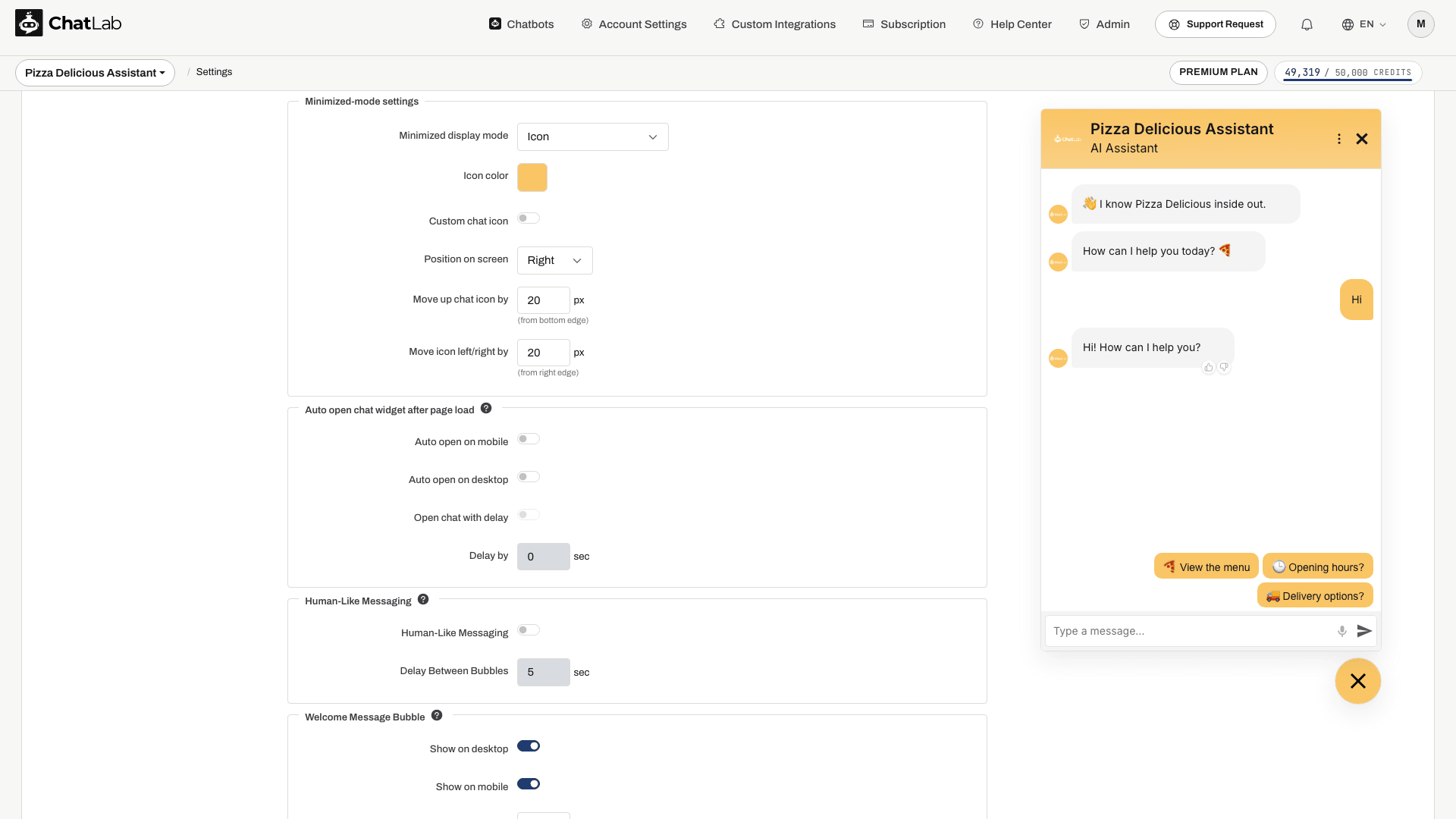
Legen Sie fest, dass sich das Chatfenster beim Laden der Seite automatisch öffnet:
- Auto open on mobile (Auf Mobilgeräten automatisch öffnen) - öffnet den Chat automatisch auf Mobilgeräten
- Auto open on desktop (Auf dem Desktop automatisch öffnen) - öffnet den Chat automatisch auf Desktop-Bildschirmen
- Open chat with delay (Chat mit Verzögerung öffnen) - aktiviert eine Zeitverzögerung vor dem automatischen Öffnen (nur verfügbar, wenn automatisches Öffnen aktiv ist)
- Delay by (Verzögern um) - Wartezeit in Sekunden vor dem Öffnen (0-60 Sekunden)
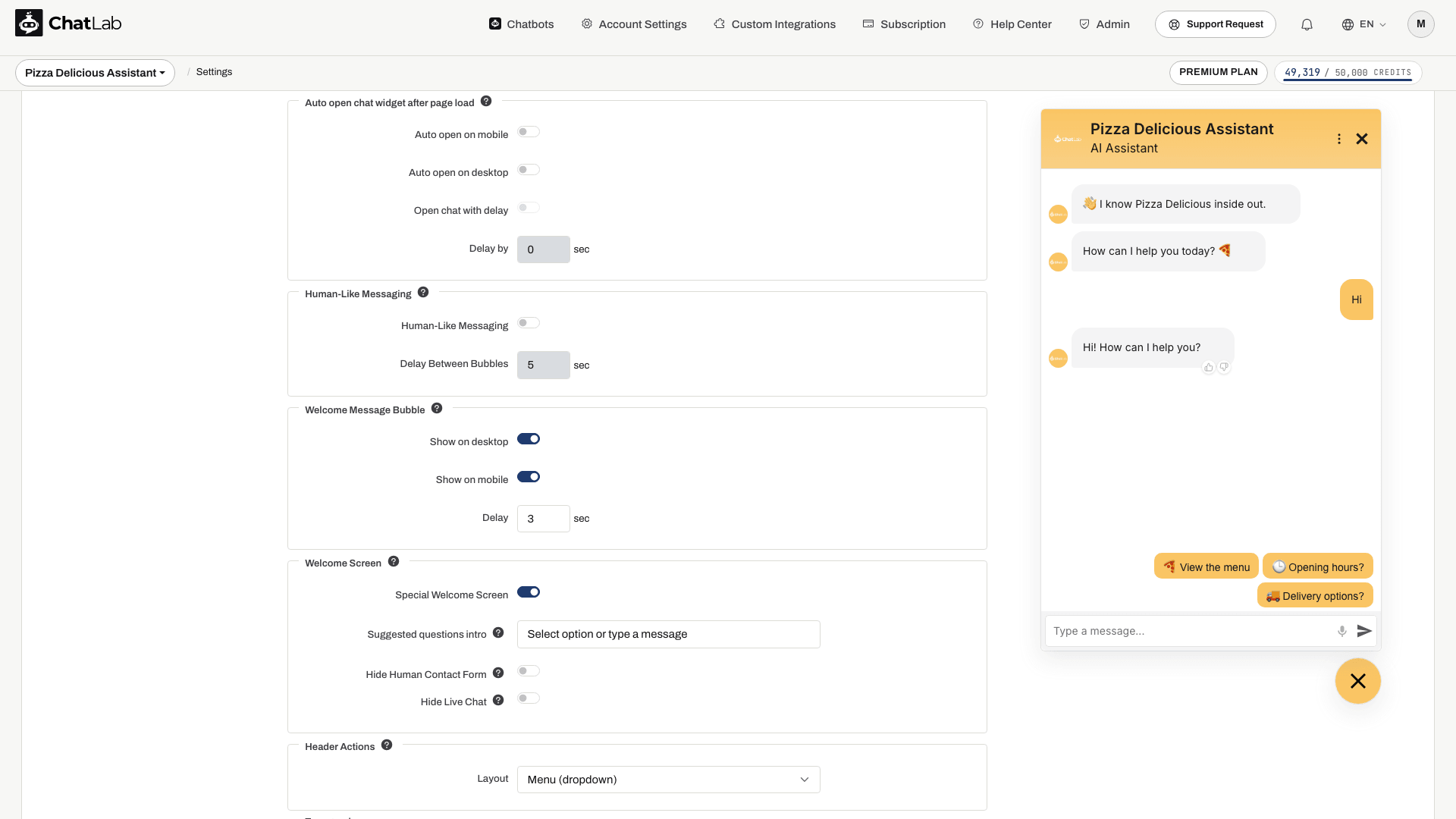
Human-Like Messaging
Simuliert menschliches Tippen, indem Antworten in mehrere Nachrichtenblasen aufgeteilt und nach und nach Satz für Satz eingeblendet werden:
- Human-Like Messaging (Menschenähnliches Verfassen von Nachrichten) - Schalter zum Aktivieren/Deaktivieren der Funktion
- Delay Between Bubbles (Verzögerung zwischen Blasen) - Zeit in Sekunden zwischen der Anzeige der einzelnen Nachrichtenblasen (0-200 Sekunden)
Welcome Message Bubble
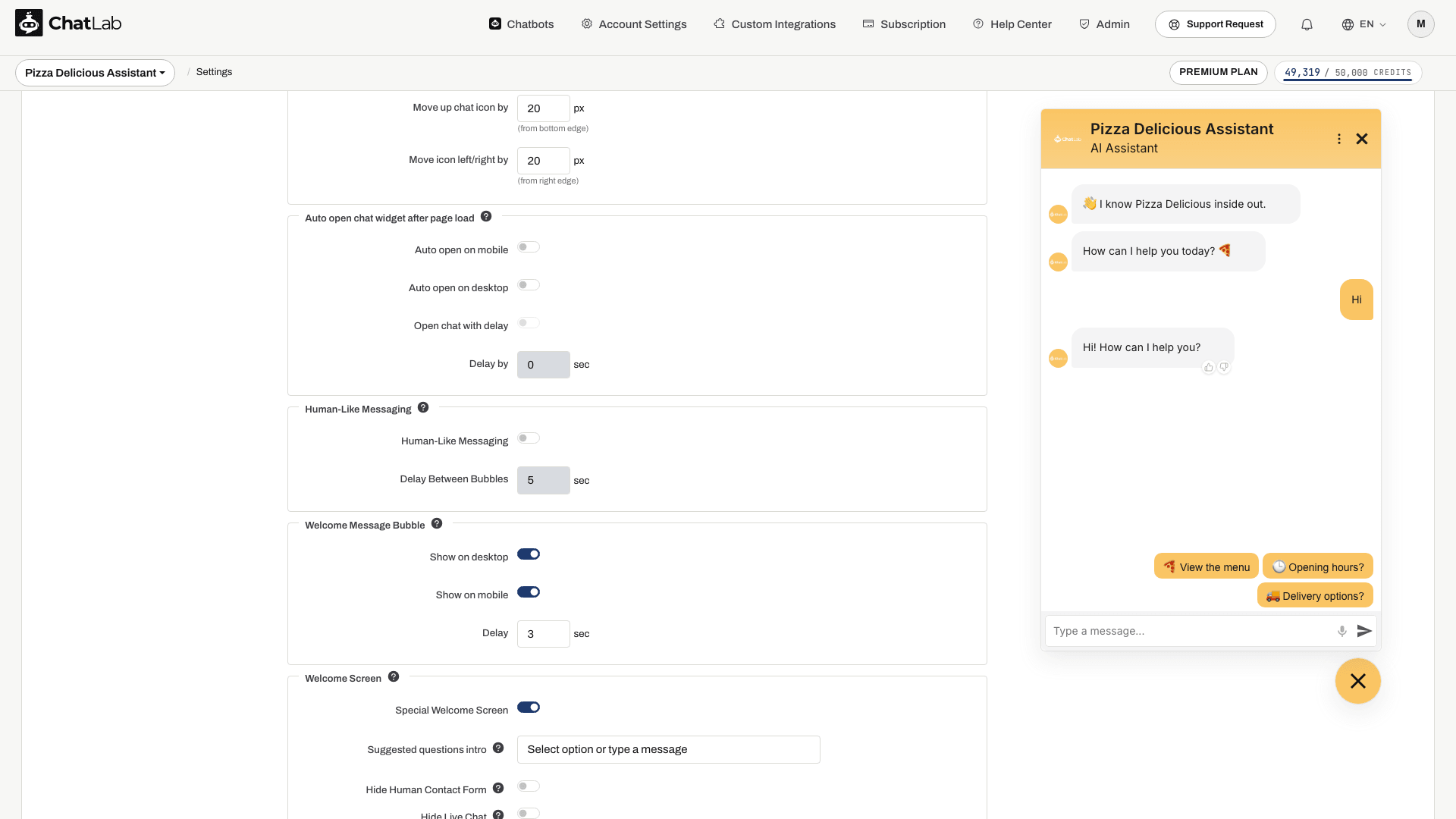
Zeigt die Begrüßungsnachricht in einer Blase über dem Chat-Launcher-Icon an, damit Besucher den Chat schneller bemerken. Diese Funktion ist nur im Icon-Modus verfügbar und funktioniert weder im Iframe-Modus noch bei aktiviertem automatischen Öffnen.
- Show on desktop (Auf dem Desktop anzeigen) - zeigt die Begrüßungsblase auf dem Desktop an
- Show on mobile (Auf Mobilgeräten anzeigen) - zeigt die Begrüßungsblase auf Mobilgeräten an
- Delay (Verzögerung) - Zeit in Sekunden nach dem Seitenaufruf, bis die Blase erscheint (0-60 Sekunden)
Wenn Sie mehrere Begrüßungsnachrichten hinterlegt haben, werden diese übereinander über dem Chat-Icon gestapelt.
Die Spracheingabe (das Mikrofonsymbol im Chat-Eingabebereich) wird unter Settings > Chat Conversation konfiguriert, nicht hier im Bereich Appearance.
Welcome Screen
Versetzt das Widget in ein spezielles Start-Layout, das neue Besucher mit einer großen Begrüßungsnachricht und den gestapelten vorgeschlagenen Fragen auf einer zentrierten weißen Karte empfängt. Der Welcome Screen erscheint nur zu Beginn einer neuen Sitzung und wechselt zur Standard-Chatansicht, sobald der Besucher seine erste Nachricht sendet.
- Special Welcome Screen (Spezieller Begrüßungsbildschirm) - schaltet den Begrüßungsbildschirm-Modus ein oder aus (standardmäßig deaktiviert)
- Suggested questions intro (Einleitung für vorgeschlagene Fragen) - kurze Beschriftung über der Karte mit den vorgeschlagenen Fragen auf dem Begrüßungsbildschirm (z. B. "Wählen Sie eine Option oder tippen Sie eine Nachricht"). Leer lassen, um den Text auszublenden. Erfordert, dass unter Settings > Chat Conversation vorgeschlagene Fragen eingerichtet sind.
- Hide Human Contact Form (Kontaktformular für Menschen ausblenden) - blendet die Kontaktformular-Aktion im Header aus, während der Begrüßungsbildschirm aktiv ist
- Hide Live Chat (Live Chat ausblenden) - blendet die Live-Chat-Aktion im Header aus, während der Begrüßungsbildschirm aktiv ist
Der Welcome Screen lässt sich auch mit Lead Collection (Lead-Erfassung) und der Privacy Policy consent (Einwilligung zur Datenschutzerklärung) kombinieren - falls eines davon zu Beginn der Konversation erforderlich ist, wird das Formular oder der Einwilligungshinweis anstelle der vorgeschlagenen Fragen auf der Begrüßungskarte angezeigt.
Alle Details, Layoutvarianten und Screenshots der Besucheransicht finden Sie unter Welcome Screen.
Header Actions
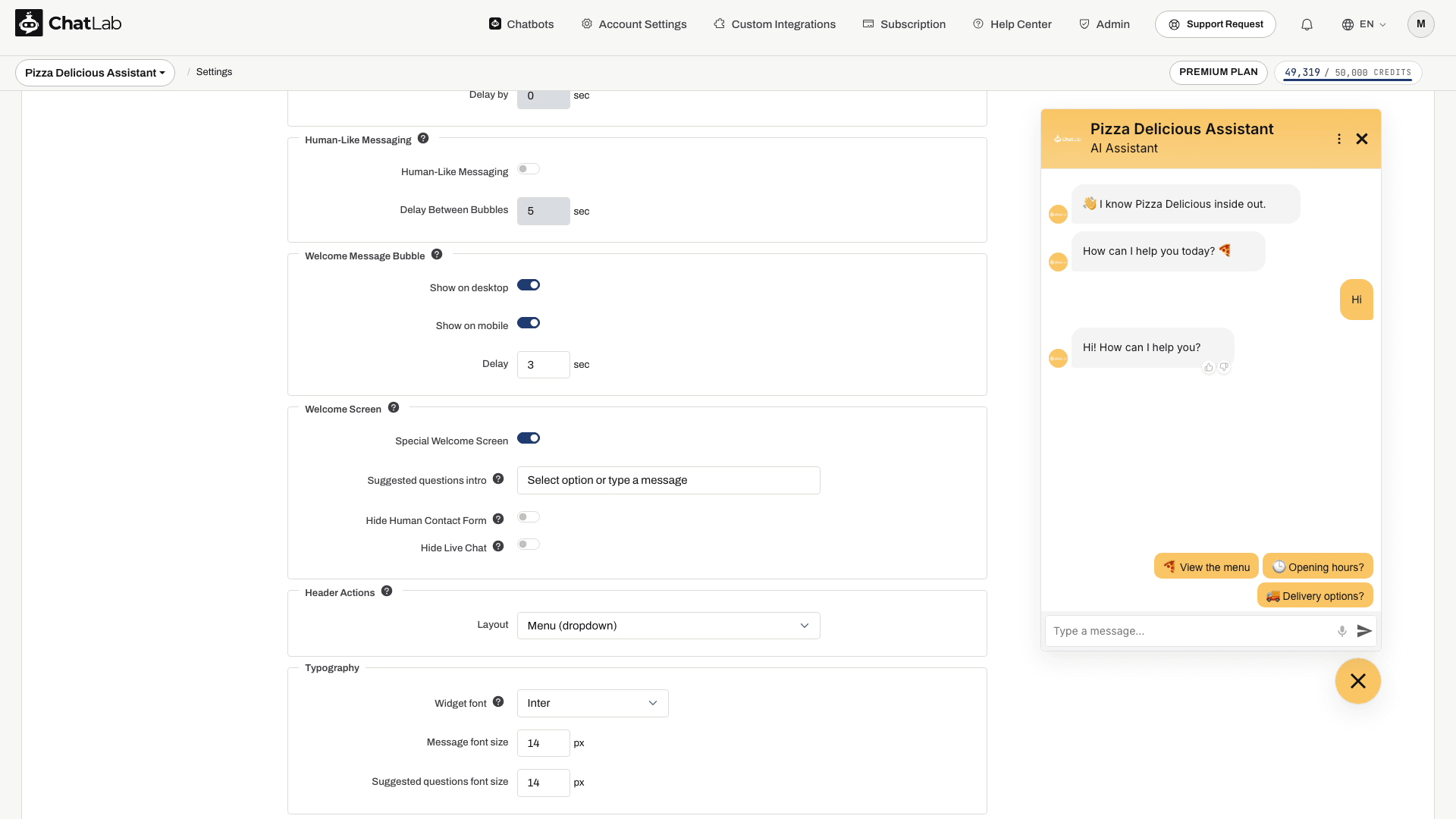
Steuert, wie Live Chat und das Human Contact Form (Kontaktformular für Menschen) in der Kopfzeile des Chat-Widgets angeboten werden.
- Separate icons (Separate Icons) - jede Aktion erhält ein eigenes Icon im Header neben der Schließen-Schaltfläche
- Menu (dropdown) (Menü (Dropdown)) - beide Aktionen wandern in das Header-Menü (das Drei-Punkte-Icon), zusammen mit Einträgen wie "Reset conversation" und der Sprachauswahl, sofern diese aktiviert sind
Neue Chatbots nutzen das Menü, wodurch die Kopfzeile übersichtlich bleibt, wenn weitere Aktionen hinzukommen. Chatbots, die vor dem 2. September 2026 erstellt wurden, behalten separate Icons bei, sodass sich für deren Besucher nichts ändert. Sie können jederzeit wechseln - die Einstellung beeinflusst lediglich die Darstellung, nicht die Funktionsweise der Aktionen.
Typography
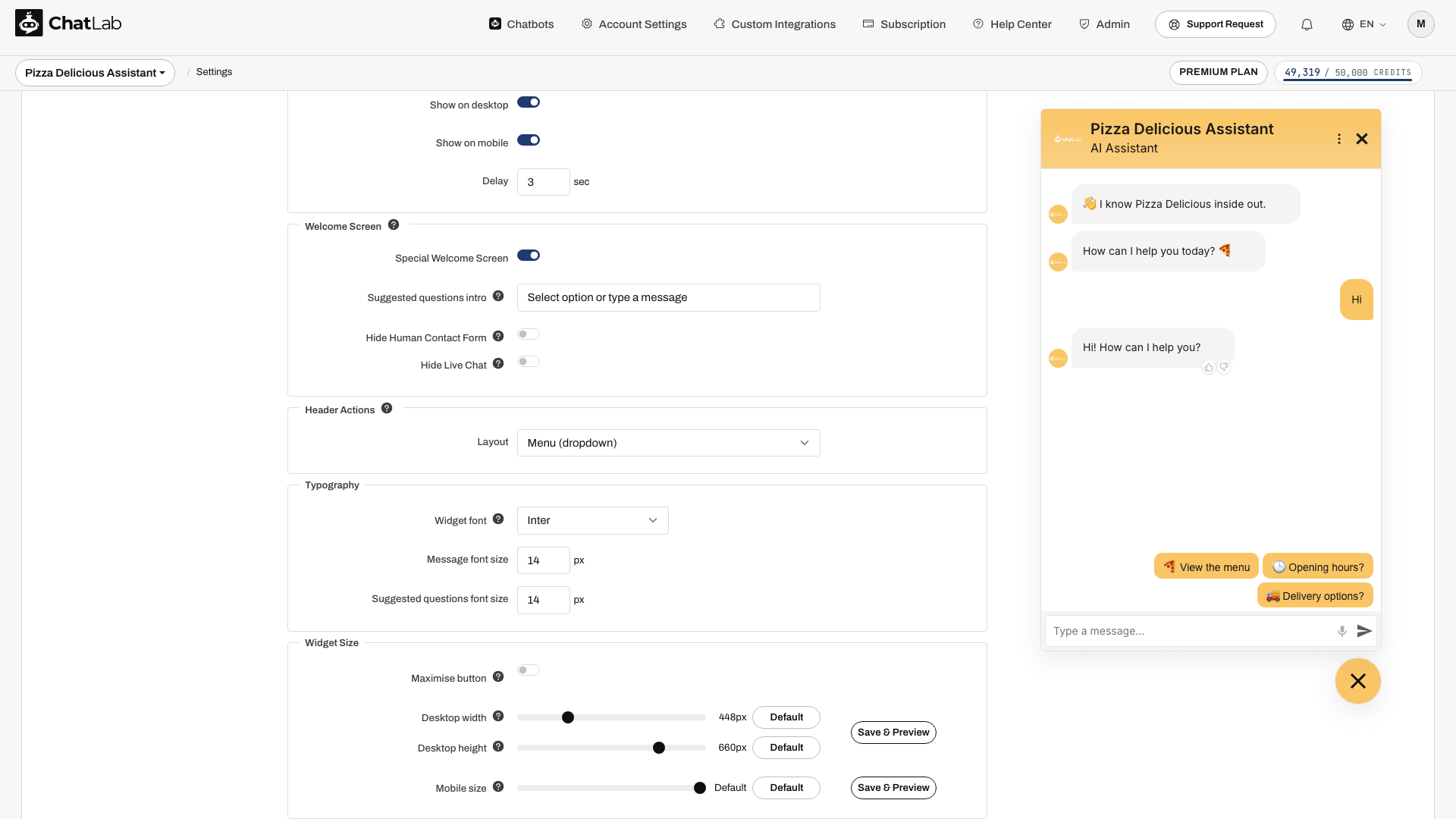
Legt die Schriftart und die Textgrößen fest, die im gesamten Widget verwendet werden - Nachrichten, vorgeschlagene Fragen, Kopfzeile, Formulare und die Launcher-Beschriftung.
- Widget font (Widget-Schriftart) - eine von acht Schriftarten: System default, Inter, Nunito, Lato, Montserrat, Poppins, Source Serif und JetBrains Mono
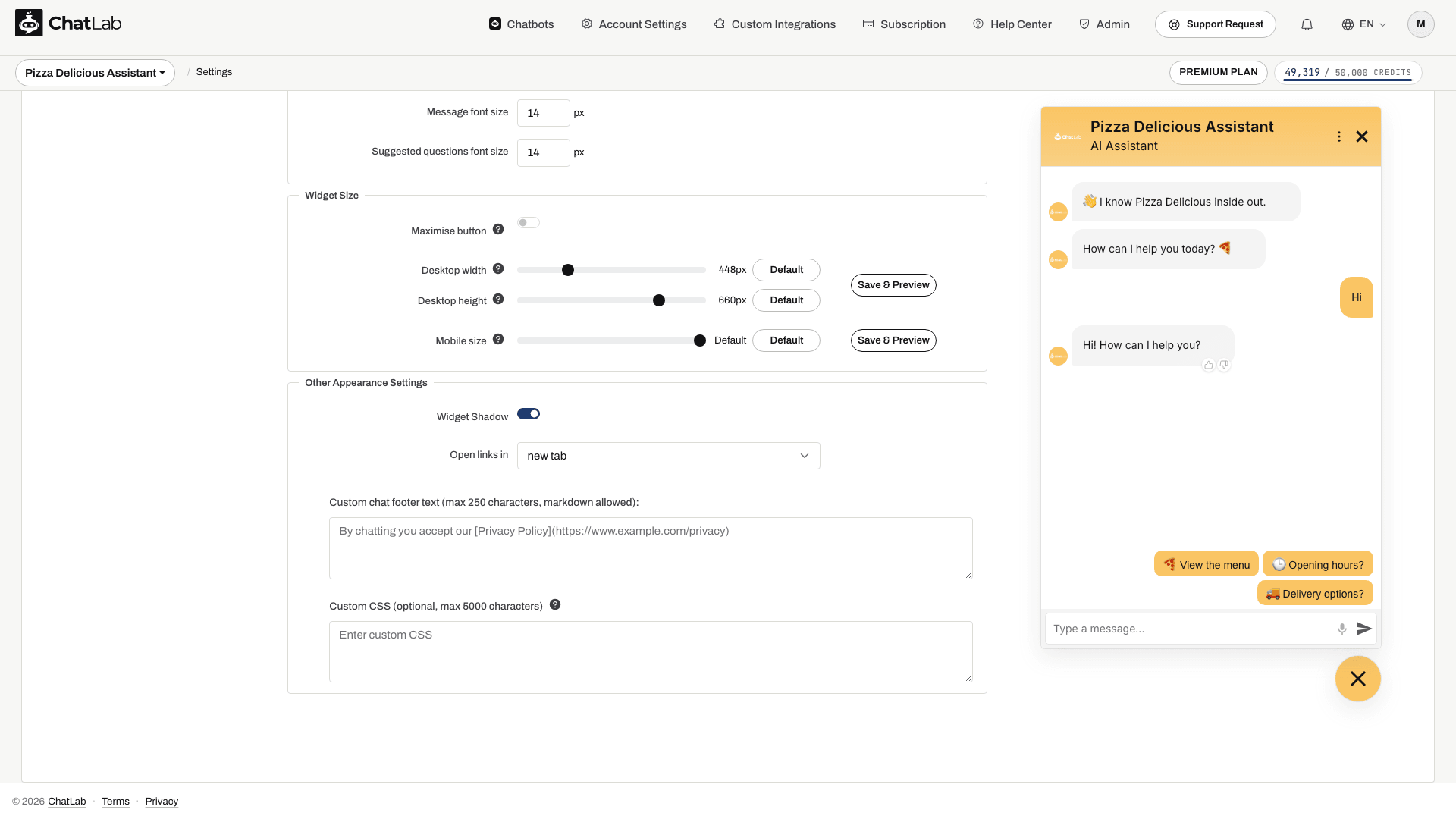
- Message font size (Schriftgröße für Nachrichten) - Schriftgröße des Nachrichtentexts (12-24 px)
- Suggested questions font size (Schriftgröße für vorgeschlagene Fragen) - Größe der Schaltflächen für vorgeschlagene Fragen (12-24 px)
Inter ist die Standardeinstellung und entspricht dem bisherigen Aussehen jedes Chatbots, bevor es diese Option gab - es ändert sich also nichts, bis Sie eine andere Schriftart wählen.
System default lädt keinerlei Dateien herunter - das Widget greift auf die Schriftart zurück, die bereits auf dem Gerät des Besuchers installiert ist. Das macht diese Option zur schnellsten Variante, die sich nahtlos in Websites einfügt, die selbst die Systemschriftart verwenden. Allerdings sieht der Chat unter Windows, macOS und Android jeweils leicht unterschiedlich aus. Die anderen sieben Schriftarten sind Google Fonts, die einmalig vom Browser des Besuchers geladen werden. Jede verfügt über einen Fallback: Sollte das Netzwerk eines Besuchers Google Fonts blockieren, bleibt der Text lesbar und das Layout intakt.
Die Schriftdatei wird direkt in das Chatfenster geladen. Sie wird Ihrer eigenen Seite nur dann hinzugefügt, wenn das Widget Text außerhalb des Chatfensters anzeigt - beim Launcher Icon with text, der minimierten Chat-Leiste oder bei Blasen für Begrüßungsnachrichten. Ein Chatbot mit reinem Icon-Launcher löst keine zusätzlichen Anfragen auf Ihrer Seite aus.
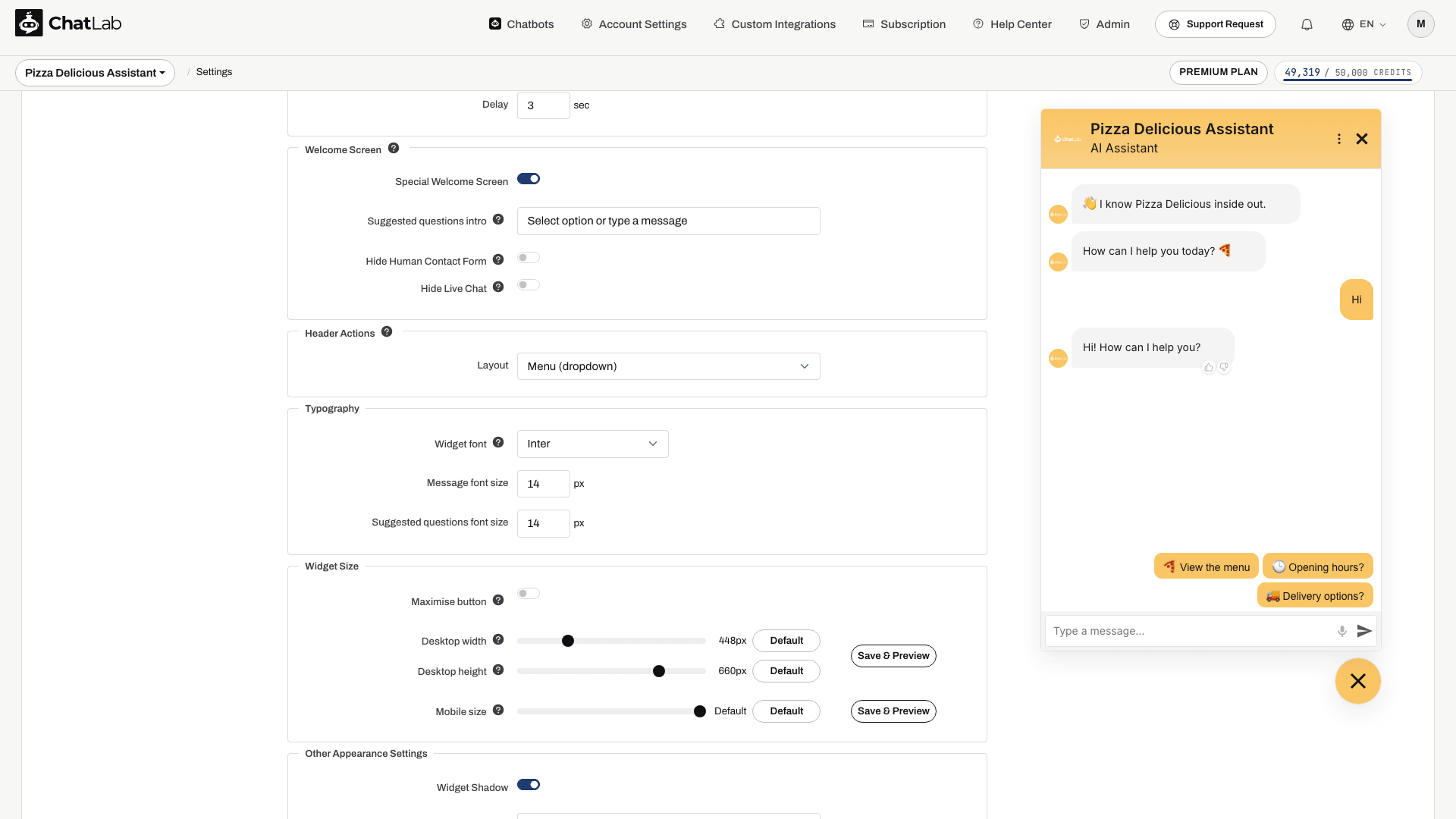
Widget-Größe (Widget Size)
Passen Sie an, wie groß das geöffnete Chat-Widget auf Desktop- und Mobilgeräten angezeigt wird. Jeder Schieberegler verfügt über eine Default-Schaltfläche (Standard), die die integrierte Größenanpassung wiederherstellt.
- Desktop width (Desktop-Breite) - Widget-Breite in Desktop-Browsern, in Pixeln (330-800, Standard 448)
- Desktop height (Desktop-Höhe) - Widget-Höhe in Desktop-Browsern, in Pixeln (300-770, Standard 660)
- Mobile size (Mobile Größe) - Widget-Größe auf Mobilgeräten, als Prozentsatz des Bildschirms (60-100%, Standard 100%)
Beim Standardwert verwendet das Widget die integrierte responsive Größenanpassung von ChatLab. Jeder andere Wert wendet eine feste Größe an.
Auf Mobilgeräten sorgt der Standardwert (100%) dafür, dass der geöffnete Chat den gesamten Bildschirm ausfüllt. Die Auswahl eines niedrigeren Prozentsatzes verkleinert das Widget auf diesen Teil des Bildschirms und zentriert es im Viewport, sodass Besucher die Seite um den Chat herum weiterhin sehen können.
Neben den Schiebereglern finden Sie zwei Save & Preview-Schaltflächen (Speichern & Vorschau, unten hervorgehoben) - eine für die Desktop-Zeilen und eine für die mobile Zeile. Durch Klicken auf eine Schaltfläche werden alle nicht gespeicherten Änderungen gespeichert und der Chat wird anschließend in einem Vorschaufenster mit Ihren aktuellen Einstellungen geöffnet:
- Die Desktop-Schaltfläche öffnet ein reguläres Browserfenster, damit Sie die genaue Größe auf einem Desktop-Bildschirm sehen können.
- Die mobile Schaltfläche öffnet ein kompaktes Popup (400 x 700), sodass das Widget in seinem mobilen Layout gerendert wird. Das ist praktisch, wenn Sie den Schieberegler Mobile size an einem Desktop-Computer anpassen.
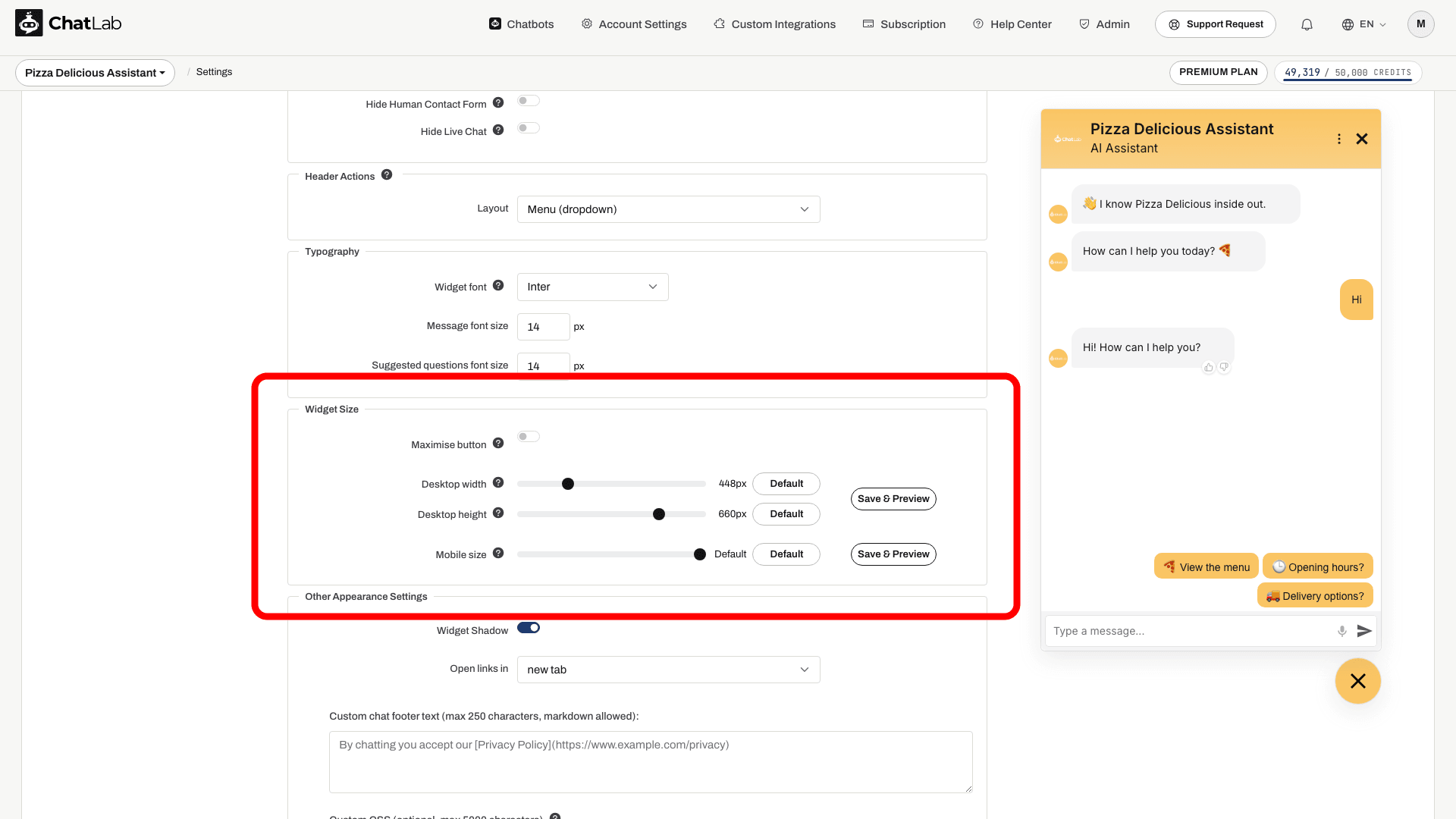
Maximieren-Schaltfläche (Drawer-Modus / Maximise Button)
Der Drawer-Modus ermöglicht es Besuchern, den Chat von einem schwebenden Fenster in ein Panel mit voller Höhe umzuschalten, das am Bildschirmrand angedockt ist, während Ihre Seite daneben sichtbar bleibt. Er eignet sich für Unterhaltungen, die Besucher beim Lesen der Seite führen - lange Antworten, Produktvergleiche, Formulare oder alles mit viel Text.
Aktivieren Sie Maximise button unter Widget Size, und im Chat-Header erscheint eine Schaltfläche; der Besucher entscheidet selbst, ob er sie nutzt. Diese Auswahl wird für den Rest der Browsersitzung gespeichert.
- Das Panel ist halb so breit wie das Browserfenster, bis zu 720 px, und nimmt immer die volle Höhe ein. Es dockt an derselben Seite wie Ihr Launcher an; ein links positioniertes Widget öffnet den Drawer also auf der linken Seite.
- Desktop width und Desktop height gelten hier nicht - sie bestimmen nur die Größe des normalen schwebenden Fensters.
- Die Schaltfläche wird nur auf Desktop-Bildschirmen mit einer Breite von mindestens 1200 px und Mausbedienung angezeigt. Auf Smartphones und Tablets erscheint sie nie, da der Chat dort bereits den Bildschirm ausfüllt. Verkleinert ein Besucher den Browser unter diese Breite, klappt der Drawer wieder in das normale Fenster zurück.
- Der Launcher wird ausgeblendet, während der Drawer geöffnet ist; der Besucher schließt ihn über den Header oder verlässt den Drawer-Modus mit derselben Schaltfläche.
Der Drawer-Modus ist standardmäßig deaktiviert, sodass sich für Ihre Besucher nichts ändert, bis Sie ihn aktivieren.

Weitere Einstellungen zum Erscheinungsbild (Other Appearance Settings)
- Widget Shadow (Schatten des Widgets) - aktivieren oder deaktivieren Sie einen Schatten um den Chat-Widget-Container
- Open links in (Links öffnen in) - wählen Sie, ob Links in Chat-Nachrichten in einem neuen Tab oder im selben Tab geöffnet werden
Eine Schaltfläche zum Schließen (X) wird auf dem Desktop ebenfalls in der Chat-Kopfzeile angezeigt, sodass Besucher den Chat wieder auf den Launcher minimieren können, ohne die Seite neu zu laden. Die Schließen-Schaltfläche bleibt ausgeblendet, wenn der Chat als iFrame oder im Vollbildmodus eingebettet ist.
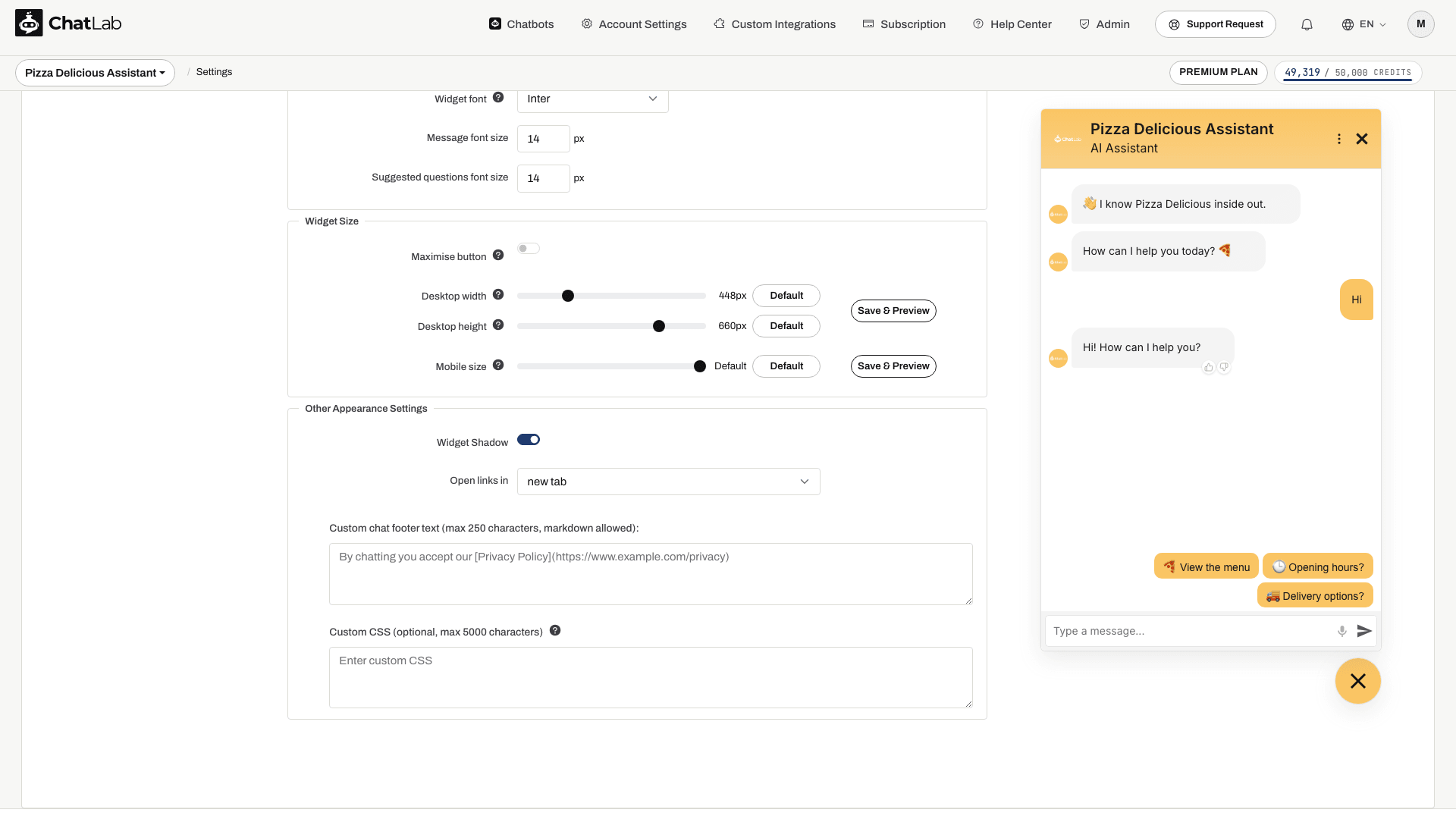
Custom Chat Footer
Fügen Sie benutzerdefinierten Text hinzu, der am unteren Rand des Chat-Widgets angezeigt wird (max. 250 Zeichen). Markdown zum Einfügen von Links wird unterstützt. Ein typischer Anwendungsfall ist die Verlinkung auf Ihre Datenschutzerklärung oder die AGB.
Beispiel-Markdown:
By chatting you accept our [Privacy Policy](https://www.example.com)
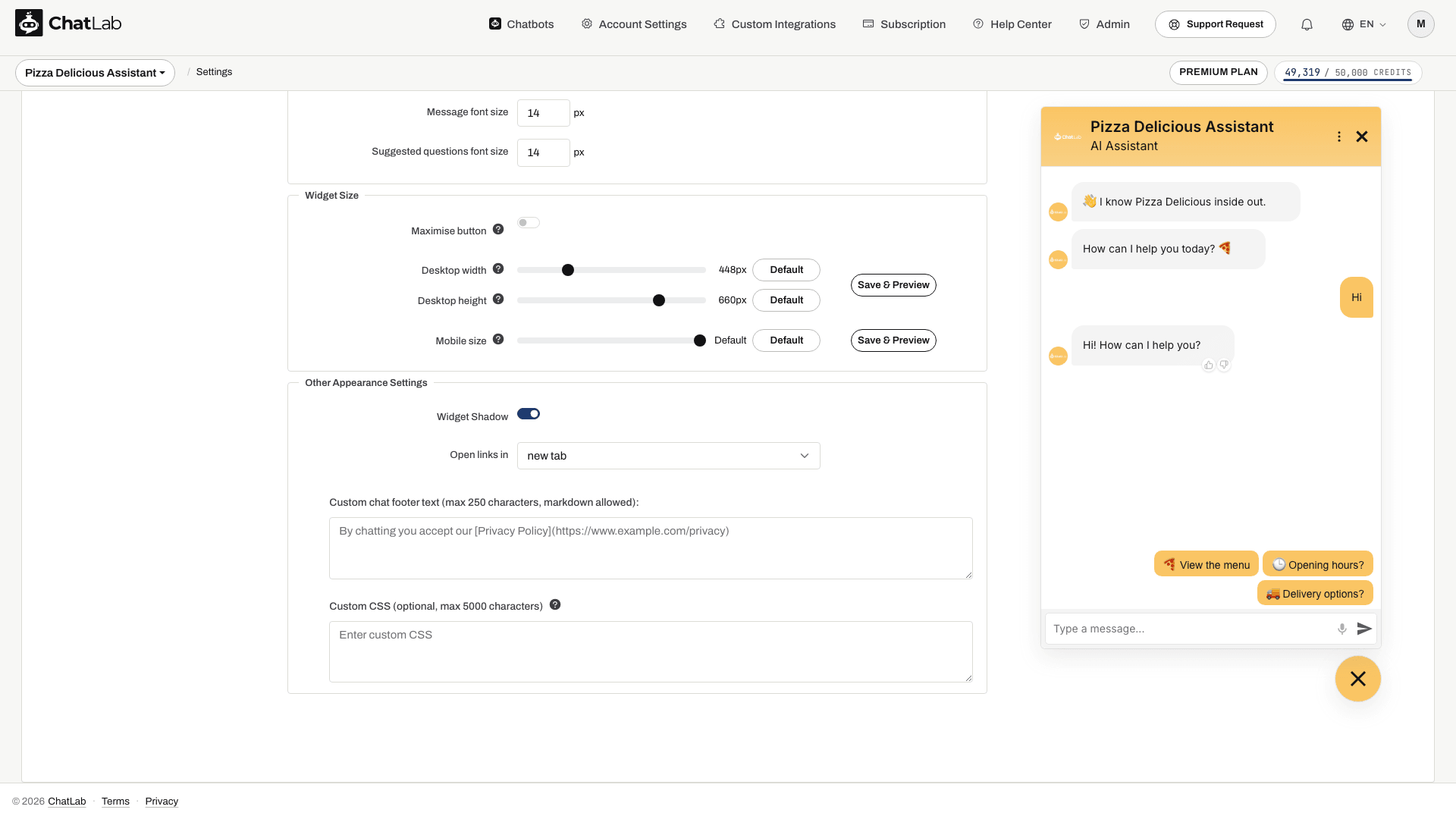
Custom CSS
Fügen Sie eigene CSS-Stile hinzu, um das Aussehen Ihres Chat-Widgets noch individueller anzupassen (max. 5.000 Zeichen):
Verwandte Artikel
Änderungen werden automatisch gespeichert. Warten Sie auf Saved (Gespeichert), prüfen Sie dann Overview (Übersicht) sowie das eingebettete Widget auf Desktop- und Mobilgeräten. Die Vorschau in den Einstellungen zeigt das Chat-Fenster; die Platzierung des Launchers und das automatische Öffnen auf Seitenebene sollten Sie ebenfalls auf Ihrer Website-Einbettung (website embed) testen.
- So erstellen Sie Ihren ersten Chatbot
- Konversationseinstellungen (Conversation settings) - Begrüßungsnachricht und Themenvorschläge formulieren
- Welcome Screen - das Vollbild-Startlayout und seine Varianten für Besucher
- Benutzerdefinierte Formulare (Custom forms) - Kontaktdaten von Besuchern direkt im Chat erfassen
- Lead-Erfassung (Lead collection)