The AI Copilot panel appears on the right side whenever you view an email. It uses your chatbot's trained knowledge base to draft professional reply suggestions.
Suggesting a response
- Open an email you want to reply to
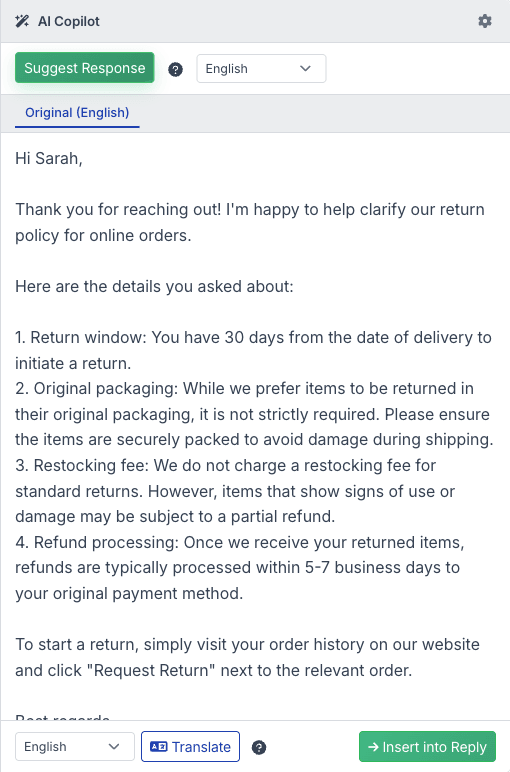
- Select the language for the AI draft from the dropdown (defaults to your chatbot's language)
- Click Suggest Response
The copilot will:
- Read the incoming email content
- Summarize any previous conversation history in the thread
- Search your chatbot's trained knowledge base for relevant information
- Draft a professional reply using the configured greeting, closing, and system prompt
The suggested text appears in an editable text area in the copilot panel. You can modify it before using it.
Translating the response
If you need to reply in a different language than the one the copilot drafted in, select the target language from the dropdown below the suggestion and click Translate. This translates your draft to the selected language. Each translation costs 1 message credit.
Inserting into the reply editor
Once you are satisfied with the suggested (or translated) text, click Insert into Reply. This opens the reply editor with the text pre-filled. If the reply editor already contains text, a confirmation dialog asks whether to overwrite it.
What knowledge does the copilot use
The copilot searches the same knowledge base your chatbot uses for website visitor conversations. This includes:
- Website pages you have trained the bot on
- Uploaded files (PDFs, documents, spreadsheets)
- Manual text entries and Q&A pairs
- E-commerce product catalogs (if connected)
The more thoroughly your chatbot is trained, the better the copilot's email suggestions will be. If the knowledge base does not contain relevant information for a particular email, the copilot will indicate that it cannot provide a specific answer rather than inventing one.