Connect your ChatLab chatbot with your Abicart store to give customers real-time access to product information and order tracking directly in the chat.
Important: E-Commerce Best Practices
After completing the integration below, read the comprehensive guide on optimizing your chatbot for e-commerce: How to set up ChatLab for your E-commerce store
What the Integration Provides
Product Search -- Customers can search your Abicart catalog by entering a phrase. The chatbot returns matching products with:
- Product name and description
- Price in your configured currency
- SKU and article number
- Product image and direct link to your store
Order Details -- Customers can check order status by providing their order ID and email address. Both values are validated against your Abicart store records. The chatbot returns:
- Payment and delivery status
- Order total and currency
- Ordered items with names, quantities, prices, and selected variants
- Shipping information with tracking URL
- Delivery address
Step 1: Obtain Abicart API Credentials
To connect your Abicart store with ChatLab, you need:
- API Key -- your Abicart API authentication key
- Webshop ID -- your unique Abicart webshop identifier (numeric value)
Contact Abicart support or check your Abicart admin panel to obtain these credentials.
Step 2: Connect Abicart in ChatLab
- Log in to ChatLab and select your bot
- Go to the Connect tab
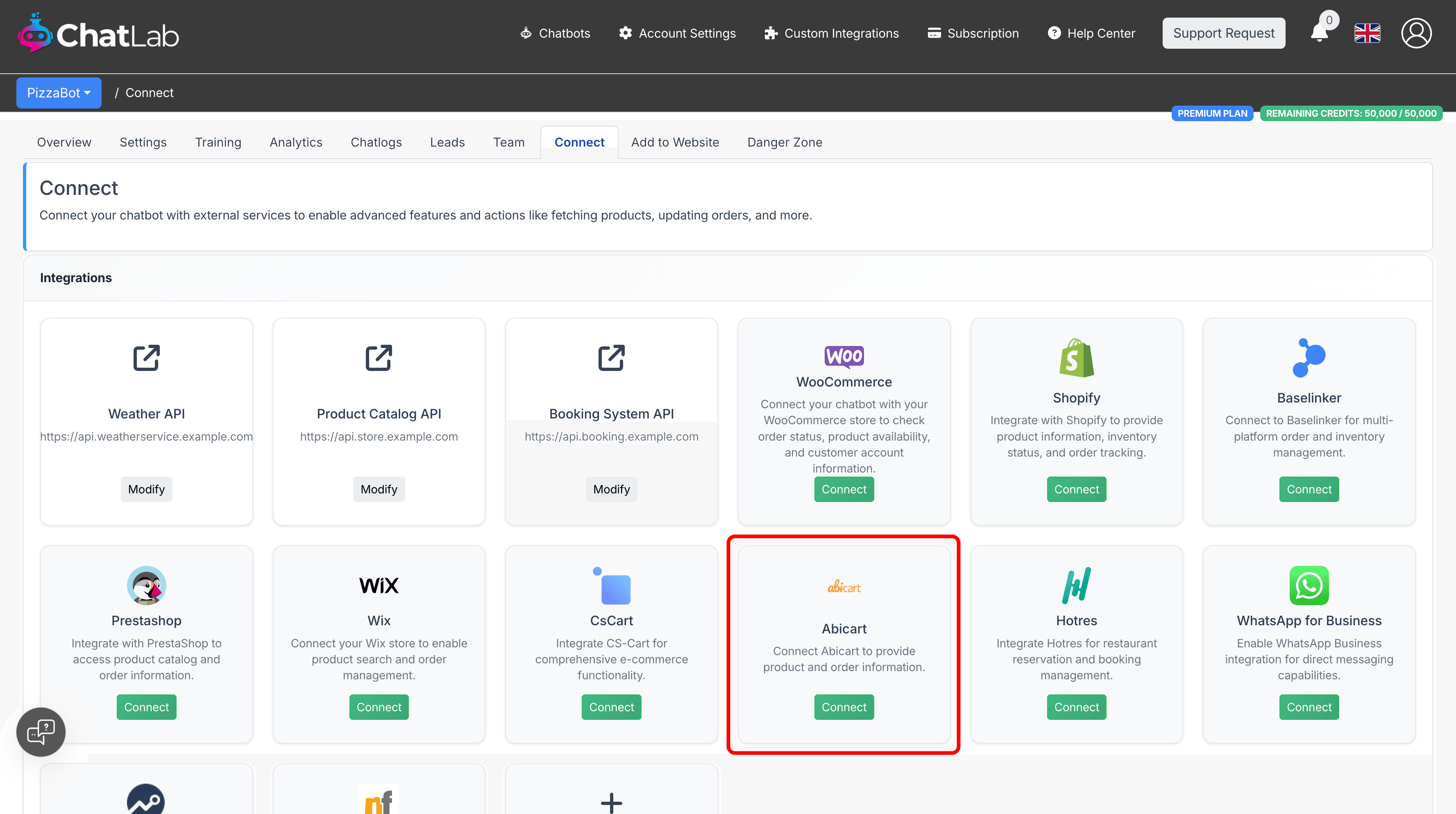
- Click Connect on the Abicart tile
- Fill in the required fields:
- API Key -- your Abicart API authentication key
- Webshop ID -- your Abicart webshop identifier
- Language code -- two-letter lowercase code (e.g., "en", "sv", "de") that determines the language for product information from your store
- Currency code -- three-letter uppercase code (e.g., "EUR", "SEK", "USD") that sets the currency for displaying product prices
- Number of products to return -- how many products appear in search results (default: 5)
- Click Verify to test the connection to your Abicart store
- If verification succeeds, click Connect to save the configuration
If verification fails, check your API credentials. The error message will display available languages or currencies if you entered an invalid code.
Step 3: Configure Abicart Actions
After connecting, enable and customize the available AI actions. Navigate to Settings > Actions and filter by the Abicart platform.
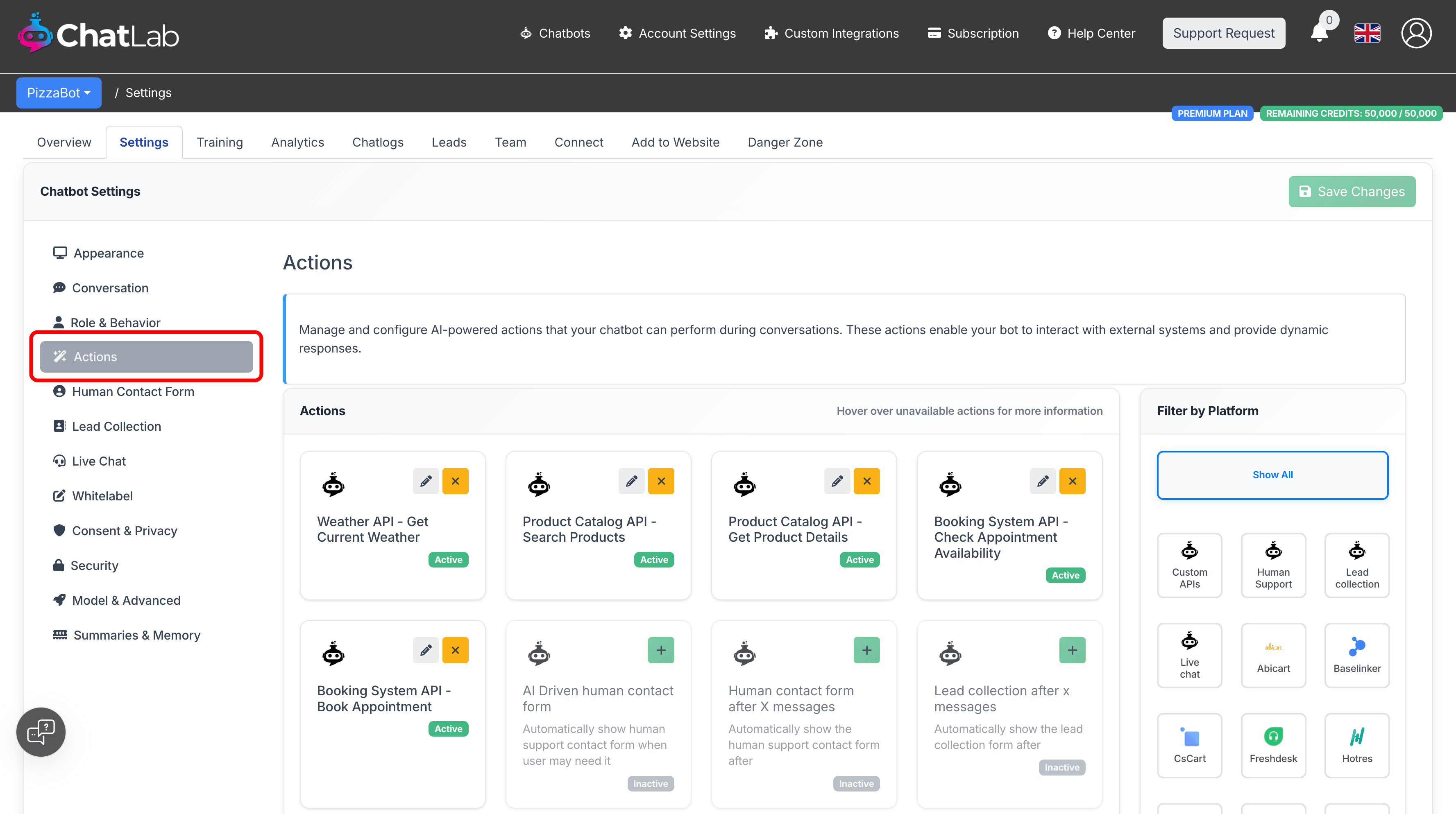
Two actions are available:
- Abicart - articles search -- enables the chatbot to search for products in your Abicart store
- Abicart - order details -- enables the chatbot to fetch order information for customers
Click the activate button on each action to enable it. You can also customize the action label (the message shown to users while the action runs) and the instructions that guide how the AI uses each action.
Both actions can be activated independently -- you can enable only product search, only order details, or both depending on your needs.