Connect your ChatLab chatbot with your BaseLinker account to give customers real-time access to order tracking directly in the chat.
Important: E-Commerce Best Practices
After completing the integration below, read the comprehensive guide on optimizing your chatbot for e-commerce: How to set up ChatLab for your E-commerce store
What the Integration Provides
Order Details -- Customers can check their order status by providing an order number and email address. Both values are validated against your BaseLinker store records. The chatbot returns:
- Order status and payment method
- Ordered items with names, prices, quantities, SKU, and attributes
- Order date
- Delivery method, recipient full name, and delivery address
- Shipping number and delivery company
- Customer phone
- External order ID (for orders from platforms like eBay or Allegro)
Step 1: Get Your BaseLinker API Token
- Log in to your BaseLinker account
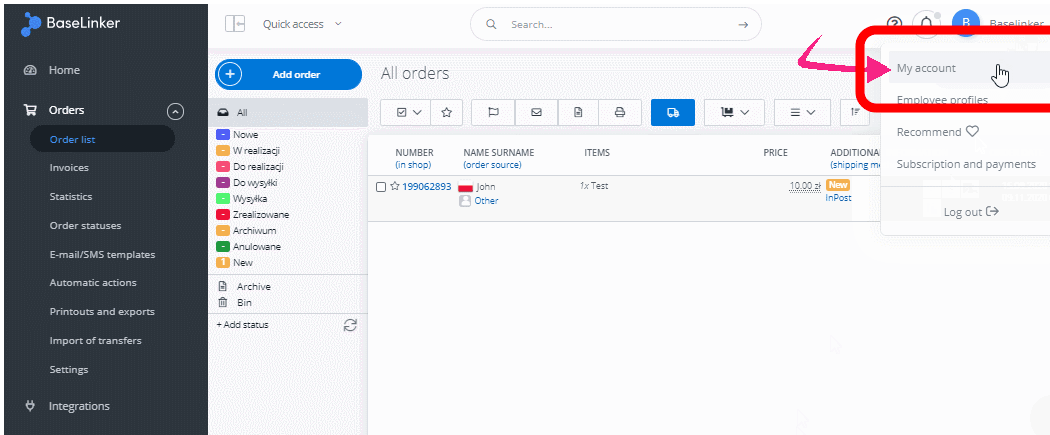
- Click your profile name in the top-right corner and select My account
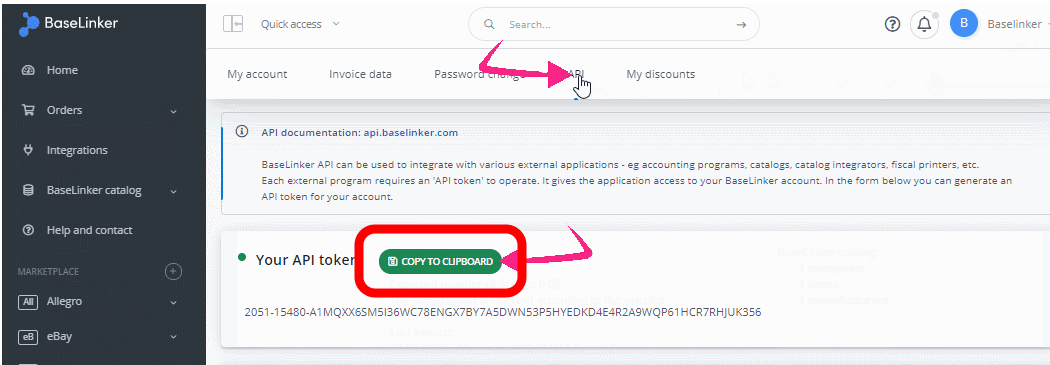
- Go to the API tab
- Copy the API token using the Copy to clipboard button
Step 2: Connect BaseLinker in ChatLab
- Log in to ChatLab and select your bot
- Go to the Connect tab
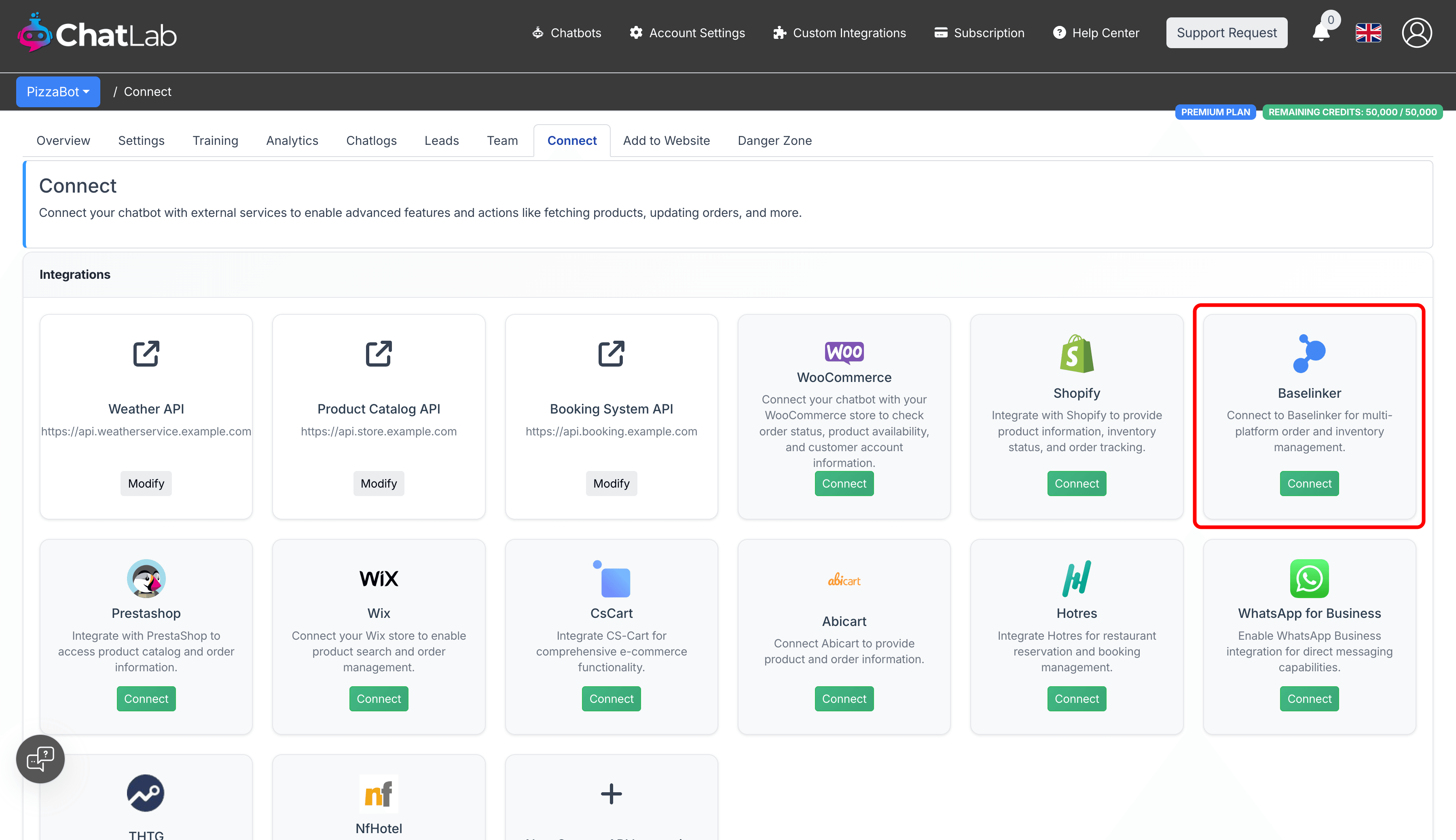
- Click Connect on the BaseLinker tile
- Fill in the connection form:
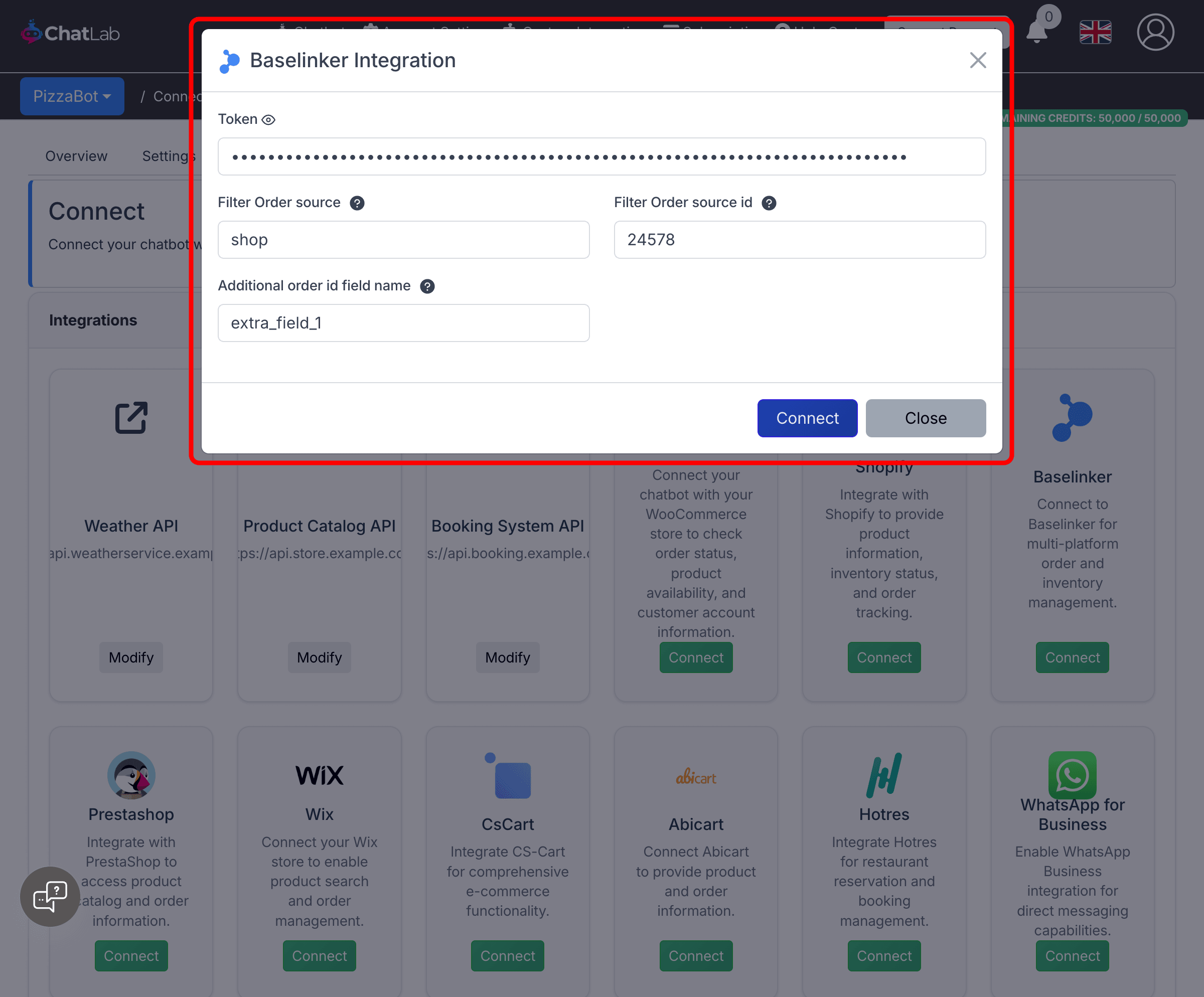
- Token -- paste the API token copied from BaseLinker
- Filter Order source -- the order source type to filter by (e.g.,
shop,ebay,amazon). This displays only orders that come from the specified source - Filter Order source id -- the numeric identifier for the specific store within the selected order source. You can find this value in your BaseLinker panel under Integrations
- Additional order id field name (optional) -- if you use BaseLinker extra fields (like
extra_field_1orextra_field_2) to store external order numbers from platforms such as eBay or Allegro, enter that field name here
- Click Connect
ChatLab automatically tests the connection by verifying that your API token is valid and that the configured order source exists in your BaseLinker account. If successful, you will see a confirmation message.
Step 3: Configure BaseLinker Actions
After connecting, you can enable and customize the order details AI action. Navigate to Settings > Actions and filter by the BaseLinker platform.
One action is available:
- Baselinker - order details -- enables the chatbot to look up order information when customers ask about their orders
Click the activate button on the action to enable it. You can also customize the action label (the message shown to users while the action runs) and the instructions that guide how the AI uses the action.