Integration with Freshdesk

Last updated: December 12, 2025

The Freshdesk integration allows you to connect your ChatLab chatbot with your Freshdesk helpdesk system to provide automated customer support ticket management directly through your chatbot conversations.


Overview

Freshdesk is a cloud-based customer service software developed by Freshworks that helps businesses manage customer support efficiently. It offers omnichannel support, ticket management, and collaboration tools for support teams.

With the Freshdesk integration enabled, your chatbot can:

  • Create new support tickets on behalf of customers

  • Retrieve and display a customer's recent support tickets

  • Add notes or follow-up comments to existing tickets

Note: This integration requires a Standard or Premium subscription. If you don't see the Freshdesk option in your integrations, please upgrade your subscription or contact support.


Part 1: Setting Up the Integration

Prerequisites

Before you begin, make sure you have the following information from your Freshdesk account:

  1. Freshdesk URL - Your Freshdesk domain URL (e.g., https://yourcompany.freshdesk.com)

  2. API Key - Your Freshdesk API authentication key

How to Find Your Freshdesk API Key

  1. Log in to your Freshdesk account

  2. Click on your profile picture in the top right corner

  3. Go to Profile Settings

  4. Your API key is displayed on the right side of the profile settings page

  5. Copy the API key for use in ChatLab

For more details on Freshdesk API authentication, refer to the Freshdesk API documentation.

Step-by-Step Setup

Step 1: Navigate to Integrations

  1. Log in to your ChatLab admin panel

  2. Select the bot you want to configure

  3. Go to Bot SettingsIntegrations

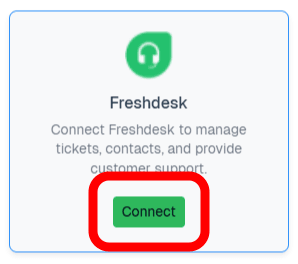
  4. Find and click on Freshdesk in the integrations list

Freshdesk integration in the integrations list

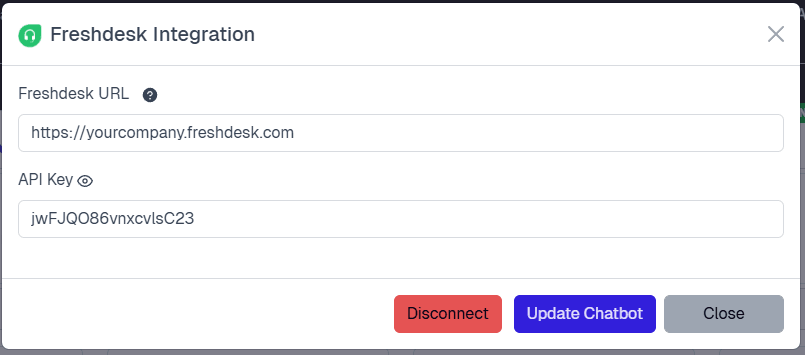
Step 2: Enter Connection Details

You'll see a form with two required fields:

1. Freshdesk URL

  • Enter your complete Freshdesk domain URL

  • Format: https://yourcompany.freshdesk.com

  • This is the URL you use to access your Freshdesk admin panel

2. API Key

  • Enter your Freshdesk API authentication key

  • This field is password-protected and will be hidden after entry

  • Click the eye icon to reveal/hide the key while entering

Freshdesk connection form

Step 3: Connect

  1. After filling in both required fields, the Connect button will become active

  2. Click Connect to establish the connection

  3. Wait for the confirmation message

  4. Once connected, you'll see a success notification

  5. A modal will appear with the option to Configure AI Actions

Step 4: Verify Connection

After successful connection:

  • The button will change from "Connect" to "Update Chatbot"

  • A "Disconnect" button will appear if you need to disable the integration

  • The integration status will show as active


Part 2: Configuring AI Actions

Once your Freshdesk integration is connected, you need to configure which AI actions your chatbot can perform.

Available AI Actions

The Freshdesk integration provides three powerful AI actions:

1. Get Tickets

Action Name: getTickets

What it does:

  • Retrieves the 5 most recent support tickets for a customer

  • Shows ticket details including ID, subject, status, and dates

  • Allows customers to check their ticket history without leaving the chat

Required information from user:

  • Email address (used to identify the customer)

When the AI uses this:

  • Customer asks "What are my support tickets?"

  • Customer wants to check the status of their tickets

  • Customer asks "Do I have any open tickets?"

Default action label: "Retrieving tickets..."


2. Create Ticket

Action Name: createTicket

What it does:

  • Creates a new support ticket in your Freshdesk system

  • Automatically creates or links the contact in Freshdesk

  • Supports custom ticket fields configured in your Freshdesk account

Required information from user:

  • Email address

  • Full name

  • Any additional fields you configure (subject, description, priority, etc.)

When the AI uses this:

  • Customer says "I need to submit a support ticket"

  • Customer has an issue they want to report

  • Customer asks to "create a ticket" or "contact support"

Default action label: "Creating a ticket ..."

Advanced Configuration:

The Create Ticket action supports flexible field configuration to match your Freshdesk ticket requirements.

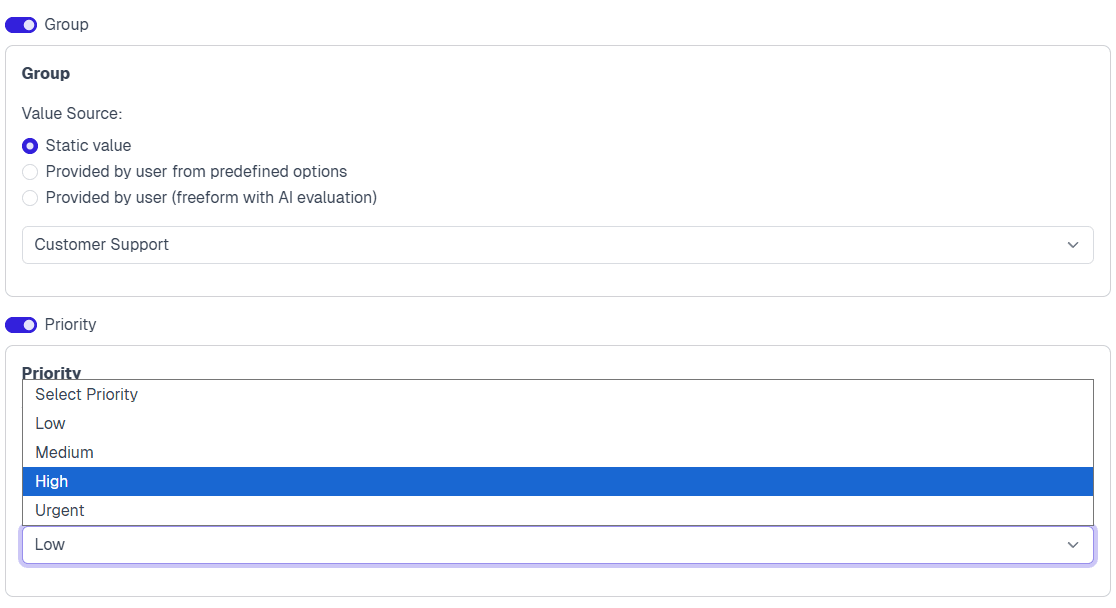
Field Configuration Options

When configuring which fields to include in ticket creation, you can choose how each field gets its value:

1. Static Value

The field is automatically filled with a predefined value - the customer never sees or interacts with this field.

Best for:

  • Internal categorization fields

  • Default priority or status values

  • Source tracking (e.g., always set source to "Chatbot")

Example: Always set "Priority" to "Medium" for all chatbot-created tickets.


2. Provided by User from Predefined Options

The customer selects from a limited list of options you define. The AI presents these options to the user.

Best for:

  • Fields with a small number of clear choices (2-10 options)

  • Categories where exact matching is critical

  • Options that customers can easily understand and choose from

Example: Issue type with options like "Billing", "Technical Support", "General Inquiry"

Use predefined options when: The list is short, options are clear to customers, and you want to guarantee exact values match your Freshdesk configuration.


3. Provided by User (Freeform with AI Evaluation)

The customer provides free-text input, and the AI interprets, validates, and converts it to the correct format based on your instructions.

Best for:

  • Fields with many possible values (dozens or hundreds of options)

  • Fields where user input may vary in format

  • Cases where AI can intelligently normalize input

Example - Country Field:

If your Freshdesk has a "Country" field with dozens of country options, using predefined options would create an overwhelming dropdown for users. Instead, use freeform with AI evaluation:

Field Instructions:

Country name in ISO 3166-1 format - short English country name.
Always validate and convert user input to this format.
Examples:
- "USA", "US", "America" → "United States"
- "UK", "Britain", "England" → "United Kingdom"
- "Deutschland" → "Germany"
- "Polska" → "Poland"

With these instructions, the AI will:

  • Accept various user inputs ("I'm from the US", "Germany", "I live in Poland")

  • Automatically convert to the correct Freshdesk-expected format

  • Handle common variations and abbreviations

Use freeform with AI evaluation when: There are many possible values, users might input variations, or the AI can reliably normalize the input based on clear instructions.


Choosing the Right Option

Scenario Recommended Option Why
Priority (Low/Medium/High) Predefined Options Small list, clear choices
Issue Category (5-6 types) Predefined Options Customers can easily pick
Country (190+ countries) Freeform + AI Too many options for dropdown
Order Number Freeform + AI User provides, AI validates format
Language preference Predefined Options Small list, exact match needed

Writing Effective Field Instructions

When using freeform AI evaluation, provide clear instructions:

  1. Specify the expected format - What should the final value look like?

  2. Provide conversion examples - Show how common inputs should be transformed

  3. Handle edge cases - Mention any special rules or exceptions

  4. Include validation rules - What makes an input valid or invalid?

Good instruction example:

Product category name. Must match one of: Electronics, Clothing, Home & Garden, Sports, Books.
If user mentions a specific product, determine the category:
- "laptop", "phone", "TV" → Electronics
- "shirt", "shoes", "dress" → Clothing
- "furniture", "plants" → Home & Garden
Ask for clarification if the category is ambiguous.

Create Ticket field configuration


3. Add Ticket Note

Action Name: addTicketNote

What it does:

  • Adds a note or follow-up comment to an existing support ticket

  • Verifies that the ticket belongs to the requesting customer (security check)

  • If the ticket ID is incorrect, shows available tickets for the customer to choose from

Required information from user:

  • Email address (for verification)

  • Ticket ID (the specific ticket to add a note to)

  • Note content (the message to add)

When the AI uses this:

  • Customer says "I want to add information to my ticket"

  • Customer wants to follow up on an existing ticket

  • Customer asks to "update my ticket" with additional details

Default action label: "Adding a ticket note ..."

Security: The Add Ticket Note action verifies that the ticket belongs to the email address provided. Customers cannot add notes to tickets that don't belong to them.


Activating AI Actions

After connecting your Freshdesk integration, follow these steps to enable AI actions:

Step 1: Navigate to AI Actions

  1. From the integration success modal, click Configure AI Actions

OR

  1. Navigate manually:
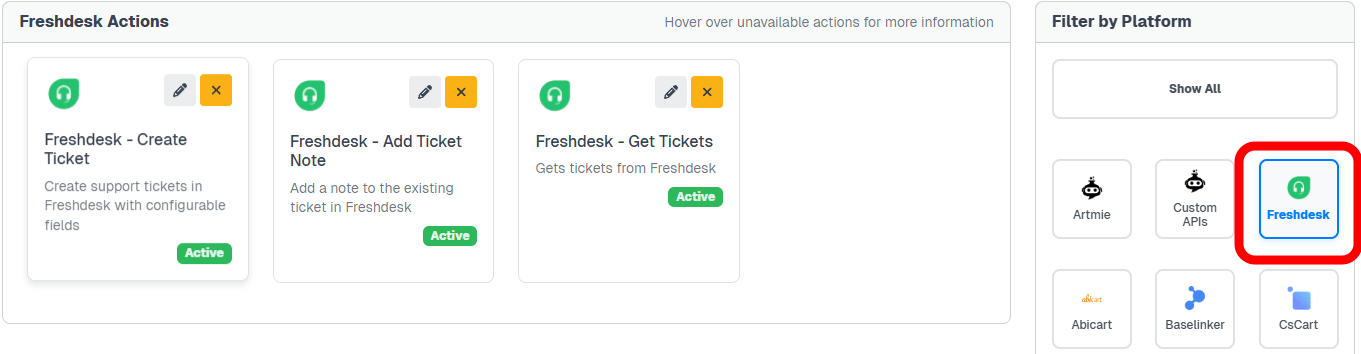
  • Go to Bot SettingsActions
  • Scroll to the Freshdesk category or use filters on the right sidebar

Freshdesk actions in the Actions settings

Step 2: Activate Each Action

For each AI action you want to enable:

  1. Find the action card in the Freshdesk category

  2. Click Activate on the action card

  3. You'll see a configuration panel with:

Action Label:

  • This is the message shown to users while the action executes
  • Default labels are provided but you can customize them
  • Example: "Retrieving tickets..." or "Creating your support ticket..."

Instructions (System Prompt):

  • Guides the AI on how to use the action
  • Default instructions are optimized for most use cases
  • You can customize these to match your specific needs
  • Click "Use default" to restore original instructions

User Instructions (Custom Prompt):

  • Additional context you can provide to the AI
  • Optional - leave blank to use defaults
  • Use this to add specific business rules or preferences
  1. Click Save to activate the action

  2. The action card will now show as Active

All three actions can be activated independently. Enable only the actions that make sense for your support workflow.

Step 3: Test the Actions

After activating the actions:

  1. Go to your bot's chat widget (preview or live)

  2. Test each action with appropriate queries:

  • "Show me my support tickets" (tests getTickets)
  • "I need to create a support ticket" (tests createTicket)
  • "I want to add a note to ticket #12345" (tests addTicketNote)
  1. Verify the responses are accurate and tickets are created correctly in Freshdesk

Best Practices

Optimizing Your Setup

  1. Customize action instructions:
  • If you have specific support policies, add them to the custom prompts
  • Example: "Always ask for the customer's order number when creating tickets"
  1. Configure Create Ticket fields carefully:
  • Only require fields that are essential for your support team
  • Use static values for fields that should always have the same value
  • Use dropdown selections to guide customers to choose correct categories
  1. Train your bot with support information:
  • Add FAQs to your knowledge base to reduce unnecessary ticket creation
  • Include information about typical response times in your bot's prompts

Managing the Integration

Updating Settings:

  • You can update your API credentials at any time

  • Click Update Chatbot after making changes

  • The integration will reconnect with new settings

Disconnecting:

  • Click the Disconnect button to disable the integration

  • This will deactivate all Freshdesk AI actions

  • Your configuration is saved and can be reconnected later


Common Use Cases

Scenario 1: Customer Checking Ticket Status

Customer: "What's the status of my support tickets?"

Bot action: getTickets

  • Asks for customer's email if not known

  • Retrieves the 5 most recent tickets

  • Displays ticket IDs, subjects, and current status

  • Offers to provide more details or create a new ticket

Scenario 2: Creating a New Support Request

Customer: "I have a problem with my order and need help"

Bot action: createTicket

  • Collects customer email and name

  • Asks for issue details based on your field configuration

  • Creates the ticket in Freshdesk

  • Confirms with the ticket ID for reference

Scenario 3: Following Up on an Existing Ticket

Customer: "I want to add more information to my ticket #5678"

Bot action: addTicketNote

  • Verifies customer email

  • Validates the ticket belongs to them

  • Collects the additional information

  • Adds the note to the ticket

  • Confirms the update was successful


Troubleshooting

Connection Failed:

  • Verify your Freshdesk URL is correct (include https://)

  • Double-check your API key is copied correctly

  • Ensure your Freshdesk account has API access enabled

Actions Not Working:

  • Verify the specific action is activated in Actions settings

  • Check that the Freshdesk integration is still connected

  • Test with a fresh chat session

Ticket Creation Fails:

  • Ensure all required fields in Freshdesk are configured in ChatLab

  • Check that field values match Freshdesk's expected formats

  • Verify your API key has permission to create tickets

Customer Can't Find Their Tickets:

  • Ensure they're using the same email address as in Freshdesk

  • Check that tickets exist for that email in your Freshdesk account

  • Verify the getTickets action is enabled

"Access Denied" for Add Note:

  • The ticket doesn't belong to the email address provided

  • Customer may have used a different email when creating the ticket

  • Have them verify their email or check ticket ownership in Freshdesk


Support

If you encounter any issues or need assistance:

  1. Check that your Freshdesk API credentials are valid and active

  2. Verify your subscription includes the Freshdesk integration

  3. Test your Freshdesk API directly to confirm it's responding

  4. Contact ChatLab support with specific error messages or behavior details