Connect your ChatLab chatbot with WhatsApp Business API so customers can message your bot directly through WhatsApp.
Important: The phone number you use for WhatsApp Business API cannot be used simultaneously on a phone or any other device running WhatsApp or WhatsApp Business. Remove it from all devices before connecting it to ChatLab.
What the Integration Provides
When connected, your ChatLab bot receives and responds to WhatsApp messages automatically. Conversations from WhatsApp appear in the Chatlogs tab marked with a green WhatsApp icon, so you can review them alongside widget conversations.
All standard bot features work through WhatsApp -- training data, AI model settings, lead collection, and integrations like Shopify or WooCommerce.
Prerequisites
Before starting, make sure you have:
- A Meta Business Manager account with admin access
- A WhatsApp Business account
- A verified business phone number
- A ChatLab subscription that includes integrations
Step 1: Create a Meta Business App
- Go to Meta for Developers and sign in (or click Get Started to create a developer account)
- Click My Apps then Create App
- Enter a name (e.g., "ChatLab WhatsApp")
- Select Other as the use case
- Select Business as the app type
- Fill in your app details and select your business portfolio
- Click Create App
- Switch App Mode from Development to Live

- Provide a Privacy Policy URL when prompted
Step 2: Add WhatsApp to Your App
- In your app dashboard, find WhatsApp and click Set Up
- Follow the setup wizard to configure WhatsApp Business API
Step 3: Link the App to Your Business Portfolio
- Go to Meta Business Settings
- Click Apps in the Accounts section
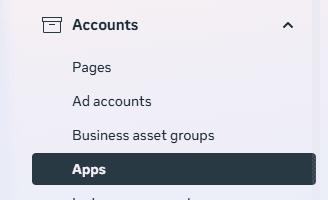
- Click Add and select Connect an app ID
- Enter your app ID -- if you are the admin, the request is approved automatically
Step 4: Create a System User and Generate Access Token
- In Meta Business Settings, go to Users > System Users
- Click Add to create a new system user
- Enter a name (e.g., "DefaultSystemUser") and set the role to Admin
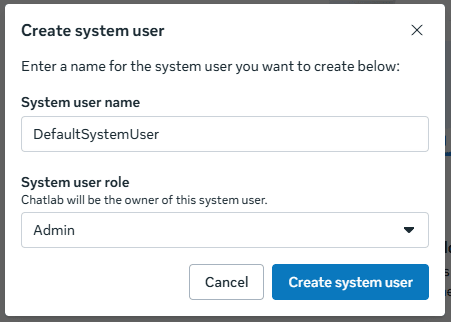
- Click Create System User
- Select the user and click Assign assets
- Select the app you created in Step 1 and grant Full control (Manage app)
- Click Generate new token for this system user
- Select your app and grant all WhatsApp-related permissions
- Copy and securely store the access token
Step 5: Add System User to WhatsApp Business Account
- In Business Settings, go to Accounts > WhatsApp Accounts
- Select your WhatsApp Business Account
- Click the WhatsApp Account Access tab
- Click Add People
- Add your system user with Full control
Step 6: Gather Your Configuration Details
Collect these four values before proceeding:
- Access Token -- the token generated in Step 4
- Phone Number ID -- found in your Meta app dashboard under WhatsApp > API Setup (this is not the actual phone number)
- Business Account ID -- displayed next to the Phone Number ID in the same section
- Webhook Verify Token -- create any random string that you will provide both to ChatLab and to Meta in the next steps
Step 7: Configure ChatLab
- Log in to ChatLab and select your bot
- Go to the Connect tab
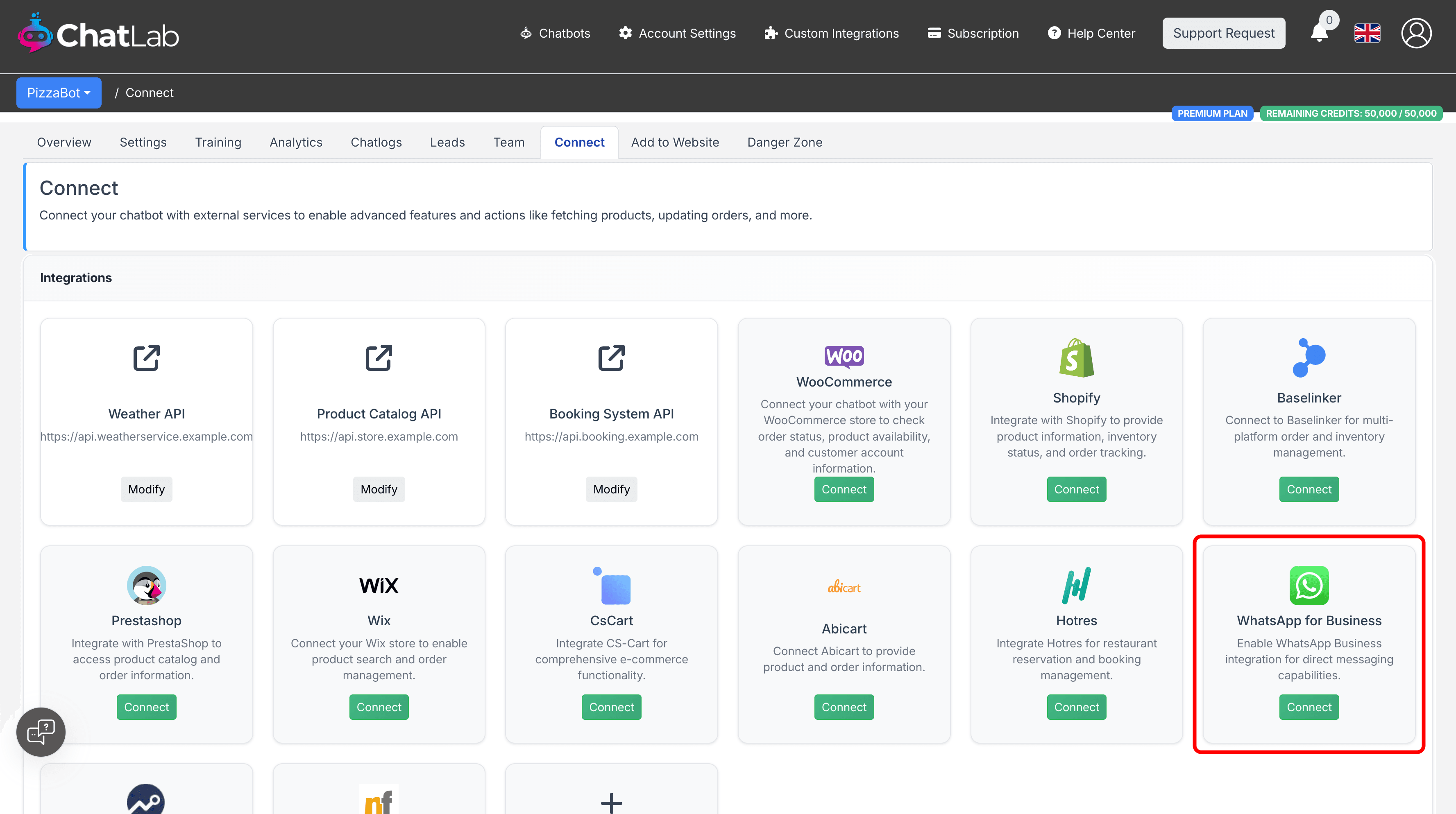
- Click Connect on the WhatsApp for Business tile
- Enter your configuration details:
- Access Token (from Step 4)
- Phone Number ID (from Step 6)
- Webhook Verify Token (from Step 6)
- Business Account ID (from Step 6)

- Click Connect
Step 8: Configure Meta Webhooks
- In your Meta app dashboard, go to WhatsApp > Configuration
- In the Webhook section, click Edit
- Enter these details:
- Callback URL:
https://api.chatlab.com/aichat/whatsapp/webhook - Verify Token: the same token you entered in ChatLab in Step 7
- Callback URL:
- Click Verify and Save
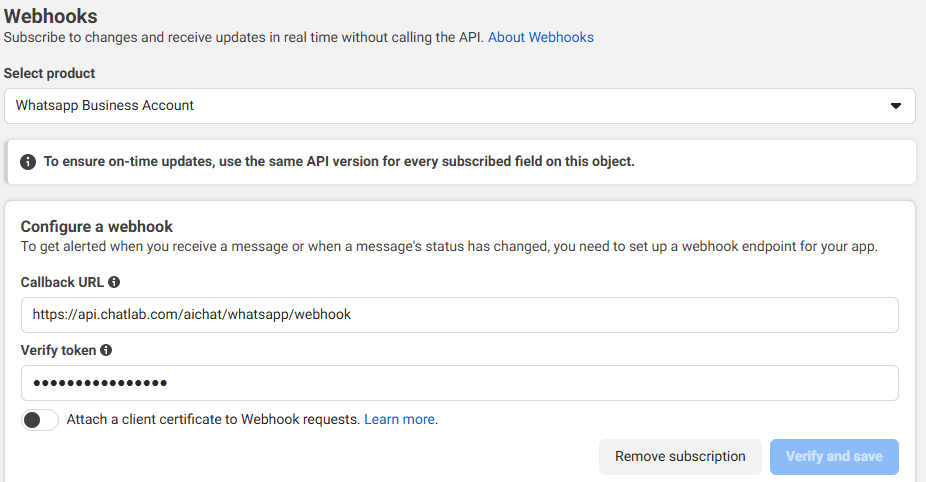
- Under Webhook fields, subscribe to:
messages(required)message_deliveries(recommended)message_reads(recommended)
Testing the Integration
Send a test message to your WhatsApp Business number. Verify that:
- Your bot responds with an appropriate answer
- The conversation appears in the Chatlogs tab with a WhatsApp icon
Troubleshooting
Invalid Access Token -- verify the token was copied completely, check that the system user has access to the WhatsApp Business Account, and confirm the token has not expired.
Webhook Verification Failed -- ensure the verify token matches exactly between ChatLab and Meta with no extra spaces or hidden characters.
Messages Not Sending or Receiving -- confirm the Phone Number ID is correct (not the actual phone number), check that webhook subscriptions are active, and verify the Business Account ID.
Important Notes
- Rate Limits: WhatsApp Business API has rate limits -- 200 calls/hour by default, increasing to 5,000 for active accounts
- 24-Hour Response Window: Outside of the 24-hour window after a customer's last message, you may need approved message templates to initiate conversations
- Phone Number: The number used for this integration cannot run WhatsApp or WhatsApp Business on any device simultaneously
Disconnecting the Integration
To disable WhatsApp integration, go to the Connect tab, click on the WhatsApp tile, and click Disconnect. This stops message processing but preserves your existing conversation history.