Connect your ChatLab chatbot with the Hotres booking system to provide real-time apartment availability information and booking links directly in the chat.
Note: Hotres integration is available upon request. If you do not see the Hotres option in your Connect tab, contact support to have it enabled for your account.
What the Integration Provides
Get Apartments -- Customers can ask about your property's rooms and apartments. The chatbot retrieves a full list from Hotres including:
- Apartment/room name and description
- Image and direct link to the apartment page
Check Apartment Availability -- Customers can check whether a specific apartment is available for given dates. The chatbot returns:
- Availability status and pricing
- Special offer indicator when the rate differs from your main pricelist
- Alternative apartments with suggested date ranges if the requested one is unavailable or has minimum stay requirements
- Booking link with pre-filled dates
Find Available Apartments -- Customers can search for available apartments by providing a date range and number of guests. The chatbot returns:
- All apartments available for the specified dates with pricing
- Special offer indicator for discounted rates
- Booking links for each available apartment
- If no apartments are available for the exact dates, alternative options with suggested date ranges that meet minimum stay requirements
Prerequisites
Before you begin, gather the following from your Hotres account:
-
API Key -- Your Hotres API authentication key
-
Object ID -- The identifier for your Hotres property
-
Main Pricelist Name -- The exact name of your primary pricelist in Hotres
-
Booking URL Format -- The URL pattern for your booking page, using these placeholders:
{DATE_FROM}-- Check-in date{DATE_TO}-- Check-out date{TAG}-- Apartment/room identifier
Example format:
https://yourdomain.com/booking?checkin={DATE_FROM}&checkout={DATE_TO}&apt={TAG}
Step 1: Connect Hotres in ChatLab
- Log in to ChatLab and select your bot
- Go to the Connect tab
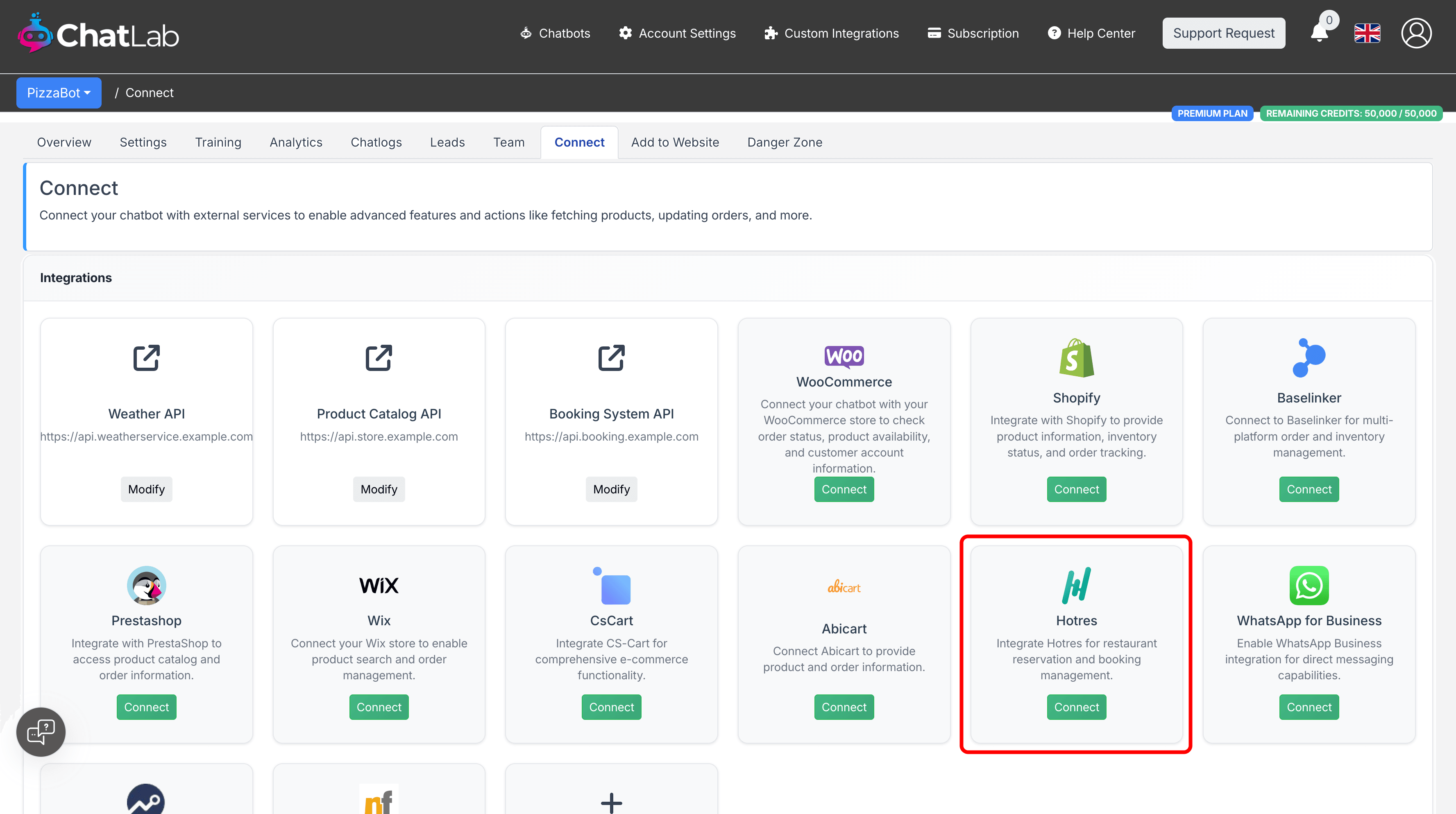
- Click Connect on the Hotres tile
- Fill in the four required fields: API Key, Object ID, Main Pricelist Name, and Booking URL format
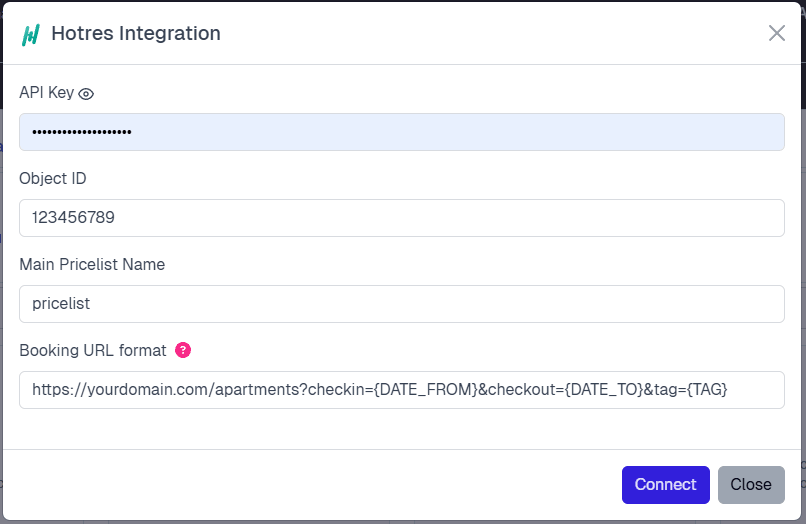
- Click Connect
ChatLab automatically tests the connection by querying your Hotres property. If the API key or Object ID is incorrect, you will see an error message. On success, a confirmation dialog appears with the option to configure AI actions.
Step 2: Configure Hotres Actions
After connecting, enable and customize individual AI actions. Navigate to Settings > Actions and filter by the Hotres platform.
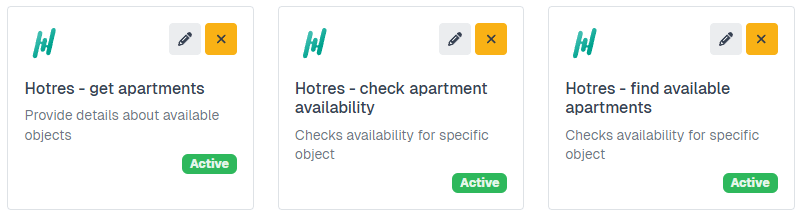
Three actions are available:
- Hotres - get apartments -- lists all rooms and apartments in your property
- Hotres - check apartment availability -- checks a specific apartment for given dates
- Hotres - find available apartments -- searches available apartments by date range and guest count
Click the activate button on each action to enable it. You can customize:
- Action Label -- the message shown to users while the action runs (e.g., "Checking availability...")
- Instructions -- guides the AI on when and how to use the action
- User Instructions -- additional business rules or preferences for the AI
Testing Your Integration
After activating the actions, open your chatbot widget and try:
- "What apartments do you have?" (tests Get Apartments)
- "Is apartment 101 available from Dec 15-20?" (tests Check Apartment Availability)
- "What's available from Dec 15-20 for 2 guests?" (tests Find Available Apartments)
Verify that the responses match your Hotres data and that booking links open correctly with pre-filled dates.
Managing the Integration
Updating Settings -- Click the Hotres tile in the Connect tab, update any field, and click Update Chatbot.
Disconnecting -- Click the Hotres tile and then click Disconnect. This deactivates all Hotres AI actions. Your configuration is saved and can be reconnected later.
Tips
- Train your bot with detailed property descriptions, amenities, and location information so the AI can provide context alongside availability data.
- Add suggested questions like "Check availability" or "Show apartments" to guide visitors.
- If you have booking policies (minimum stay, cancellation rules), add them to the action instructions so the AI mentions them automatically.