Connect your ChatLab chatbot with your IdoBooking reservation system to provide real-time availability information and booking assistance to your website visitors.
What the Integration Provides
With the IdoBooking integration enabled, your chatbot can:
- List available apartments and accommodations with descriptions and photos
- Check availability for specific dates
- Find available apartments for a given date range with pricing
- Look up existing reservations by ID, status, or date range
- Create new reservations with guest details
There are two ways to set up this integration - through the IdoBooking Marketplace (recommended) or manually through the ChatLab admin panel.
Option A: IdoBooking Marketplace Setup (Recommended)
The fastest way to connect ChatLab with IdoBooking is through the IdoBooking Marketplace. This method handles API credentials automatically and enables all AI actions for your chatbot.
Step 1: Install ChatLab from the IdoBooking Marketplace
- Log in to your IdoBooking administration panel
- Go to the Marketplace section
- Find ChatLab and click Install
IdoBooking sends your API credentials to ChatLab automatically - no need to create a separate API user or copy credentials manually.
Step 2: Create or Log in to Your ChatLab Account
After activating ChatLab in the marketplace, you are redirected to a guided setup wizard. If you already have a ChatLab account, log in. Otherwise, create a new account.
Step 3: Choose a Subscription Plan
Select a subscription plan that fits your needs. The IdoBooking booking integration features (apartment search, availability checking, reservations) require a Standard or Premium plan.
Step 4: Select a Chatbot
Choose an existing chatbot to connect with IdoBooking, or create a new one. The wizard can create a new bot for you automatically.
Step 5: Complete the Setup
The wizard automatically:
- Connects your IdoBooking credentials to the selected chatbot
- Enables all available AI actions (apartment search, availability checks, reservations)
- Redirects you back to IdoBooking or to the ChatLab admin panel
After completing the wizard, your chatbot is ready to handle booking inquiries. You can fine-tune individual AI actions in Bot Settings > Actions.
Option B: Manual Setup
If you prefer to configure the integration manually, follow these steps.
Part 1: Creating an API User in IdoBooking
Before connecting ChatLab to your IdoBooking system, you need to create a dedicated user with API access in your IdoBooking panel.
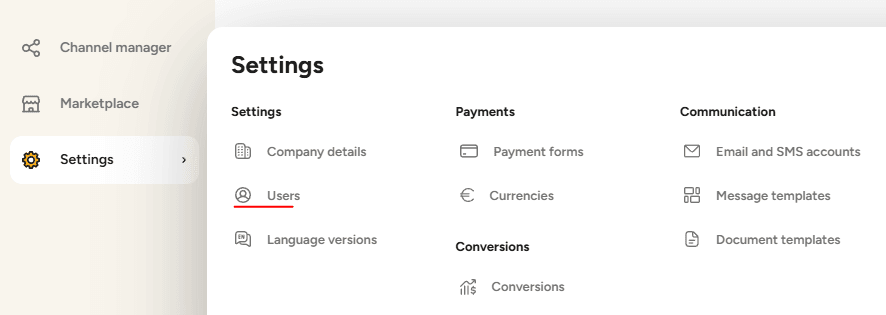
Step 1: Navigate to User Management
- Log in to your IdoBooking administration panel
- Go to Settings > Users
- Click Add new user
Step 2: Create User Account
- Enter a login name for the new user (e.g., "chatlab-api")
- Fill in the remaining required information
- Set a secure password for this account
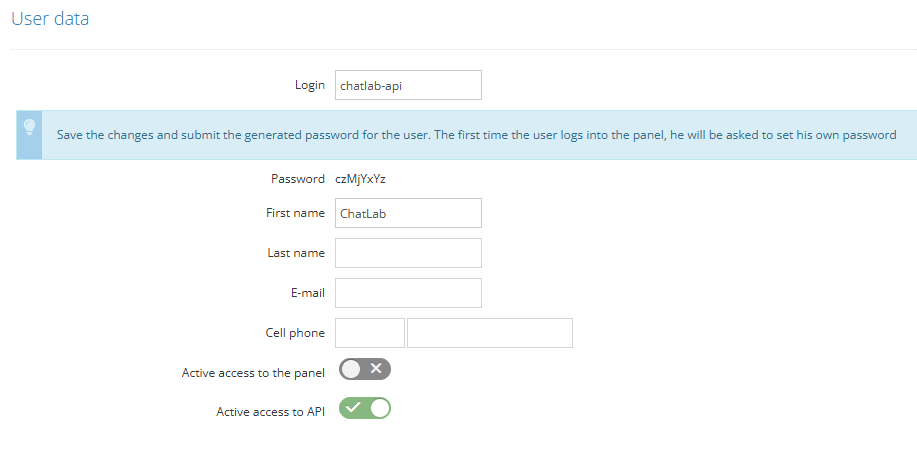
Step 3: Configure API Access
Configure the following access settings for the new user:
- Enable "Active API access" - this is required for the integration to work
- Disable "Active panel access" - the user does not need access to the admin panel
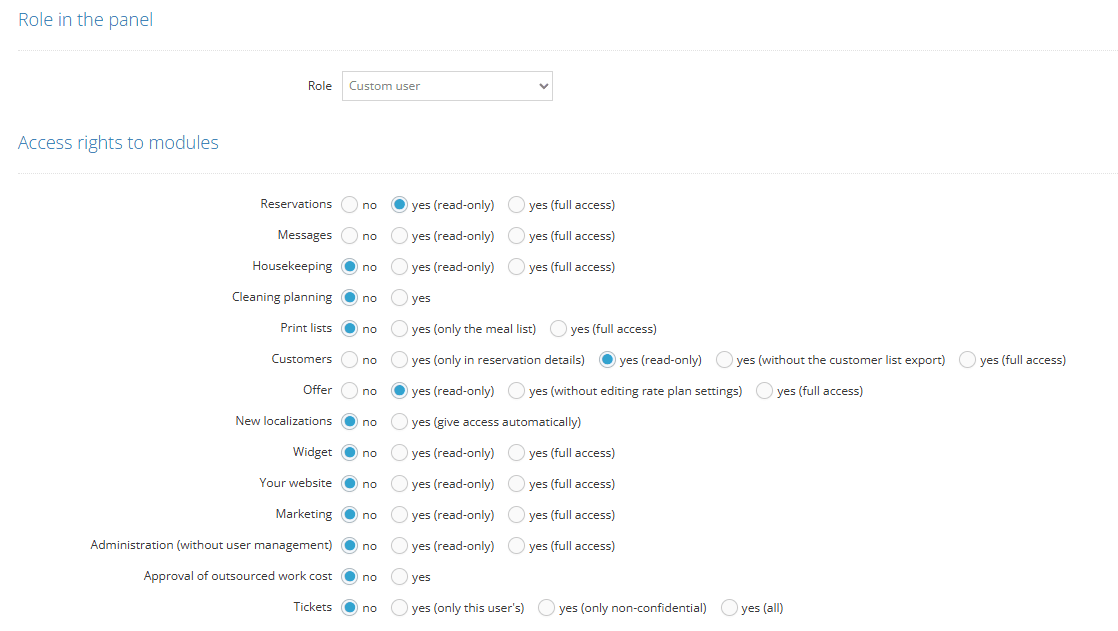
Step 4: Set User Role and Permissions
You have two options for configuring the user role:
Option A: Administrator Role (Simpler)
- Select Administrator as the role
- Since the user will not have panel access, this is a safe option that grants full API permissions
Option B: Custom User Role (More Granular)
If you prefer more granular control, select Custom user and configure the following module permissions:
- Reservations - Read-only (if chatbot should only retrieve reservation info) or Full access (if chatbot will create reservations)
- Customers - Read-only
- Offers - Read-only
For custom users, you also need to configure location permissions:
- Scroll to Location and accommodation permissions section
- We recommend selecting Select all to grant access to all properties

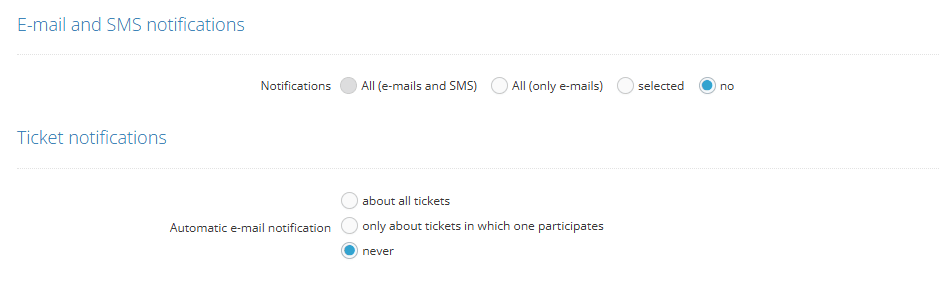
Step 5: Disable Unnecessary Notifications
To prevent the API user from receiving operational notifications, disable the following options:
- Notifications for property staff - Disable
- Automatic email notifications - Disable
Step 6: Save and Gather Connection Details
- Click Save to create the user account
- Note down the following information - you will need it for ChatLab configuration:
- Login - The username you created (e.g., chatlab-api)
- Password - The password you set
- Subdomain - Your IdoBooking subdomain (e.g., client3760)
Finding your subdomain: Look at your IdoBooking panel URL. For example, if your URL is
https://client3760.idosell.com, your subdomain isclient3760.
Part 2: Setting Up the Integration in ChatLab
Step 1: Navigate to Connect tab
- Log in to your ChatLab admin panel
- Select the bot you want to configure
- Go to the Connect tab
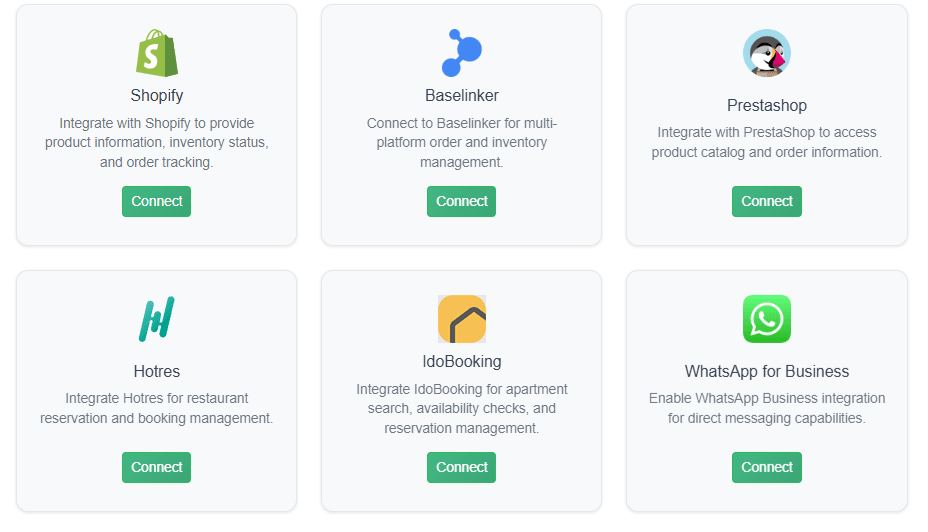
- Find and click on IdoBooking in the integrations list
Step 2: Enter Connection Details
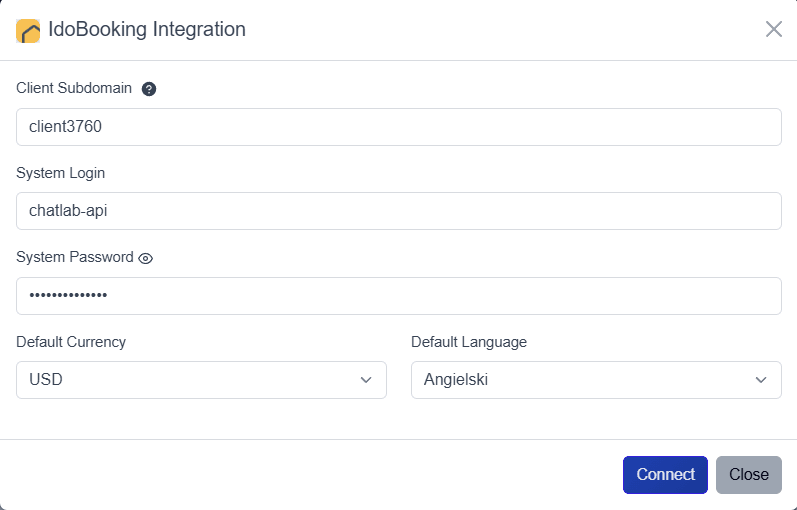
Fill in the connection form with the information gathered from IdoBooking:
- Client Subdomain - Enter your IdoBooking subdomain (without the full URL). Example:
client3760(nothttps://client3760.idosell.com) - System Login - Enter the username of the API user you created in IdoBooking
- System Password - Enter the password for the API user
- Default Currency - Select the currency for pricing information
- Default Language - Select the language for property descriptions
Step 3: Connect
- After filling in all required fields, the Connect button becomes active
- Click Connect to establish the connection
- Wait for the confirmation message
- Once connected, you will see a success notification
After successful connection, the button changes from "Connect" to "Update Chatbot", and a "Disconnect" button appears if you need to disable the integration later.
Configuring AI Actions
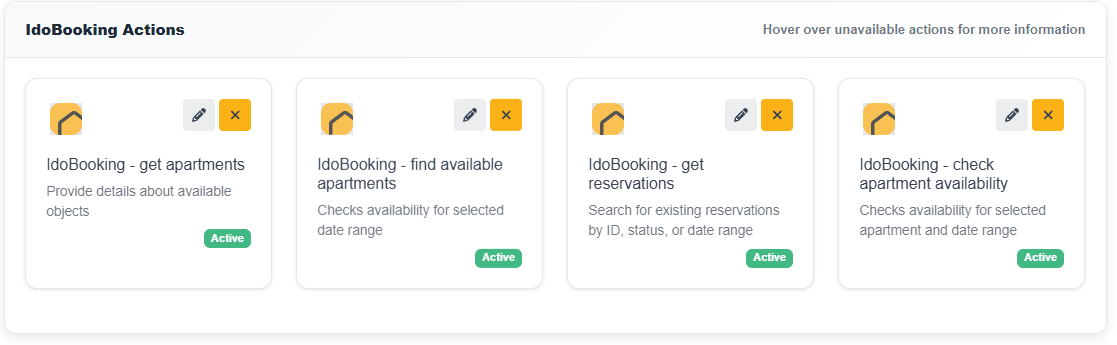
Once your IdoBooking integration is connected (through either method), you can configure which AI actions your chatbot can perform. If you used the marketplace setup, all actions are enabled by default.
Available AI Actions
- Get Apartments - Lists available apartments and accommodations with descriptions, bed configurations, and photos
- Find Available Apartments - Searches for available apartments for a given date range with pricing information
- Check Apartment Availability - Checks availability for a specific apartment and date range
- Get Reservations - Looks up existing reservations by ID, status, or date range
- Create Reservation - Creates new reservations with guest details and booking information
Enabling and Customizing Actions
- After connecting, click Configure AI Actions in the success modal, or navigate to Bot Settings > Actions and find the IdoBooking category
- Toggle the actions you want to enable
- Customize the action label (the text displayed to users while the action is running) and instructions as needed
- Click Save to apply changes
Best Practices
Security Recommendations (Manual Setup)
- Use a dedicated API user - Create a separate user specifically for the ChatLab integration rather than using your personal admin account
- Minimal permissions - Only grant the permissions necessary for your use case. Use read-only access if the chatbot only needs to retrieve information
- Regular credential rotation - Periodically update the API user password, then update the credentials in ChatLab
Optimizing Chatbot Responses
- Train your bot with property information - Add descriptions of your accommodations to the knowledge base, including amenities, room features, and location details
- Set clear conversation flows - Configure welcome messages that guide users to ask about availability, and use suggested questions like "Check availability" or "View rooms"
Troubleshooting
- Connection fails - Verify that "Active API access" is enabled for the user in IdoBooking
- "Access denied" errors - Check that the user has the correct module permissions
- No data returned - Ensure the user has access to the relevant locations and properties
- Incorrect subdomain - Check your IdoBooking URL and extract only the subdomain part (e.g.,
client3760fromhttps://client3760.idosell.com)