Properly configuring ChatLab is key to ensuring your chatbot delivers precise product information and real-time order updates. With the right setup, ChatLab can answer detailed product queries, fetch order statuses, and assist customers around the clock.
What Is Important in a Chatbot for E-Commerce
- Accurate product information - ensure customers receive correct details about specifications and offers
- Clear presentation of offers - highlight discounts, bundles, and promotions effectively
- Up-to-date data - provide real-time pricing, stock levels, and order status (with integration enabled)
- Order tracking & user data - allow customers to check order details and shipping status when integrated
How to Provide Product Information to ChatLab
Before teaching ChatLab about your store, decide how it will ingest product data:
-
Website Scan: ChatLab crawls and indexes your product pages (descriptions, specifications, and images) into a static knowledge base. Ideal for rich context and detailed answers when your catalogue is relatively stable. Read more: Adding New Website Sources
-
API Integration: Connect via Shopify, WooCommerce, PrestaShop, or other platform APIs to fetch live product data, pricing, stock levels, and handle order lookups in real time. Some integrations also support searching products by SKU or reference code. Best for frequently changing inventories and order management. Products are not imported into ChatLab's static knowledge base; instead, ChatLab dynamically queries your e-commerce platform in response to user questions.
-
Combine Both: Use a scan for deep contextual knowledge and keep integration active for up-to-date accuracy.
Available E-Commerce Integrations
Navigate to your bot and select the Connect tab to view all available integrations.
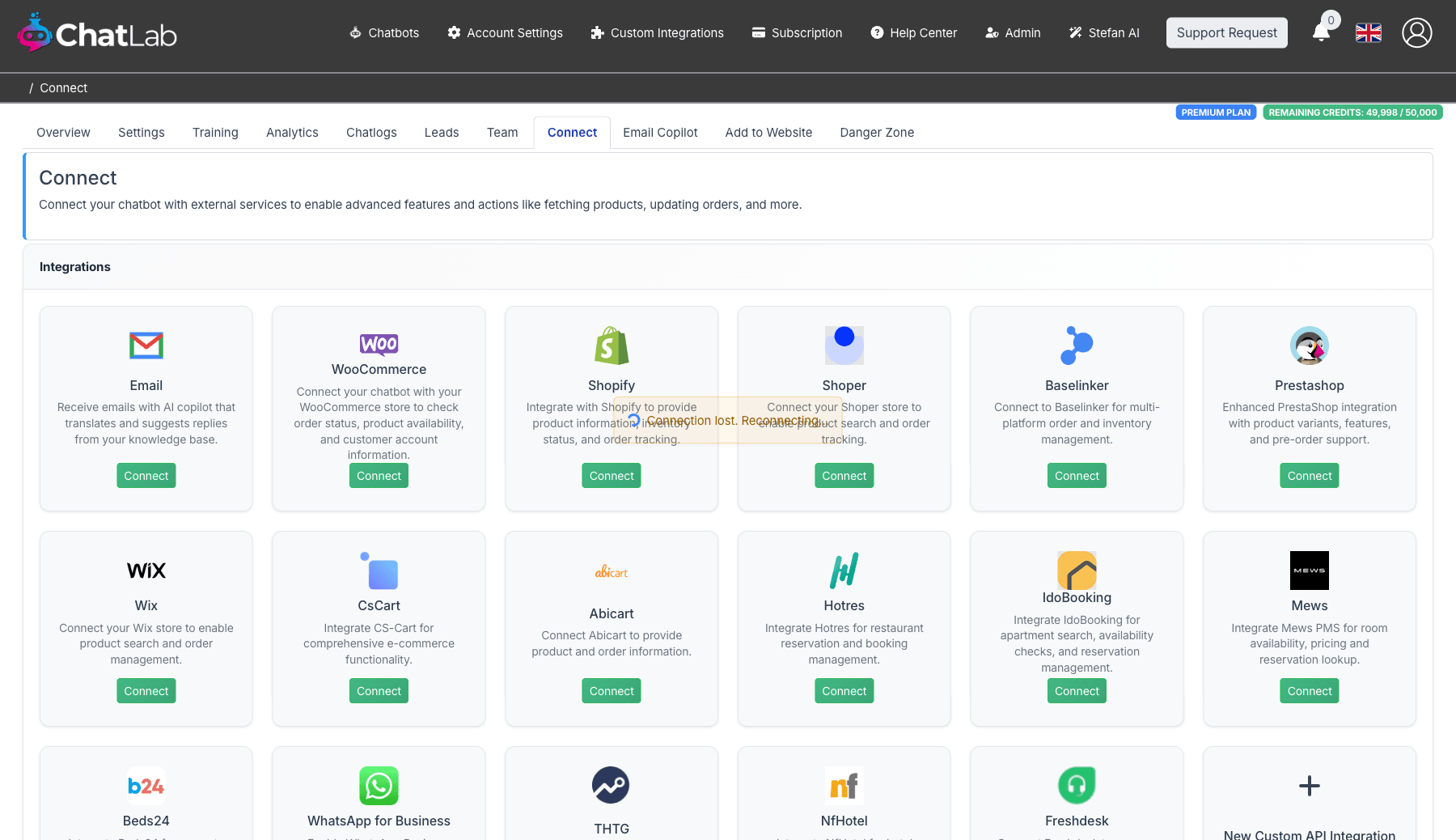
ChatLab supports the following e-commerce platforms:
- Shopify - product search (with in-stock filtering), order tracking
- WooCommerce - product search by name or SKU, category browsing, order tracking
- PrestaShop - product search by name or reference/SKU, variant support, order tracking
- Shoper - product search, order tracking
- Wix - product search, order tracking
- CS-Cart - product search, order tracking
- Abicart - article search, order tracking
- Baselinker - multi-platform order management
ChatLab also supports hotel and booking integrations:
- Beds24 - room availability, property details, pricing
- Mews - room categories, availability search, reservation lookup
- Hotres - apartment listings, availability checks
- IdoBooking - apartment booking, reservation management
- NfHotel - apartment availability and details
Scanning vs Integration: Which Is Better?
Website Scan
Pros:
- Full context AI research with rich answers
- Deep understanding of product descriptions
Cons:
- Requires manual or auto retraining to capture new or updated products
- May hit training-character quota when indexing large catalogs
- Potential misinterpretation of detailed specs
- May fail to extract information from tables or parameter lists
API Integration
Pros:
- Always up-to-date prices & stock via direct API calls
- Real-time order look-ups for tracking status and history
- SKU and reference code search available for WooCommerce and PrestaShop
- Shopify supports in-stock filtering to show only available products
Cons:
- Keyword-based search (or SKU lookup), lacking deep contextual understanding
- Dependent on API availability and rate limits
- Requires proper credentials and configuration
- Higher-level AI models strongly advised for proper tool navigation
The Winning Formula: Combine Scan & Integration
By combining a site-wide scan with live integration, ChatLab keeps your product catalog and store status in sync. Customers always see current stock levels, accurate pricing, and detailed descriptions.
To achieve both deep contextual responses and live accuracy, configure ChatLab's custom behavior under Settings > Role & Behavior. Click Enable custom role and behavior instructions and add the following:
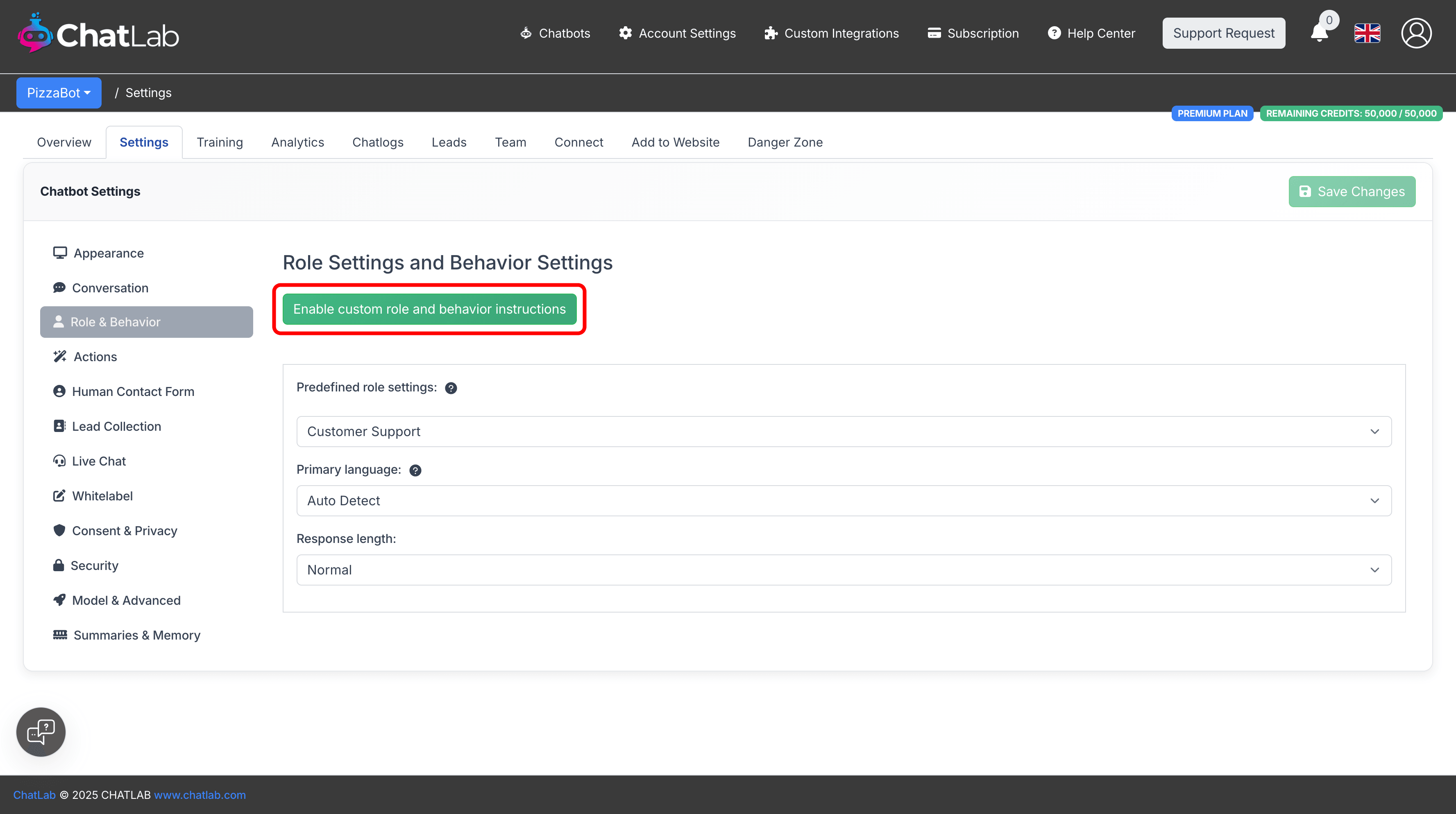
When a user asks about products or categories, first invoke API tools to retrieve current data; fallback to the scanned knowledge base only for contextual enrichment. After fetching live data, augment responses with detailed descriptions and recommendations from the knowledge base when relevant.
Read more about role customization: Role & Behavior Settings
Always Use Higher-Level Models
Integration with APIs requires the chatbot to reason about API calls and their results. Mini models (like GPT-5-mini) have limited capabilities for this. Always use higher-level models (like GPT-4o or GPT-4.1) when integrating with e-commerce platforms.
Change the model in Settings > Model & Advanced.
Setup Custom Prompt
For WooCommerce
WooCommerce integration has searchProducts, searchCategories, and searchProductBySku tools available. Add these instructions to your Settings > Role & Behavior:
First, classify the user question into one of:
- PRODUCT-BY-SKU (user provides a SKU, reference number, or product code)
- PRODUCT-SPECIFIC (variant/price/availability/recommendation)
- ASSORTMENT-OVERVIEW (brands we carry, categories, "do you sell X at all", broad offer)

If PRODUCT-BY-SKU:
- Call searchProductBySku with the provided SKU or reference code.
- Return the product details to the user.

If PRODUCT-SPECIFIC:
- Call searchProducts(text) first using normalized English singular lowercase query.
- If results are empty/weak:
  1) Call searchCategories(normalized noun) to choose best categoryId.
  2) Call searchProducts(categoryId) to show a few items as examples.
- Answer using tool results as primary truth (name/price/availability). Use Knowledge Base only to add extra details if consistent.

If ASSORTMENT-OVERVIEW:
- Build the overview primarily from tools, then enrich using Knowledge Base:
  1) Call searchCategories(normalized noun) to find relevant categoryIds.
  2) For up to 3-5 top categories, call searchProducts(categoryId).
  3) Aggregate from tool results; always label as non-exhaustive.
  4) Enrich the overview with Knowledge Base ONLY where it adds coverage the tools may miss.
- If tool results and KB conflict: prefer tool for concrete product facts; prefer KB for store-level statements.
For Shopify
Shopify integration has searchProducts tool with an option to show only in-stock products. Enable the "In-stock only" toggle in the Shopify product search action configuration to filter out unavailable items automatically. Add these instructions:
First, classify the user question into one of:
- PRODUCT-SPECIFIC (variant/price/availability/recommendation)
- ASSORTMENT-OVERVIEW (brands we carry, categories, "do you sell X at all", broad offer)

If PRODUCT-SPECIFIC:
- Call searchProducts first using normalized English singular lowercase query.
- If results are empty/weak, try up to 3 reformulations (simplify, synonym, category).
- Answer using tool results as primary truth; use Knowledge Base only for relevant extra context.

If ASSORTMENT-OVERVIEW:
- Use Knowledge Base as the primary source.
- Do not rely on searchProducts for full lists; optionally call it only to provide a few examples and label them "examples".
- Always be explicit when a list is non-exhaustive (e.g., "Examples include ...").
For PrestaShop
PrestaShop integration supports searchProducts and searchProductByReference tools. The reference search allows customers to find products by SKU, EAN-13 barcode, ISBN, or MPN code. Add these instructions:
First, classify the user question into one of:
- PRODUCT-BY-REFERENCE (user provides a SKU, EAN barcode, ISBN, MPN, or reference code)
- PRODUCT-SPECIFIC (variant/price/availability/recommendation)
- ASSORTMENT-OVERVIEW (brands we carry, categories, "do you sell X at all", broad offer)

If PRODUCT-BY-REFERENCE:
- Call searchProductByReference with the provided reference code.
- Return the product details to the user.

If PRODUCT-SPECIFIC:
- Call searchProducts first using normalized English singular lowercase query.
- If results are empty/weak, try up to 3 reformulations (simplify, synonym, category).
- Answer using tool results as primary truth; use Knowledge Base only for relevant extra context.

If ASSORTMENT-OVERVIEW:
- Use Knowledge Base as the primary source.
- Do not rely on searchProducts for full lists; optionally call it only to provide a few examples and label them "examples".
- Always be explicit when a list is non-exhaustive (e.g., "Examples include ...").
For AbiCart, Wix, CsCart, Shoper
These integrations have searchProducts tool available. Add these instructions:
First, classify the user question into one of:
- PRODUCT-SPECIFIC (variant/price/availability/recommendation)
- ASSORTMENT-OVERVIEW (brands we carry, categories, "do you sell X at all", broad offer)

If PRODUCT-SPECIFIC:
- Call searchProducts first using normalized English singular lowercase query.
- If results are empty/weak, try up to 3 reformulations (simplify, synonym, category).
- Answer using tool results as primary truth; use Knowledge Base only for relevant extra context.

If ASSORTMENT-OVERVIEW:
- Use Knowledge Base as the primary source.
- Do not rely on searchProducts for full lists; optionally call it only to provide a few examples and label them "examples".
- Always be explicit when a list is non-exhaustive (e.g., "Examples include ...").
How to Properly Scan Your E-Commerce Website
Plan scanning your website in portions rather than all at once for better control.
-
Define proper scanning scope - use URL exclusion filter:
- Include only URLs for product and category pages (e.g.,
/products/and/collections/) - Exclude low-value paths like
/blog/,/tags/, and archive pages - For multilingual stores, restrict scan to a primary language
- Include only URLs for product and category pages (e.g.,
-
Exclude repeating elements - use HTML Element Exclusion filter for header, footer, sidebar
-
Include only relevant content - use CSS Selector Inclusion to focus on product descriptions and specifications while excluding reviews, ratings, similar products sections
-
Use Sitemap if available - helps identify all product and category pages more efficiently than crawling
Read more about optimizing your website scan: How to Reduce Training Characters When Scanning a Website
Additional Features Worth Enabling
Products View
Enable this setting under Settings > Model & Advanced to allow the chatbot to return product cards with names, images, and prices. This improves visual presentation, especially with real-time API queries.
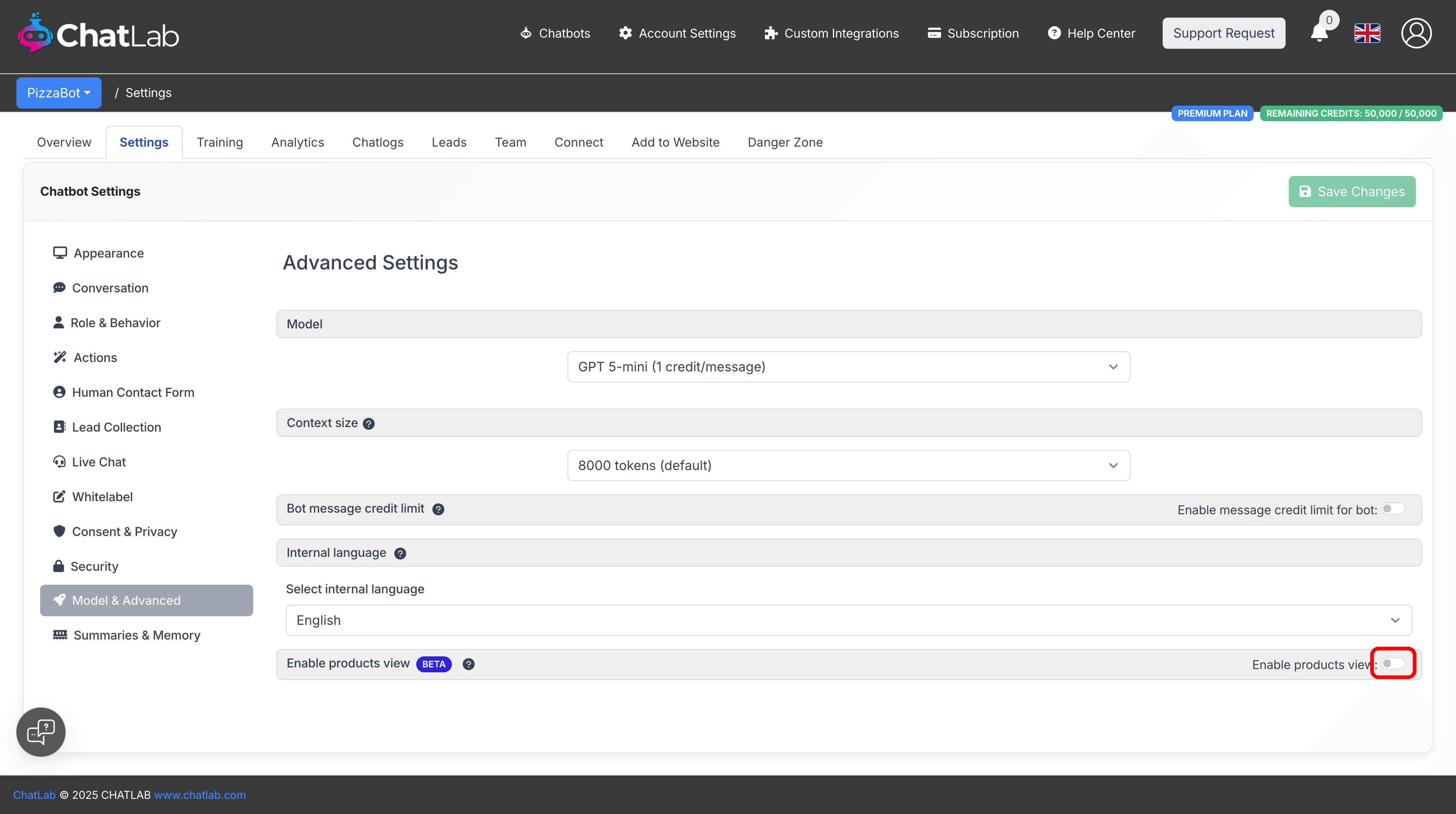
Add this to your custom instructions to avoid duplicate links:
If knowledge base provides URLs of the source information, provide them as comma separated list in the response as a reference - only after you have answered user's question in the conversation and only if the links are not included in the product list
Read more: Products View
Suggested Questions
Pre-populate quick-reply chips (shipping, returns, opening hours) under Settings > Conversation. Enable dynamic suggested follow-ups for AI-generated suggestions.
Read more: Dynamic Suggested Follow-ups
Human Hand-off
Activate the Contact Human form and provide your support email for escalations.
Read more: Human Support Contact Form
Conversation & Client Summaries
When enabled, ChatLab automatically generates a summary for each conversation and maintains an up-to-date profile summary for returning customers.
Read more: Chatbot Summaries and Memory
Chat Frontend API
Pass information about the currently logged-in user (e.g., user ID, email, or security token) to allow the chatbot to securely access order history without requiring re-entry.
Read more: Chat API
Language Setup
ChatLab supports 90+ languages. Read more: Chatbot Language Setup
When using integration with Shopify, WooCommerce, or other e-commerce platforms, consider what language your system returns products in. Add this instruction to your Role & Behavior settings:
When searching for products use [shop language] product and category names in singular form.
Monitor & Iterate Daily
To ensure ChatLab remains accurate and effective:
- Review conversation logs regularly. Fine-tune answers or add content where the bot hesitates. Read more: Chatlogs
- Enable AI Conversation Insights to identify patterns and issues. Read more: AI Conversation Insights
- Leverage the automated Daily Activity Report. Read more: Daily Summary Email
Optimizing Chatbot Responses
Even well-configured chatbots benefit from regular fine-tuning. Analyze conversation logs to identify weak spots, misinterpreted queries, or repetitive fallback answers. Refine prompts, update training material, and experiment with system instructions.
Read more: How to Improve Chatbot Responses