Live chat lets your website visitors connect with a human operator in real time, directly inside the chat widget. When enabled, visitors see a headset icon in the chat header and can request to speak with a person instead of the AI.
⚠️ Live Chat is currently in Beta testing. You might experience minor defects or issues as this feature is still being actively developed.
Where to find live chat settings
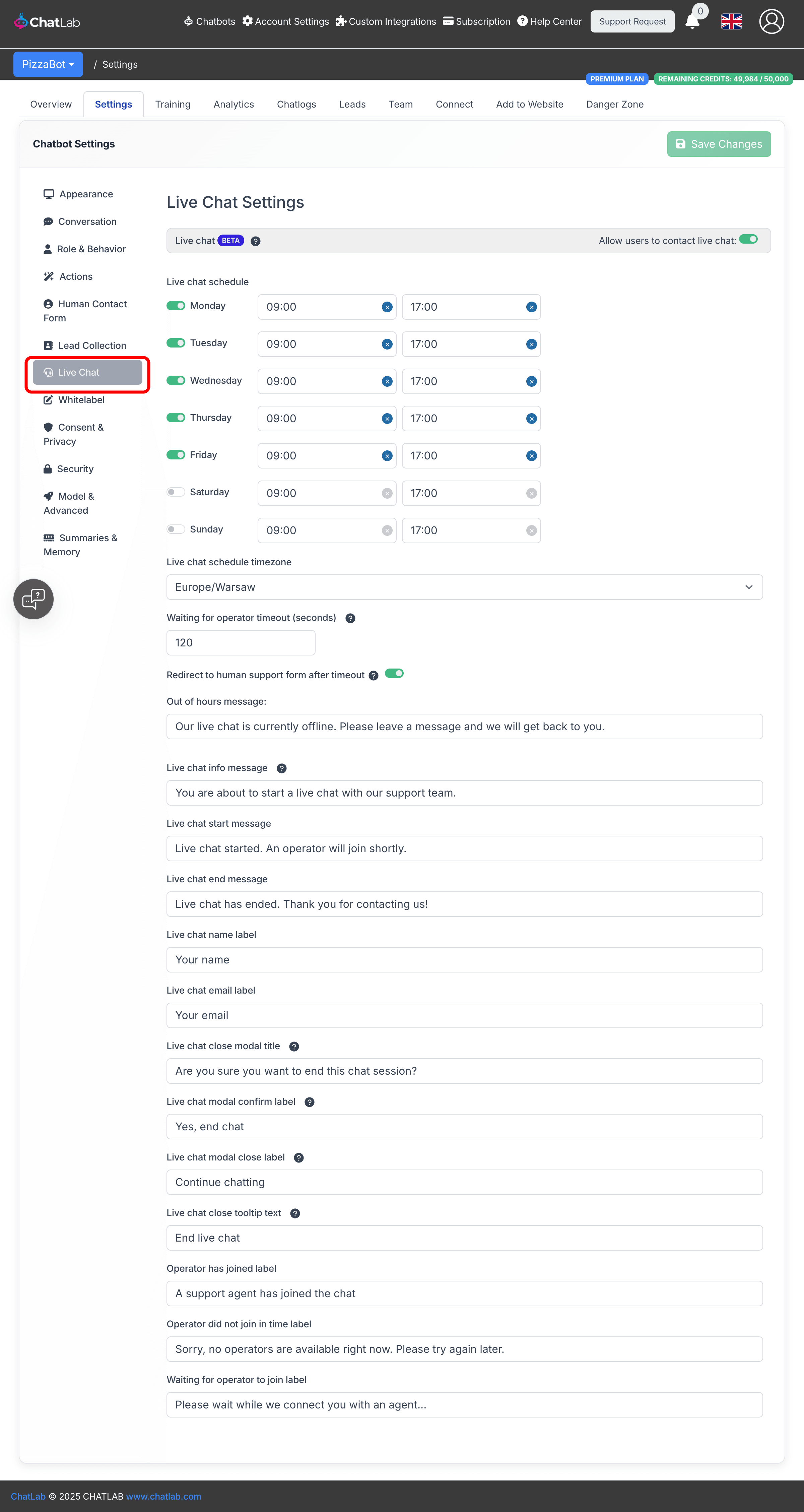
Select your chatbot, click the Settings tab, then select Live Chat in the left sidebar.
Enable live chat
Toggle on Allow users to contact live chat at the top of the page. When enabled, the full configuration panel appears below.

Availability schedule
Set which days and hours operators are available to take live chats.
- Day toggles -- enable or disable each day of the week individually
- Time range -- set the start and end time for each enabled day
- Timezone -- select the timezone that your schedule is based on
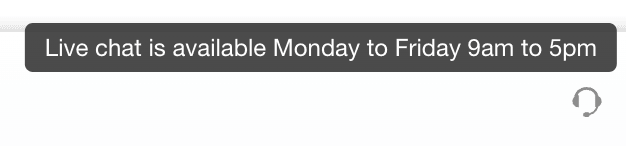
During scheduled hours, visitors see an active live chat icon. Outside those hours, the icon is grayed out and hovering over it shows the Out of hours message.
Operator timeout
- Waiting for operator timeout (seconds) -- how long to wait for an operator to join before timing out (30--600 seconds). Default is 180 seconds.
- Redirect to human support form after timeout -- when enabled, visitors who time out waiting for an operator are shown the Human Support Contact Form (the Human Support Contact Form must be enabled separately for this to work).
Customizable messages
All text displayed to visitors during the live chat flow can be customized:
Schedule-related messages
- Out of hours message -- shown when visitors hover over the grayed-out live chat icon outside scheduled hours
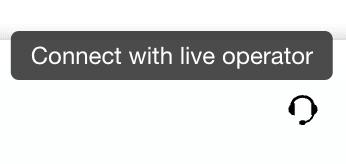
- Live chat info message -- tooltip shown when visitors hover over the active live chat icon during scheduled hours
Session messages
- Live chat start message -- displayed when the visitor starts a live chat session
- Live chat end message -- displayed when the live chat session ends
- Operator has joined label -- shown when an operator joins the conversation
- Operator did not join in time label -- shown if no operator joins within the timeout period
- Waiting for operator to join label -- shown while the visitor waits for an operator
User identification
- Live chat name label -- prompt asking the visitor for their name before starting
- Live chat email label -- prompt asking the visitor for their email before starting
Close confirmation dialog
- Live chat close modal title -- confirmation question shown when the visitor or operator ends the chat
- Live chat modal confirm label -- text on the confirm button (e.g. "Yes, end chat")
- Live chat modal close label -- text on the cancel button (e.g. "Continue chatting")
- Live chat close tooltip text -- tooltip on the close/end button while live chat is active
How live chat looks to visitors
When live chat is enabled, a headset icon appears in the chat widget header alongside any other enabled icons (rating, contact form, reset).

During scheduled hours, hovering over the icon shows the live chat info message.
Outside scheduled hours, the icon is grayed out and hovering shows the out of hours message.
Live chat session flow
- The visitor clicks the live chat icon during scheduled hours
- The visitor enters their name and email
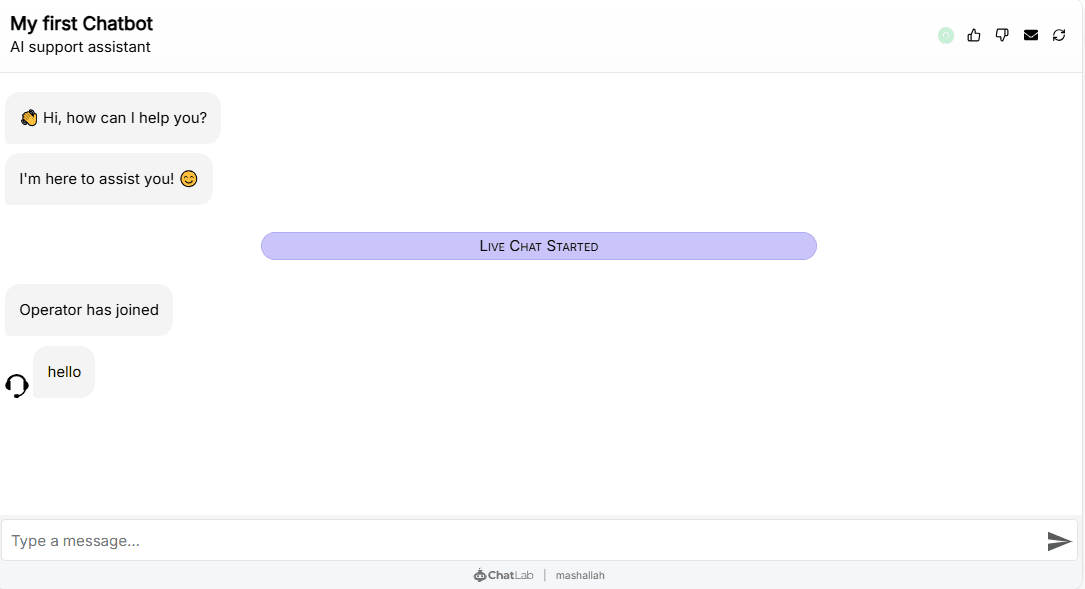
- The "Live Chat Started" message appears and the visitor waits for an operator
- When an operator joins, the "Operator has joined" message appears and real-time messaging begins
- Either party can end the session, which triggers the close confirmation dialog
If no operator joins within the timeout period, the visitor sees the "Operator did not join" message and is optionally redirected to the Human Support Contact Form.
Operator setup
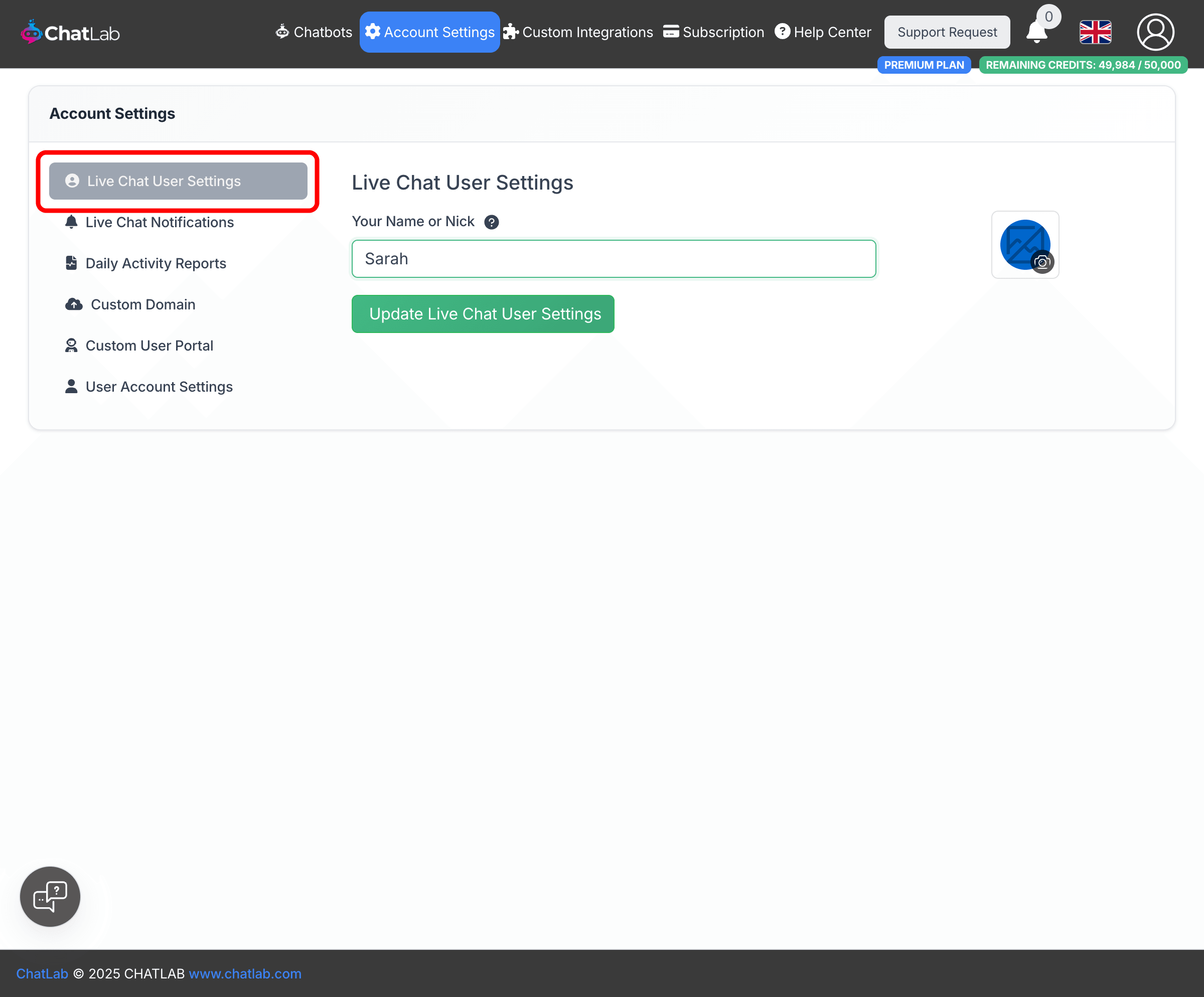
Set your display name and avatar
Go to Account Settings > Live Chat User Settings. Enter your name or nickname and optionally upload an avatar. These are displayed to visitors during live chat conversations and appear in the chatlogs history.
Configure notifications
Go to Account Settings > Live Chat Notifications.
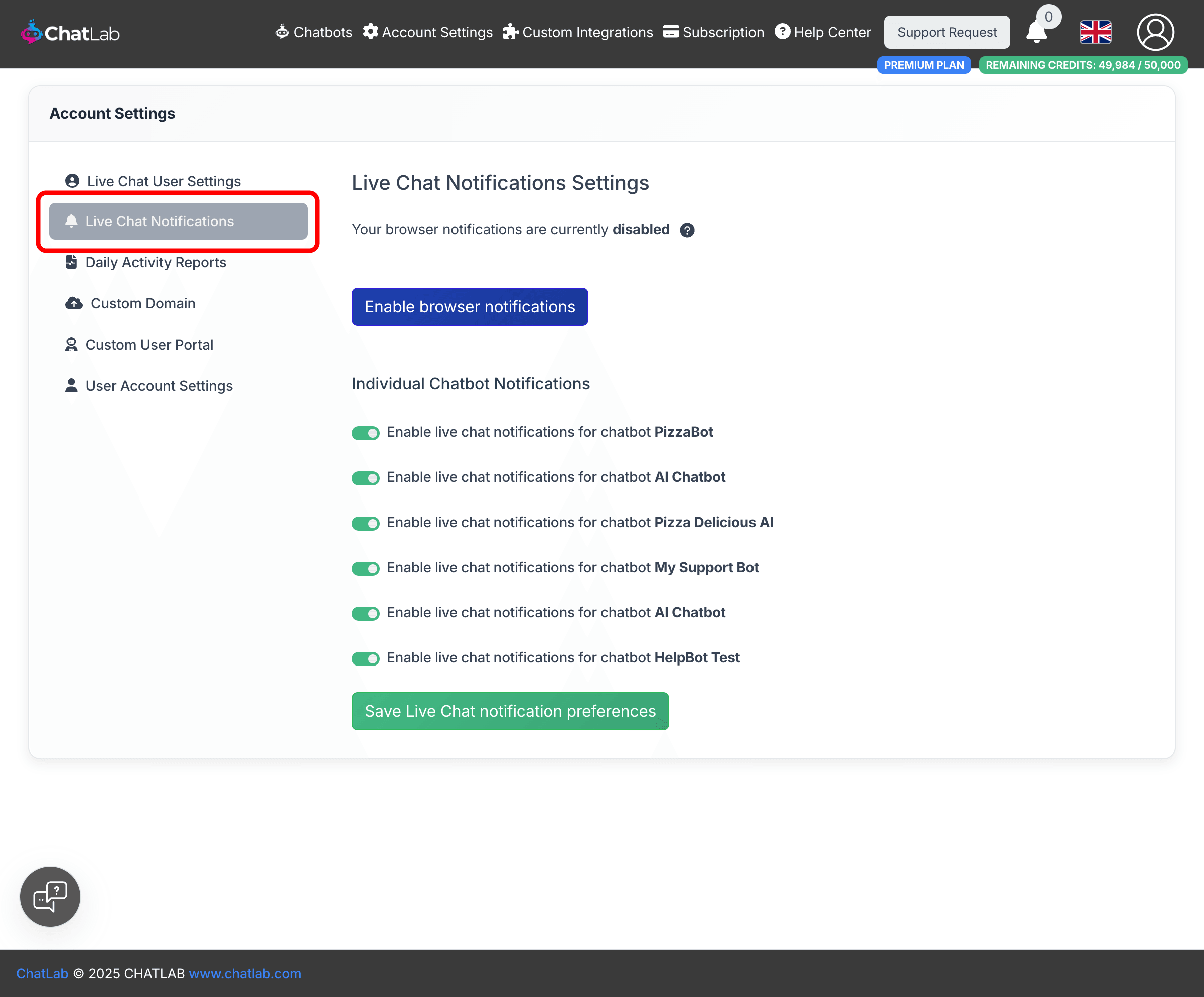
- Browser notifications -- click Enable browser notifications to receive desktop alerts with sound when a live chat starts or a new message arrives. If your browser shows notifications as "disabled", click the button to grant permission.
⚠️ Receiving sound notifications for inactive tabs may require additional browser settings. Some browsers mute sounds from background tabs by default.
- Individual Chatbot Notifications -- toggle notifications on or off for each chatbot. This is useful if you want to delegate specific bots to certain operators.
Click Save Live Chat notification preferences after making changes.
Multiple operators
To have multiple operators handle live chats, share the chatbot with other team members via the Team tab. When a chatbot is shared with another user, that user automatically receives live chat notifications for it. Each operator can independently manage which chatbot notifications they receive in their own Account Settings. See Live Chat setup with multiple operators for details.
Related articles
- Managing incoming Live Chat conversations -- how to respond to live chats from the Chatlogs panel
- Live Chat setup with multiple operators -- configuring notifications for teams
- Human Support Contact Form -- the offline fallback when live chat is unavailable