Yanıt düzenleyici, gelen bir iletiyi yanıtlamanızı, tüm alıcıları yanıtlamanızı veya iletmenizi sağlar. Öncelikle e-posta hesabınızı bağlayın. Yanıt düzenleyiciyi kullanmak için chatbot'unuzu seçip Email Copilot bölümüne gidin, ardından gelen kutusundan bir e-posta açın.
Yanıt düzenleyiciyi açmak için e-posta görüntüleyicisinden Reply (Yanıtla), Reply All (Tümünü Yanıtla) veya Forward (İlet) seçeneğine tıklayın. Ayrıca copilot'ın sizin için bir yanıt taslağı oluşturması amacıyla Suggest Response (Yanıt Öner) seçeneğine tıklayabilir, ardından bu öneriyi düzenleyiciye aktarmak için Insert into Reply (Yanıta Ekle) düğmesine basabilirsiniz.
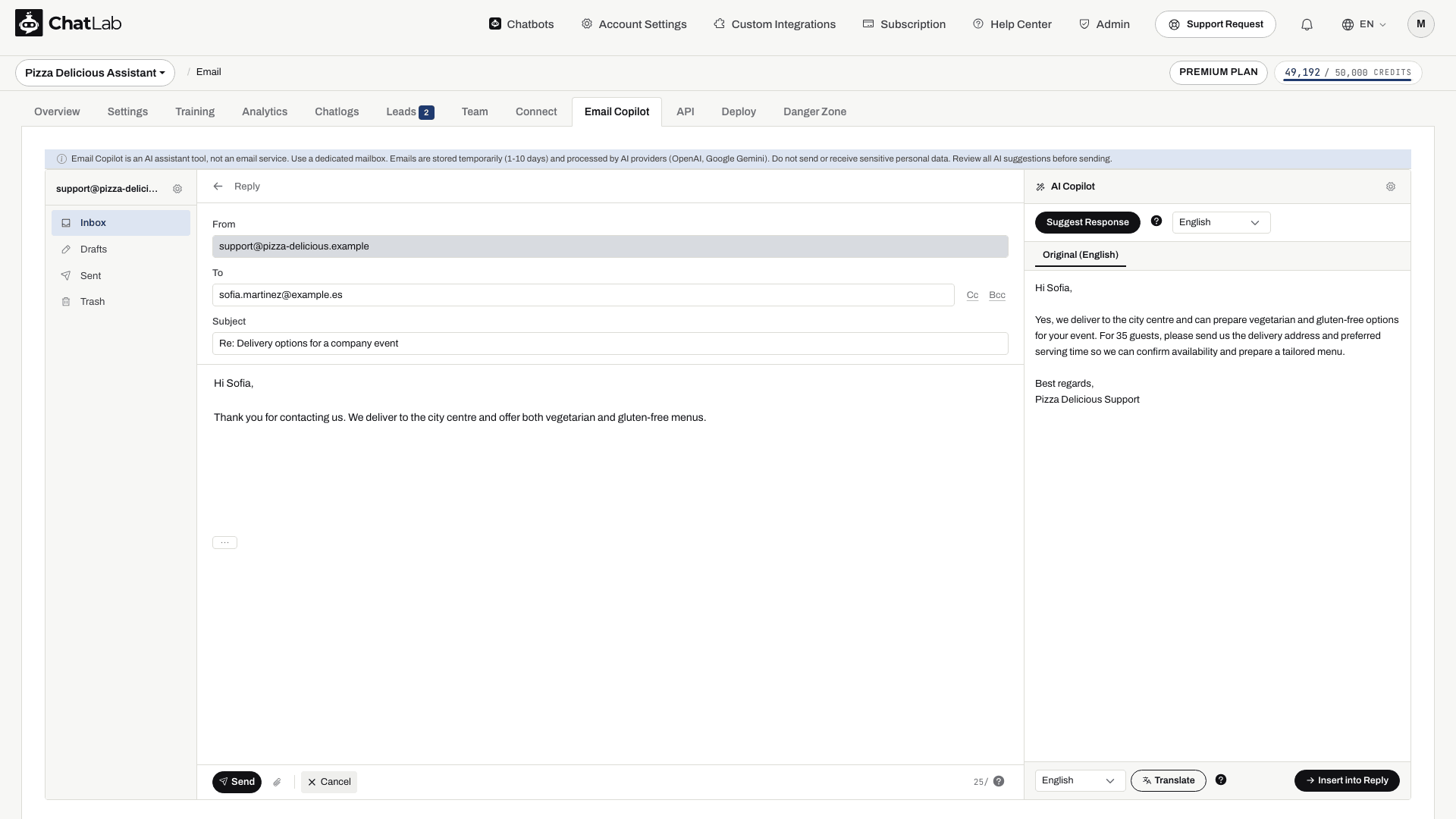
Yanıt düzenleyici alanları
- From (Kimden) - bağlı e-posta adresiniz (salt okunur)
- To (Kime) - yanıtlar için gönderenin adresiyle önceden doldurulur. Alıcı ekleyebilir veya kaldırabilirsiniz
- Cc / Bcc - ek alıcı alanlarını göstermek için Cc veya Bcc düğmelerine tıklayın
- Subject (Konu) - "Re:" veya "Fwd:" önekiyle önceden doldurulur
- Message body (İleti gövdesi) - yanıtınız için düz metin düzenleyici
- Original message (Orijinal ileti) - alıntılanan orijinal ileti gövdede mevcuttur; genişletmek veya daraltmak için ... denetimini kullanın
Dosya seçmek için ataş simgeli ek denetimini kullanın. Göndermeden önce yüklemelerin tamamlanmasını bekleyin; toplam ek dosya sınırı 10 MB'dir. İstenmeyen bir eki kaldırma denetimini kullanarak kaldırın. Yönlendirilen iletilerde gerçekten dahil etmek istediğiniz ekleri kontrol edin.
Gönderim ve kontroller
Düzenleyicinin alt kısmında:
- Send (Gönder) - e-postayı To (Kime), Cc (Bilgi) ve Bcc (Gizli) alanlarındaki adreslere gönderir. Öncelikle bu alanları, konuyu, gövde metnini ve ekleri kontrol edin
- Cancel (İptal) - e-postayı göndermeden e-posta görüntüleyiciye geri döner
- Daily send counter (Günlük gönderim sayacı) - günlük limitinizden kalan gönderim hakkınızı gösterir (ör. "98/100")
- Discard Draft (Taslağı Sil) - taslağı kalıcı olarak siler
Taslaklar
Taslaklar, yazmaya kısa bir ara verdikten sonra otomatik olarak kaydedilir. Düzenleyiciden ayrılmadan önce kaydetme göstergesinin tamamlanmasını bekleyin, ardından Taslaklar (Drafts) bölümünü kontrol edin. Taslaklar geçicidir ve diğer e-postalarla aynı saklama kuralları kapsamında silinir; daha uzun süre ihtiyacınız varsa önemli çalışmaları başka bir yerde saklayın.
Başarılı bir gönderimden sonra düzenleyici kapanır ve ileti Gönderilenler (Sent) bölümünde görünür. Gönderilen bir kopya, iletinin alıcının gelen kutusuna ulaştığını değil, gönderme işleminin gerçekleştiğini doğrular. Gönderim başarısız olursa, tekrar denemeden önce hatayı okuyun ve SMTP ayarlarını veya günlük sınırı kontrol edin.