Email Copilot özelliğini kullanmak için öncelikle e-posta hesabınızı bağlamanız gerekir. Gelen postalar için uyumlu IMAP veya POP3 erişimine, giden postalar için ise SMTP erişimine sahip özel bir e-posta kutusu kullanın. Önce bir chatbot oluşturun. Aboneliğiniz veya eklentileriniz kullanılabilir bir e-posta hesabı kotası içermelidir ve bağlantıyı yapılandırmak için bota tam erişiminiz olmalıdır.
E-posta hesabınızı bağlayın
Hesap bağlama işlemi Connect (Bağlan) sekmesinden yapılır. Bir hesap bağlandıktan sonra Email Copilot sekmesinde gelen kutunuz gösterilir - öncesinde ise sizi aynı yere yönlendiren Set up in Connect tab (Connect sekmesinde ayarla) butonu görüntülenir.
- Chatbot'unuzu seçin ve Connect (Bağlan) sekmesini açın
- Email entegrasyonunu bulun ve Connect (Bağlan) butonuna tıklayın - kullanım koşulları penceresi açılır
- Email Copilot terms of use (Email Copilot kullanım koşulları) metnini okuyup kabul edin (yapay zeka işleme süreçlerini, veri saklamayı, özel posta kutusu gereksinimini ve veri sorumlusu olarak sorumluluklarınızı kapsar)
- E-posta adresinizi girin - sistem sağlayıcınızı otomatik olarak algılar ve sunucu ayarlarını önceden doldurur
- Sağlayıcınız otomatik olarak algılanmazsa sağlayıcı seçiciden belirleyin veya ayarları manuel girmek için Other / Custom (Diğer / Özel) seçeneğine tıklayın
- Kullanıcı adınızı ve şifrenizi girin (Gmail için Uygulama Şifresi kullanın)
- Ayarların çalıştığını doğrulamak için Test Connection (Bağlantıyı Test Et) butonuna tıklayın
- Yeni iletilerin otomatik olarak indirilmesini istiyorsanız Enable email fetching (E-posta alımını etkinleştir) seçeneğini açın ve ardından Save (Kaydet) butonuna tıklayın. Kaydetme işlemi hem gelen hem giden bağlantıları denetler; devam etmeden önce bildirilen hataları düzeltin.
- Email Copilot sekmesini açın. İletileri almak için Refresh (Yenile) butonunu kullanın, ardından bir iletiyi açıp gönderenin ve gövde metninin doğru görüntülendiğini onaylayın. İlk yanıtınızı tamamlamak için E-postaları okuma ve yönetme ve Yanıt yazma ve gönderme adımlarına bakın.
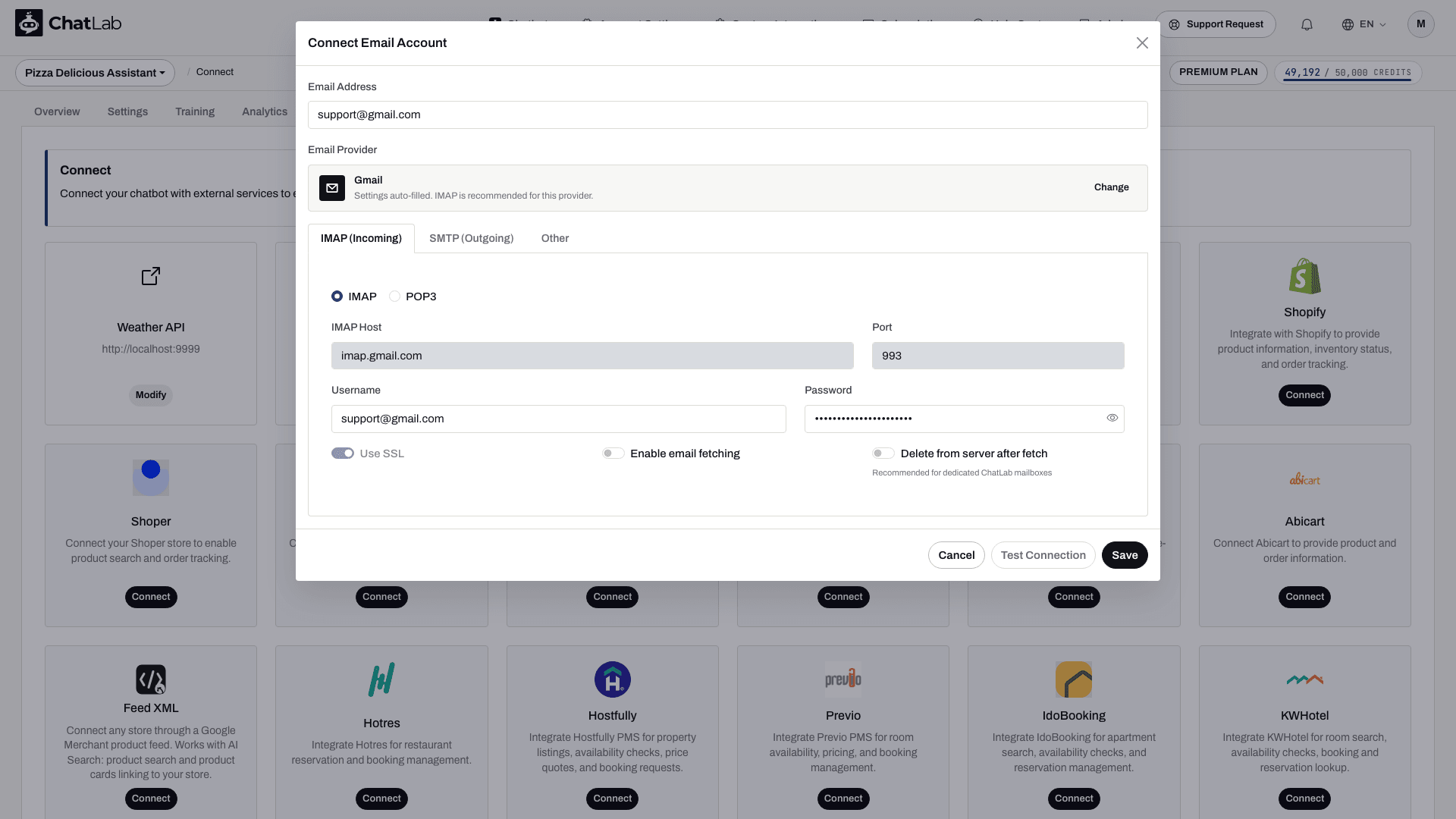
Hesap penceresi, alanları IMAP (Incoming) [IMAP (Gelen)], SMTP (Outgoing) [SMTP (Giden)] ve Other (Diğer) sekmeleri altında gruplandırır. Aşağıdaki ekran görüntüsü, bu alanların doldurulduğu pencereyi göstermektedir.
Sağlayıcı uyumluluğu
Seçici birçok sağlayıcı için önceden tanımlanmış ayarlar içerir, ancak bu ayarlar sağlayıcının bu bağlantı yöntemini kesinlikle kabul edeceği anlamına gelmez.
- Gmail: Uygulama şifreleri için 2 Adımlı Doğrulama gerekir ve bu şifreler hesabınızın güvenlik ya da kuruluş politikalarına bağlı olarak kullanılamayabilir. Google'ın uygulama şifresi talimatlarını takip edin.
- Outlook.com: Microsoft, Modern Kimlik Doğrulama (Modern Authentication) gerektirir. Bu ChatLab formu bir kullanıcı adı ile şifre kullanır ve Microsoft'un OAuth ile giriş seçeneğini sunmaz; bu nedenle Outlook ön ayarı tek başına desteklenen bir bağlantı kuramaz. Microsoft'un kimlik doğrulama gereksinimlerini inceleyin.
- Proton Mail: Masaüstü IMAP erişimi Proton Mail Bridge kullanır. Bilgisayarınızda çalışan bir Bridge'e barındırılan ChatLab üzerinden yerel bir sunucu gibi erişilemez; bu nedenle geri döngü adresi (loopback address) ön ayarını barındırılan çalışan bir yapılandırma olarak kullanmayın. Proton'un IMAP ve SMTP rehberini inceleyin.
- Diğer sağlayıcılar: Sağlayıcınızla hem gelen erişimini hem de SMTP kimlik doğrulamasını teyit edin, ardından Bağlantıyı Test Et (Test Connection) seçeneğini kullanın. Sağlayıcınız, ChatLab'in sınırlarına ek sınırlamalar uygulayabilir.
Gelen posta ayarları
IMAP (Incoming) (Gelen) sekmesinde:
- IMAP / POP3 - protokolü seçin. Çoğu sağlayıcı için IMAP önerilir
- Host and Port (Sunucu ve Bağlantı Noktası) - bir sağlayıcı seçtiğinizde otomatik olarak doldurulur
- Use SSL (SSL Kullan) - gelen posta sunucusuna şifreli bir bağlantı sağlayan geçiş anahtarı. Sağlayıcınız tarafından belirtilen şifreleme ve bağlantı noktası ayarlarını kullanın
- Enable email fetching (E-posta alımını etkinleştir) - ChatLab'in her 30 dakikada bir yeni e-postaları otomatik olarak kontrol etmesi için bu seçeneği açın
- Delete from server after fetch (Aldıktan sonra sunucudan sil) - yalnızca bu posta kutusu ChatLab'e ayrılmışsa etkinleştirin. Bu işlem, e-postalar alındıktan sonra onları posta sunucusundan kaldırır
Giden e-posta ayarları
Yanıtları göndermek için gereken SMTP sunucusunu, bağlantı noktasını ve kimlik bilgilerini SMTP (Outgoing) (SMTP - Giden) sekmesinde yapılandırın. Hazır ayarlar bu alanları doldurabilir ve formda bir Use SSL/TLS (SSL/TLS Kullan) açma/kapatma düğmesi görüntülenir. Mevcut gönderim hizmeti STARTTLS gerektirir; bunu destekleyen bir SMTP uç noktası kullanın ve kaydetmeden önce her iki bağlantı testini de doğrulayın.
Günlük gönderme sınırı
Other sekmesinde, günde gönderebileceğiniz maksimum e-posta sayısını belirleyin (1-300, varsayılan 100'dür). Bu, yanlışlıkla toplu gönderim yapılmasını önler.