Connect your ChatLab chatbot with your Shoper store to give customers real-time access to product information and order tracking directly in the chat.
Important: E-Commerce Best Practices
After completing the integration below, read the comprehensive guide on optimizing your chatbot for e-commerce: How to set up ChatLab for your E-commerce store
What the Integration Provides
Product Search -- Customers can search your Shoper catalog by entering a phrase. The chatbot searches across product names using fuzzy matching, returning up to 10 matching products with:
- Product name and description
- Price and SKU
- Direct link to the product page in your store
- Product image
- Stock status
- Optional: product attachments (PDFs, documents)
You can also enable the in-stock filter to only return products that are currently available.
Order Details -- Customers can check their order status by providing an order ID and the email address associated with the order. Both values are validated against your Shoper store records. The chatbot returns:
- Order ID, date, and current status
- Order total and currency
- Ordered items with names, quantities, and prices
- Delivery address (street, city, postal code, country, phone)
- Billing address
- Order notes
Prerequisites
Before starting the Shoper integration, make sure:
- You have a Standard or Premium ChatLab subscription
- You have access to your Shoper admin panel
- Your chatbot is already created in ChatLab
Step 1: Create an Administrators Group
- In your Shoper admin panel, go to Settings > Store administrators
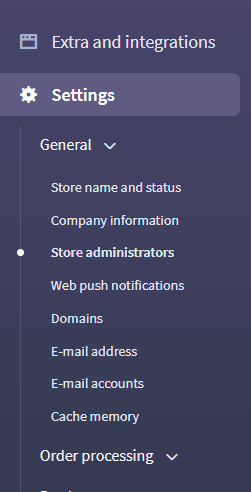
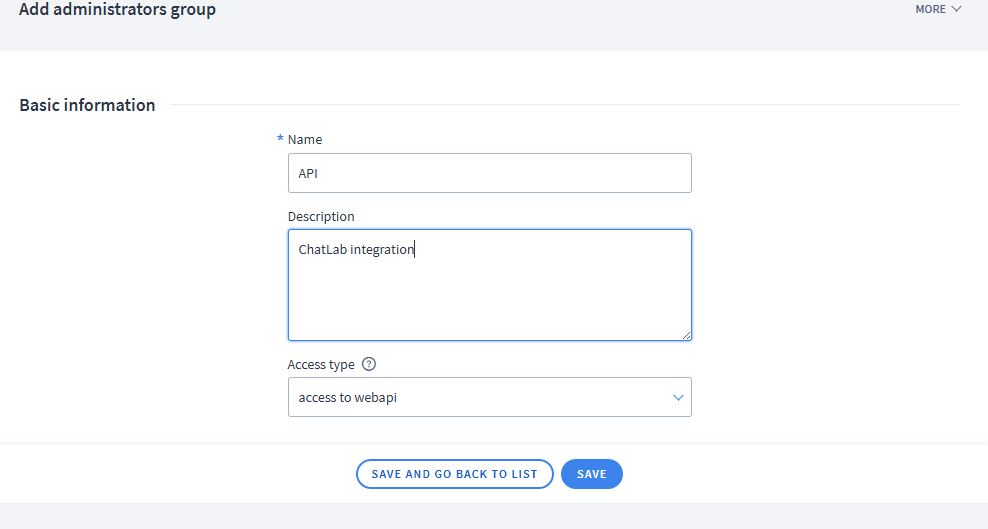
- Click MORE > Add administrators group

- Enter a name for the group (e.g., "ChatLab Integration"), select Access type: 'access to webapi' and save
Step 2: Configure Group Permissions
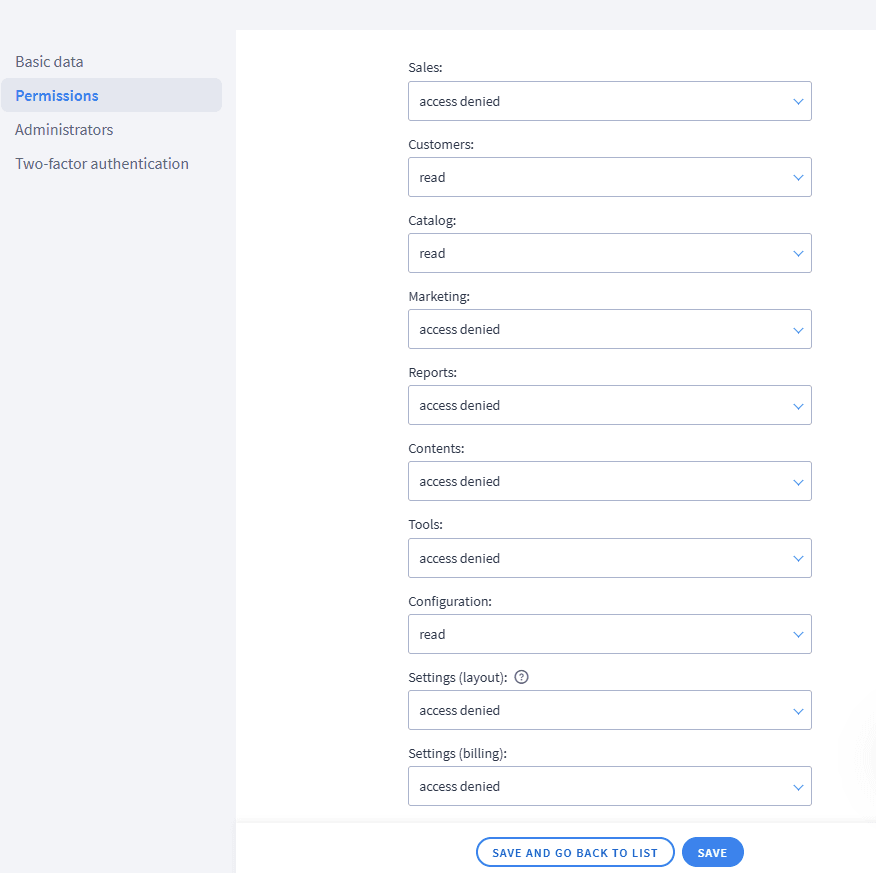
- Open the newly created group and go to the permissions settings
- Grant Read access to the following resources:
- Customers -- read
- Catalog -- read
- Sales -- read
- Configuration -- read
Step 3: Add an API Administrator
- Go to Administrators and click Add administrator
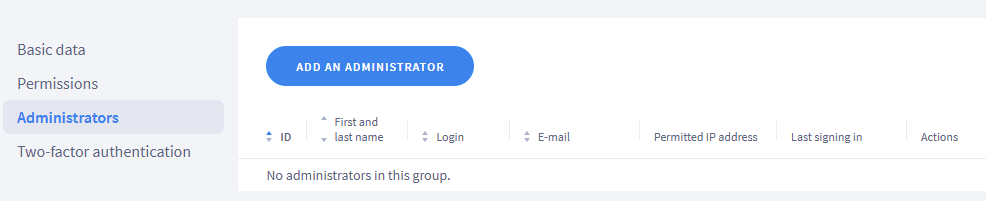
- Fill in the login and password, and assign the administrator to the group created in Step 1
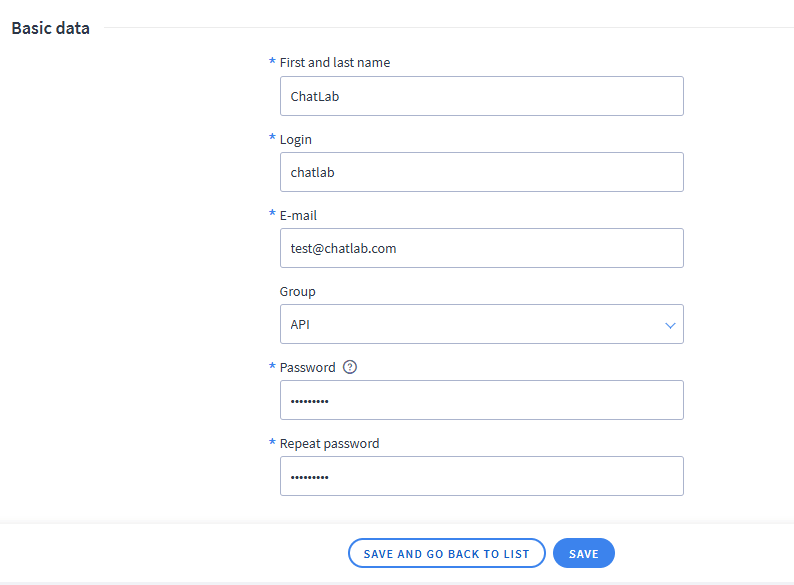
- Save the administrator. Note down the login and password -- you will need them in the next step.
Step 4: Connect Shoper in ChatLab
- Log in to ChatLab and select your bot
- Go to the Connect tab
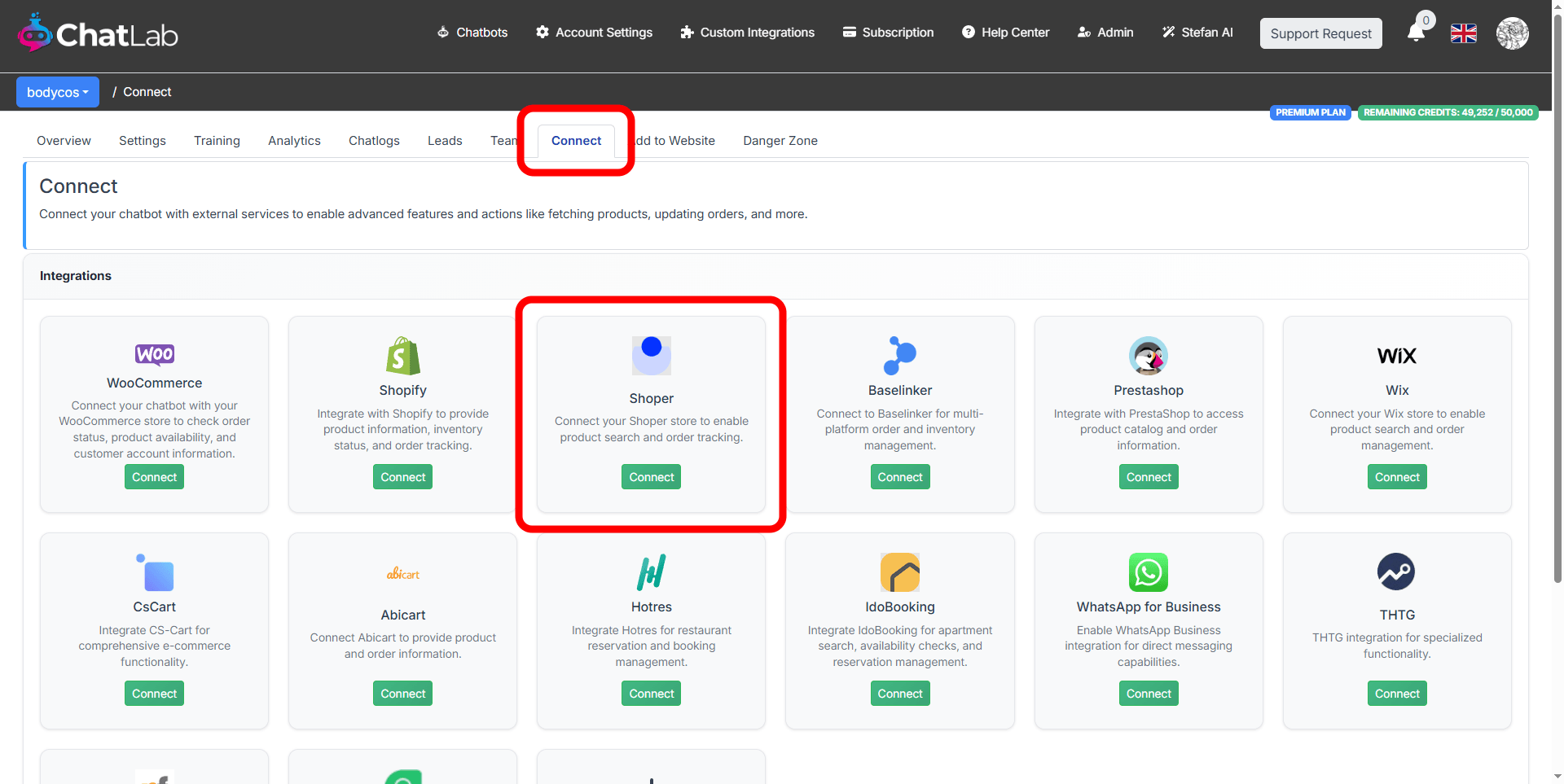
- Click Connect on the Shoper tile
- Enter your Shop URL (your Shoper domain, e.g.,
myshop.shoper.pl) - Enter your WebAPI Login (from Step 3)
- Enter your WebAPI Password (from Step 3)
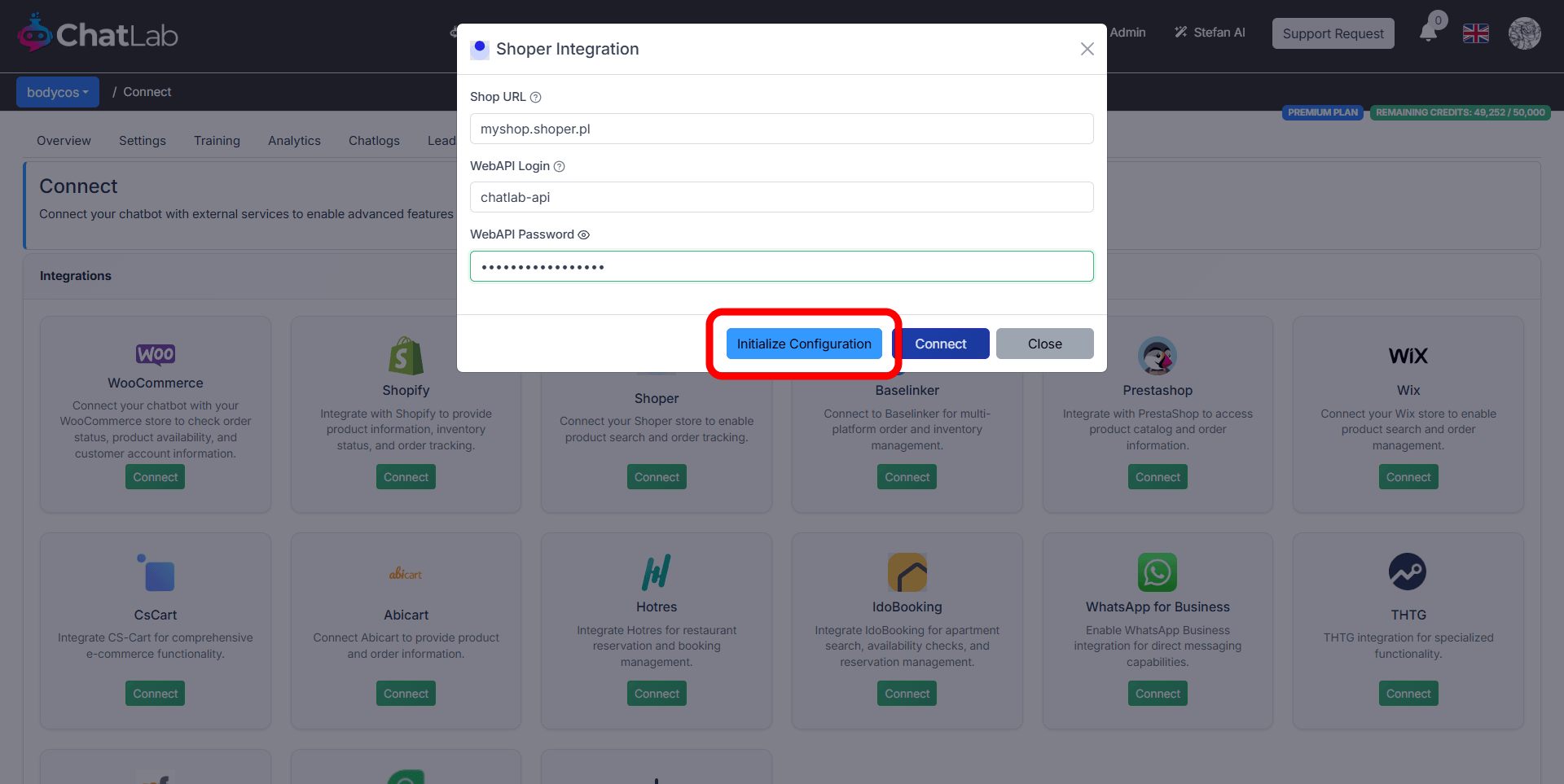
- Click Initialize Configuration -- this fetches available languages from your store
- Select the correct Shop Language from the dropdown (this determines which language version of product data is returned)
- Click Connect
ChatLab automatically tests the connection by performing a test product search. If successful, you will see a confirmation message and both product search and order details actions are enabled by default.
Step 5: Configure Shoper Actions
After connecting, you can enable and customize individual AI actions. Navigate to Settings > Actions and filter by the Shoper platform.
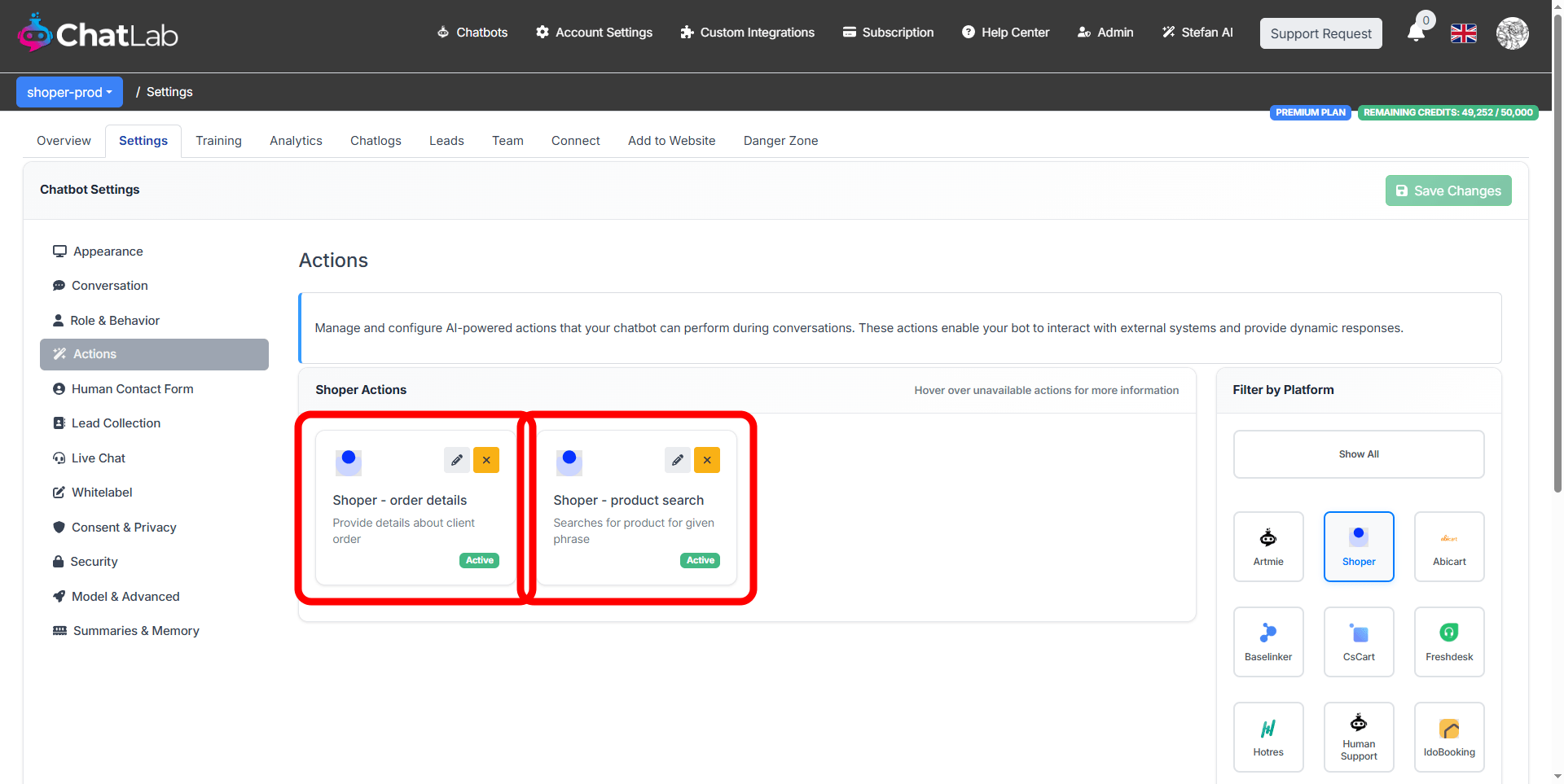
Two actions are available:
- Shoper - product search -- enables the chatbot to search your product catalog
- Shoper - order details -- enables the chatbot to look up order information
Click the activate button on each action to enable it. You can also customize the action label (the message shown to users while the action runs) and the instructions that guide how the AI uses each action.
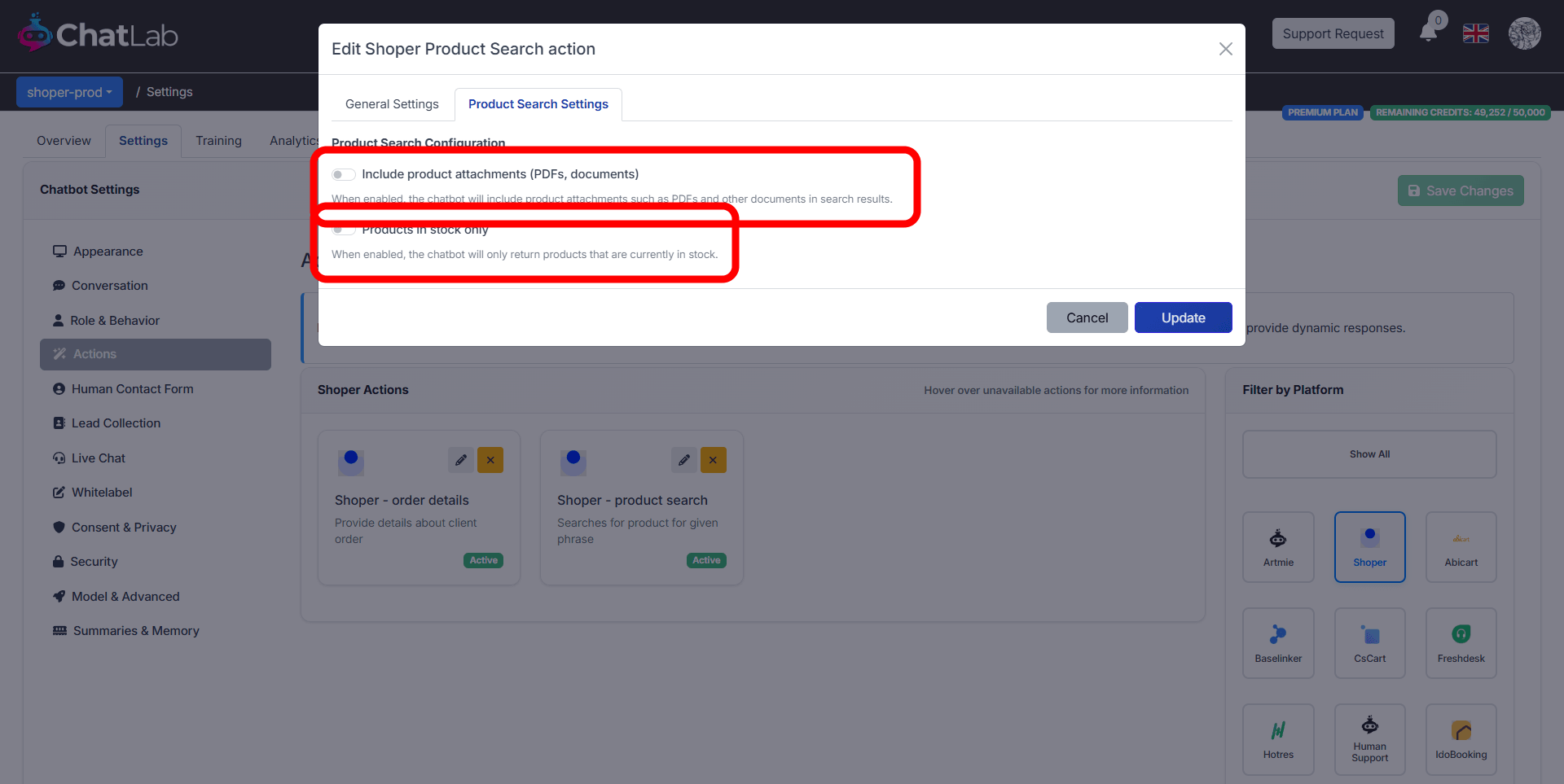
For product search, click the Edit button and go to the Product Search Settings tab. Two additional options are available:
- Include product attachments -- when enabled, the chatbot includes product attachment files (PDFs, documents) in search results
- Products in stock only -- when enabled, the chatbot only returns products that are currently in stock
Testing Your Integration
After activating the actions, open your chatbot widget and try:
- "Show me running shoes" (tests product search)
- "What's the status of my order 12345?" (tests order details)
Verify that the responses match data from your Shoper store and that product links open correctly.