ChatLab gère les langues depuis un menu unique Settings > Languages (Paramètres > Langues). C'est ici que vous définissez la langue dans laquelle votre chatbot répond, la langue utilisée pour les résumés et les analyses en coulisses, et - lorsque vous souhaitez qu'un seul bot s'adresse à tout le monde - la traduction automatique Multi-language de l'ensemble de l'interface de chat.
Settings > Languages (Paramètres > Langues) : la carte Langue de l'IA
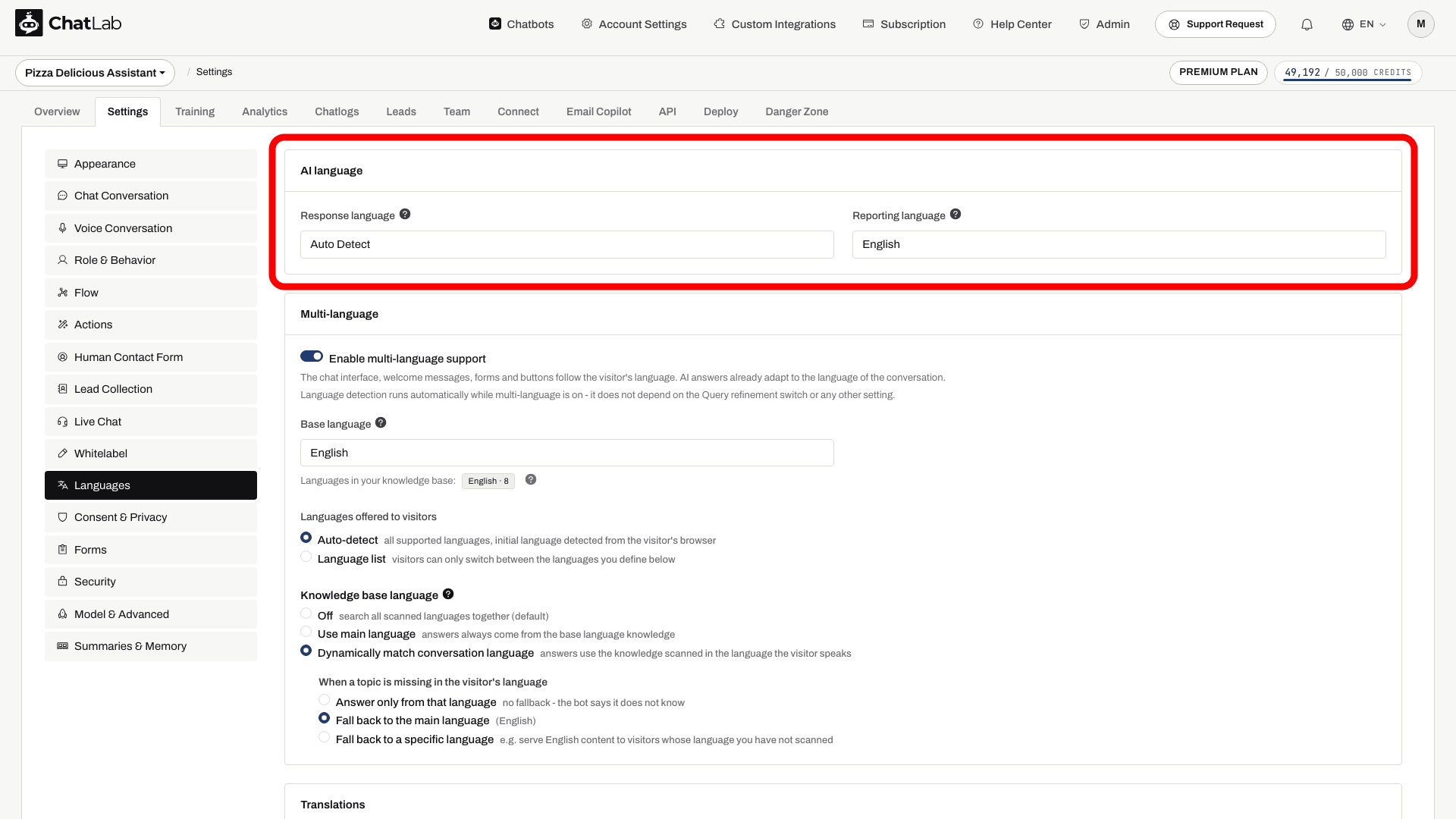
Sélectionnez votre chatbot, ouvrez l'onglet Settings (Paramètres), puis cliquez sur Languages (Langues) dans la barre latérale gauche. La carte supérieure AI language (Langue de l'IA) contient deux paramètres.
Response language (Langue des réponses)
Le champ Response language (Langue des réponses) détermine la langue utilisée par le chatbot pour ses réponses textuelles.
- Auto Detect (Détection automatique - par défaut) - le chatbot reconnaît la langue du visiteur et répond dans cette même langue. Idéal pour une audience mixte.
- Langue spécifique (par exemple anglais, espagnol, allemand) - le chatbot utilise cette langue par défaut et ne change que si le visiteur le demande explicitement.
Il s'agit du paramètre qui s'appelait auparavant Primary language et qui se trouvait sous Settings > Role & Behavior - il correspond désormais au champ Response language ici dans Settings > Languages.
Remarque : lorsque le bot utilise un prompt personnalisé (Settings > Role & Behavior > Custom Role Definition), le champ Response language est désactivé. Dans ce cas, la langue est plutôt gérée par votre prompt - ajoutez une règle telle que « Répondez toujours en espagnol, sauf si le visiteur écrit dans une autre langue ».
Reporting language (Langue des rapports)
Le champ Reporting language (Langue des rapports) définit la langue utilisée pour le contenu que vous seul voyez dans le panneau d'administration :
- Résumés de conversation - le résumé généré par l'IA de chaque conversation
- Profils clients - le profil généré par l'IA d'un visiteur récurrent
- AI Insights - l'analyse périodique de vos conversations par l'IA
Ce réglage n'affecte aucun élément visible par vos visiteurs. Il s'agit du paramètre qui s'appelait auparavant Internal language sous Settings > Model & Advanced - il correspond désormais au champ Reporting language dans Settings > Languages.
Les modifications sont enregistrées automatiquement. Attendez la mention Saved (Enregistré), puis testez une nouvelle conversation dans Overview (Aperçu) dans votre langue cible.
Répondre à un public multilingue
Pour prendre en charge les visiteurs dans plusieurs langues, la méthode recommandée est le mode multilingue (Multi-language), situé dans le même menu Paramètres > Langues (Settings > Languages). Lorsqu'il est activé, l'interface de chat, les messages de bienvenue, les suggestions de questions et les formulaires sont traduits automatiquement, et les visiteurs disposent d'un sélecteur de langue dans la fenêtre de chat - ainsi, un seul chatbot gère chaque langue.
Cela remplace l'ancienne approche consistant à traduire manuellement chaque message prédéfini, ou à utiliser un chatbot distinct pour chaque section linguistique de votre site web.
Pour consulter le guide complet - activation du mode multilingue, choix de la langue de base, définition d'une liste fixe de langues et modification manuelle des traductions - reportez-vous à Chatbots multilingues.
Si le mode multilingue n'est pas disponible dans votre forfait, vous pouvez tout de même répondre efficacement à un public donné : définissez une langue de réponse (Response language, ou laissez l'option sur détection automatique Auto Detect) et traduisez manuellement vos messages prédéfinis clés dans leurs sections de paramètres respectives (Paramètres > Conversation de chat / Settings > Chat Conversation pour les messages de bienvenue et les suggestions de questions ; Paramètres > Apparence / Settings > Appearance pour le texte de remplacement du champ de saisie, ainsi que Apparence / Appearance, Collecte de leads / Lead Collection, Formulaire de contact humain / Human Contact Form, Live Chat et Consentement et confidentialité / Consent & Privacy lorsqu'ils sont activés).
Langues vocales
Les langues vocales se configurent séparément, dans Settings > Voice Conversation (Paramètres > Conversation vocale), et dépendent du modèle vocal :
- ElevenLabs Voice - une section Language (Langue) apparaît avec une option Default language (langue par défaut, celle dans laquelle l'agent commence l'appel) et des options Additional languages (langues supplémentaires, vers lesquelles il peut basculer lorsqu'il entend l'interlocuteur les parler).
- GPT Realtime / Gemini Voice - choisissez une langue principale dans la section Language (Langue). Elle définit la manière dont l'appel démarre ; le bot peut s'adapter si l'interlocuteur s'exprime dans une autre langue prise en charge. Testez cela à l'aide du prompt vocal configuré dans Settings > Role & Behavior (Paramètres > Rôle et comportement).
Pour la configuration vocale détaillée, consultez Conversation vocale.
Entraîner un chatbot pour plusieurs langues
Vous n'avez pas besoin de dupliquer vos connaissances dans chaque langue - l'IA peut répondre dans une langue à partir d'un contenu entraîné dans une autre. Utilisez une seule langue lorsque les faits sont identiques. Entraînez les versions linguistiques pertinentes lorsqu'elles contiennent des offres différentes, des détails locaux ou des liens, ou lorsque vous souhaitez une récupération spécifique à la langue dans Settings > Languages > Knowledge base language (Paramètres > Langues > Langue de la base de connaissances).
Lors de l'analyse d'un site web, ChatLab détecte désormais la langue de chaque page, ce qui aide le bot à choisir la bonne source pour répondre. Consultez Ajouter de nouvelles sources de sites web pour comprendre le fonctionnement de l'analyse d'un site web.
Foire aux questions
Mes instructions personnalisées doivent-elles être rédigées dans une langue spécifique ?
Non. Les instructions personnalisées fonctionnent dans n'importe quelle langue - vous pouvez les rédiger entièrement dans votre langue cible, entièrement en anglais ou dans un mélange des deux. L'essentiel est qu'elles décrivent clairement le comportement souhaité. Consultez Personnalisation du comportement du bot pour plus de détails.
Le chatbot peut-il utiliser des données d'entraînement dans une langue pour répondre dans une autre ?
Oui. L'IA peut utiliser les connaissances d'une langue pour générer des réponses dans une autre. Le contenu subtil ou spécifique à une culture peut ne pas se traduire de manière aussi précise ; fournissez donc des données d'entraînement dans les langues que vos visiteurs utilisent le plus.
Pourquoi le champ Response language est-il grisé ?
Parce que le bot utilise un prompt personnalisé (Settings > Role & Behavior > Custom Role Definition). Avec un prompt personnalisé, la langue de réponse est contrôlée par le prompt lui-même, le champ est donc désactivé - ajoutez plutôt une règle de langue directement dans votre prompt.