Limity zapytań (rate limits) chronią Twojego chatbota przed zalewem wiadomości - na przykład przed złośliwym odwiedzającym lub automatycznym skryptem wysyłającym wiadomości bez przerwy, aby wyczerpać Twoje kredyty wiadomości. Gdy odwiedzający przekroczy limit, chatbot przestaje mu odpowiadać i wyświetla zdefiniowany przez Ciebie komunikat, dopóki nie upłynie określony czas.
Konfigurowalny licznik wiadomości działa na poziomie sesji czatu, a nie adresu IP czy uwierzytelnionego użytkownika. Osobne sesje mają osobne liczniki; karty przeglądarki współdzielące sesję korzystają z tego samego licznika. Inne zabezpieczenia przed spamem i blokady IP mogą nadal wpływać na wiele sesji.
Gdzie to znaleźć
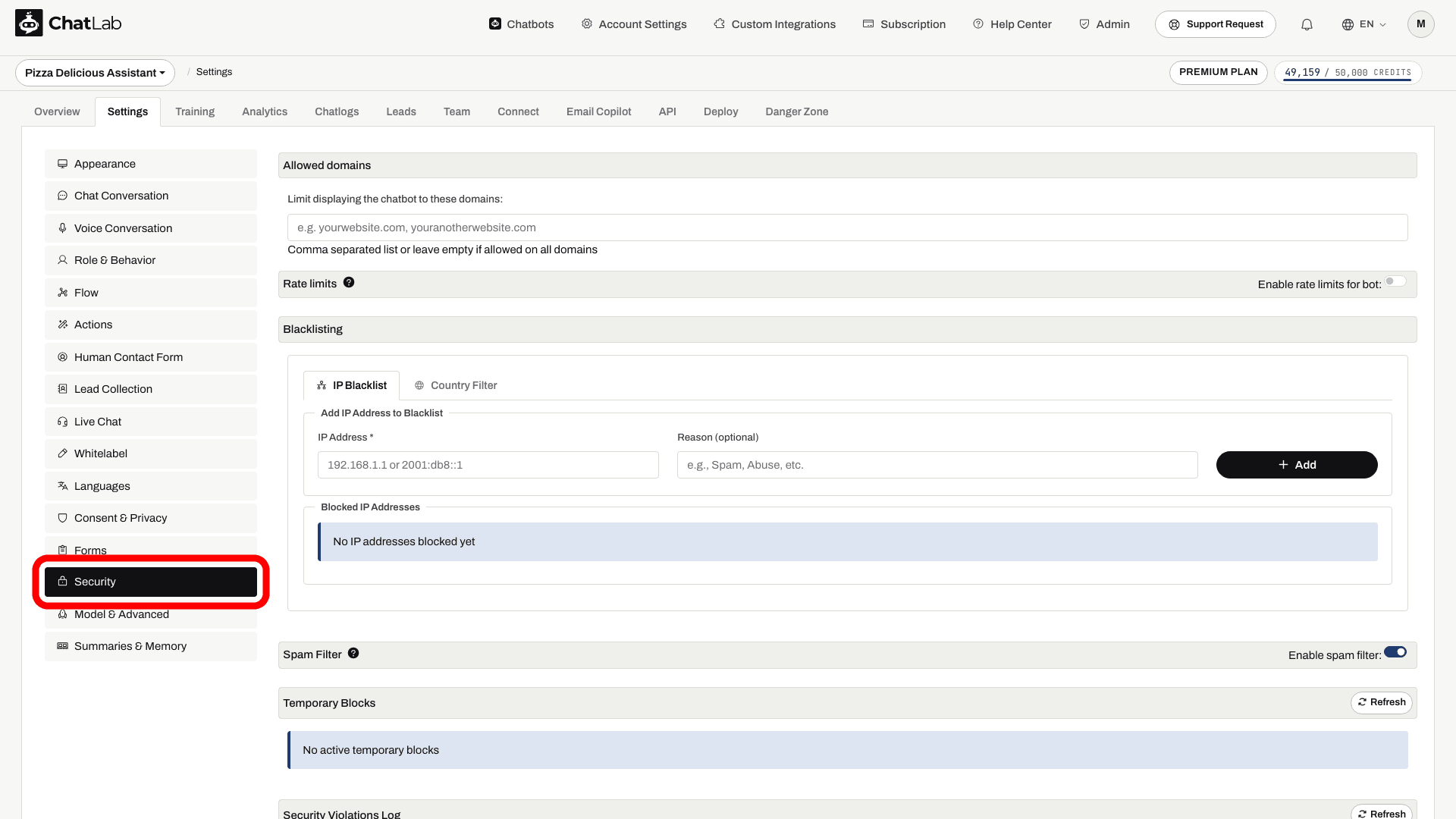
Wybierz swojego chatbota i przejdź do Settings > Security (Ustawienia > Bezpieczeństwo). Sekcja Rate limits (Limity zapytań) znajduje się tuż pod Allowed domains (Dozwolone domeny).
Jak to włączyć
- Włącz przełącznik Enable rate limits for bot (Włącz limity zapytań dla bota) w nagłówku sekcji Rate limits (Limity zapytań).
- Pojawią się pola limitów, wstępnie wypełnione zalecanymi wartościami: 40 wiadomości co 150 sekund.
- W razie potrzeby dostosuj liczby oraz komunikat o limicie. Zmiany zapisują się automatycznie - wskaźnik stanu zapisu potwierdza wprowadzenie zmian.
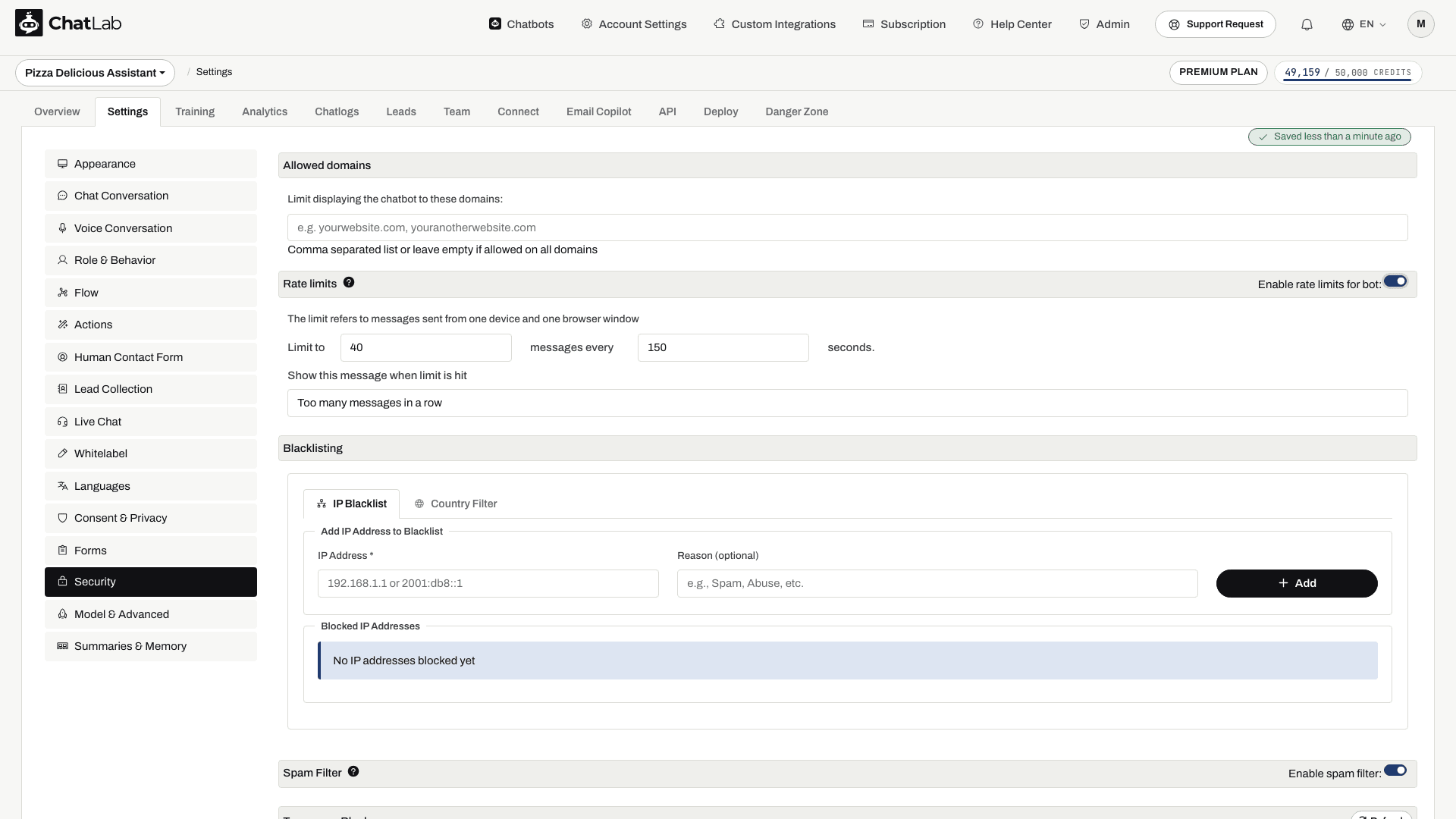
- Poczekaj na potwierdzenie zapisu, otwórz ponownie Settings > Security (Ustawienia > Bezpieczeństwo), aby sprawdzić wartości, i przetestuj rozmowę, aby upewnić się, że Twój komunikat o limicie pojawia się po wyczerpaniu skonfigurowanego limitu.
Wyjaśnienie opcji
-
Limit to ... messages every ... seconds (Ogranicz do ... wiadomości co ... sekund): maksymalna liczba wiadomości, jaką jedna sesja czatu może wysłać w określonym przedziale czasu. Po upływie tego czasu pełny limit wiadomości dla odwiedzającego zostaje przywrócony. ChatLab zaleca ustawienie 40 wiadomości co 150 sekund - to punkt wyjścia, który możesz dostosować po przetestowaniu przepływu rozmów.
-
Show this message when limit is hit (Wyświetl tę wiadomość po osiągnięciu limitu): tekst wyświetlany przez chatbota zamiast odpowiedzi, gdy limit zostanie przekroczony. Wartość domyślna to "Too many messages in a row".
Aby wyłączyć ten limit sesji, przestaw przełącznik i potwierdź przyciskiem Yes (Tak). Spowoduje to wyczyszczenie skonfigurowanych wartości po zapisaniu. Blokady adresów IP, filtr spamu, limity kluczy API oraz miesięczne limity kredytów pozostają niezależnymi zabezpieczeniami.
Jak to wygląda dla odwiedzającego
Gdy odwiedzający przekroczy limit, chatbot odpowiada Twoim komunikatem o limicie zamiast zwykłej odpowiedzi. Wiadomości wysłane w czasie, gdy limit jest aktywny, nie zużywają Twoich kredytów wiadomości.
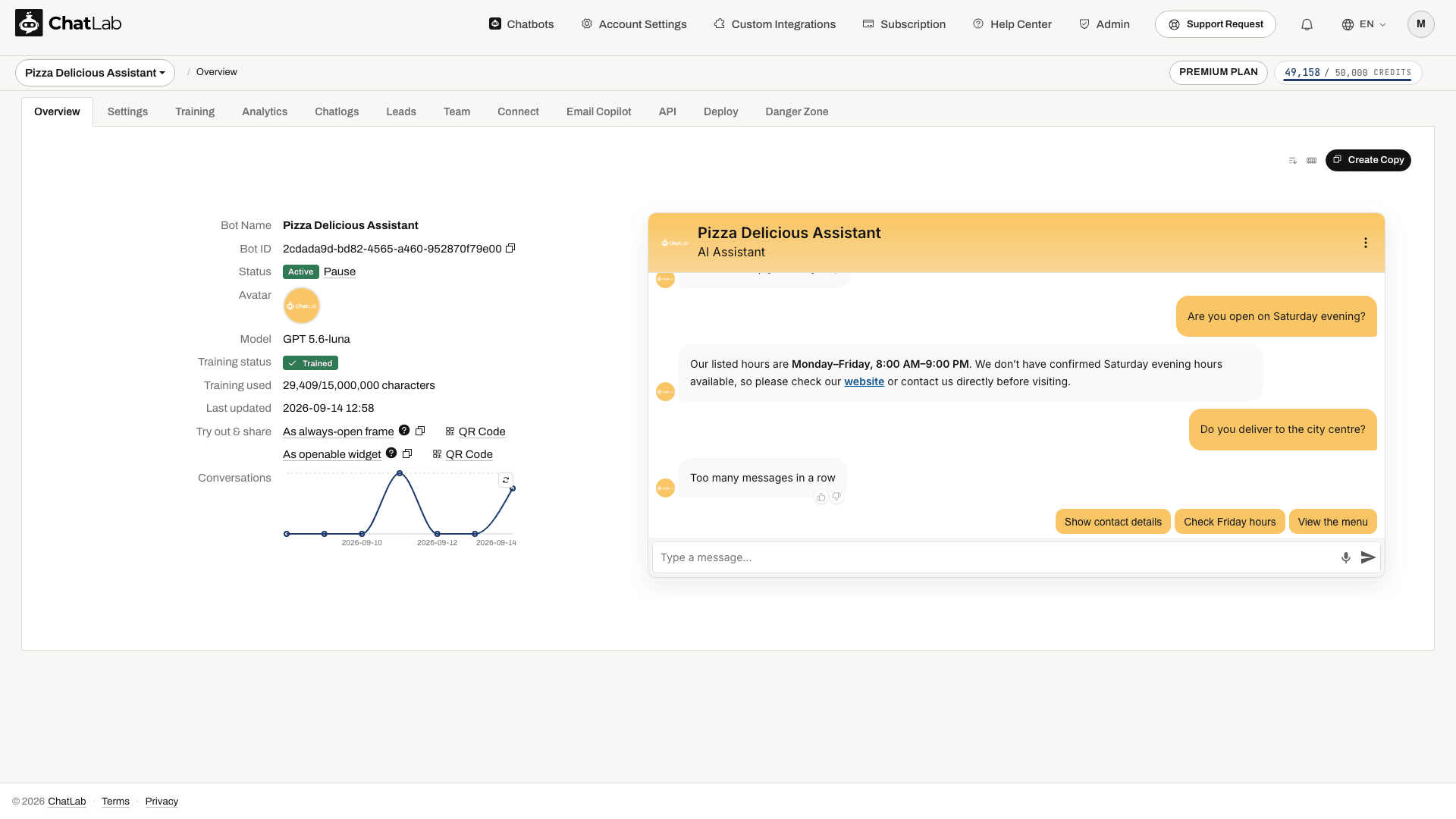
Gdy minie określony czas, chatbot ponownie odpowiada normalnie - odwiedzający nie musi odświeżać strony.
Powiązane zabezpieczenia
Limity zapytań to jedno z kilku narzędzi dostępnych na stronie Security. Możesz także ograniczyć domeny, na których pojawia się Twój chatbot, zablokować określone adresy IP lub kraje, a także włączyć automatyczny filtr antyspamowy - pełne omówienie znajdziesz w artykule Ustawienia bezpieczeństwa.
Aby ograniczyć liczbę kredytów wiadomości, jaką pojedynczy chatbot może wykorzystać w ciągu miesiąca, użyj ustawienia Bot message credit limit (Limit kredytów wiadomości bota) w Settings > Model & Advanced (Ustawienia > Model i zaawansowane).