Voice Conversation turns your chatbot into a real-time voice agent. Visitors press the call button in the chat widget and have a spoken conversation with the bot - they talk, the bot answers back with a synthesised voice. You choose the voice model, the voice, the language and a few safety limits.
Before you start, create a chatbot and train it. Voice Conversation is available as a premium feature - an upgrade prompt appears if your plan does not include it. Calls use message credits.
Where to find Voice Conversation settings
Select your chatbot, click the Settings tab, then select Voice Conversation in the left sidebar.
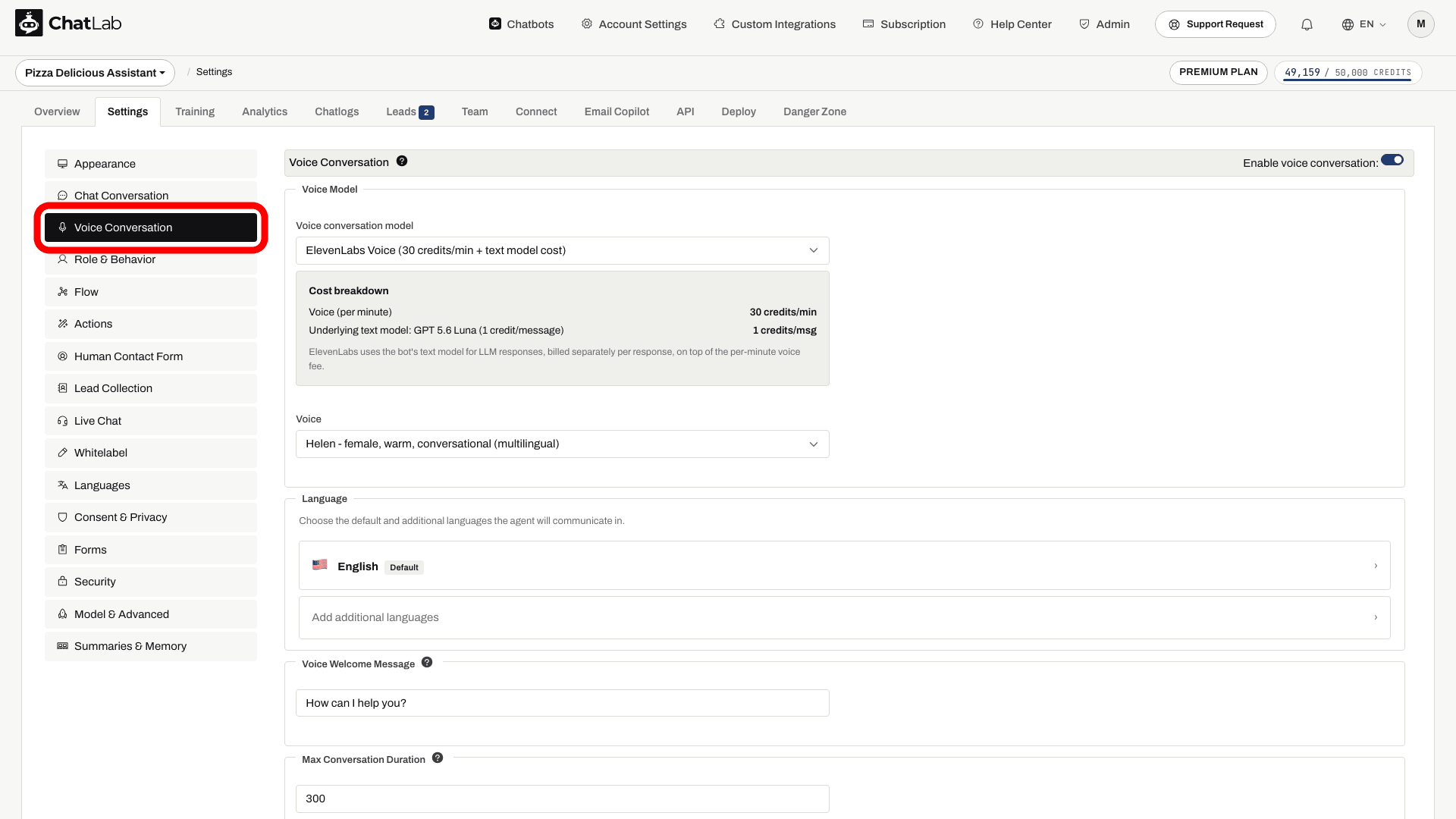
At the top of the page you will find the Enable voice conversation switch. The rest of the settings only appear once voice conversation is enabled.
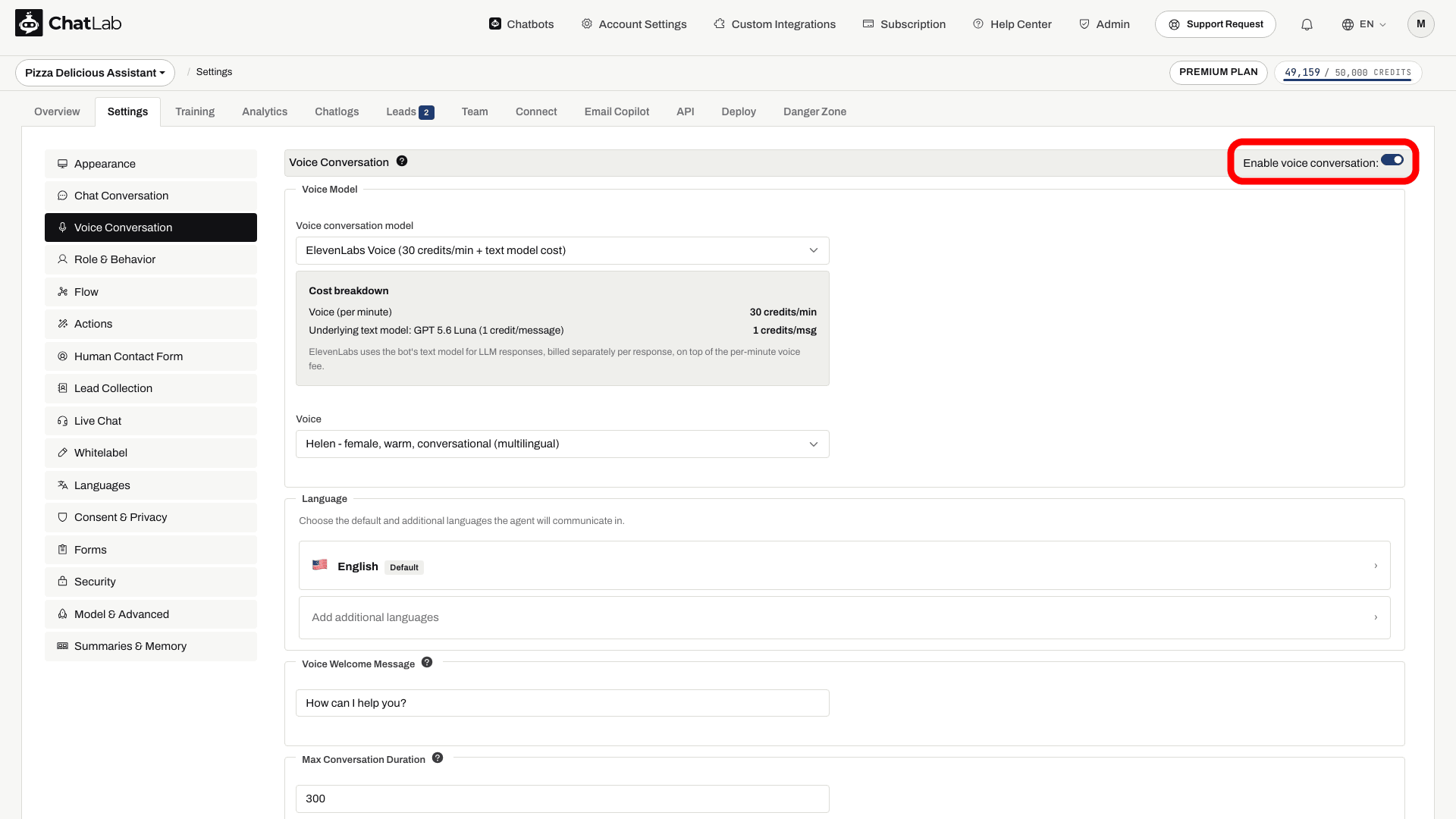
Choose a voice model
ChatLab supports four voice models, each with its own per-minute rate shown next to it in the dropdown:
- GPT Realtime - a speech-to-speech option from OpenAI.
- GPT Realtime Mini - the default voice model for new bots. Compare its displayed credit rate and test it with your questions.
- Gemini 3.1 Flash Voice - a speech-to-speech option using Gemini Live.
- ElevenLabs Voice - an option using ElevenLabs voices. Uses the bot's regular text model (set under Settings > Model & Advanced) to generate replies, then ElevenLabs converts them to speech. The per-minute voice rate is charged in addition to the text model cost per response.
Below the model selector there is a Cost breakdown card that shows the per-minute rate for the model you currently have selected, so you always see how the call will be billed at the rate shown next to each model in the dropdown.
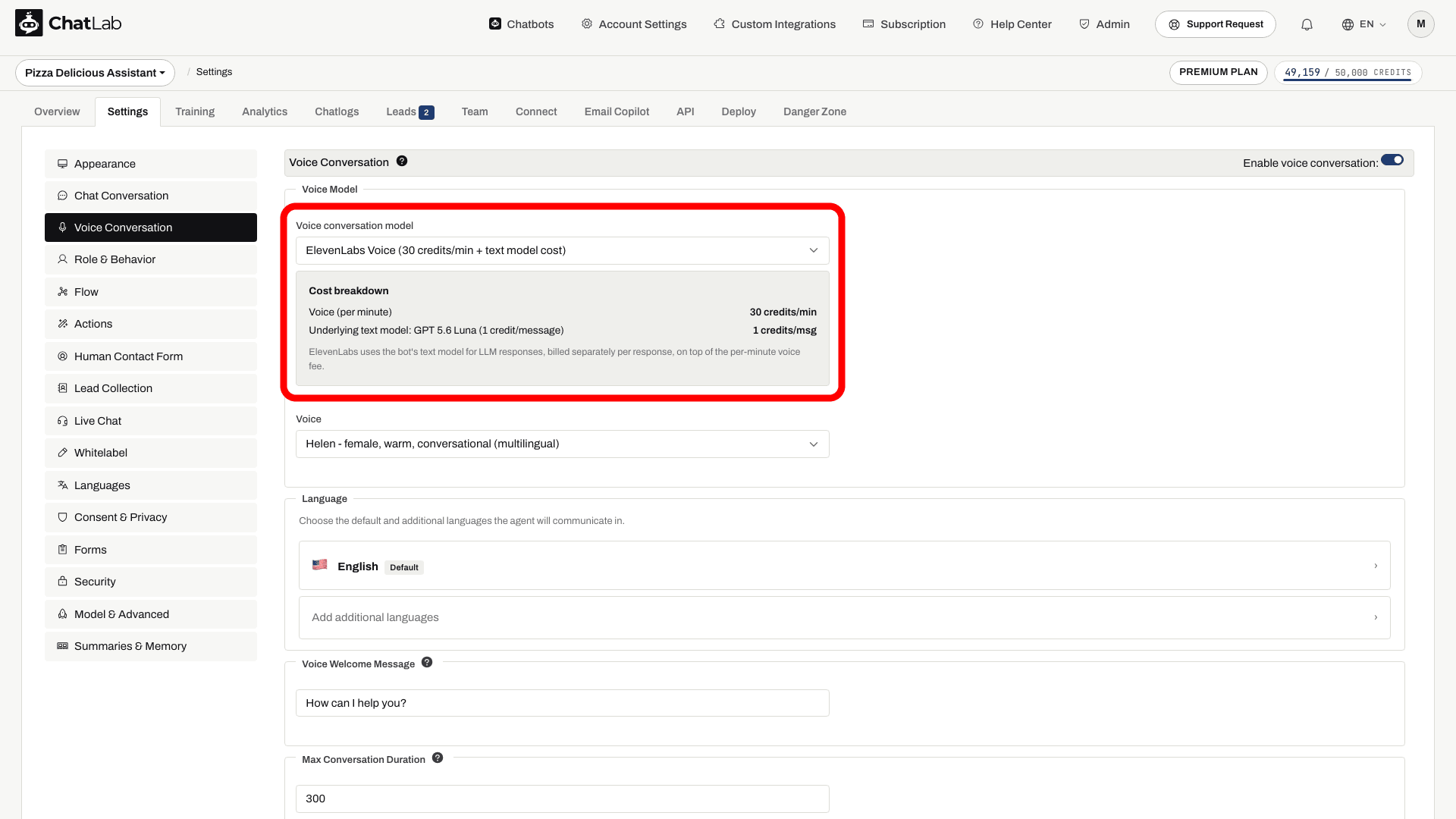
Pick a voice
Each model exposes its own set of voices in the Voice dropdown:
- OpenAI (GPT Realtime and GPT Realtime Mini) - Alloy, Ash, Ballad, Cedar, Coral, Echo, Fable, Marin, Onyx, Nova, Sage, Shimmer, Verse.
- Gemini - Kore (recommended), Charon, Puck, Fenrir, Aoede, Leda, Orus, Zephyr.
- ElevenLabs - Brian, Helen, Chris, Daniel, Jessica, Sarah, Lily, Liam, Will, Janet.
New bots default to Alloy. You can change the voice at any time - the new voice takes effect on the next call.
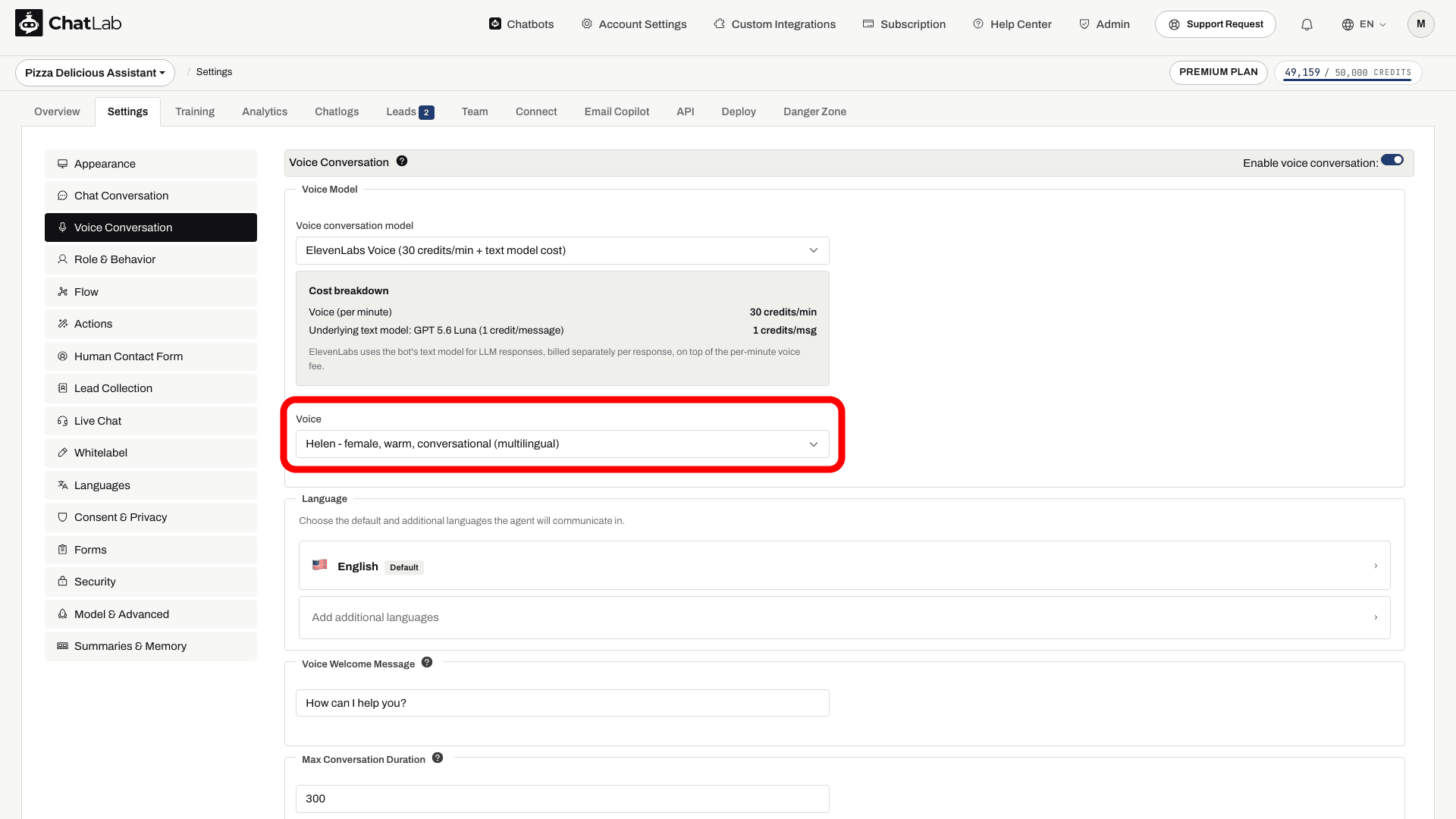
Set the language
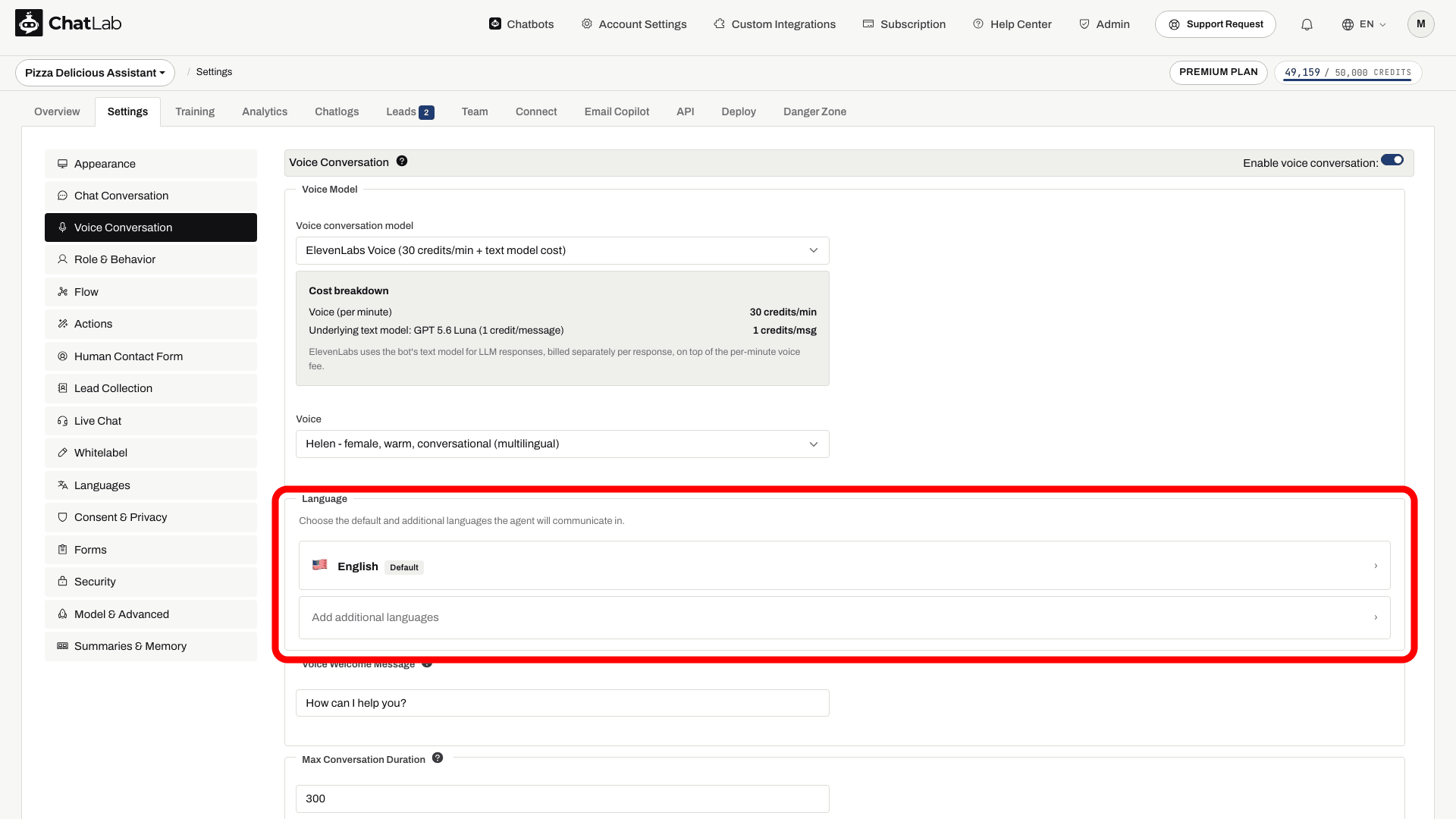
The Language section controls which language (or languages) the bot speaks during a call.
- OpenAI and Gemini - pick a single primary language. If a visitor speaks in another supported language during the call, the bot will switch to that language naturally.
- ElevenLabs - pick a default language plus any number of additional languages the agent is allowed to use.
Click a language tile to open a picker with country flags and search.
Voice welcome message
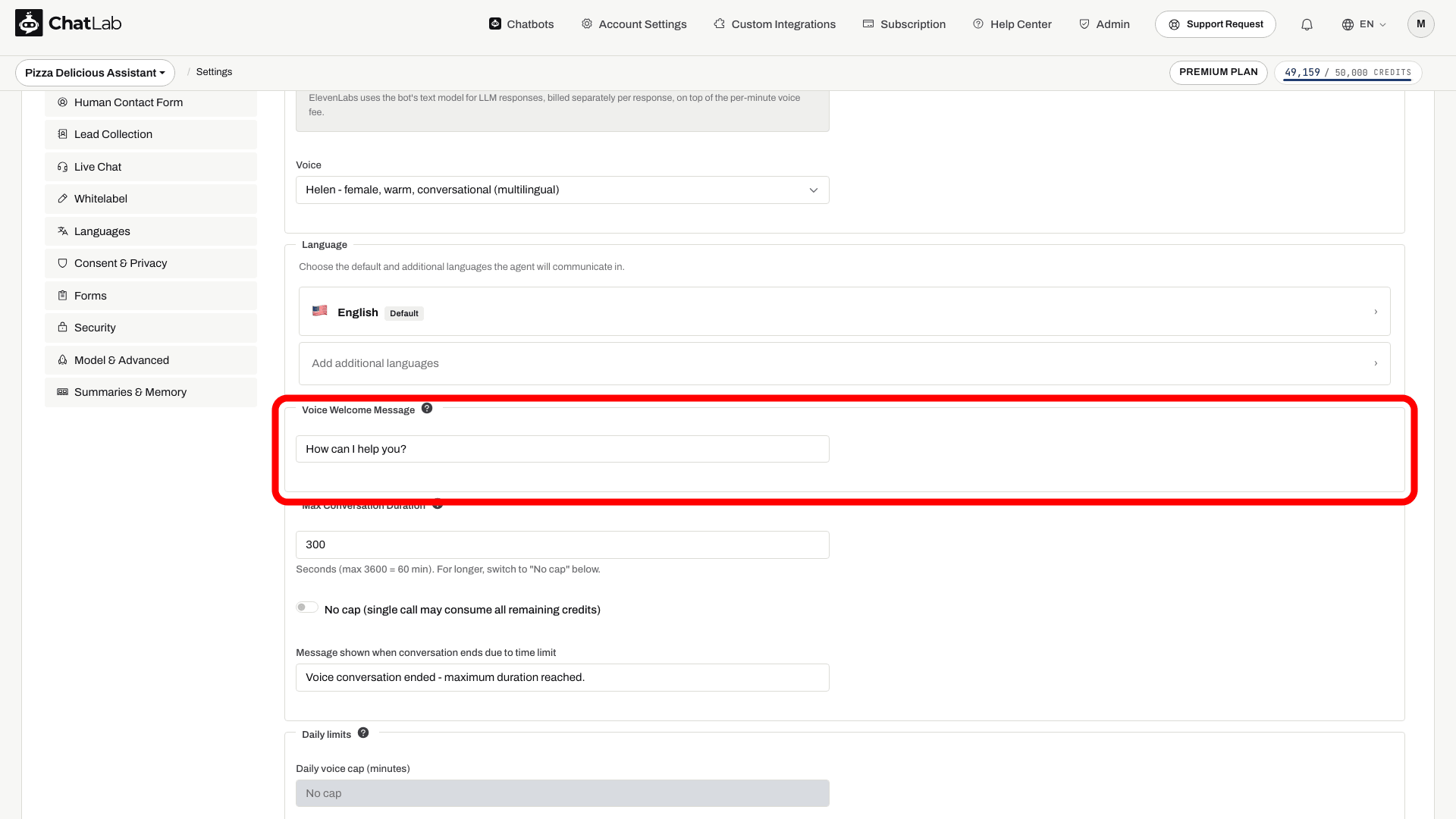
The Voice Welcome Message is the first sentence the bot speaks when a call starts. It plays once at the beginning of the session, so keep it short and natural - something like "Hi, how can I help you?" works well.
The maximum length is 500 characters.
Limit conversation duration
Voice calls consume credits per minute, so two safety limits are available to protect the bot owner's budget.
Max Conversation Duration
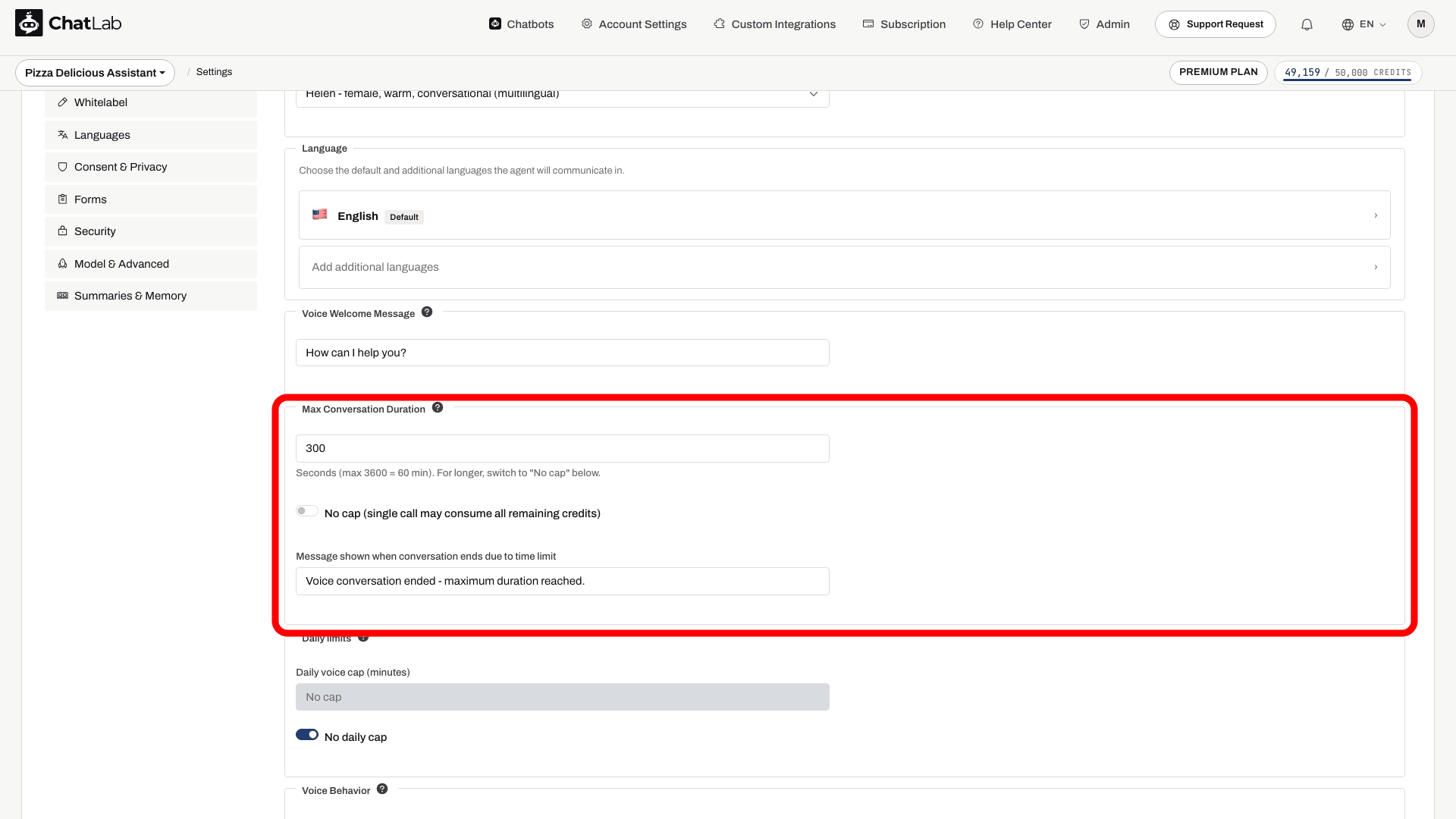
The Max Conversation Duration field caps the length of a single call. The default is 300 seconds (5 minutes); the allowed range is 30 seconds to 3600 seconds (60 minutes). When the limit is reached, the bot speaks an after-limit message (which you can customise just below the field) and the call ends.
If you want to allow unlimited single-call duration, turn on the No cap toggle. A warning is shown because a single call may then consume all remaining credits.
Daily voice cap
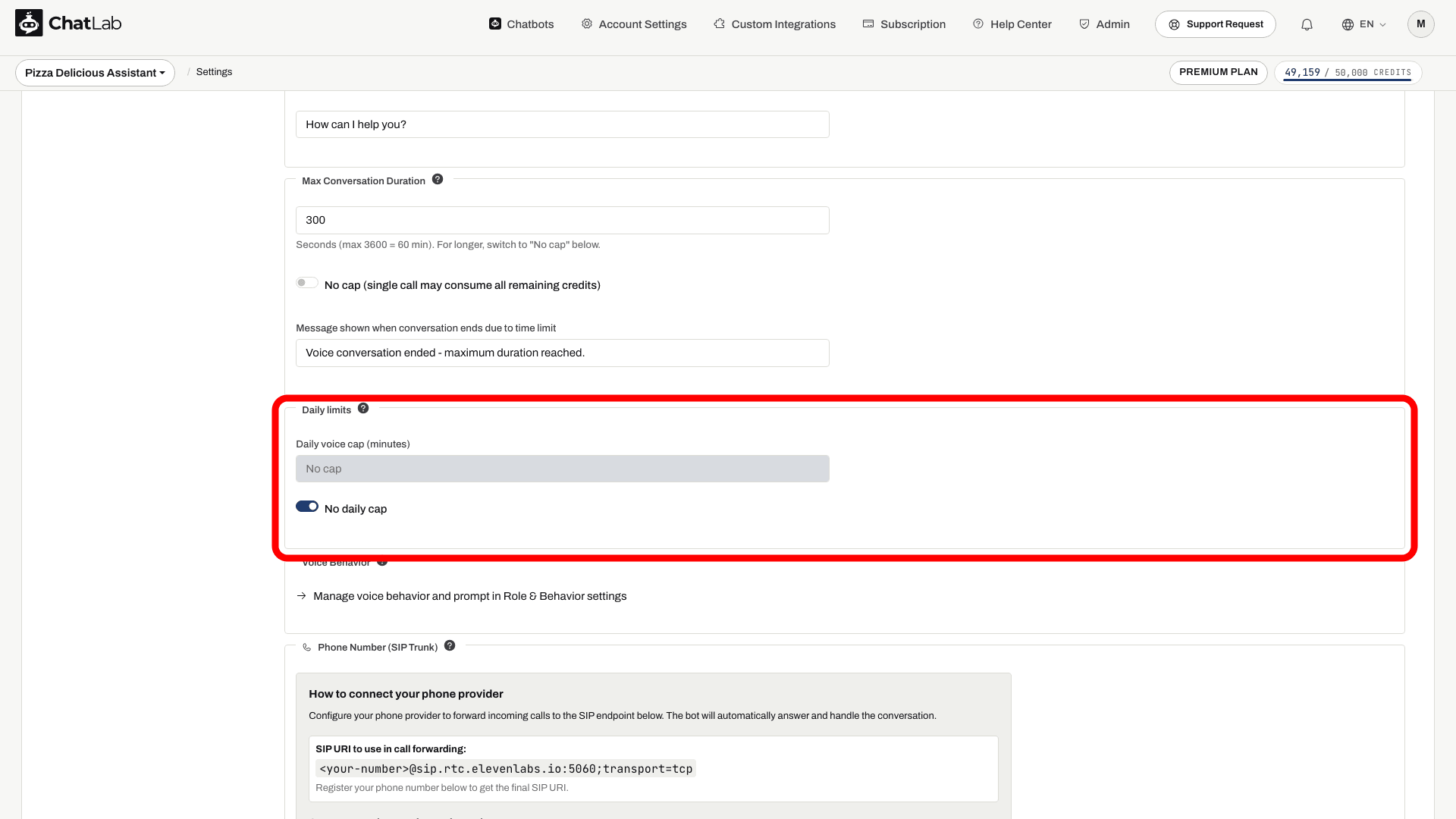
The Daily voice cap (minutes) setting is checked before a new widget call starts, using recorded voice usage for the bot. It is not a guarantee that ongoing simultaneous calls stop at an exact shared minute total. Check recorded usage and use the per-call duration limit as well. Do not assume this widget check also blocks inbound phone calls.
Turn on No daily cap to remove the per-day limit.
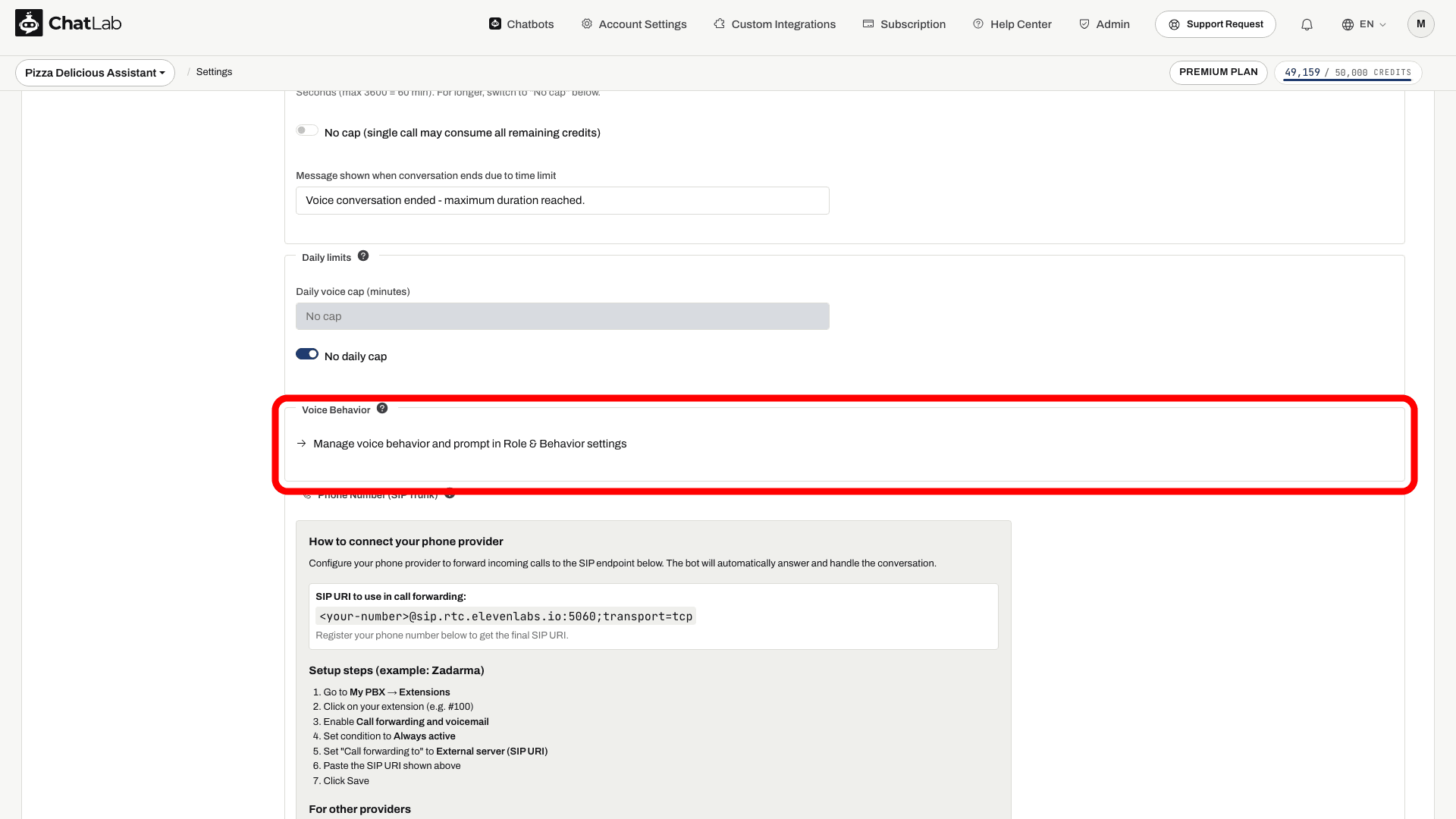
Voice behavior and system prompt
Voice calls can use a different system prompt than text chat, which is useful when you want a more conversational, spoken-style personality on the phone.
In the Voice Behavior section, click the Manage voice behavior and prompt in Role & Behavior settings link to jump to Settings > Role & Behavior, where a dedicated Voice Conversation tab lets you edit the voice-specific prompt independently from the text chat prompt.
How voice billing works
- The first minute of every call is charged in full at the selected model's per-minute rate. This is the minimum charge for any call, even very short ones.
- After the first minute, the charge is based on billable duration and rounded up to whole credits. Widget sessions are tracked in 10-second intervals, so this is not an exact stopwatch charge.
- Silence during a connected call counts toward duration. For widget calls, connection checks limit the charge when the browser stops reporting; a short final interval can still be counted.
- Before a call starts, ChatLab checks that the bot has enough credits to cover at least the first minute. If not, the call cannot be started.
- For ElevenLabs Voice, the per-minute fee is added on top of the bot's text model cost per response, because ElevenLabs uses the text model to generate replies and then converts them to speech.
Knowledge base sync for ElevenLabs
When an ElevenLabs voice model is selected, a status panel appears below the voice settings showing whether the bot's training data has been uploaded to ElevenLabs. The sync runs automatically after training: ChatLab sends a document built from the bot's training material to ElevenLabs. Check the status panel after training and wait for a successful sync before testing newly added knowledge. Large knowledge bases may be truncated during export, so test important topics rather than assuming complete parity with text chat.
Phone calls
Once voice conversation is enabled, you can also assign the bot a real phone number so customers can call in over the regular phone network. See the dedicated article: Phone calls.
Voice input vs voice conversation
These two features sound similar but are different:
- Voice input (under Settings > Chat Conversation) adds a microphone button to the message bar so visitors can dictate a typed question. The bot still answers with text. It uses the browser's Web Speech API.
- Voice conversation (this page) is a full real-time speech-to-speech call - visitors hear the bot speak back, powered by OpenAI Realtime, Gemini Live or ElevenLabs.
Test a voice call
Wait for Saved, then open Overview and use the call button in the widget. Allow microphone access when your browser asks. Check the welcome message, language, voice and an answer from your training data, then end the call. If the microphone is unavailable or denied, check browser permissions and try a supported browser. Before publishing, repeat the test on your embedded chatbot.