L'eliminazione di un chatbot rimuove il chatbot e i relativi dati operativi associati. Non esiste una funzione di annullamento accessibile all'utente. Esporta tutte le conversazioni o i lead di cui hai bisogno prima di procedere; la pulizia di alcuni servizi connessi viene elaborata separatamente.
Cosa viene eliminato
Quando elimini un chatbot, i seguenti dati vengono rimossi in modo permanente:
- Dataset di addestramento (contenuto del sito web, file, Q&A, voci di testo)
- Cronologia delle conversazioni e riepiloghi
- Lead raccolti
- Inviti di condivisione e accessi del team
- Impostazioni e configurazione del chatbot
Come eliminare un chatbot
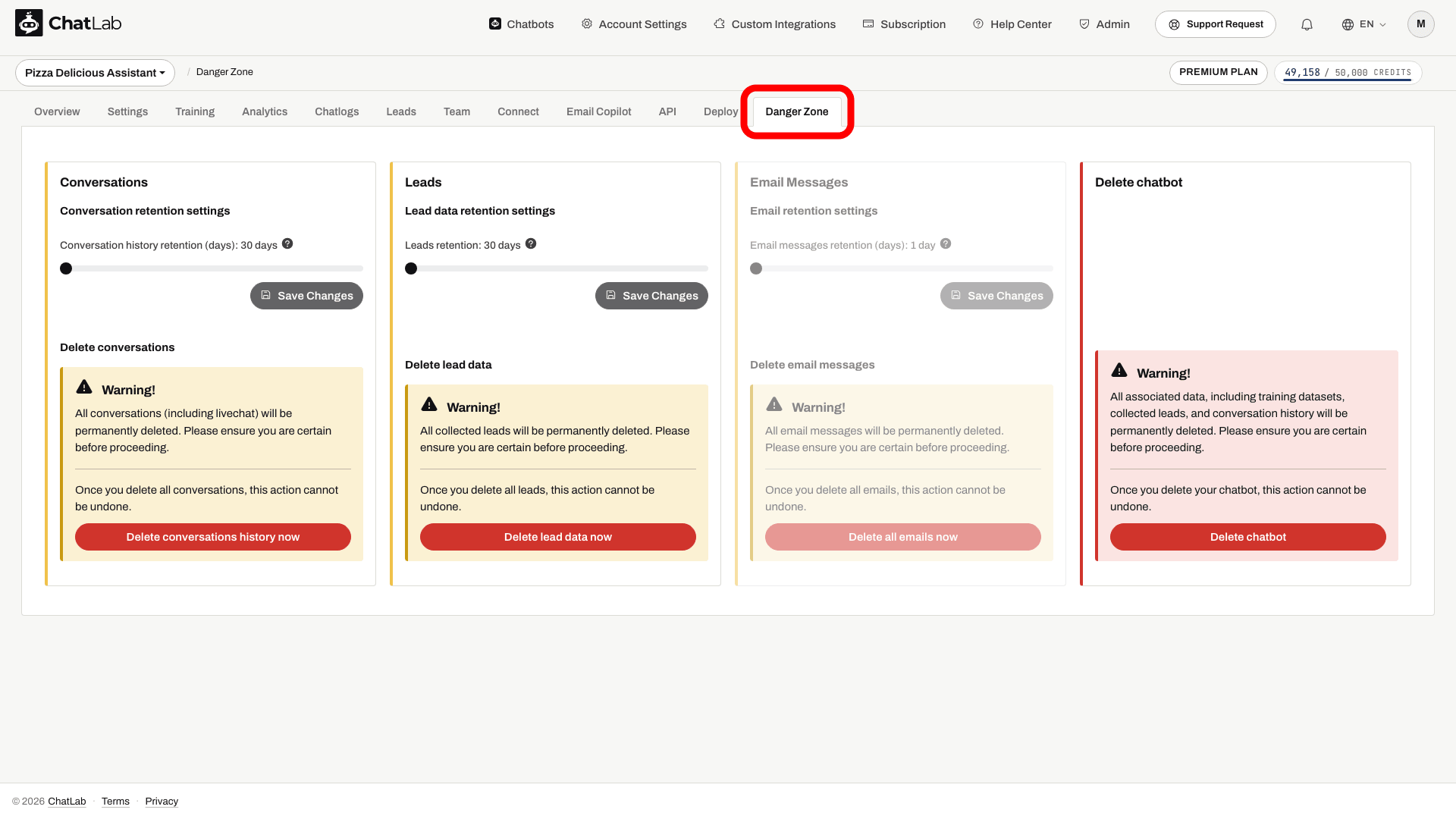
- Apri il tuo chatbot e fai clic sulla scheda Danger Zone (Zona di pericolo).
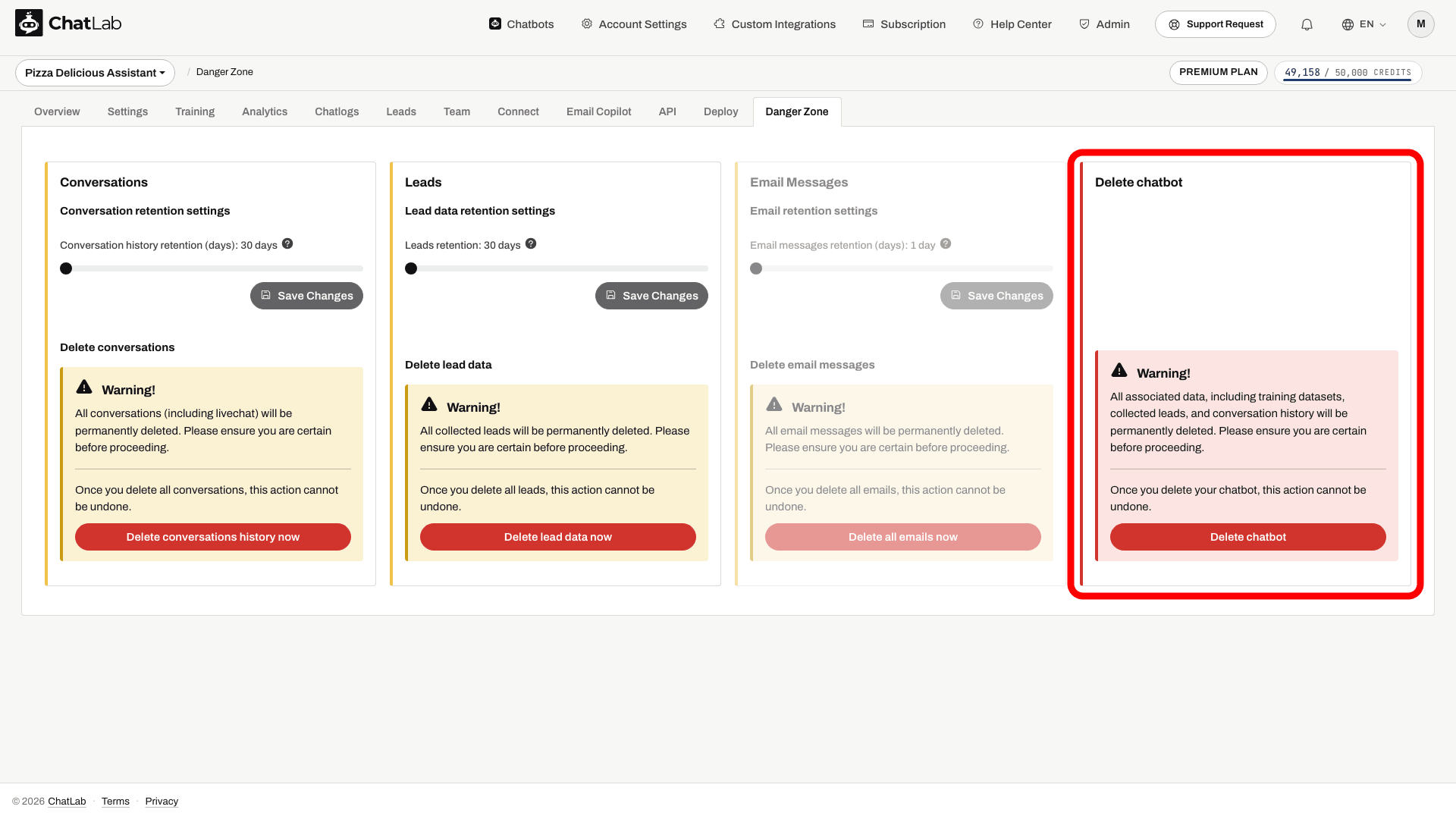
- Scorri verso il basso fino alla sezione Delete chatbot (Elimina chatbot) e fai clic su Delete chatbot.
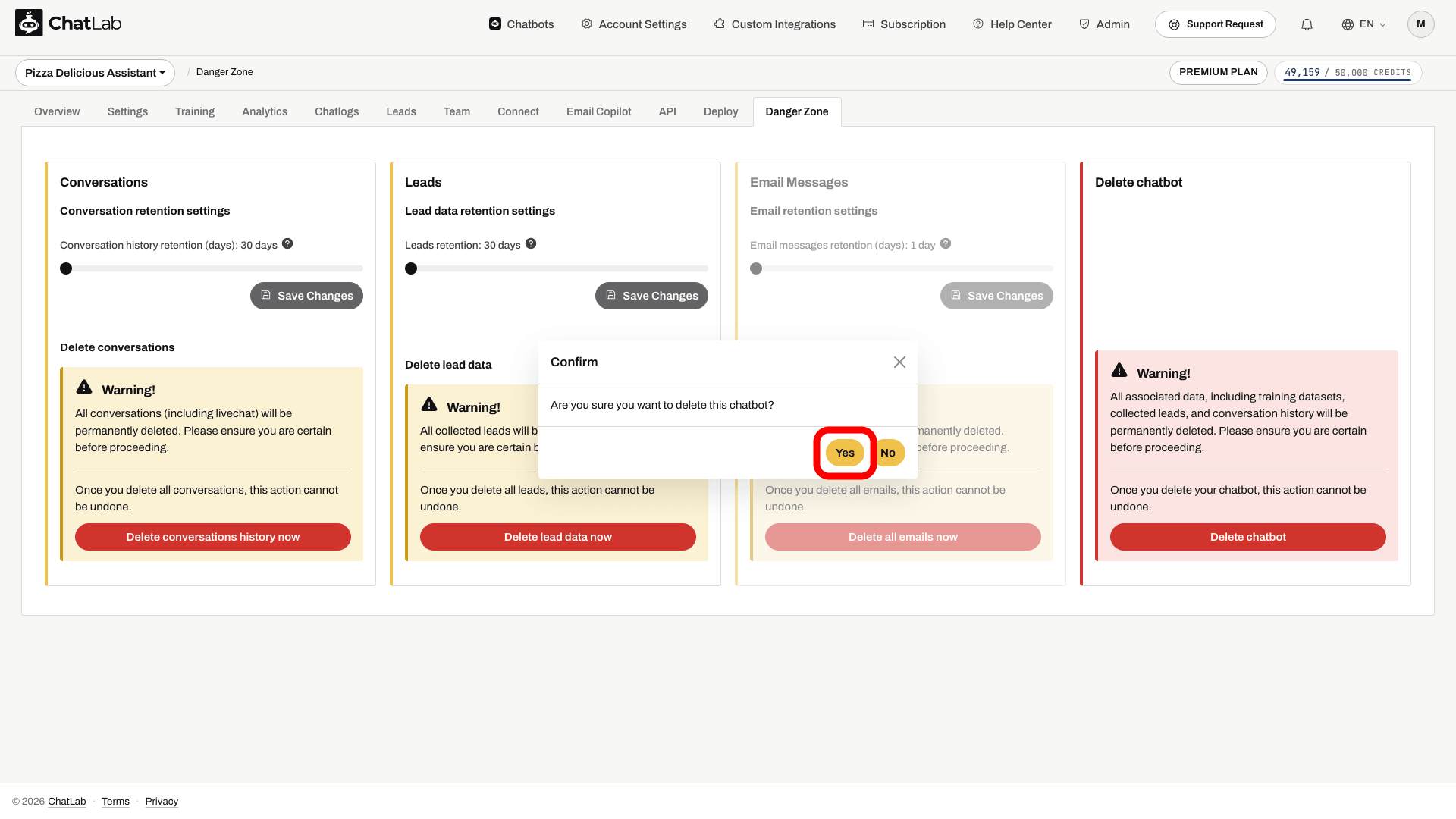
- Compare una richiesta di conferma. Fai clic su Yes (Sì) per eliminare definitivamente il chatbot.
Dopo l'eliminazione con successo, verrai reindirizzato all'elenco dei bot. Verifica che il chatbot non sia più presente nell'elenco, quindi rimuovi il relativo codice di installazione dal tuo sito web. L'eliminazione di un chatbot non annulla l'abbonamento al tuo account. Le copie esterne, come i file esportati o i dati inviati in precedenza a un altro sistema, devono essere gestite separatamente.
Importante: solo il proprietario del chatbot può eliminarlo. I membri del team con accesso FULL possono vedere Danger Zone, ma l'eliminazione rimane riservata al solo proprietario. I membri del team con accesso LIMITED non vedono la scheda. Scopri di più sui livelli di accesso in Invito degli amministratori.
Articoli correlati
- Eliminare i tuoi dati - gestisci i periodi di conservazione o elimina conversazioni e lead senza cancellare l'intero chatbot
- Come creare il tuo primo chatbot ChatLab