ChatLab gestisce le lingue da un unico menu Settings > Languages (Impostazioni > Lingue). Da qui puoi impostare la lingua in cui risponde il tuo chatbot, la lingua utilizzata per i riepiloghi e le analisi dietro le quinte e - quando desideri che un solo bot serva tutti - la traduzione automatica Multi-language (Multilingua) dell'intera interfaccia di chat.
Settings > Languages: il riquadro della lingua dell'IA
Seleziona il tuo chatbot, apri la scheda Settings (Impostazioni), quindi fai clic su Languages (Lingue) nella barra laterale sinistra. Il riquadro in alto AI language (Lingua dell'IA) contiene due impostazioni.
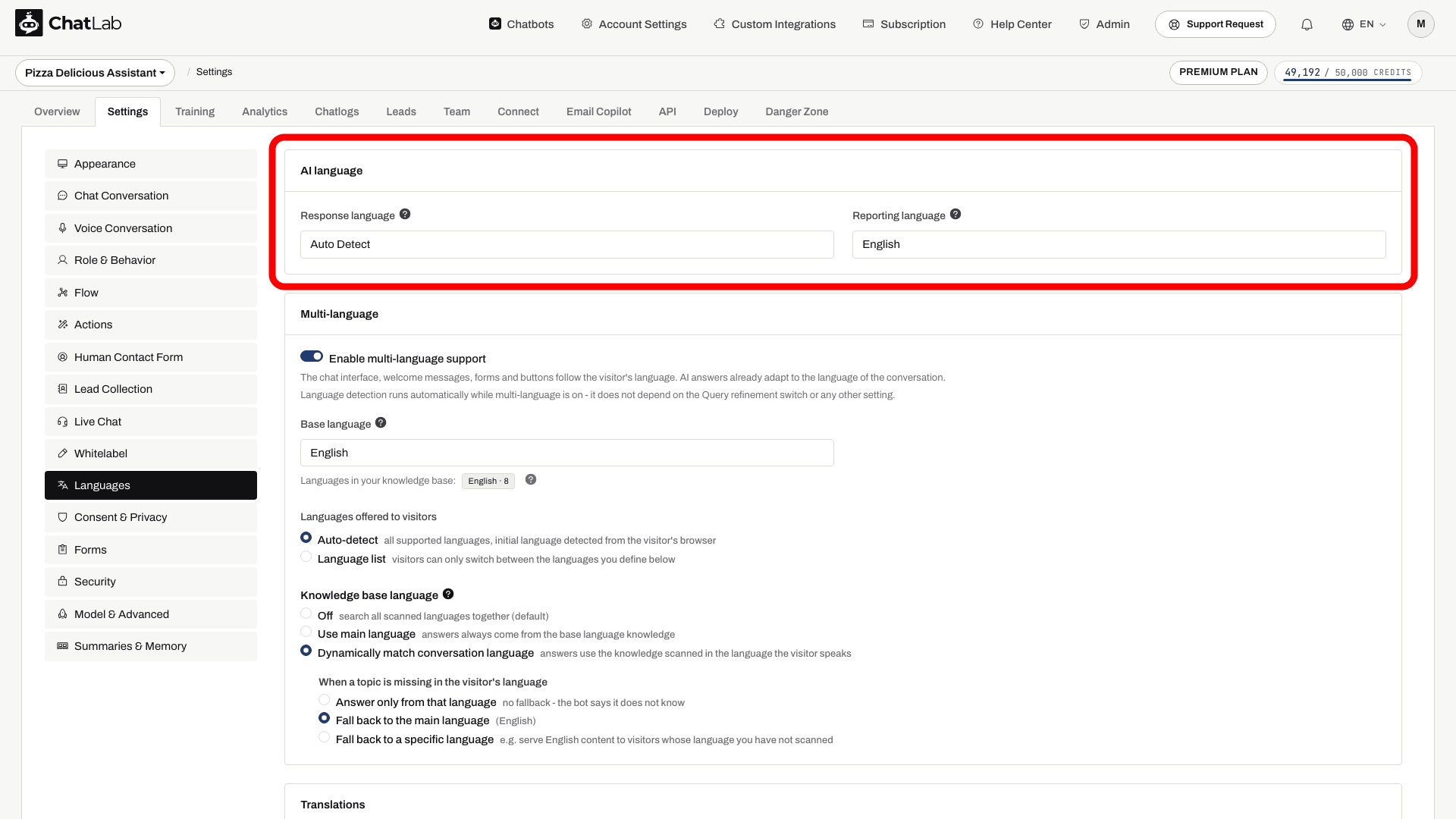
Response language (Lingua delle risposte)
Il campo Response language controlla la lingua utilizzata dal chatbot per le risposte di testo.
- Auto Detect (Rilevamento automatico, predefinito) - il chatbot riconosce la lingua del visitatore e risponde nella stessa lingua. La scelta migliore per un pubblico multilingue.
- Lingua specifica (ad esempio inglese, spagnolo, tedesco) - il chatbot utilizza quella lingua come predefinita e passa a un'altra solo se il visitatore lo richiede esplicitamente.
Questa è l'impostazione che prima si chiamava Primary language e si trovava in Settings > Role & Behavior - ora è il campo Response language qui in Settings > Languages.
Nota: quando il bot usa un prompt personalizzato (Settings > Role & Behavior > Custom Role Definition), il campo Response language è disabilitato. In questo caso la lingua è controllata direttamente dal tuo prompt - aggiungi una regola come "Rispondi sempre in spagnolo a meno che il visitatore non scriva in un'altra lingua".
Reporting language (Lingua dei report)
Il campo Reporting language imposta la lingua utilizzata per i contenuti visibili solo a te nel pannello di amministrazione:
- Riepiloghi delle conversazioni - il riepilogo generato dall'IA per ciascuna conversazione
- Riepiloghi dei clienti - il profilo generato dall'IA di un visitatore che ritorna
- AI Insights - l'analisi periodica condotta dall'IA sulle tue conversazioni
Non influisce in alcun modo su ciò che vedono i tuoi visitatori. Questa è l'impostazione che prima si chiamava Internal language in Settings > Model & Advanced - ora è il campo Reporting language in Settings > Languages.
Le modifiche vengono salvate automaticamente. Attendi la conferma Saved (Salvato), quindi prova una nuova conversazione nella tua lingua di destinazione in Overview (Panoramica).
Gestire un pubblico multilingue
Il metodo consigliato per supportare i visitatori in più lingue è Multi-language (Multilingua), disponibile nella stessa sezione Settings > Languages (Impostazioni > Lingue). Quando questa opzione è attiva, l'interfaccia della chat, i messaggi di benvenuto, le domande suggerite e i moduli vengono tradotti automaticamente, mentre i visitatori visualizzano un selettore di lingua nella finestra di chat - così un unico chatbot può gestire ogni lingua.
Questo sistema sostituisce il vecchio approccio che richiedeva di tradurre manualmente ogni messaggio predefinito o di configurare un chatbot separato per ciascuna sezione linguistica del sito web.
Per la guida dettagliata passo dopo passo - come attivare Multi-language, scegliere una lingua principale, definire un elenco di lingue e modificare le singole traduzioni - consulta Chatbot multilingue.
Se Multi-language non è disponibile nel tuo piano, puoi comunque offrire un'ottima esperienza a un pubblico specifico: imposta una Response language (Lingua di risposta) oppure lasciala su Auto Detect, e traduci manualmente i principali messaggi predefiniti nelle relative sezioni delle impostazioni (Settings > Chat Conversation per i messaggi di benvenuto e le domande suggerite; Settings > Appearance per il testo segnaposto del campo di digitazione, oltre ad Appearance, Lead Collection, Human Contact Form, Live Chat e Consent & Privacy se abilitati).
Lingue per le conversazioni vocali
Le lingue per le conversazioni vocali si configurano separatamente, in Settings > Voice Conversation (Impostazioni > Conversazione vocale), e dipendono dal modello vocale:
- ElevenLabs Voice - compare una sezione Language (Lingua) con una Default language (Lingua predefinita, la lingua con cui l'agente avvia la chiamata) e Additional languages (Lingue aggiuntive, altre lingue verso cui può passare quando sente che l'interlocutore le parla).
- GPT Realtime / Gemini Voice - scegli una lingua principale nella sezione Language (Lingua). Definisce come inizia la chiamata; il bot può adattarsi se l'interlocutore parla un'altra lingua supportata. Fai una prova con il prompt vocale che hai configurato in Settings > Role & Behavior (Impostazioni > Ruolo e comportamento).
Per la configurazione vocale dettagliata, consulta Conversazione vocale.
Addestrare un chatbot per più lingue
Non serve duplicare le tue conoscenze tra le diverse lingue: l'IA può rispondere in una lingua partendo da contenuti addestrati in un'altra. Usa una sola lingua quando le informazioni sono identiche. Addestra le versioni nelle rispettive lingue se contengono offerte differenti, dettagli locali o link diversi, oppure se desideri un recupero specifico per lingua in Settings > Languages > Knowledge base language (Impostazioni > Lingue > Lingua della knowledge base).
Durante la scansione di un sito web, ChatLab rileva automaticamente la lingua di ogni pagina, aiutando il bot a selezionare la fonte corretta per formulare le risposte. Consulta Aggiungere nuove fonti da siti web per scoprire come funziona la scansione dei siti web.
Domande frequenti
Le mie istruzioni personalizzate devono essere scritte in una lingua specifica?
No. Le istruzioni personalizzate funzionano in qualsiasi lingua: puoi scriverle interamente nella lingua di destinazione, interamente in inglese o in modo misto. L'importante è che descrivano chiaramente il comportamento desiderato. Consulta Personalizzazione del comportamento del bot per ulteriori dettagli.
Il chatbot può utilizzare i dati di addestramento in una lingua per rispondere in un'altra?
Sì. L'IA può sfruttare le informazioni apprese in una lingua per generare risposte in un'altra. I contenuti più sfumati o legati a contesti culturali specifici potrebbero non tradursi con la stessa accuratezza, pertanto è consigliabile fornire dati di addestramento nelle lingue maggiormente utilizzate dai visitatori.
Perché il campo Response language è disattivato?
Perché il bot utilizza un prompt personalizzato (Settings > Role & Behavior > Custom Role Definition). In presenza di un prompt personalizzato, la lingua di risposta è determinata dal prompt stesso, per cui il campo viene disabilitato - inserisci invece una regola linguistica all'interno del tuo prompt.