La funzione Summaries & Memory (Riepiloghi e memoria) consente al tuo chatbot di generare un breve riepilogo redatto dall'IA di ogni conversazione, creare un profilo di ciascun cliente nel tempo e utilizzare queste informazioni nelle conversazioni future. In questo modo il chatbot può riconoscere i visitatori che ritornano e ricordare gli argomenti delle interazioni precedenti - senza che tu debba leggere ogni singola chat.
L'attivazione dei riepiloghi delle conversazioni costa 5 crediti per messaggi per conversazione. Il costo viene addebitato una sola volta alla prima generazione del riepilogo, anche se quest'ultimo viene successivamente aggiornato mentre la conversazione rimane attiva.
Dove trovare queste impostazioni
Seleziona il tuo chatbot, apri la scheda Settings (Impostazioni), quindi seleziona Summaries & Memory (Riepiloghi e memoria) nella barra laterale sinistra.
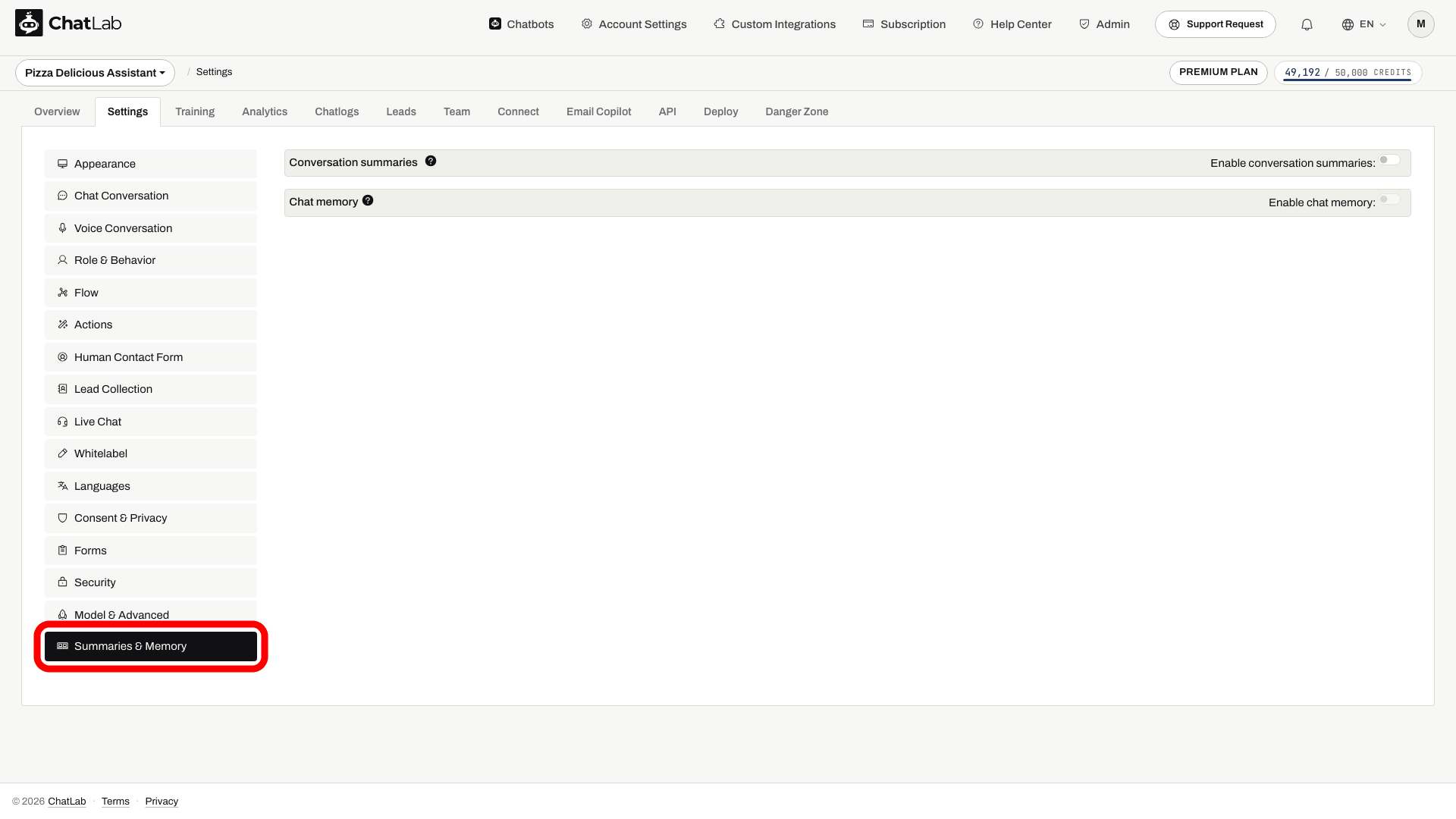
Riepiloghi delle conversazioni
I riepiloghi delle conversazioni sono panoramiche generate dall'IA create automaticamente al termine di ciascuna conversazione (circa 2 minuti dopo l'ultimo messaggio). Rilevano gli argomenti principali, le esigenze del cliente e i dettagli rilevanti della conversazione. Vengono riepilogate solo le conversazioni che si svolgono dopo aver attivato la funzione - le conversazioni precedenti non vengono elaborate retroattivamente.
Per attivarli, abilita l'opzione Enable conversation summaries (Attiva riepiloghi delle conversazioni) in Settings > Summaries & Memory (Impostazioni > Riepiloghi e memoria) e fai clic su Save (Salva).
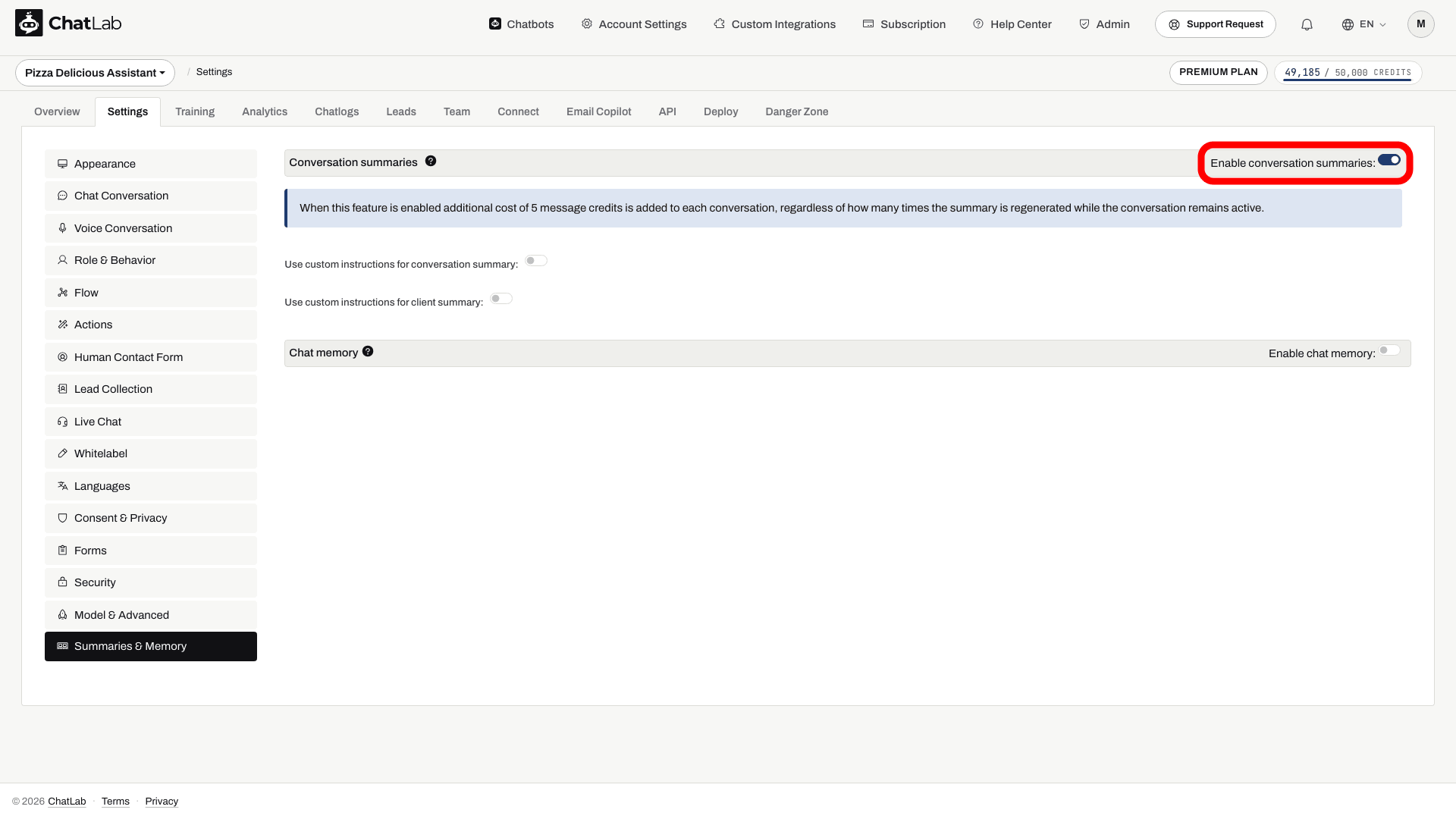
Una volta attivata, diventano disponibili due opzioni aggiuntive:
- Use custom instructions for conversation summary (Usa istruzioni personalizzate per il riepilogo della conversazione) - controlla quali informazioni l'IA rileva per ciascuna conversazione.
- Use custom instructions for client summary (Usa istruzioni personalizzate per il riepilogo del cliente) - controlla il modo in cui l'IA crea un profilo complessivo di ciascun cliente attraverso tutte le sue conversazioni.
Attiva una delle due opzioni per visualizzare un campo di testo in cui puoi inserire le tue istruzioni (fino a 6.000 caratteri ciascuna). Vengono fornite istruzioni predefinite come punto di partenza.
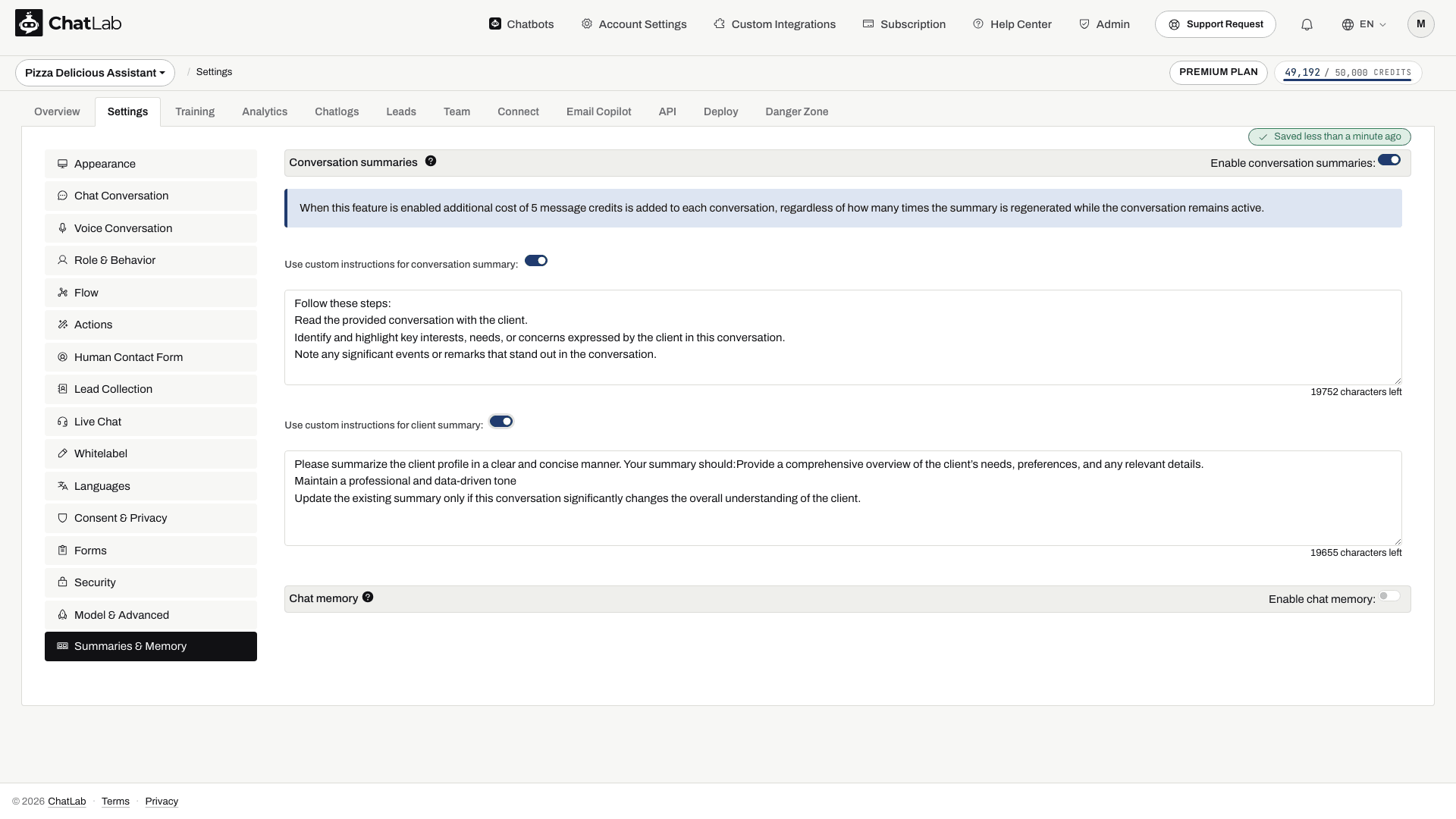
Le istruzioni personalizzate ti consentono di concentrare i riepiloghi su ciò che conta per la tua attività, ad esempio:
- Acquisire solo le esigenze del cliente o l'interesse per i prodotti identificati
- Monitorare preferenze o requisiti specifici menzionati nelle varie conversazioni
- Registrare indicatori di sentiment o di soddisfazione
I riepiloghi vengono elaborati dopo che una conversazione è rimasta inattiva per almeno due minuti, quindi non compaiono immediatamente. Puoi continuare a configurare o a utilizzare il bot durante l'elaborazione. Dopo una conversazione di prova, attendi qualche minuto, riapri Chatlogs (Registri chat) e controlla il riepilogo e il profilo del cliente.
La memoria dei visitatori di ritorno è legata alla stessa identità del visitatore. Un browser diverso, la cancellazione della memoria del browser o una nuova identità potrebbero essere trattati come un nuovo cliente; la sola corrispondenza del testo dell'e-mail non garantisce il riconoscimento su dispositivi diversi.
Dove visualizzare i riepiloghi e i profili dei clienti
Entrambi compaiono nella scheda Chatlogs (Registri chat) - consulta l'articolo Chatlogs per una panoramica generale di questa schermata.
Riepilogo della conversazione
Apri Chatlogs e seleziona una conversazione. La sezione Conversation summary (Riepilogo conversazione) compare nel pannello dei dettagli sulla destra, sotto Conversation details (Dettagli conversazione). Descrive gli argomenti trattati e il modo in cui il chatbot ha fornito assistenza.
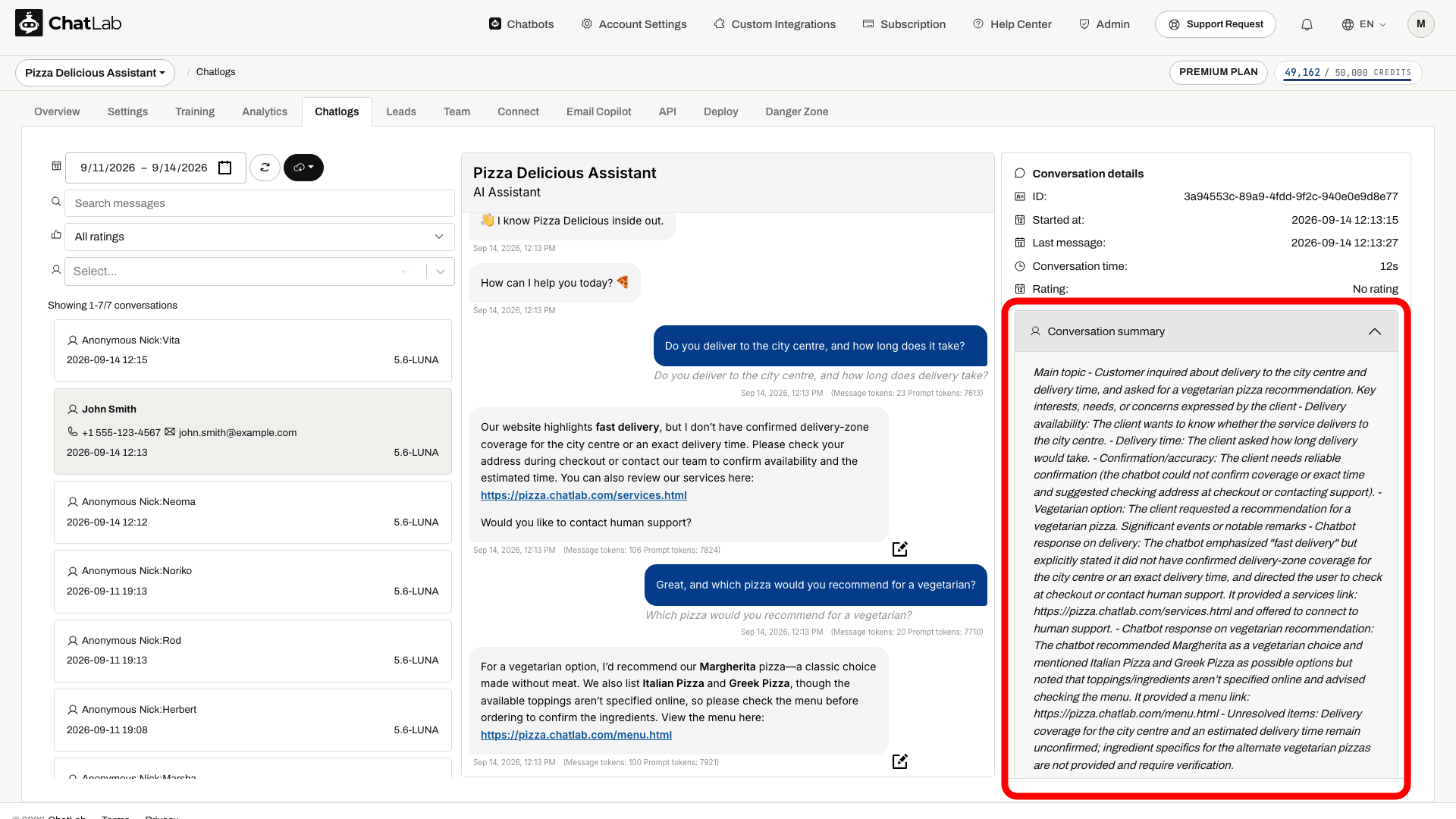
Riepilogo del profilo cliente
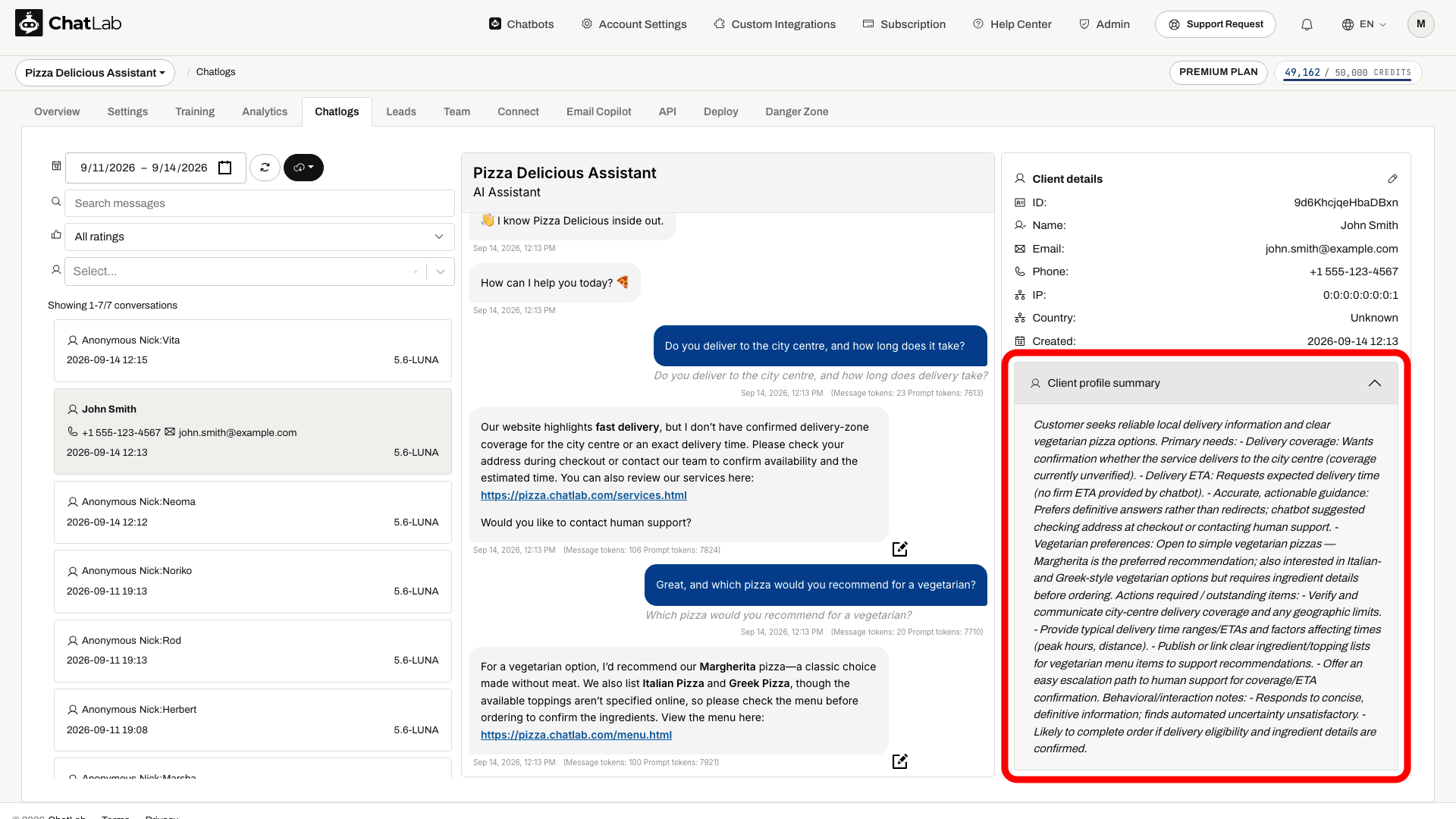
Il profilo cliente è un riepilogo cumulativo creato a partire da tutte le conversazioni con lo stesso cliente. Tiene traccia di esigenze, preferenze e dettagli rilevanti nel tempo, e viene aggiornato dopo ogni nuova conversazione con quel cliente. In Chatlogs, scorri il pannello destro verso il basso fino alla sezione Client details (Dettagli cliente) - il profilo appare nella sezione Client profile summary (Riepilogo profilo cliente) sotto i dati di contatto del cliente.
Memoria della chat
Usa il contesto delle conversazioni precedenti
Attiva le impostazioni di memoria pertinenti. Il contesto dipende dalla cronologia conservata e dall'identificazione del visitatore; non costituisce un'autenticazione né un'autorizzazione ad accedere agli ordini.

Visitatore: Sto cercando un vestito verde sotto i 100 $.
Riproduci l'esempio o leggilo qui sotto. Non viene utilizzato alcun dato reale dei clienti.Il visitatore indica una preferenza.
La riproduzione va in pausa quando questo esempio esce dallo schermo. Questa è una simulazione, non una chat dal vivo. I comandi del widget all'interno della riproduzione non sono interattivi.Leggi l'esempio completo
- Il visitatore indica una preferenza.
Visitatore: Sto cercando un vestito verde sotto i 100 $.
- Il bot risponde tenendo conto del contesto.
Abito a portafoglio smeraldo, $79. Viscosa, lunghezza midi.
- Un messaggio successivo fa riferimento alla preferenza precedente.
Visitatore: Mostrami un'altra opzione di quel colore.
- Il contesto conservato aiuta a interpretare il riferimento.
Assistente: Cercavi vestiti verdi sotto i 100 $. Posso cercare un'altra opzione.
La memoria della chat consente al chatbot di utilizzare effettivamente i riepiloghi delle conversazioni e il profilo del cliente quando risponde a un visitatore di ritorno. Senza la memoria della chat, i riepiloghi vengono generati solo per consentirti di leggerli, ma il chatbot non li consulta durante le conversazioni.
Per attivare la memoria della chat:
- Attiva prima Conversation summaries (riepiloghi delle conversazioni; la levetta della memoria della chat rimane disabilitata finché non lo fai).
- Attiva la levetta Enable chat memory (attiva memoria della chat in Settings > Summaries & Memory - Impostazioni > Riepiloghi e memoria).
- Regola Memory size (dimensione della memoria) e attendi la conferma automatica Saved (salvato).

Dimensione della memoria
Il cursore Memory size (da 10% a 90%, a intervalli del 10%; predefinito 10%) controlla la quota riservata ai riepiloghi storici all'interno del budget disponibile per conoscenza e memoria. Non si tratta di una percentuale dell'intera finestra di contesto: anche le istruzioni e la conversazione recente necessitano di spazio. Con il contesto predefinito di 8k, ai riepiloghi delle conversazioni precedenti non viene allocato spazio; un profilo cliente esistente può comunque essere fornito. Scegli 16k o 32k per richiamare i riepiloghi delle conversazioni precedenti, in base al tuo piano. Valori più alti offrono al chatbot un maggiore accesso al contesto passato, ma riducono lo spazio disponibile per il recupero dalla knowledge base, quindi aumenta il valore gradualmente se necessiti di un recupero più approfondito. Dimensioni di contesto maggiori favoriscono maggiormente la memoria - vedi Informazioni sulla dimensione del contesto della chat per capire come funziona la finestra di contesto e come estenderla.
Report delle attività via email
ChatLab può inviarti riepiloghi periodici via email sull'attività del tuo chatbot. I report includono informazioni su lead, messaggi, crediti e durata delle conversazioni, insieme a Conversation Insights generati dall'IA che riassumono le tue conversazioni, evidenziano le domande più frequenti e mettono in luce altri spunti importanti.
Sono disponibili due tipi di report:
- Daily report (Report giornaliero) - un riepilogo dell'attività del chatbot nelle ultime 24 ore, inviato ogni giorno.
- Weekly report (Report settimanale) - una raccolta settimanale con il riepilogo delle conversazioni, inviata nel giorno da te scelto.
Per configurare i report, vai su Account Settings > Reports (Impostazioni account > Report) e passa da una scheda all'altra tra Daily (Giornaliero) e Weekly (Settimanale). Per maggiori dettagli, consulta l'articolo Email di riepilogo giornaliero.
Riepiloghi nella tua lingua
Puoi scegliere la lingua utilizzata per i riepiloghi delle conversazioni, i profili dei clienti e gli insight dell'IA. Vai su Settings > Languages (Impostazioni > Lingue) e imposta la Reporting language (Lingua dei report) per il tuo chatbot.