Il modulo di contatto per l'assistenza umana (Human Support Contact Form) offre ai visitatori del tuo sito web un modo per contattare direttamente il tuo team di supporto dal widget della chat. Quando un visitatore invia il modulo, viene inviata un'e-mail con il suo messaggio e (facoltativamente) la trascrizione della conversazione al tuo indirizzo e-mail di supporto.
Dove trovare le impostazioni
Seleziona il tuo chatbot, quindi vai su Settings > Human Contact Form (Impostazioni > Modulo di contatto umano).
Abilitare il modulo di contatto
Attiva l'opzione Allow users to contact human support via contact form in chatbot (Consenti agli utenti di contattare l'assistenza umana tramite il modulo di contatto nel chatbot) nella parte superiore della pagina. Una volta abilitata, appariranno due schede secondarie sottostanti: Behavior and form settings (Comportamento e impostazioni del modulo) e Notification template (Modello di notifica).
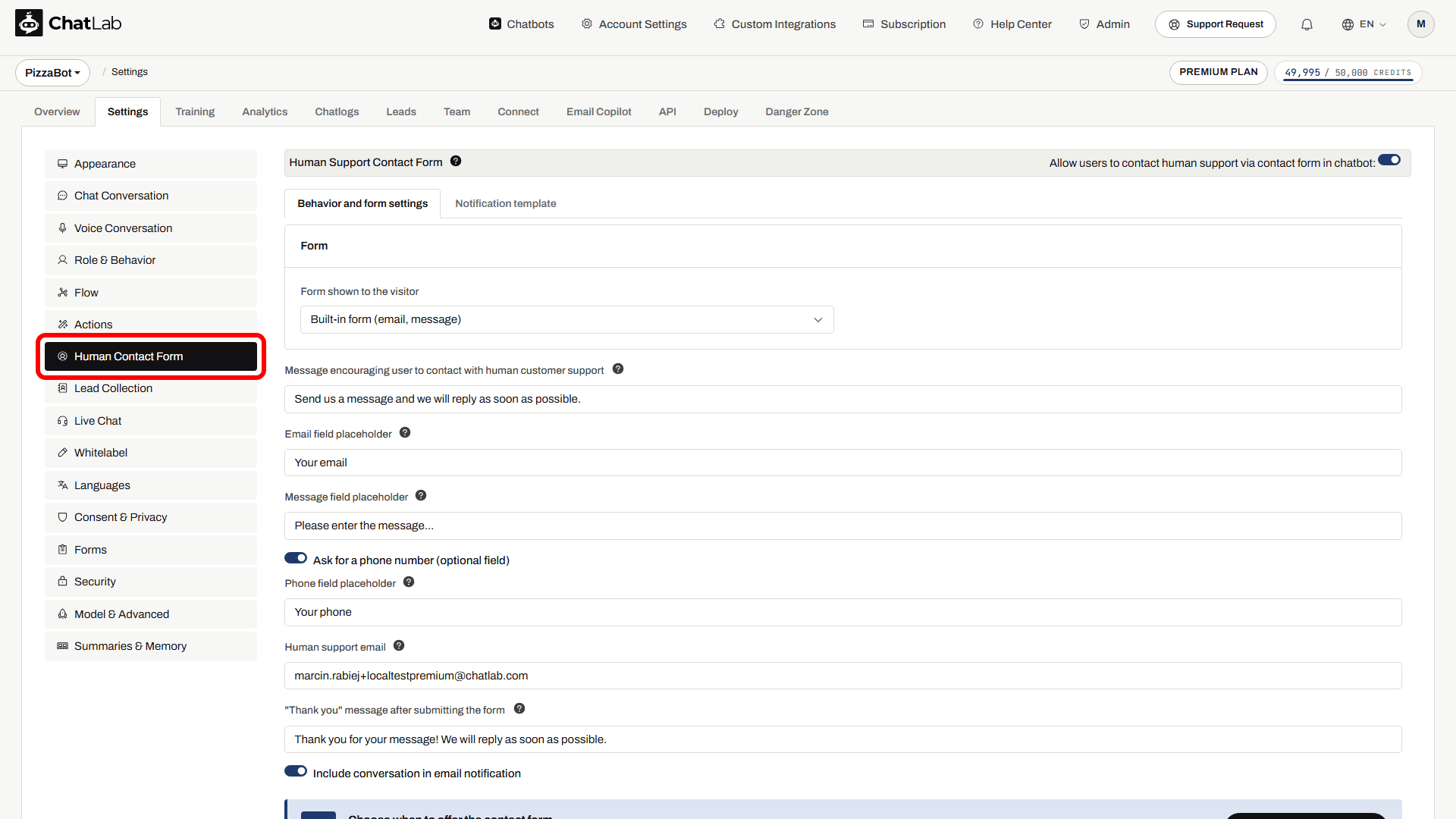
Comportamento e impostazioni del modulo
Questa è la prima scheda secondaria. Controlla quale modulo vedono i visitatori e il testo che lo circonda.
Scegliere il modulo mostrato al visitatore
Nella parte superiore della scheda, usa il menu a discesa Form shown to the visitor (Modulo mostrato al visitatore) per decidere cosa devono compilare i visitatori:
- Built-in form (email, message) (Modulo integrato (email, messaggio)) - il modulo standard con un campo per l'e-mail e uno per il messaggio. Usa le impostazioni sottostanti per personalizzare i placeholder e i messaggi.
- Custom form (Modulo personalizzato) - un modulo creato in Settings > Forms (Impostazioni > Moduli). Vengono elencati solo i moduli che contengono un campo Email. Il primo campo Email identifica il mittente e il primo campo Long answer (Risposta lunga) fornisce il messaggio. Consulta Moduli personalizzati per informazioni su come crearne uno.
Impostazioni del modulo integrato
Quando è selezionato il modulo integrato, configura quanto segue:
- Message encouraging user to contact with human customer support (Messaggio che incoraggia l'utente a contattare l'assistenza clienti umana) - il testo visualizzato nella parte superiore del modulo di contatto. Supporta la formattazione markdown per i link.
- Email field placeholder (Placeholder del campo e-mail) - testo segnaposto mostrato nel campo di input dell'e-mail (es. "Il tuo indirizzo e-mail").
- Message field placeholder (Placeholder del campo messaggio) - testo segnaposto mostrato nell'area di testo del messaggio (es. "Descrivi il tuo problema o la tua domanda...").
- Human support email (E-mail per l'assistenza umana) - l'indirizzo a cui vengono inviati i moduli compilati. Puoi inserire più indirizzi e-mail separati da virgole.
- "Thank you" message after submitting the form (Messaggio di ringraziamento dopo l'invio del modulo) - il messaggio di conferma visualizzato dopo che il visitatore ha inviato il modulo. Supporta il markdown.
- Include conversation in email notification (Includi la conversazione nella notifica e-mail) - quando abilitato, l'intera trascrizione della conversazione viene inclusa nell'e-mail inviata al tuo indirizzo di supporto.
Modello di notifica
Fai clic sulla scheda secondaria Notification template (Modello di notifica) per personalizzare l'e-mail che il tuo team di supporto riceve quando un visitatore invia il modulo.
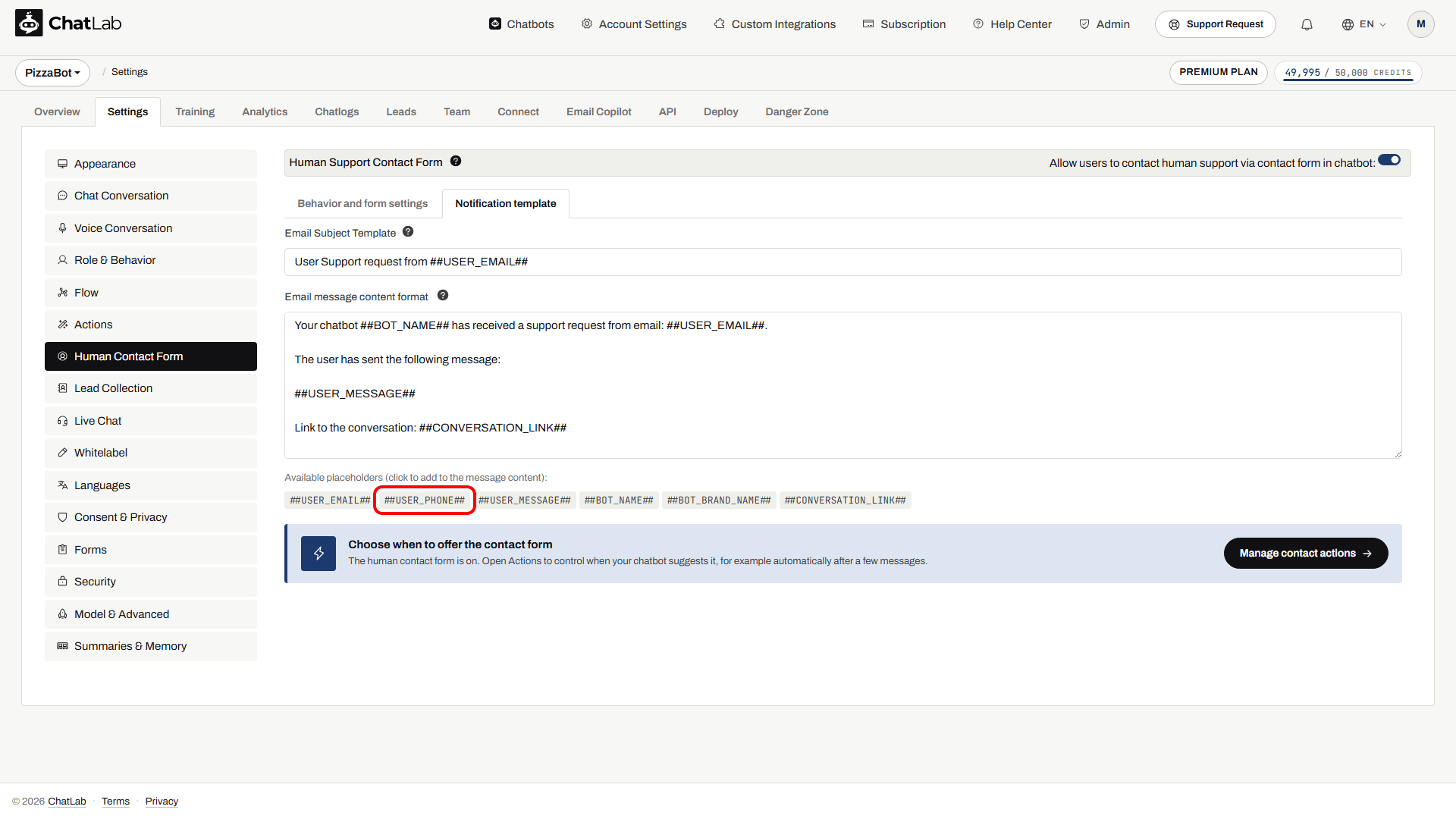
- Email Subject Template (Modello dell'oggetto dell'e-mail) - la riga dell'oggetto dell'e-mail di notifica.
- Email message content format (Formato del contenuto del messaggio e-mail) - il corpo dell'e-mail di notifica.
Sopra i campi è presente una riga di Available placeholders (Placeholder disponibili). Si tratta di chip cliccabili: fai clic su un chip per inserire il relativo segnaposto nell'oggetto o nel corpo del testo nella posizione del cursore, evitando così di dover digitare il token esatto:
##USER_EMAIL##- l'indirizzo e-mail del visitatore##USER_MESSAGE##- il messaggio inserito dal visitatore##BOT_NAME##- il nome del chatbot##BOT_BRAND_NAME##- il nome del tuo brand (es. "ChatLab")##CONVERSATION_LINK##- un link diretto alla conversazione nei tuoi Chatlogs
Quando il modulo viene mostrato ai visitatori
Ci sono tre modi in cui il modulo di contatto può apparire nel widget della chat:
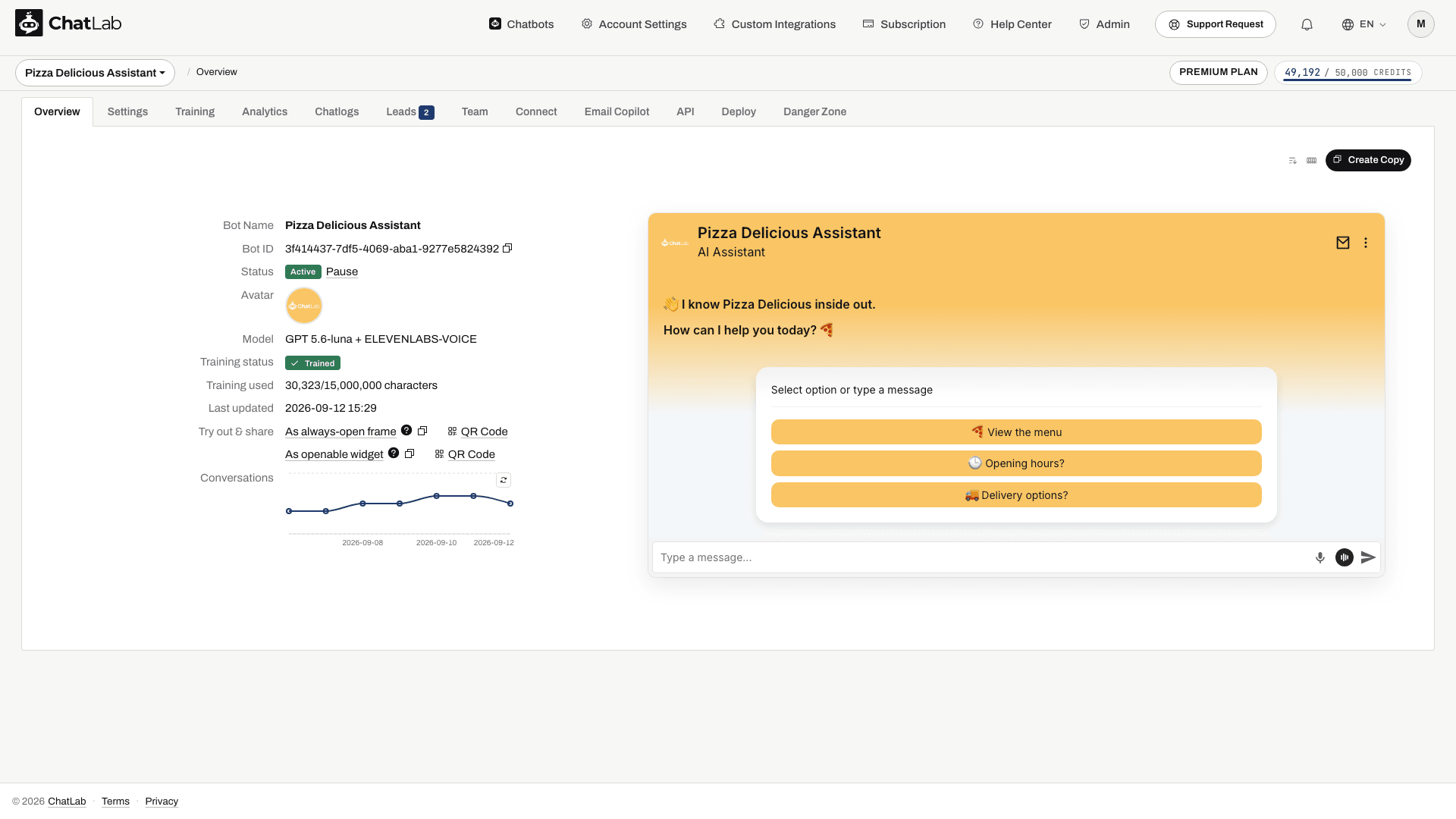
- Dall'intestazione della chat - quando il modulo di contatto è abilitato, i visitatori possono aprirlo in qualsiasi momento dall'intestazione del widget. Con il layout Separate icons (Icone separate) viene mostrata un'icona a forma di busta; con il layout Menu (dropdown) (Menu a discesa) diventa una voce del menu nell'intestazione. Il layout si imposta in Settings > Appearance > Header Actions (Impostazioni > Aspetto > Azioni intestazione). Se l'opzione Special Welcome Screen (Schermata di benvenuto speciale) è abilitata, l'opzione Hide Human Contact Form (Nascondi modulo di contatto umano) determina se il modulo è accessibile prima del primo messaggio del visitatore.
-
Trigger basato su IA - il chatbot rileva automaticamente quando un visitatore ha bisogno di supporto umano (ad esempio, quando non sa rispondere a una domanda o quando il visitatore lo richiede esplicitamente) e mostra il modulo. Questa funzione si configura in Settings > Actions (Impostazioni > Azioni).
-
Dopo X messaggi - il modulo viene mostrato automaticamente dopo un numero prestabilito di messaggi nella conversazione. Anche questo si configura in Settings > Actions.
Azioni basate su IA per l'assistenza umana
Per configurare i trigger automatici, vai su Settings > Actions e filtra per Human Support (Assistenza umana).
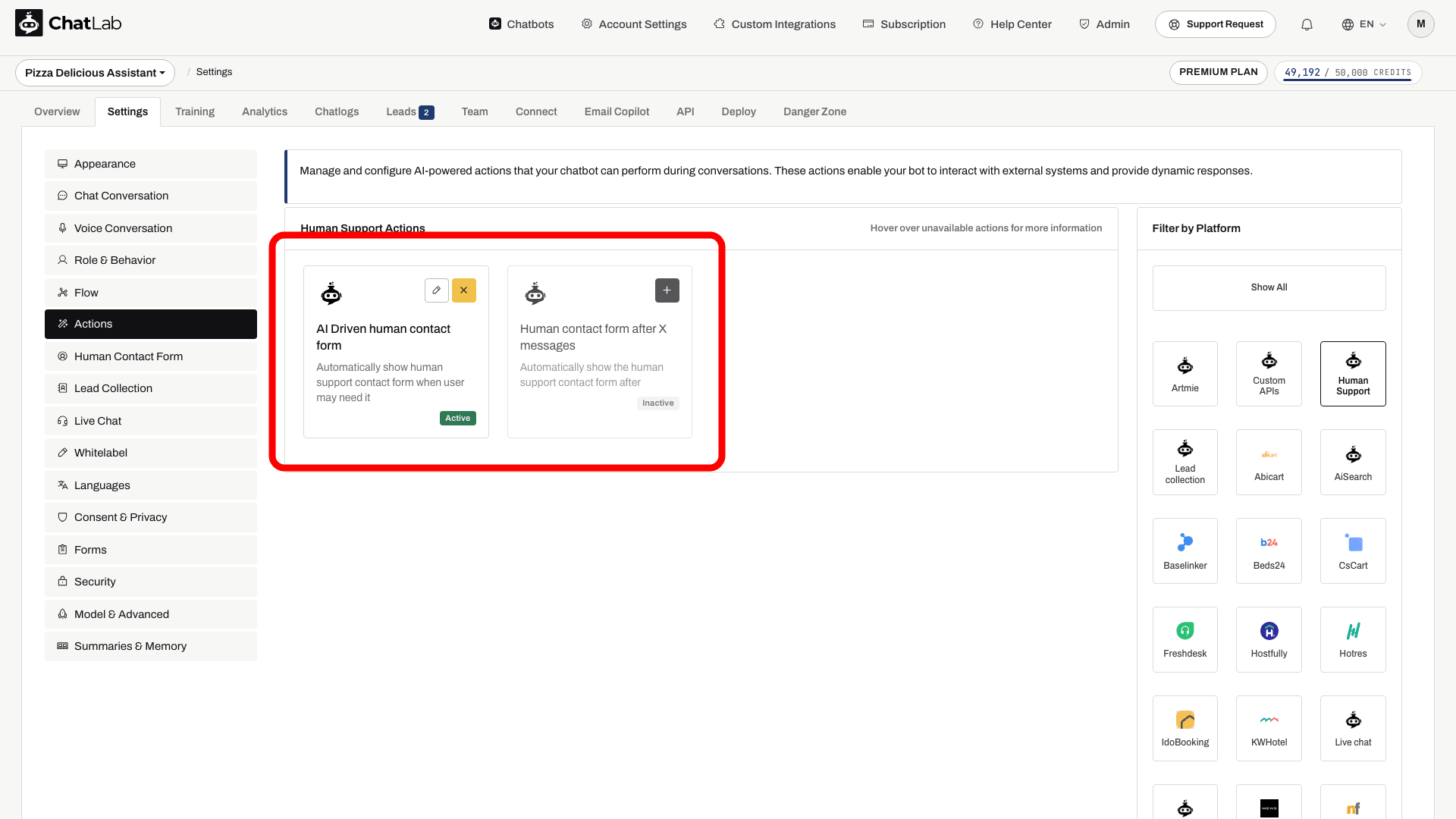
- AI Driven human contact form (Modulo di contatto umano basato su IA) - utilizza l'IA per rilevare quando il visitatore ha bisogno di assistenza umana e suggerisce automaticamente il modulo di contatto. Il modulo compare anche quando il visitatore richiede esplicitamente di parlare con una persona.
- Human contact form after X messages (Modulo di contatto umano dopo X messaggi) - visualizza automaticamente il modulo di contatto dopo un numero specificato di messaggi nella conversazione.
Come appare il modulo ai visitatori
Lascia un messaggio all'assistenza
Attiva il modulo di contatto umano e configura la destinazione. L'invio di un messaggio non corrisponde a una conversazione in tempo reale.

Visitatore: Ho bisogno di aiuto per un articolo danneggiato.
Riproduci l'esempio o leggilo qui sotto. Non viene utilizzato alcun dato reale dei clienti.Il visitatore richiede assistenza.
La riproduzione va in pausa quando questo esempio esce dallo schermo. Questa è una simulazione, non una chat dal vivo. I comandi del widget all'interno della riproduzione non sono interattivi.Leggi l'esempio completo
- Il visitatore richiede assistenza.
Visitatore: Ho bisogno di aiuto per un articolo danneggiato.
- L'azione di supporto configurata propone un modulo.
Assistente: Lascia la tua email e descrivi il problema.
- Il modulo raccoglie la richiesta di assistenza.
Il modulo raccoglie la richiesta di assistenza.
- Dopo l'invio riuscito, segue una conferma.
Assistente: Esempio di conferma: abbiamo ricevuto il tuo messaggio. Il nostro team risponderà via email.
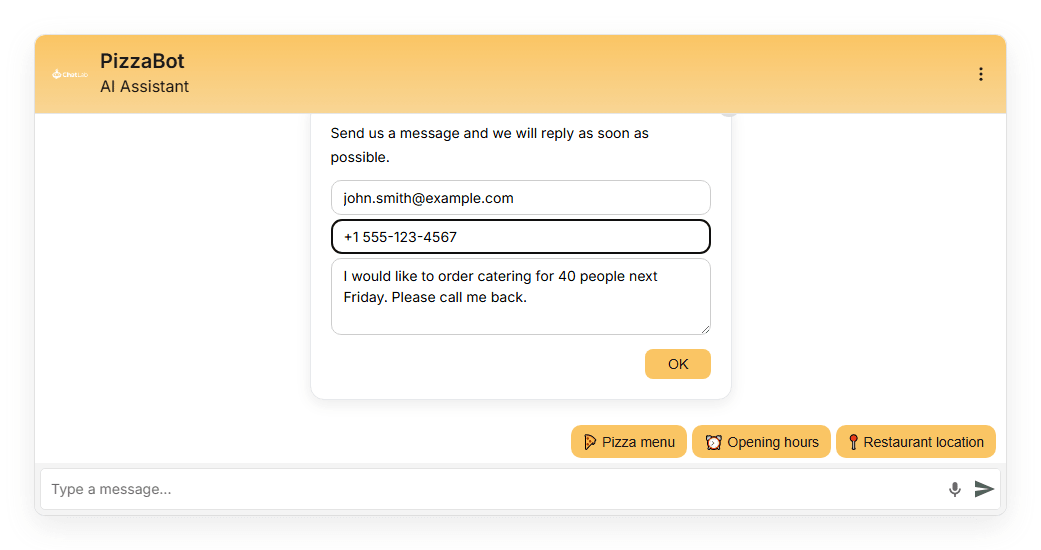
Quando viene attivato il modulo di contatto, i visitatori vedono un modulo all'interno del widget di chat con un campo e-mail, un campo per il messaggio e un pulsante OK. Se è richiesto il consenso all'informativa sulla privacy, sopra il campo e-mail compare una casella di controllo.
Visualizza lo screenshot statico
Consenso all'informativa sulla privacy
Puoi richiedere ai visitatori di accettare un'informativa sulla privacy prima di inviare il modulo di contatto. Questa opzione viene configurata separatamente in Settings > Consent & Privacy (Impostazioni > Consenso e privacy): attiva Require Privacy Policy consent for human support (Richiedi il consenso all'informativa sulla privacy per l'assistenza umana) e personalizza l'etichetta del consenso con un link alla tua informativa.
Articoli correlati
Attendi la conferma Saved (Salvato), quindi prova il modulo in Overview (Panoramica) utilizzando un indirizzo e-mail a cui hai accesso. Invia una richiesta di prova, verifica il messaggio di ringraziamento e accertati che la casella di posta di supporto configurata riceva l'e-mail. Un modulo personalizzato utilizza i propri campi e le proprie etichette; mantieni configurati qui il destinatario del supporto e le impostazioni di notifica.
- Moduli personalizzati - progetta campi personalizzati da utilizzare per l'assistenza umana
- Live Chat - conversazioni in tempo reale con operatori umani
- Raccolta di lead - acquisizione automatica dei dati di contatto dei visitatori