Ustawienia Chat Conversation (Rozmowa na czacie) kontrolują sposób, w jaki Twój chatbot wita odwiedzających, sugeruje tematy i zachowuje się podczas rozmowy - od pierwszej wiadomości powitalnej po dynamiczne podpowiedzi i zbieranie opinii.
Gdzie znaleźć ustawienia Chat Conversation
Wybierz swojego chatbota i przejdź do Settings > Chat Conversation (Ustawienia > Rozmowa na czacie).
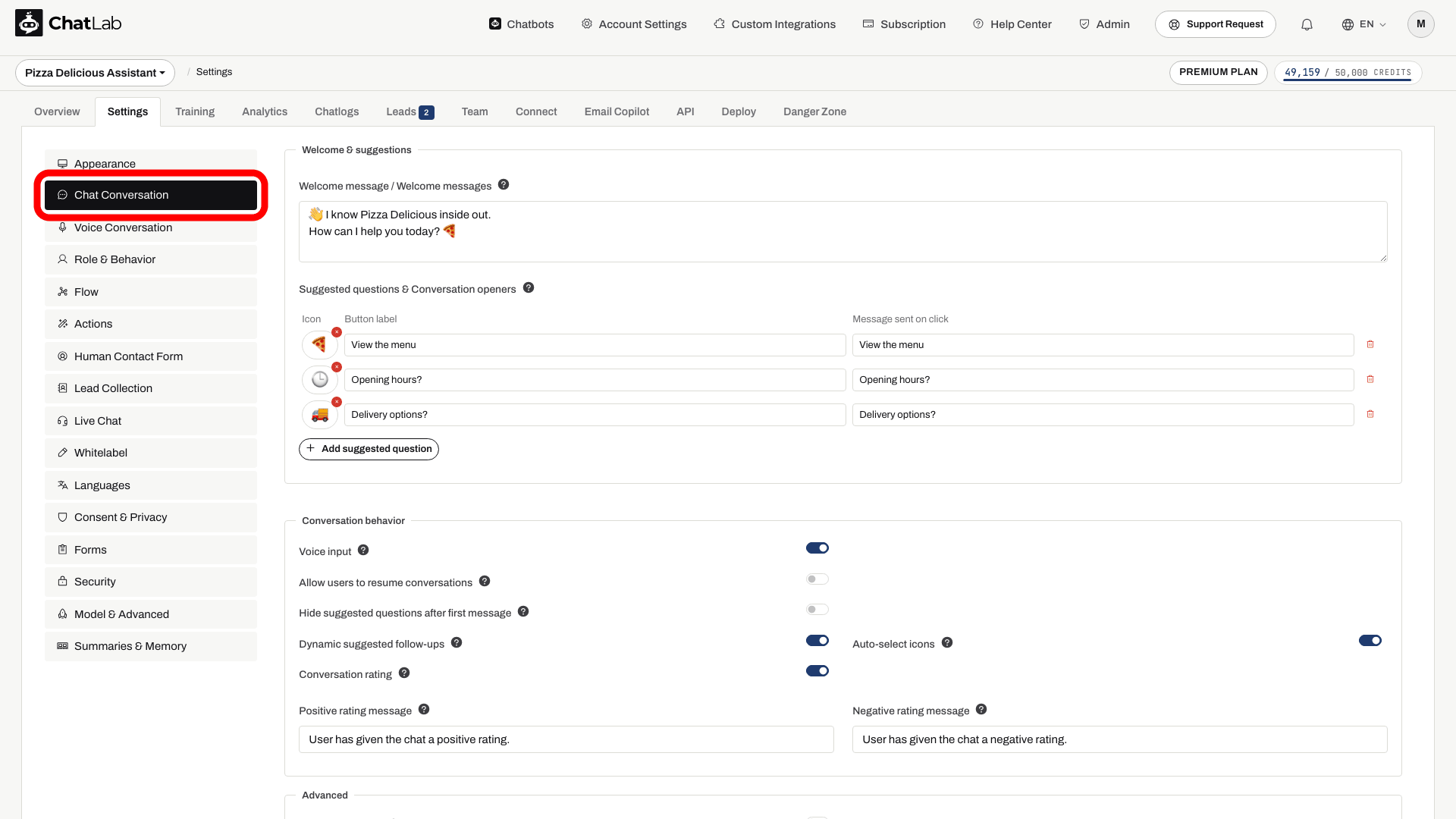
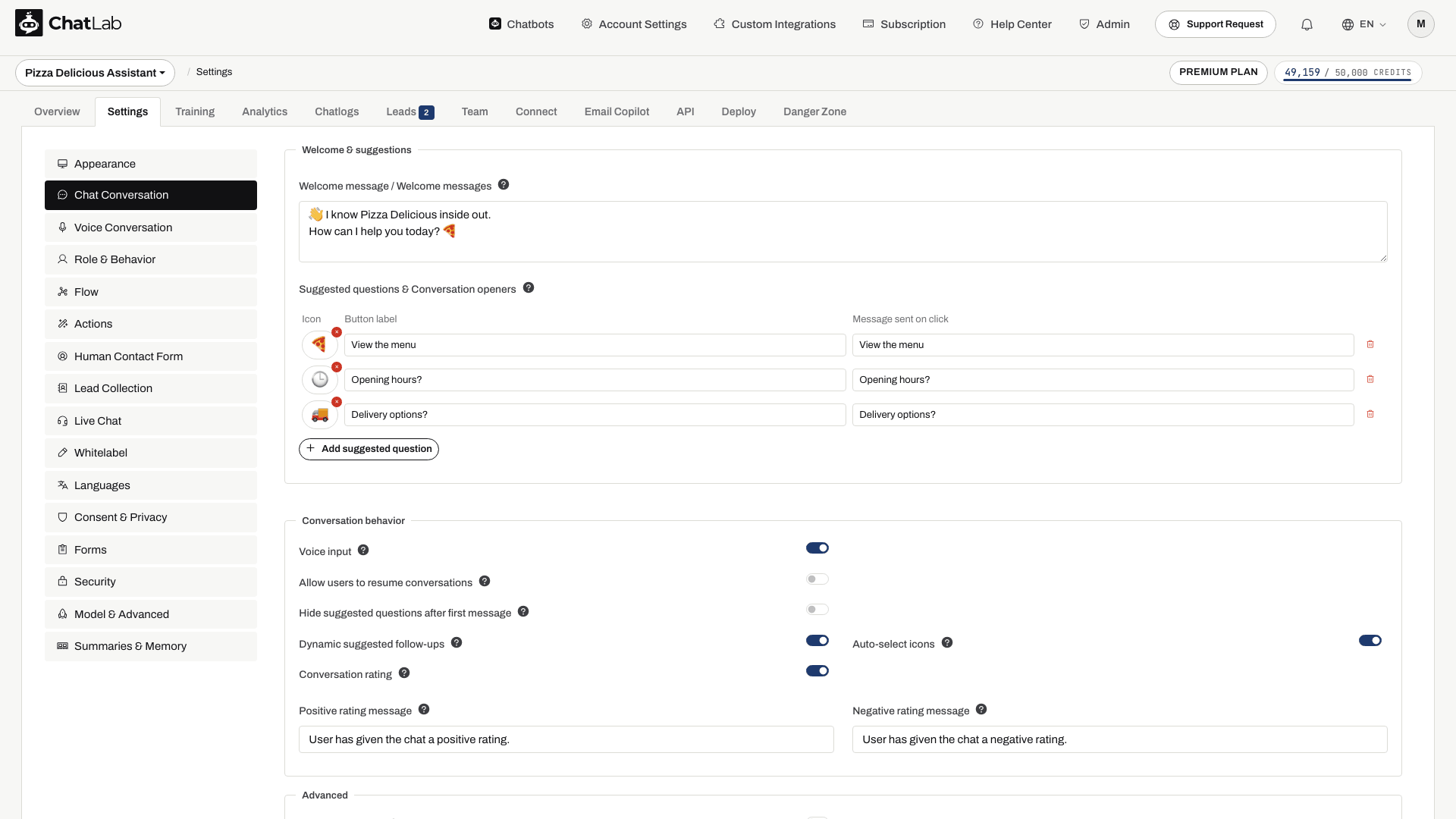
Strona jest podzielona na trzy sekcje: Welcome & suggestions (Powitanie i sugestie) na górze, Conversation behavior (Zachowanie podczas rozmowy) poniżej oraz Advanced (Zaawansowane) na samym dole.
Powitanie i sugestie
Wiadomość powitalna
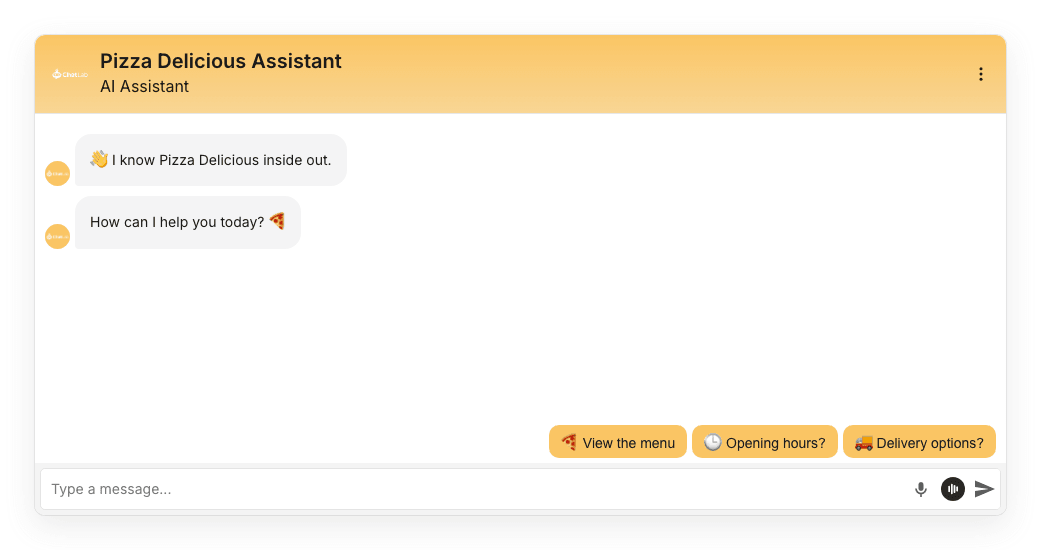
Wiadomość powitalna (Welcome message) to pierwsza rzecz, którą odwiedzający widzą po otwarciu czatu. Możesz dodać maksymalnie trzy oddzielne wiadomości (łącznie 220 znaków), każdą w nowej linii. Wyświetlają się one po kolei, jako osobne dymki wiadomości.
Sugerowane pytania i pytania otwierające rozmowę
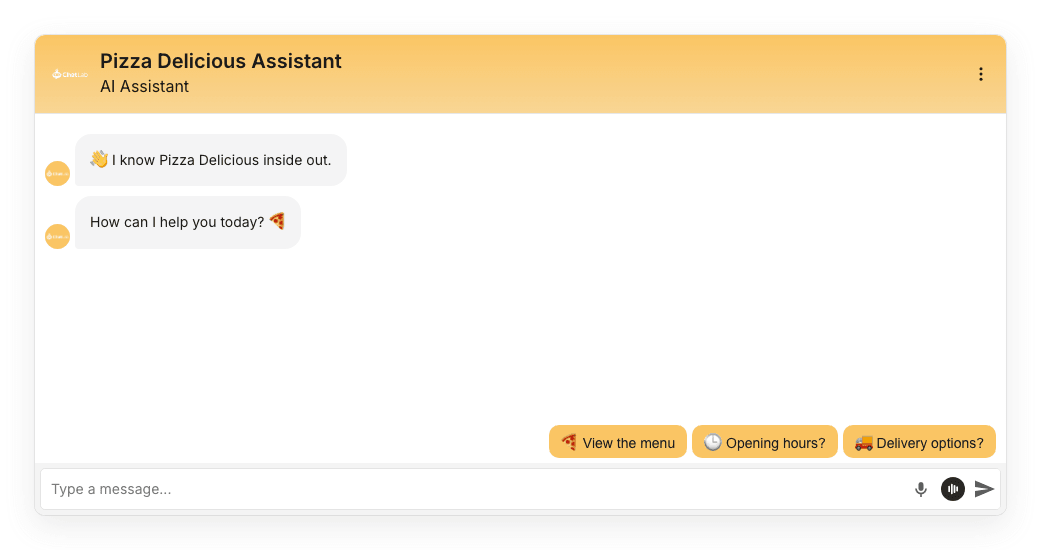
Sugerowane pytania (Suggested questions) nakierowują odwiedzających na popularne tematy i pomagają rozpocząć rozmowę. Domyślnie pojawiają się nad paskiem wpisywania wiadomości. Jeśli włączysz ekran powitalny (Welcome Screen) w sekcji Ustawienia > Wygląd (Settings > Appearance), początkowo wyświetlą się jako duże przyciski na karcie powitalnej.
Każdy wpis zawiera trzy pola:
- Ikona (Icon) - opcjonalne emoji widoczne na przycisku. Kliknij pole ikony, aby otworzyć selektor emoji.
- Etykieta przycisku (Button label) - krótki tekst wyświetlany na przycisku.
- Wiadomość wysyłana po kliknięciu (Message sent on click) - pełne pytanie przesyłane do chatbota, gdy odwiedzający kliknie przycisk.
Dzięki temu przyciski mogą pozostać zwarte, a bot otrzymuje pełne, precyzyjnie sformułowane pytanie.
Zachowanie podczas rozmowy (Conversation behavior)
Ta sekcja gromadzi przełączniki sterujące zachowaniem chatbota w trakcie rozmowy.
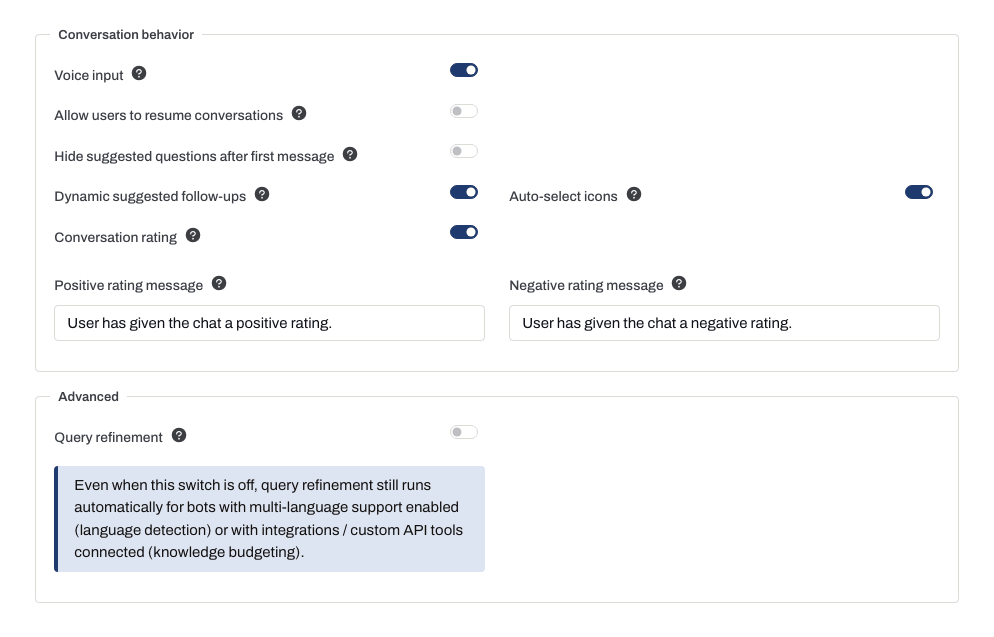
Wprowadzanie głosowe (Voice input)
Gdy włączysz tę opcję, na pasku wiadomości pojawi się przycisk mikrofonu, dzięki któremu odwiedzający mogą podyktować swoje pytanie zamiast pisać na klawiaturze. Wprowadzanie głosowe korzysta z Web Speech API przeglądarki i dostosowuje się do ustawień językowych urządzenia, dlatego obsługa zależy od przeglądarki i systemu operacyjnego. Zobacz obsługę rozpoznawania mowy w przeglądarkach. Jeśli chcesz korzystać zarówno z odpowiedzi głosowych, jak i pytań głosowych, skonfiguruj Rozmowę głosową (Voice Conversation).
Zezwalaj użytkownikom na wznawianie rozmów (Allow users to resume conversations)
Gdy włączysz tę opcję, powracający użytkownicy mogą kontynuować swoją poprzednią rozmowę nawet przez 7 dni. Po jej wyłączeniu rozmowy są przechowywane przez 1 godzinę, dzięki czemu użytkownicy mogą przechodzić między podstronami w Twojej witrynie bez utraty kontekstu.
Dynamiczne sugerowane pytania uzupełniające (Dynamic suggested follow-ups)
Aby korzystać z tej funkcji, pozostaw opcję Ukryj sugerowane pytania po pierwszej wiadomości (Hide suggested questions after first message) wyłączoną. Włączenie tego ustawienia ukrywa pytania statyczne po pierwszej wiadomości użytkownika i wyłącza dynamiczne pytania uzupełniające na resztę rozmowy.
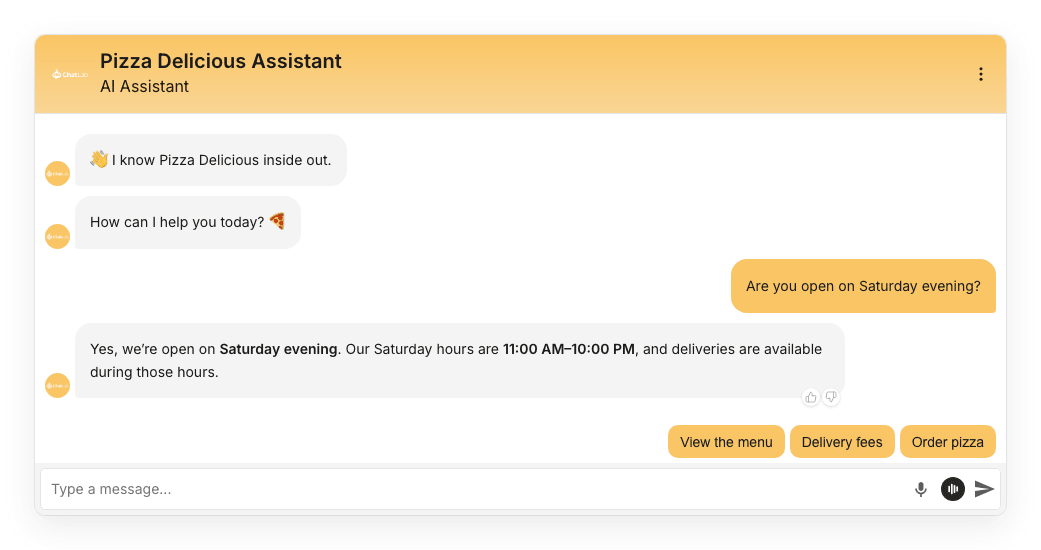
Gdy funkcja jest włączona, chatbot automatycznie generuje przyciski z pytaniami uzupełniającymi po każdej odpowiedzi, na podstawie kontekstu rozmowy. Zastępują one statyczne sugerowane pytania w miarę rozwoju rozmowy.
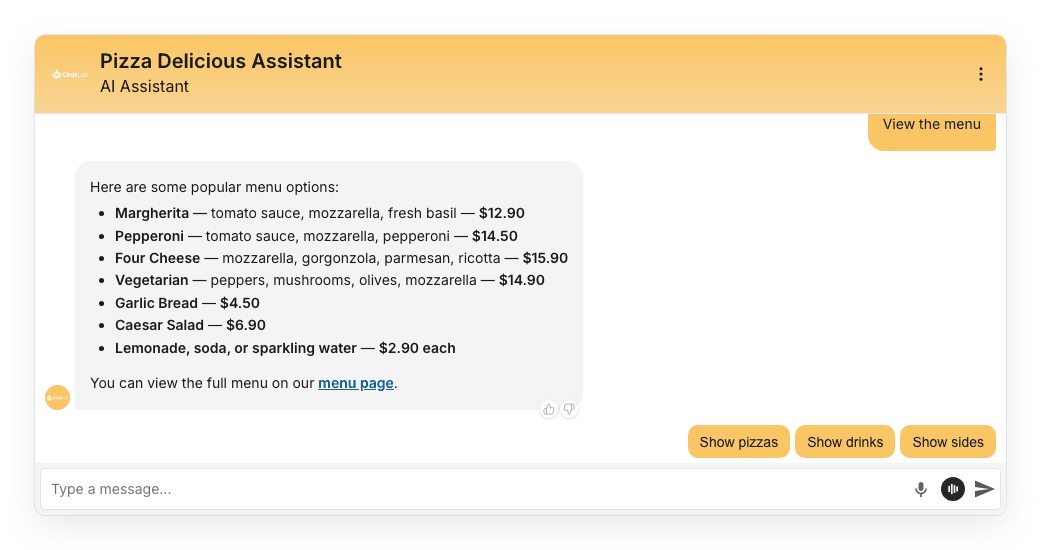
Ta funkcja zależy od modelu AI wybranego dla Twojego chatbota (Ustawienia > Model i zaawansowane (Settings > Model & Advanced)). Jeśli bieżący model jej nie obsługuje, przełącznik jest nieaktywny - przełącz się na zgodny model, aby go włączyć. Możesz doprecyzować działanie sugestii, dodając instrukcje w sekcji Ustawienia > Rola i zachowanie (Settings > Role & Behavior).
Automatyczny wybór ikon (Auto-select icons)
Opcja dostępna tylko wtedy, gdy funkcja Dynamiczne sugerowane pytania uzupełniające (Dynamic suggested follow-ups) jest włączona. Gdy ją aktywujesz, sztuczna inteligencja automatycznie wybiera odpowiednie emoji dla każdego przycisku pytania uzupełniającego. Wyłącz ją, jeśli wolisz pytania zawierające wyłącznie tekst.
Ocenianie rozmowy (Conversation rating)
Gdy włączysz tę opcję, pod najnowszą odpowiedzią chatbota pojawią się ikony kciuka w górę i kciuka w dół. Odwiedzający mogą ocenić rozmowę w dowolnym momencie, a Ty możesz przeglądać opinie w zakładkach Historia rozmów (Chatlogs) oraz Analityka (Analytics).
Dwa pola tekstowe pozwalają dostosować potwierdzenie wyświetlane po ocenie odpowiedzi przez odwiedzającego:
- Wiadomość przy pozytywnej ocenie (Positive rating message) - tekst z podziękowaniem wyświetlany, gdy odwiedzający kliknie kciuk w górę.
- Wiadomość przy negatywnej ocenie (Negative rating message) - tekst wyświetlany, gdy odwiedzający kliknie kciuk w dół.
Zaawansowane (Advanced)
Doprecyzowywanie zapytań (Query refinement)
Gdy doprecyzowywanie zapytań (Query refinement) jest włączone, chatbot przepisuje pytanie użytkownika z uwzględnieniem kontekstu rozmowy przed przeszukaniem bazy wiedzy. Zwykle pozwala to uzyskać bardziej trafne odpowiedzi, kosztem jednego niewielkiego, dodatkowego zapytania do AI (nieznaczny wzrost opóźnienia).
Nawet jeśli ten przełącznik jest wyłączony, funkcja ta działa automatycznie w przypadku botów z aktywną obsługą wielu języków (wykrywanie języka) oraz botów z podłączonymi integracjami lub niestandardowymi narzędziami API (zarządzanie budżetem wiedzy) - przypomina o tym informacja umieszczona pod przełącznikiem.
Powiązane ustawienia
Zmiany zapisują się automatycznie. Poczekaj na komunikat Saved (Zapisano), a następnie otwórz Overview (Przegląd) i rozpocznij nową rozmowę testową. Sprawdź wiadomości powitalne, kliknij sugerowane pytanie oraz zweryfikuj pytania uzupełniające i elementy oceny po odpowiedzi.
Kilka opcji, które wcześniej znajdowały się na tej stronie, zostało przeniesionych:
- Creativity / temperature (Kreatywność / temperatura) - teraz w sekcji Settings > Model & Advanced (Ustawienia > Model i zaawansowane).
- Placeholder for new message (Tekst zastępczy nowej wiadomości) oraz Reset Conversation tooltip (Podpowiedź resetowania rozmowy) - teraz w sekcji Settings > Appearance (Ustawienia > Wygląd).
- Voice Conversation (Rozmowa głosowa, wcześniej zakładka Voice) - teraz jako osobna zakładka na pasku bocznym Settings (Ustawienia).