AI Conversation Insights analiza las conversaciones recientes de tu chatbot con IA y las convierte en un informe breve y práctico: lo que tu chatbot no pudo responder, lo que los visitantes preguntan con más frecuencia y otros patrones sobre los que vale la pena actuar. Esto te evita tener que leer cada registro de chat tú mismo.
AI Insights está disponible como una función prémium - si tu plan no la incluye, el panel muestra una vista previa de ejemplo con un aviso para actualizar el plan. Si aún no has creado un chatbot, comienza por crear tu primer chatbot.
Dónde encontrar esta función
Selecciona tu chatbot y ve a Analytics > AI Insights (Analítica > AI Insights). Esta es una pestaña independiente junto a Chatbot analytics (Analítica del chatbot).
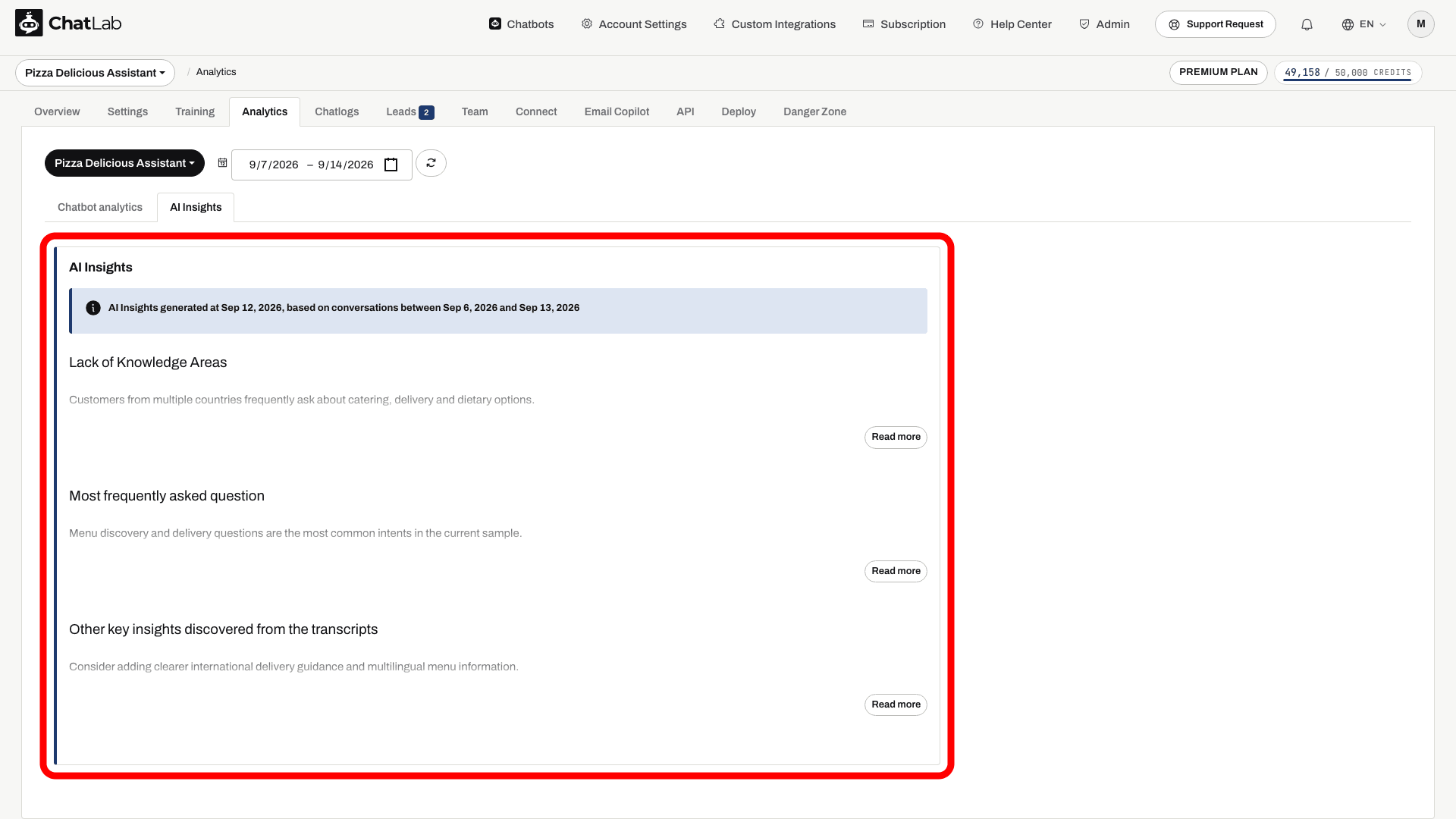
Nota: Los AI Insights se generan para un solo chatbot. Si cambias el selector de chatbot en la página Analytics a "All chatbots" (Todos los chatbots), el panel te recordará que selecciones un chatbot.
Qué contienen los informes de AI Insights
Cada informe se basa en las conversaciones de los últimos 7 días e incluye tres secciones. Usa Read more (Leer más) donde una sección esté recortada para expandir su texto.
- Lack of Knowledge Areas (Áreas de falta de conocimiento) - preguntas que tu chatbot no pudo responder bien. Usa esta lista para añadir la información que falta en la pestaña Training (Entrenamiento).
- Most frequently asked question (Preguntas más frecuentes) - las preguntas y temas más comunes, ordenados por frecuencia. Buenos candidatos para preguntas sugeridas o contenido para tu sitio web.
- Other key insights discovered from the transcripts (Otras conclusiones clave descubiertas a partir de las transcripciones) - otros patrones encontrados en las transcripciones, como el sentimiento de los usuarios, problemas recurrentes o indicios de frustración o satisfacción.
Un banner informativo situado encima de las secciones indica cuándo se generaron los datos y qué rango de fechas de conversaciones cubren.
Cuándo se generan los informes
- Los chatbots activos nuevos pasan a ser aptos para un informe inicial tras unos cinco días. Un informe requiere conversaciones recientes y la función AI Insights; no se garantiza que aparezca en un momento exacto.
- Después de eso, los análisis se actualizan automáticamente una vez por semana, siempre en función de las conversaciones de los últimos 7 días.
- Si el chatbot no tuvo conversaciones en los últimos 7 días, el informe anterior se mantiene hasta que lleguen nuevas conversaciones.
No necesitas activar nada - solo revisa la pestaña Analytics (Analítica) después de que tu chatbot haya estado hablando con los visitantes.
Cómo cambiar el idioma de AI Insights
AI Insights se redacta en el Reporting language (idioma de informes) de tu chatbot. Para cambiarlo:
- Selecciona tu chatbot y ve a Settings > Languages (Configuración > Idiomas).
- En la tarjeta AI language, elige un idioma en el campo Reporting language.
- Espera a que aparezca la confirmación de guardado antes de salir de la página. El nuevo idioma se aplicará a los futuros análisis generados; no traduce de inmediato un informe existente.
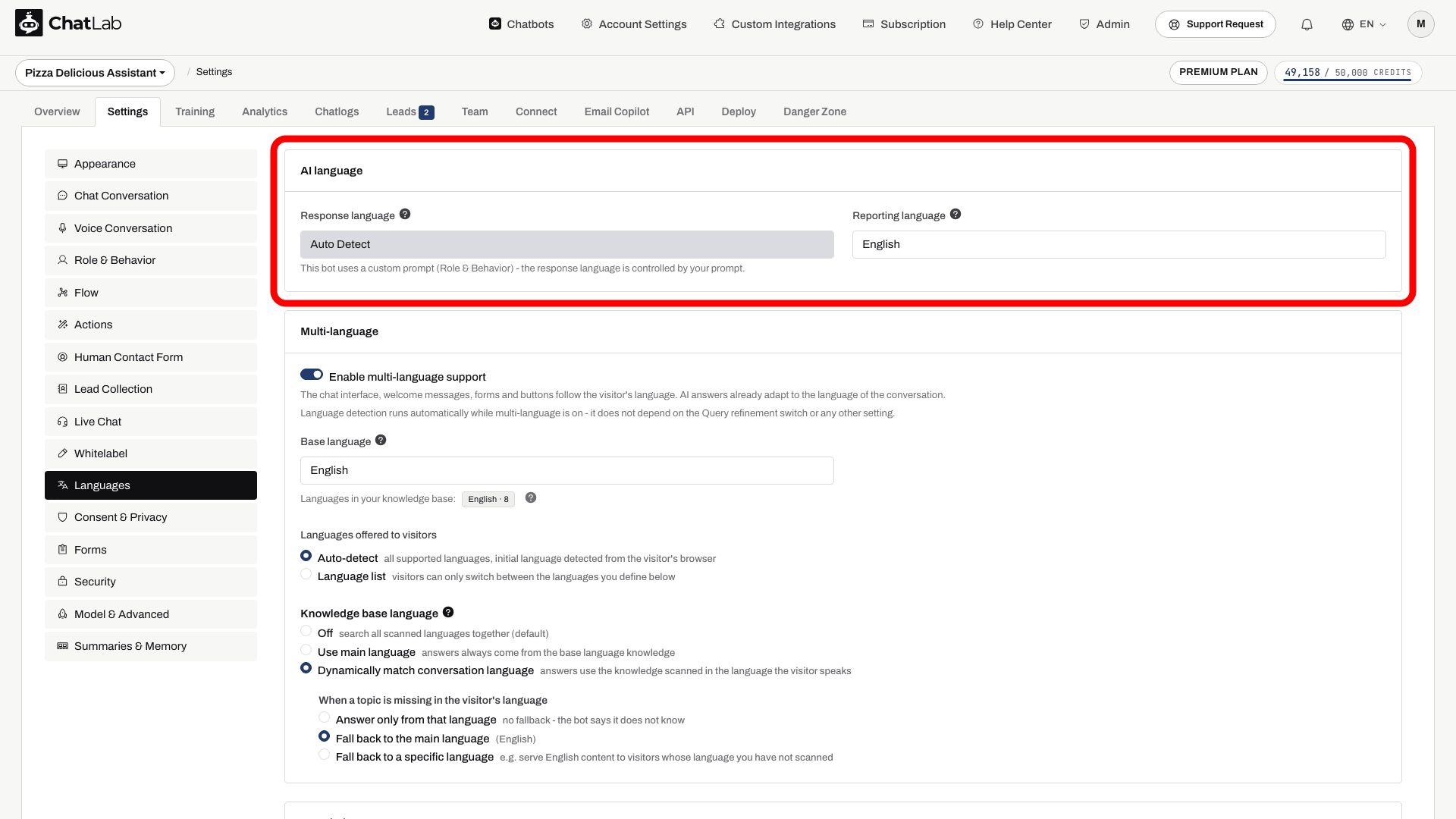
El Reporting language solo afecta al contenido que ves en el panel de administración (AI Insights, resúmenes de conversaciones, resúmenes de clientes) - no cambia lo que ven tus visitantes en el chat. Este ajuste se llamaba anteriormente Internal language (idioma interno) y se encontraba en Settings > Model & Advanced. Más información sobre la configuración de idioma: Configuración del idioma del chatbot.
Cómo recibir AI Insights por correo electrónico
También puedes recibir AI Conversation Insights por correo electrónico. Ve a Account Settings > Reports (Configuración de la cuenta > Informes), donde tienes dos opciones:
- Daily reports (Informes diarios) - un correo electrónico diario que cubre el día UTC completo anterior, incluyendo los últimos insights de IA disponibles
- Weekly reports (Informes semanales) - un correo electrónico en tu día preferido que cubre los siete días UTC completos anteriores, con la actividad del chatbot y los insights de IA disponibles
Ambos tipos de informes se pueden activar por chatbot y enviar a varias direcciones de correo electrónico. Puedes elegir el día preferido para los informes semanales en la pestaña Weekly (Semanal).