Voice Conversation convierte a tu chatbot en un agente de voz en tiempo real. Los visitantes pulsan el botón de llamada en el widget de chat y mantienen una conversación hablada con el bot: ellos hablan y el bot responde con una voz sintetizada. Tú eliges el modelo de voz, la voz, el idioma y algunos límites de seguridad.
Antes de empezar, crea un chatbot y entrégalo. Voice Conversation está disponible como una función premium: aparecerá un aviso de actualización si tu plan no la incluye. Las llamadas consumen créditos de mensaje.
Dónde encontrar la configuración de Voice Conversation
Selecciona tu chatbot, haz clic en la pestaña Settings (Configuración) y luego selecciona Voice Conversation (Conversación de voz) en la barra lateral izquierda.
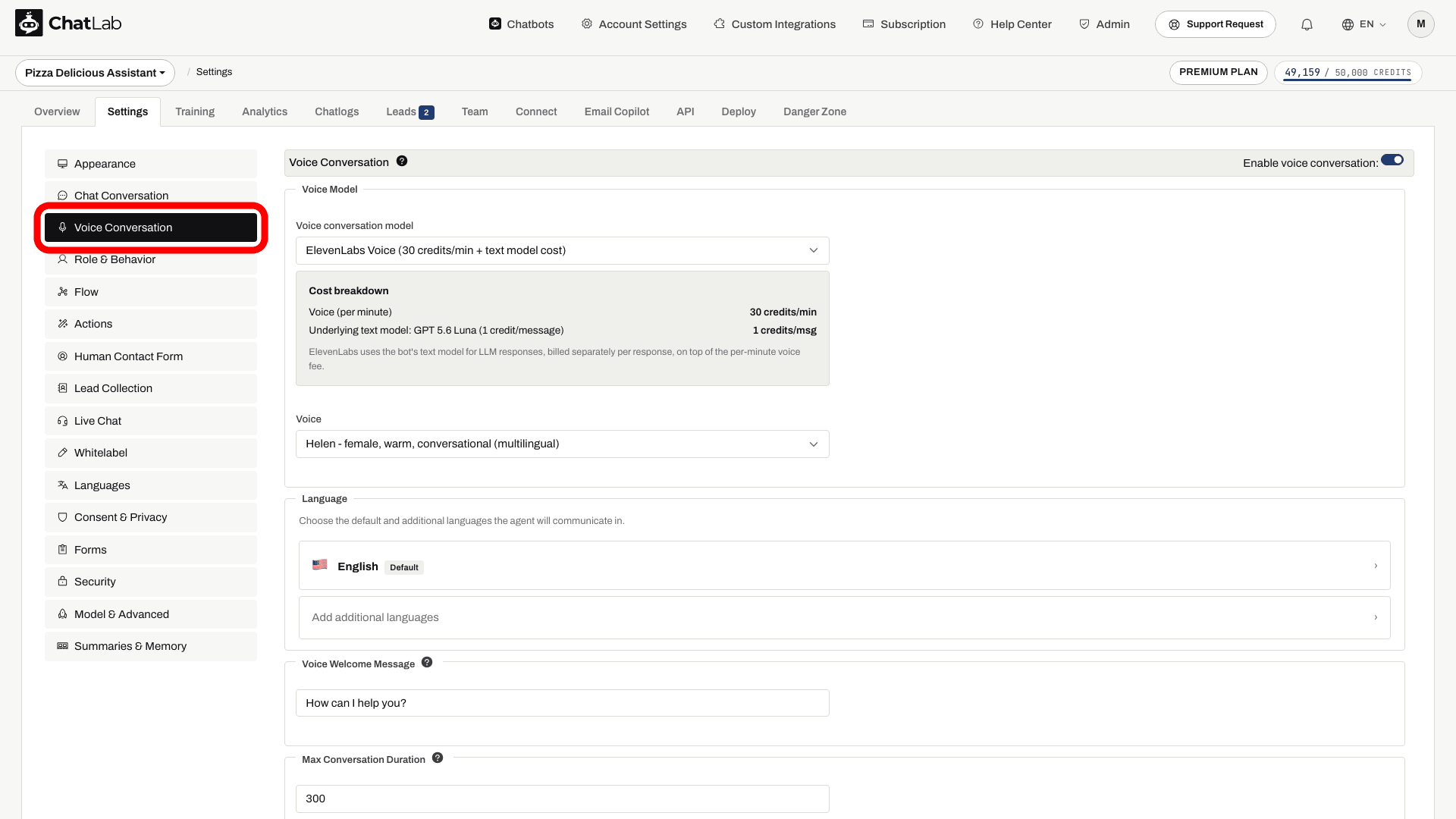
En la parte superior de la página encontrarás el interruptor Enable voice conversation (Activar conversación de voz). El resto de los ajustes solo aparecen una vez activada la conversación de voz.
Elegir un modelo de voz
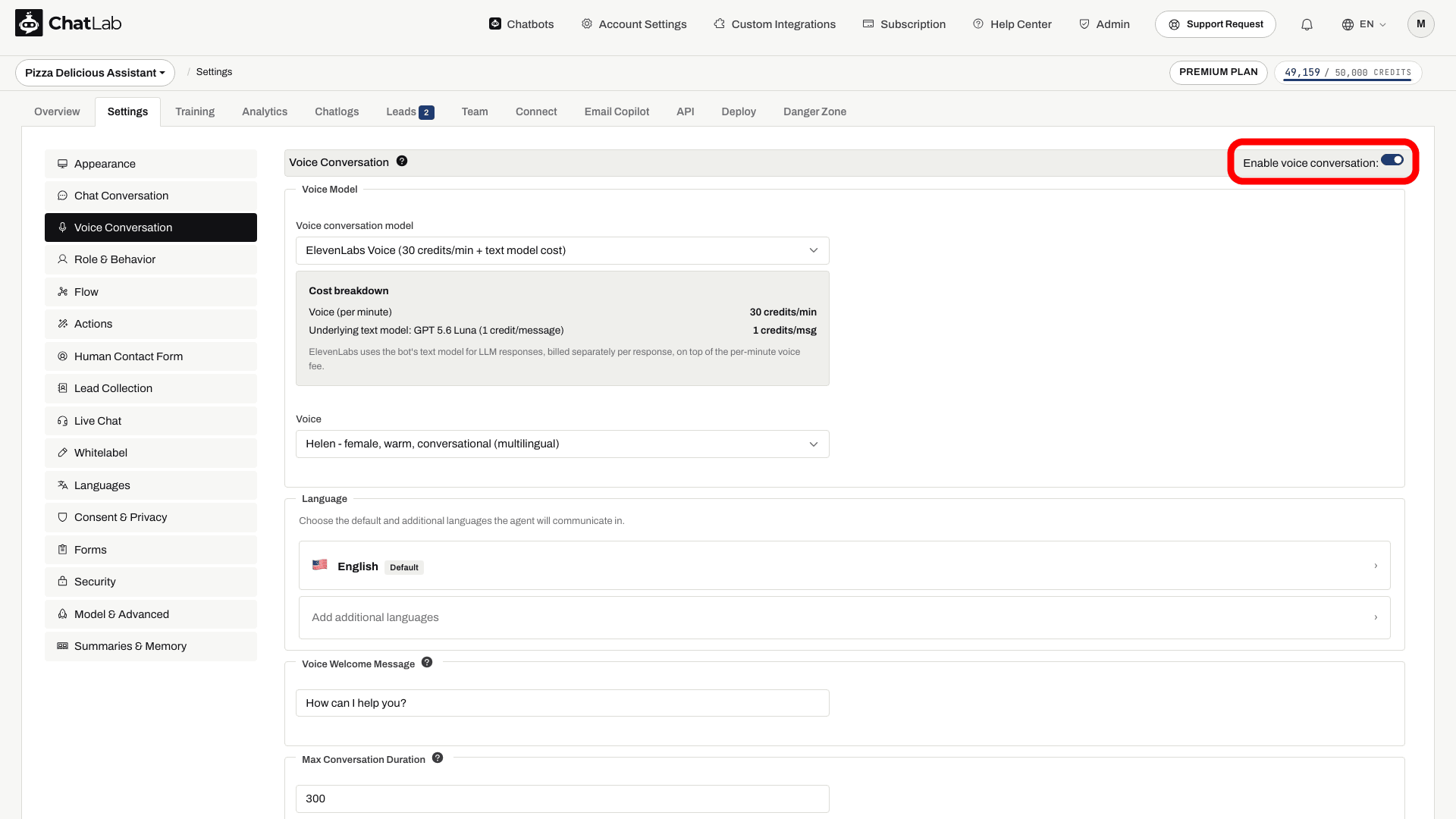
ChatLab admite cuatro modelos de voz, cada uno con su propia tarifa por minuto indicada a su lado en el menú desplegable:
- GPT Realtime: una opción de voz a voz de OpenAI.
- GPT Realtime Mini: el modelo de voz predeterminado para bots nuevos. Compara la tarifa de créditos que muestra y pruébalo con tus preguntas.
- Gemini 3.1 Flash Voice: una opción de voz a voz que utiliza Gemini Live.
- ElevenLabs Voice: una opción que utiliza las voces de ElevenLabs. Utiliza el modelo de texto habitual del bot (configurado en Settings > Model & Advanced) para generar las respuestas y luego ElevenLabs las convierte en voz. La tarifa de voz por minuto se cobra de forma adicional al coste por respuesta del modelo de texto.
Debajo del selector de modelo hay una tarjeta de Cost breakdown (Desglose de costes) que muestra la tarifa por minuto del modelo que tienes seleccionado actualmente, para que siempre veas cómo se facturará la llamada según la tarifa indicada junto a cada modelo en el menú desplegable.
Elegir una voz
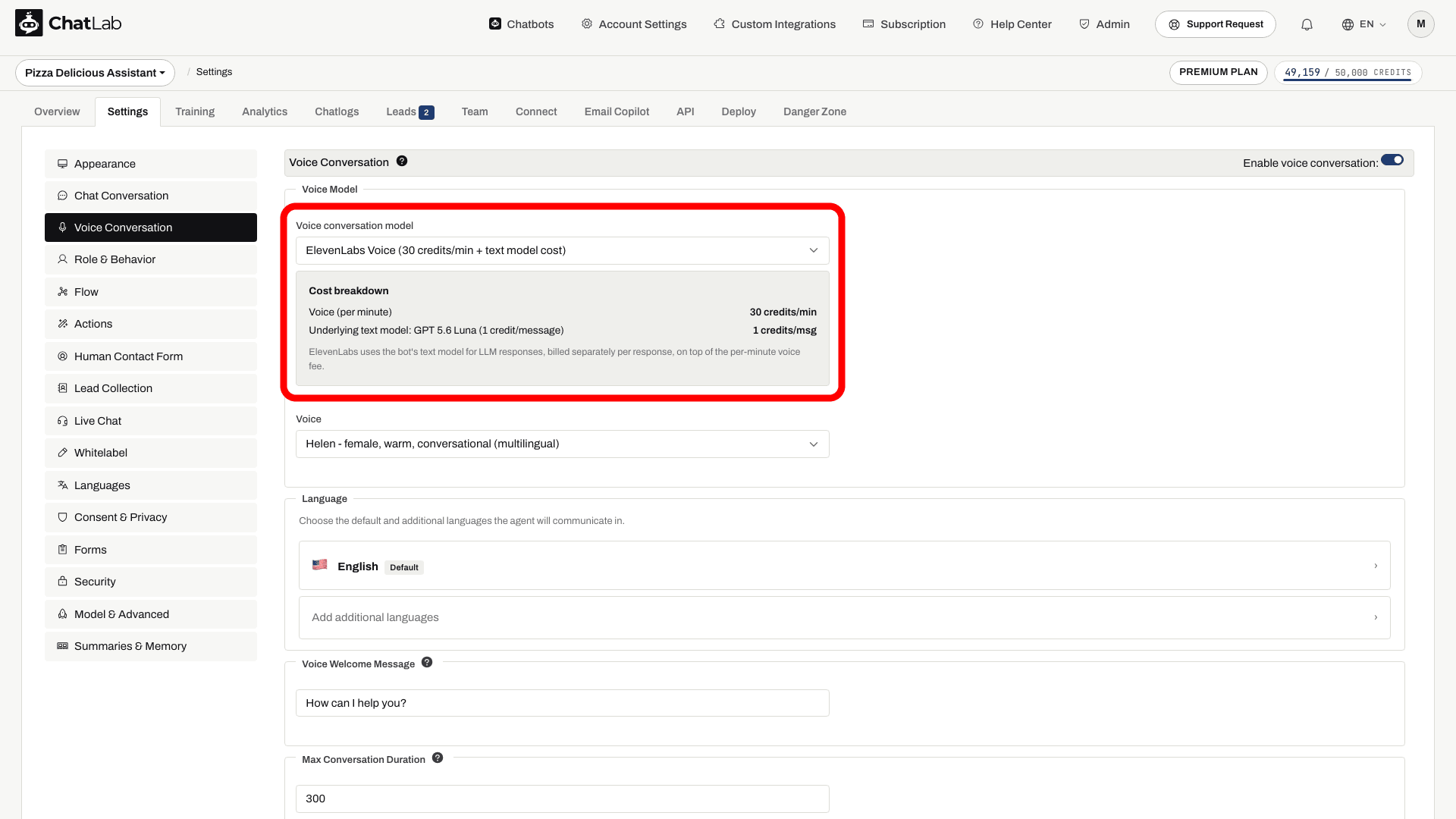
Cada modelo ofrece su propio conjunto de voces en el menú desplegable Voice (Voz):
- OpenAI (GPT Realtime y GPT Realtime Mini): Alloy, Ash, Ballad, Cedar, Coral, Echo, Fable, Marin, Onyx, Nova, Sage, Shimmer, Verse.
- Gemini: Kore (recomendada), Charon, Puck, Fenrir, Aoede, Leda, Orus, Zephyr.
- ElevenLabs: Brian, Helen, Chris, Daniel, Jessica, Sarah, Lily, Liam, Will, Janet.
Los bots nuevos usan Alloy de forma predeterminada. Puedes cambiar la voz en cualquier momento; la nueva voz se aplicará en la siguiente llamada.
Configurar el idioma
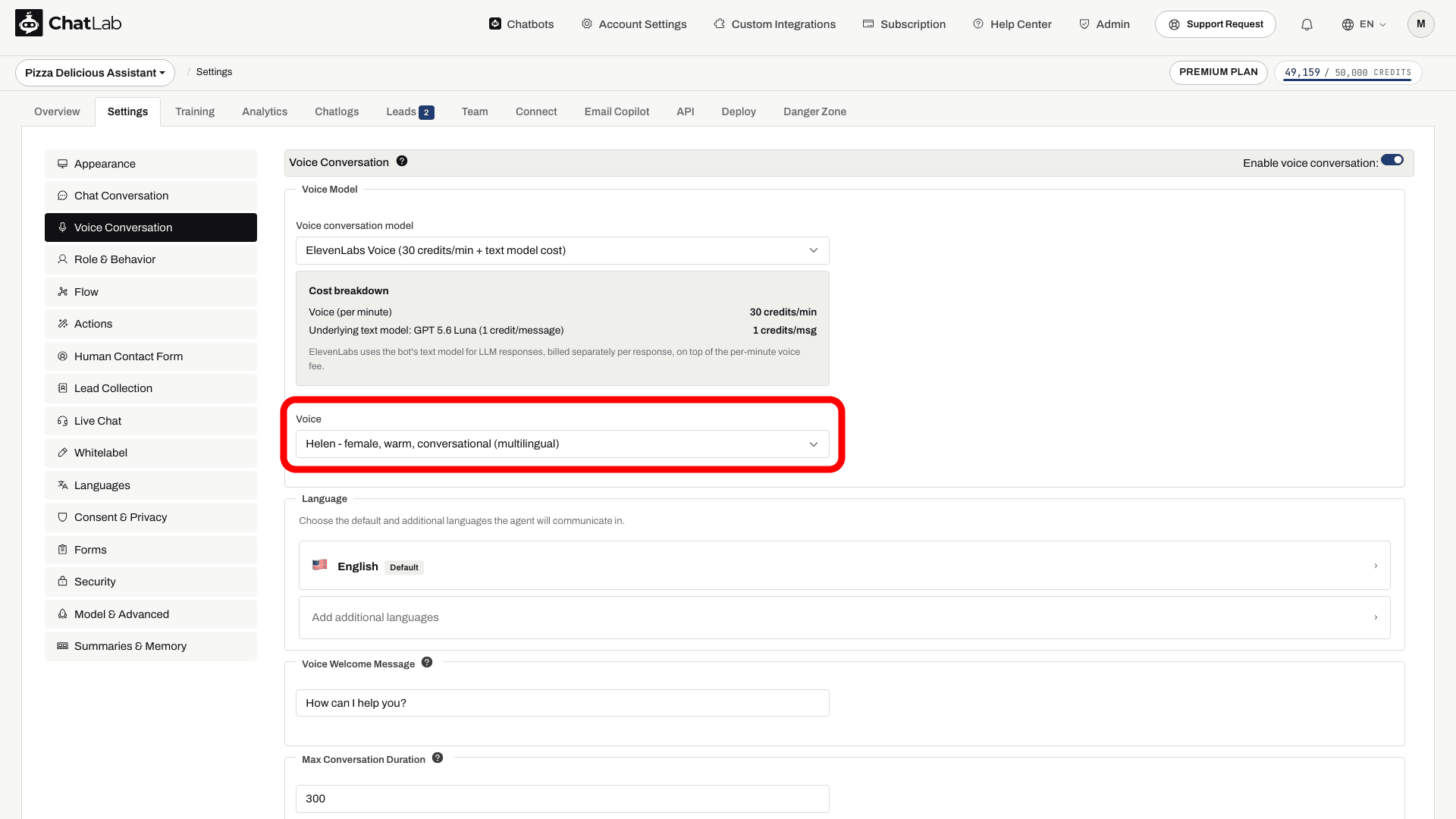
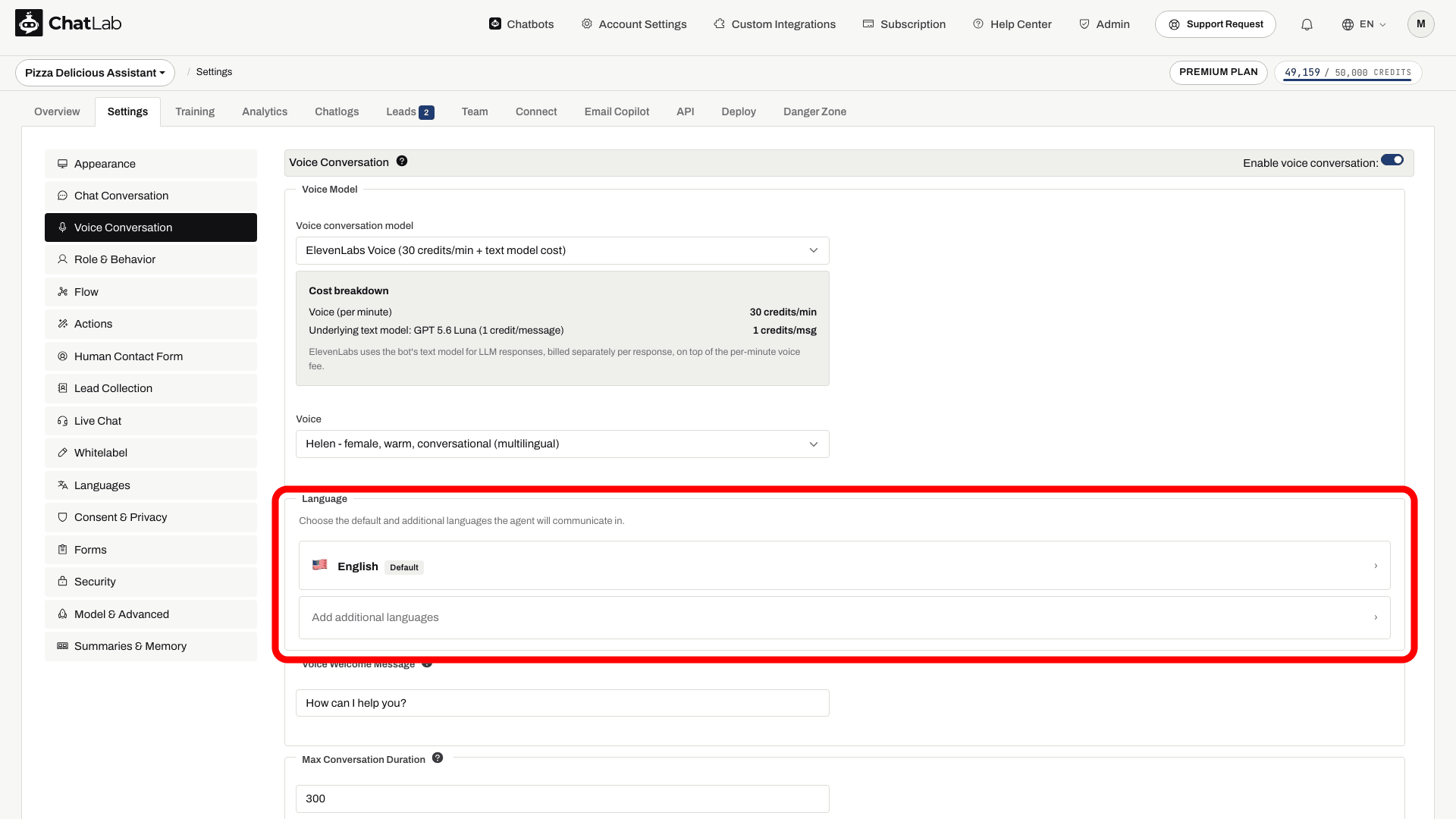
La sección Language (Idioma) controla qué idioma (o idiomas) habla el bot durante una llamada.
- OpenAI y Gemini: elige un único idioma principal. Si un visitante habla en otro idioma compatible durante la llamada, el bot cambiará a ese idioma de forma natural.
- ElevenLabs: elige un idioma predeterminado más cualquier cantidad de idiomas adicionales que el agente tenga permitido utilizar.
Haz clic en una casilla de idioma para abrir un selector con banderas de países y un buscador.
Mensaje de bienvenida de voz
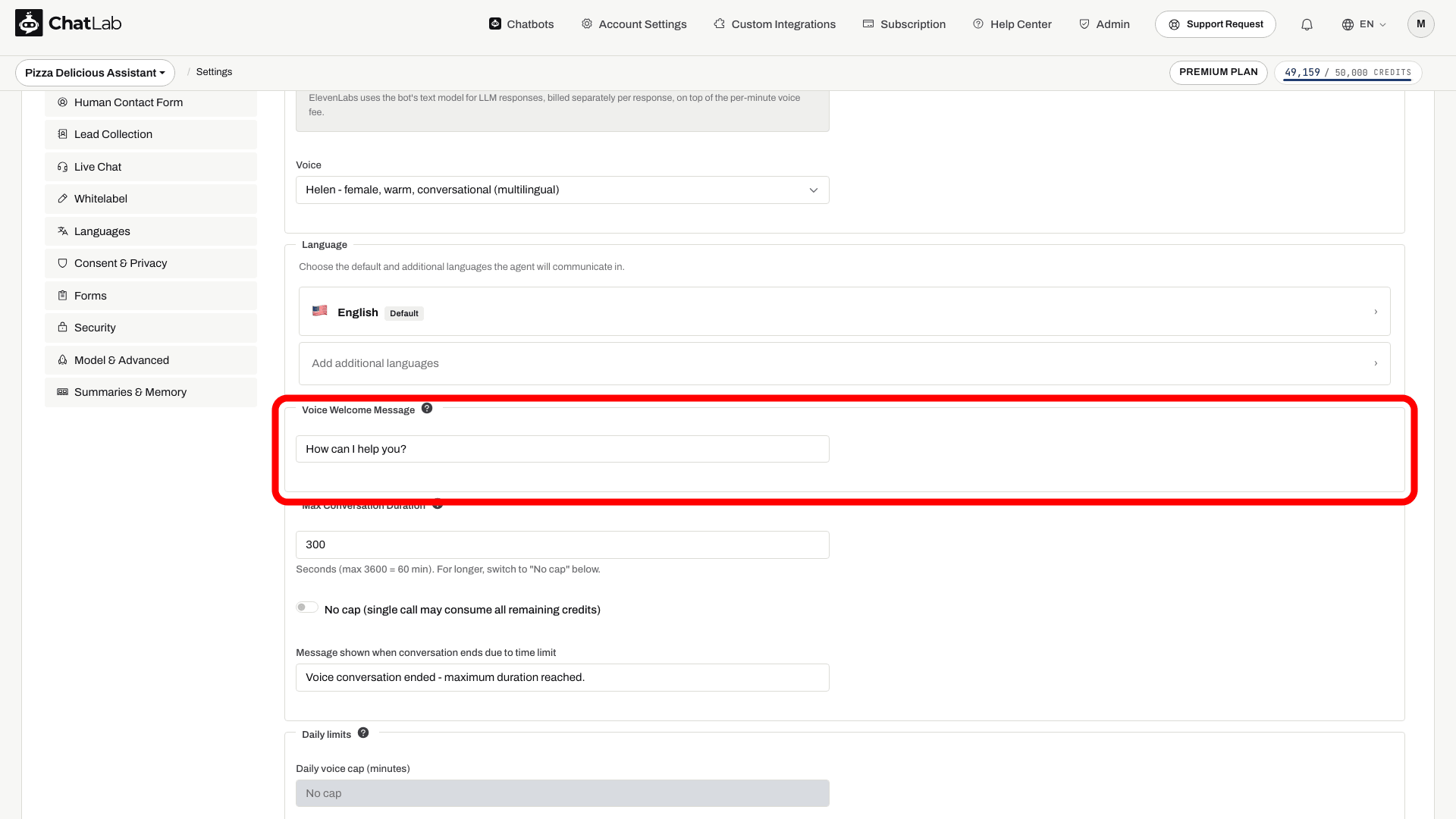
El Voice Welcome Message (Mensaje de bienvenida de voz) es la primera frase que pronuncia el bot cuando comienza una llamada. Se reproduce una sola vez al inicio de la sesión, así que procura que sea corto y natural; algo como "Hola, ¿cómo puedo ayudarte?" funciona muy bien.
La longitud máxima es de 500 caracteres.
Limitar la duración de la conversación
Las llamadas de voz consumen créditos por minuto, por lo que dispones de dos límites de seguridad para proteger el presupuesto del propietario del bot.
Duración máxima de la conversación
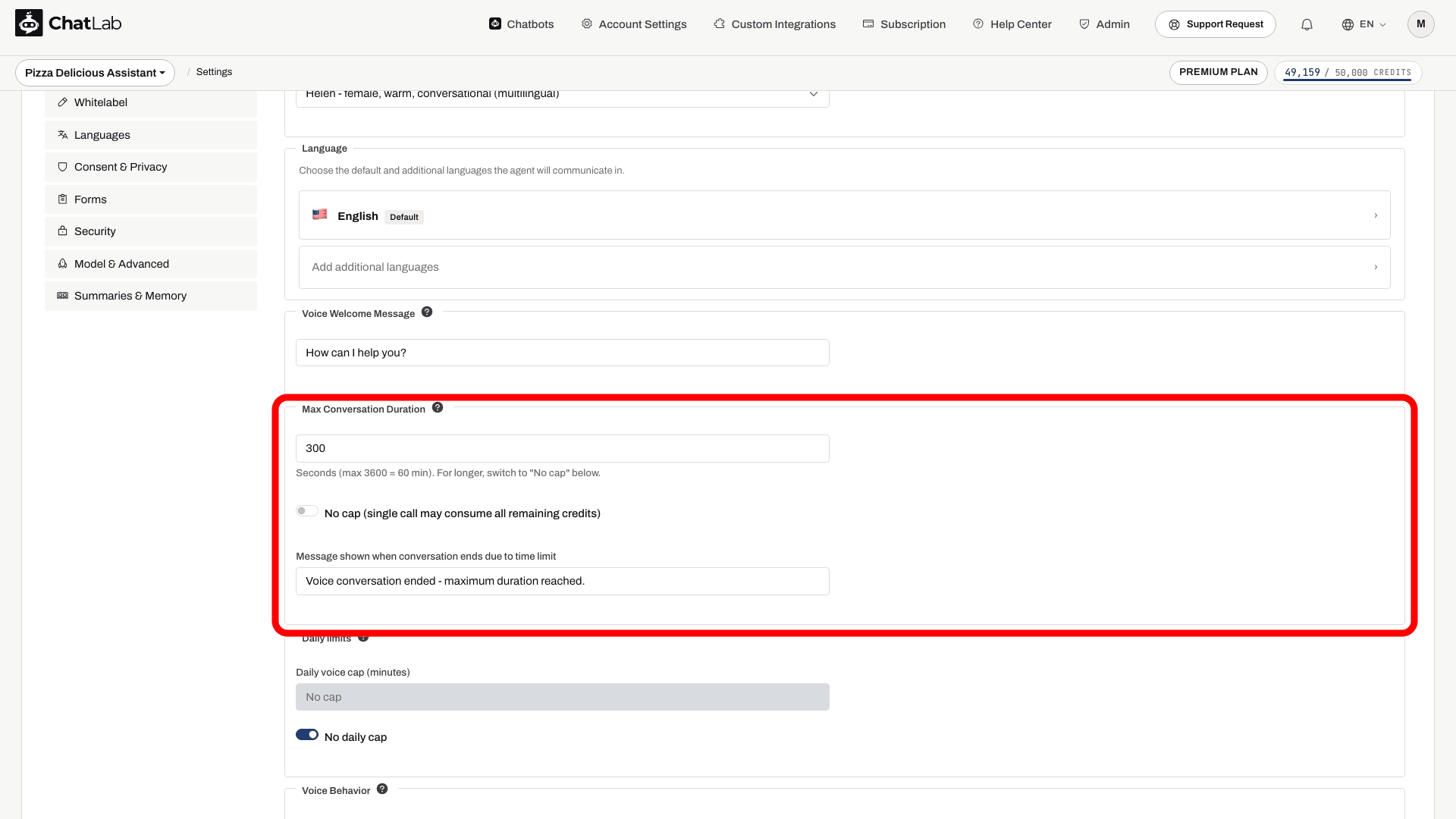
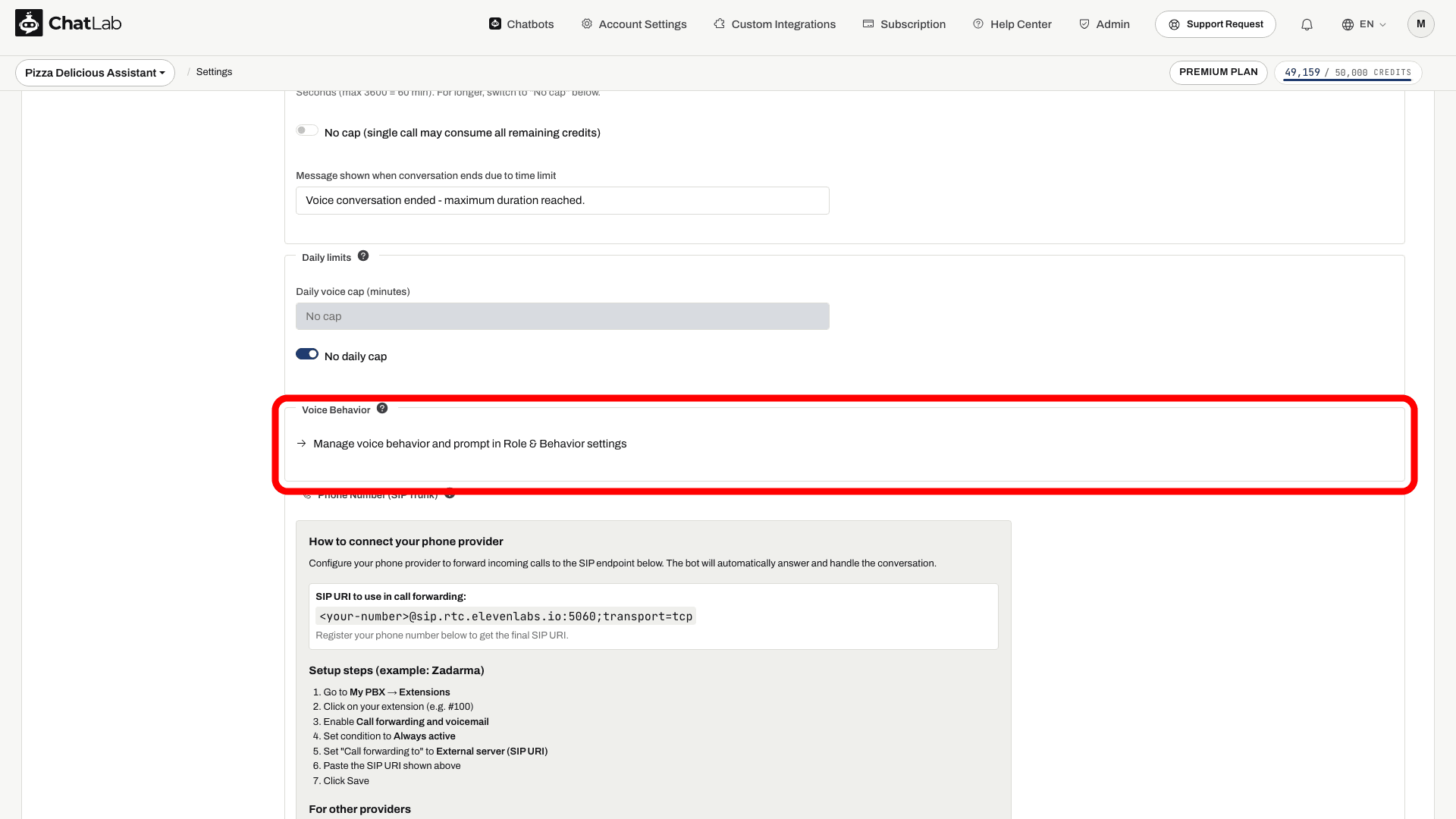
El campo Max Conversation Duration (Duración máxima de la conversación) limita la duración de una sola llamada. El valor predeterminado es de 300 segundos (5 minutos); el rango permitido va de 30 segundos a 3600 segundos (60 minutos). Cuando se alcanza el límite, el bot pronuncia un mensaje posterior al límite (que puedes personalizar justo debajo del campo) y la llamada finaliza.
Si deseas permitir una duración ilimitada por llamada individual, activa el interruptor No cap (Sin límite). Se mostrará una advertencia, ya que una sola llamada podría consumir todos los créditos restantes.
Límite diario de voz
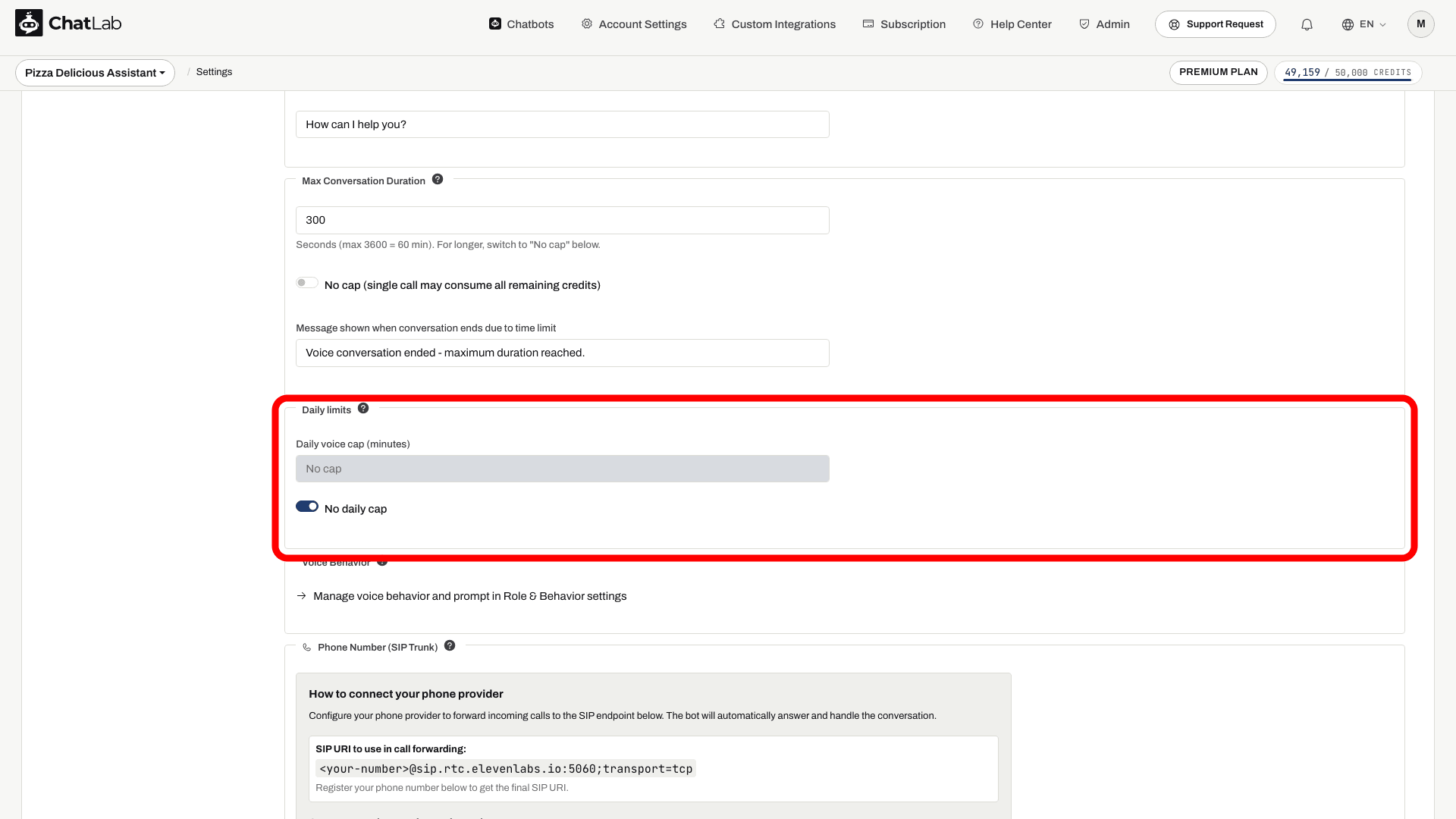
El ajuste Daily voice cap (minutes) (Límite diario de voz [minutos]) se comprueba antes de que comience una nueva llamada desde el widget, utilizando el consumo de voz registrado para el bot. No garantiza que las llamadas simultáneas en curso se detengan exactamente al alcanzar un total compartido de minutos. Revisa el consumo registrado y utiliza también el límite de duración por llamada. No des por hecho que esta comprobación del widget bloquea también las llamadas telefónicas entrantes.
Activa No daily cap (Sin límite diario) para eliminar el límite por día.
Comportamiento de voz y prompt del sistema
Las llamadas de voz pueden utilizar un prompt del sistema distinto al del chat de texto, lo cual resulta útil cuando buscas una personalidad más conversacional y con un estilo más hablado para el teléfono.
En la sección Voice Behavior (Comportamiento de voz), haz clic en el enlace Manage voice behavior and prompt in Role & Behavior settings (Gestionar comportamiento de voz y prompt en la configuración de Role & Behavior) para ir a Settings > Role & Behavior, donde una pestaña dedicada a Voice Conversation te permite editar el prompt específico de voz de forma independiente al prompt del chat de texto.
Cómo funciona la facturación de voz
- El primer minuto de cada llamada se cobra de forma íntegra según la tarifa por minuto del modelo seleccionado. Este es el cargo mínimo para cualquier llamada, incluso para las muy cortas.
- A partir del primer minuto, el cargo se basa en la duración facturable y se redondea hacia arriba a créditos completos. Las sesiones del widget se registran en intervalos de 10 segundos, por lo que no se trata de un cobro cronometrado al segundo exacto.
- Los silencios durante una llamada conectada cuentan para la duración. En las llamadas desde el widget, las comprobaciones de conexión limitan el cobro si el navegador deja de responder; aun así, puede contabilizarse un intervalo final breve.
- Antes de que comience una llamada, ChatLab comprueba que el bot disponga de suficientes créditos para cubrir al menos el primer minuto. De lo contrario, la llamada no podrá iniciarse.
- Para ElevenLabs Voice, la tarifa por minuto se suma al coste por respuesta del modelo de texto del bot, ya que ElevenLabs utiliza dicho modelo de texto para generar las respuestas y luego las convierte a voz.
Sincronización de la base de conocimiento para ElevenLabs
Cuando se selecciona un modelo de voz de ElevenLabs, aparece un panel de estado debajo de la configuración de voz que indica si los datos de entrenamiento del bot se han subido a ElevenLabs. La sincronización se ejecuta automáticamente tras el entrenamiento: ChatLab envía a ElevenLabs un documento generado a partir del material de entrenamiento del bot. Revisa el panel de estado después de entrenar y espera a que la sincronización se complete con éxito antes de probar los conocimientos recién añadidos. Las bases de conocimiento grandes pueden truncarse durante la exportación, así que comprueba los temas importantes en lugar de asumir una paridad total con el chat de texto.
Llamadas telefónicas
Una vez activada la conversación de voz, también puedes asignar al bot un número de teléfono real para que los clientes puedan llamar a través de la red telefónica habitual. Consulta el artículo específico: Llamadas telefónicas.
Entrada de voz frente a conversación de voz
Estas dos funciones suenan parecido, pero son diferentes:
- Entrada de voz (en Settings > Chat Conversation): añade un botón de micrófono a la barra de mensajes para que los visitantes puedan dictar una pregunta por escrito. El bot sigue respondiendo con texto. Utiliza la API Web Speech del navegador.
- Conversación de voz (esta página): es una llamada completa de voz a voz en tiempo real en la que los visitantes escuchan hablar al bot, con tecnología de OpenAI Realtime, Gemini Live o ElevenLabs.
Probar una llamada de voz
Espera a que aparezca Saved (Guardado), luego abre Overview (Resumen) y usa el botón de llamada en el widget. Permite el acceso al micrófono cuando el navegador te lo solicite. Comprueba el mensaje de bienvenida, el idioma, la voz y alguna respuesta basada en tus datos de entrenamiento, y después finaliza la llamada. Si el micrófono no está disponible o se deniega el permiso, revisa los permisos del navegador y prueba con un navegador compatible. Antes de publicar, repite la prueba en tu chatbot integrado.