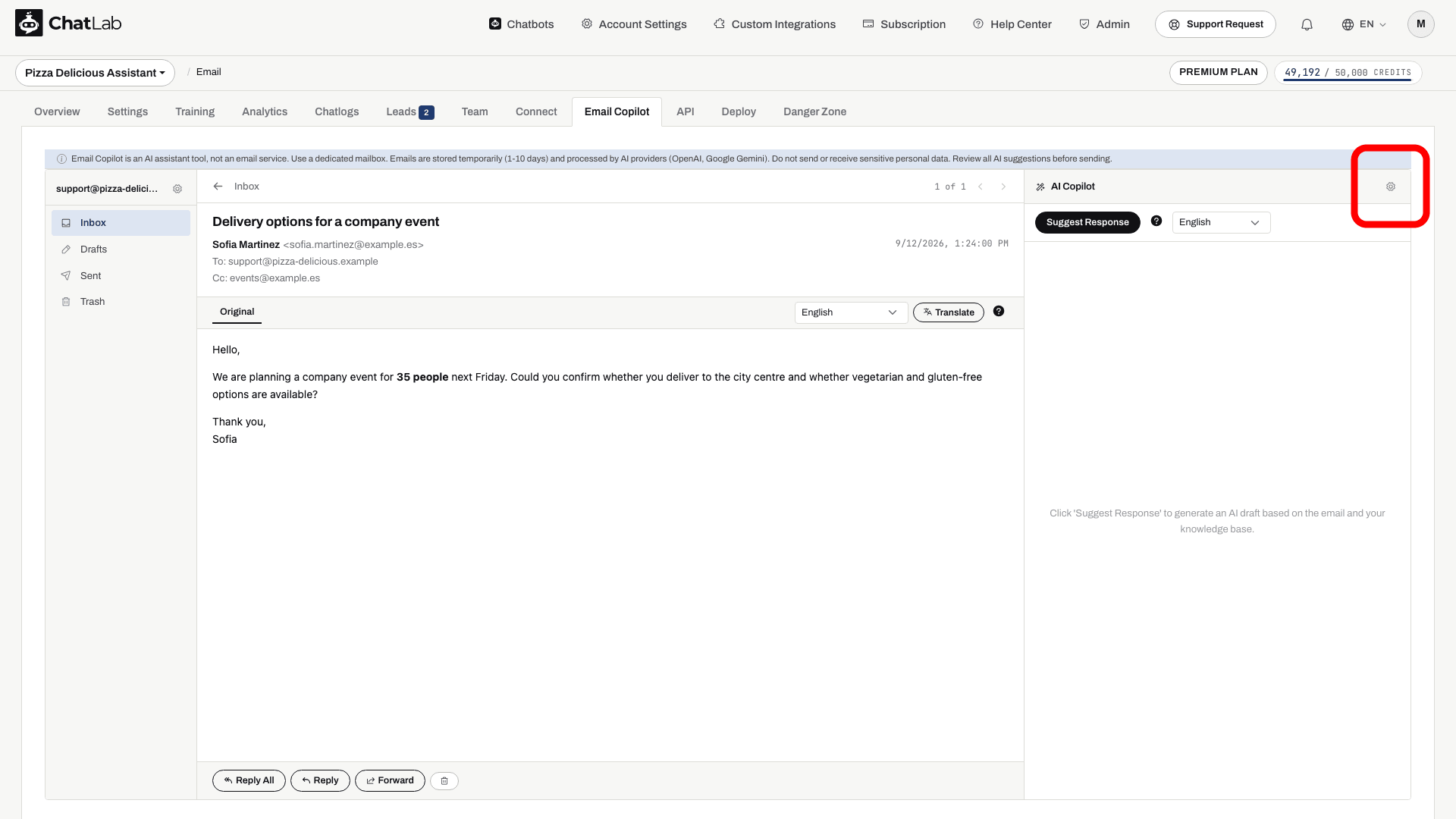
Les paramètres de Copilot (Copilot Settings) contrôlent le style et le modèle utilisés pour rédiger les ébauches de réponses par e-mail. Commencez par connecter votre compte et sélectionnez votre chatbot. Ouvrez Email Copilot, puis ouvrez un e-mail et cliquez sur l'icône d'engrenage à côté de AI Copilot. Le contrôle des paramètres est accessible aux utilisateurs disposant d'un accès complet au bot.
Salutation
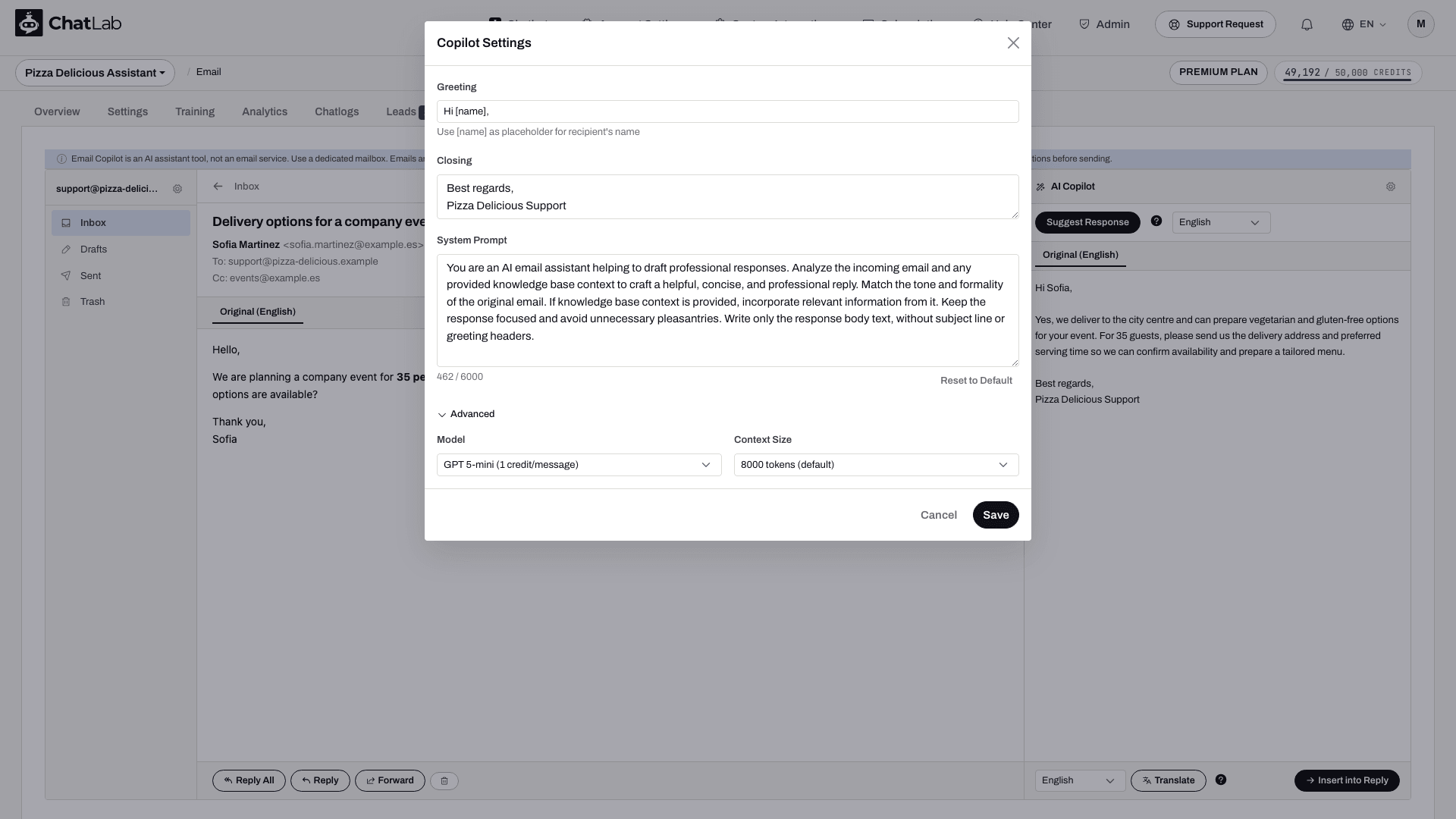
La phrase d'ouverture que le copilote ajoute à chaque suggestion de réponse. Par défaut : Hi [name],
Utilisez [name] pour demander à l'IA de s'adresser à l'expéditeur par son nom. Relisez la salutation générée avant d'envoyer.
Formule de politesse
La formule de politesse ajoutée à chaque suggestion. Par défaut, elle s'étend sur deux lignes :
Best regards,
[Your Name]
Remplacez le texte de remplacement [Your Name] par votre nom réel ou le nom de votre équipe, par exemple Best regards, ChatLab Support. Vérifiez la formule de politesse obtenue ainsi que le reste du brouillon avant de l'envoyer.
Prompt système
Instructions qui guident la façon dont le copilote rédige ses réponses. Le prompt enregistré peut différer du texte inséré par Reset to Default (Rétablir la configuration par défaut). Lisez-le avant de le modifier. Voici des exemples d'instructions utiles :
- Rédiger des réponses professionnelles, concises et en texte brut
- Utiliser le contenu de la base de connaissances comme source de référence
- S'adapter au ton et au niveau de formalité de l'expéditeur
- Ne pas inventer de faits au-delà de ce que contient la base de connaissances
- Décliner poliment les questions sans rapport
- Ajouter les URL sources lorsque le contenu de la base de connaissances est utilisé
Vous pouvez personnaliser ce prompt jusqu'à 6 000 caractères. Cliquez sur Reset to Default (Rétablir la configuration par défaut) pour remplir le prompt avec le texte de réinitialisation intégré et rétablir la formule de salutation ainsi que la formule de politesse. Cela ne restaure pas un prompt personnalisé précédent et ne modifie ni le modèle sélectionné ni la taille du contexte. Vérifiez les champs et cliquez sur Save (Enregistrer) pour appliquer.
Paramètres avancés
Développez la section Avancé (Advanced) pour configurer :
- Modèle (Model) - sélectionnez le modèle d'IA utilisé pour les suggestions d'e-mails. Ce paramètre est distinct du modèle de conversation du chatbot.
- Taille du contexte (Context Size) - la quantité de contexte issue de la base de connaissances à inclure avec chaque suggestion. Options :
- 8 000 tokens (par défaut)
- 16 000 tokens
- 32 000 tokens
Une taille de contexte plus importante permet d'inclure davantage d'éléments de connaissance ; elle ne garantit pas une meilleure réponse. Consultez Limites, crédits et conservation pour connaître l'utilisation des crédits enregistrée.
Cliquez sur Enregistrer (Save), rouvrez les paramètres pour confirmer vos choix et examinez une suggestion sur un autre e-mail pour vérifier le nouveau comportement. Les brouillons existants ne sont pas modifiés automatiquement.