Die Einstellungen unter Chat Conversation (Chat-Unterhaltung) steuern, wie Ihr Chatbot Besucher begrüßt, Themen vorschlägt und sich während des Gesprächs verhält - von der ersten Begrüßungsnachricht über weiterführende Vorschläge bis hin zur Einholung von Feedback.
Wo Sie die Einstellungen für Chat Conversation finden
Wählen Sie Ihren Chatbot aus und navigieren Sie zu Settings > Chat Conversation (Einstellungen > Chat-Unterhaltung).
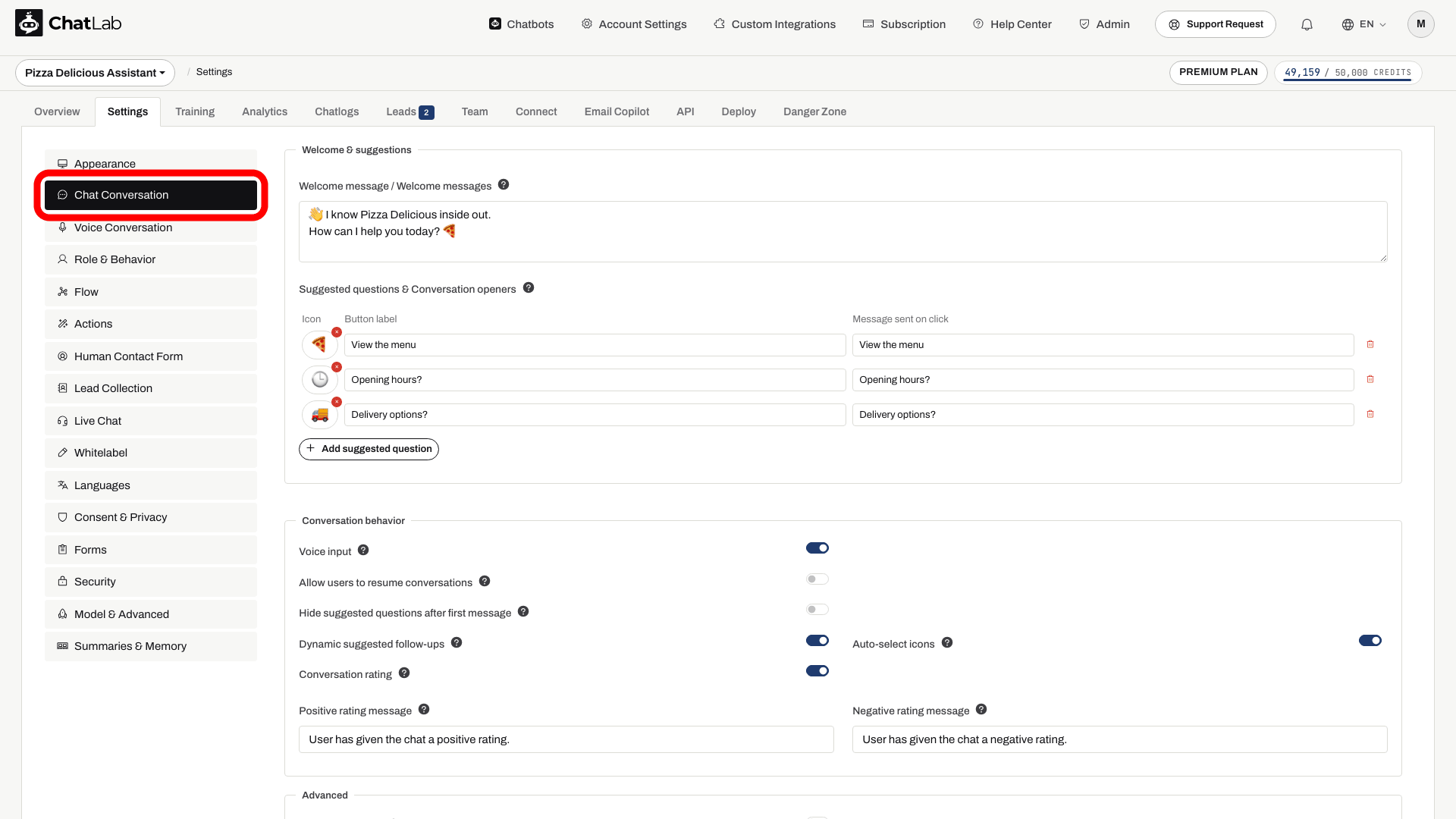
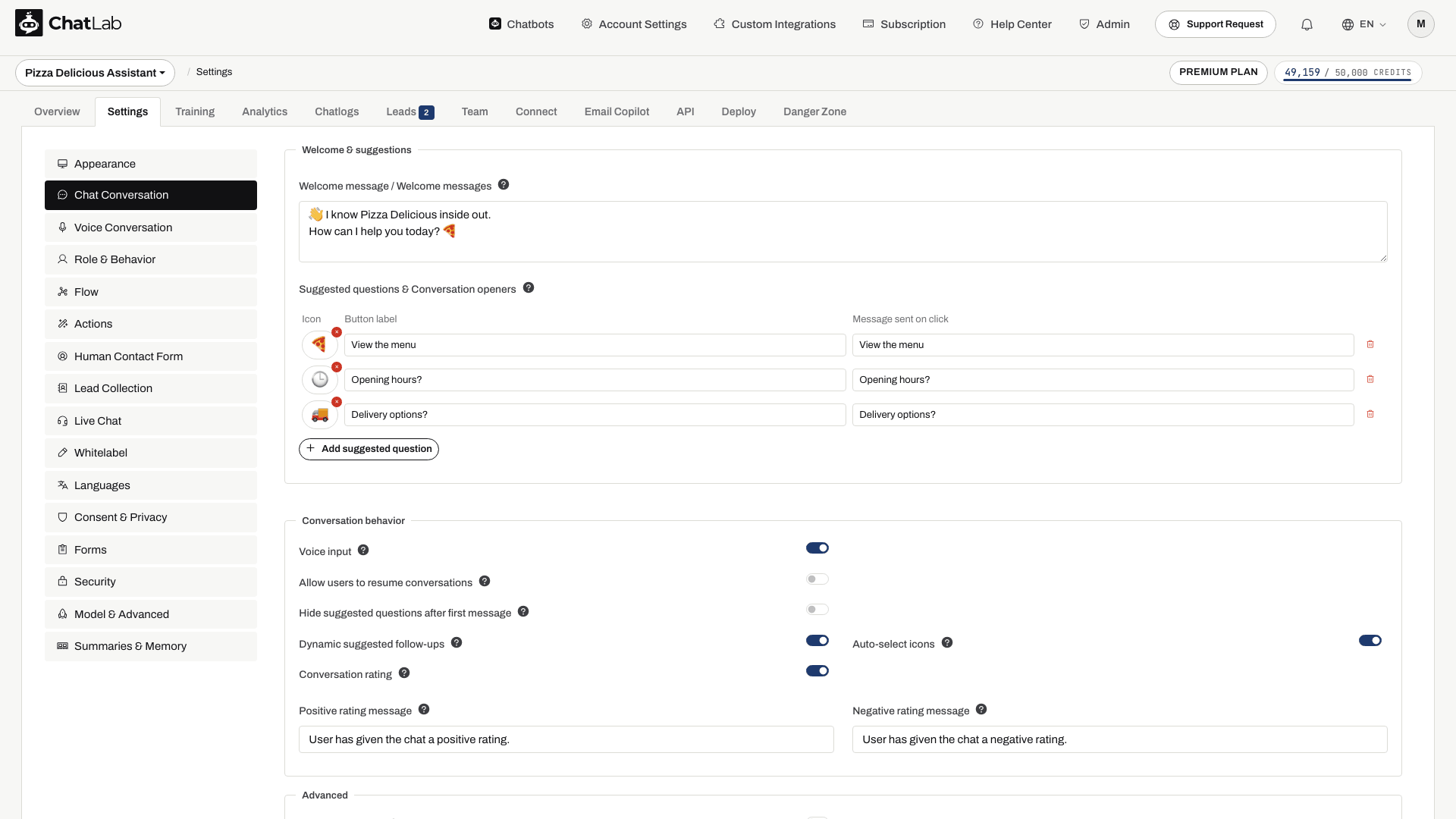
Die Seite ist in drei Abschnitte unterteilt: Welcome & suggestions (Begrüßung & Vorschläge) ganz oben, darunter Conversation behavior (Gesprächsverhalten) und ganz unten Advanced (Erweitert).
Begrüßung & Vorschläge
Willkommensnachricht
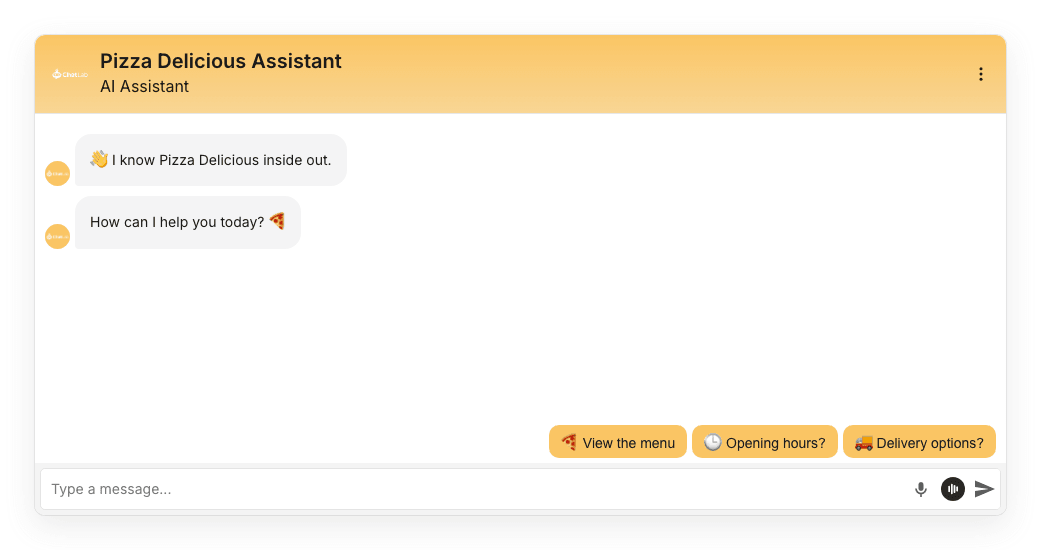
Die Willkommensnachricht ist das Erste, was Besucher sehen, wenn sich der Chat öffnet. Sie können bis zu drei separate Nachrichten (insgesamt 220 Zeichen) hinzufügen, jede in einer eigenen Zeile. Sie werden nacheinander als einzelne Nachrichtenblasen angezeigt.
Vorgeschlagene Fragen & Gesprächsöffner
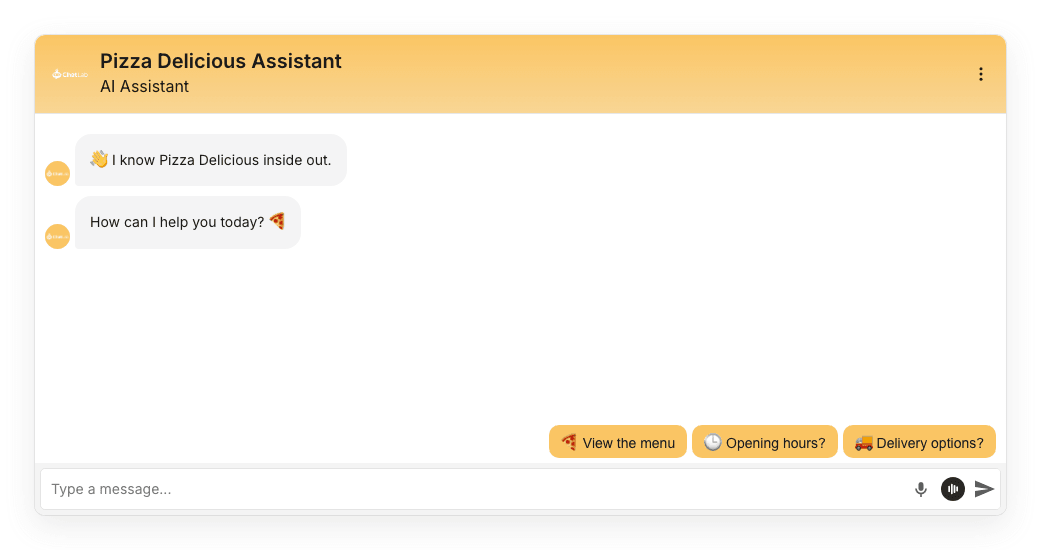
Vorgeschlagene Fragen führen Besucher zu häufigen Themen und erleichtern den Gesprächsbeginn. Standardmäßig erscheinen sie über dem Nachrichtenfeld. Wenn Sie den Welcome Screen (Willkommensbildschirm) unter Settings > Appearance (Einstellungen > Erscheinungsbild) aktivieren, werden sie zunächst als große Schaltflächen auf der Startkarte angezeigt.
Jeder Eintrag hat drei Felder:
- Icon - optionales Emoji, das auf der Schaltfläche angezeigt wird. Klicken Sie auf das Icon-Feld, um die Emoji-Auswahl zu öffnen.
- Button label - kurzer Text, der auf der Schaltfläche angezeigt wird.
- Message sent on click - die vollständige Frage, die an den Chatbot gesendet wird, wenn der Besucher auf die Schaltfläche klickt.
So können Sie die Schaltflächen kompakt halten und dennoch eine vollständige, präzise formulierte Frage an den Bot senden.
Konversationsverhalten (Conversation behavior)
Dieser Abschnitt bündelt die Optionen, mit denen Sie steuern, wie sich der Chatbot während der Unterhaltung verhält.
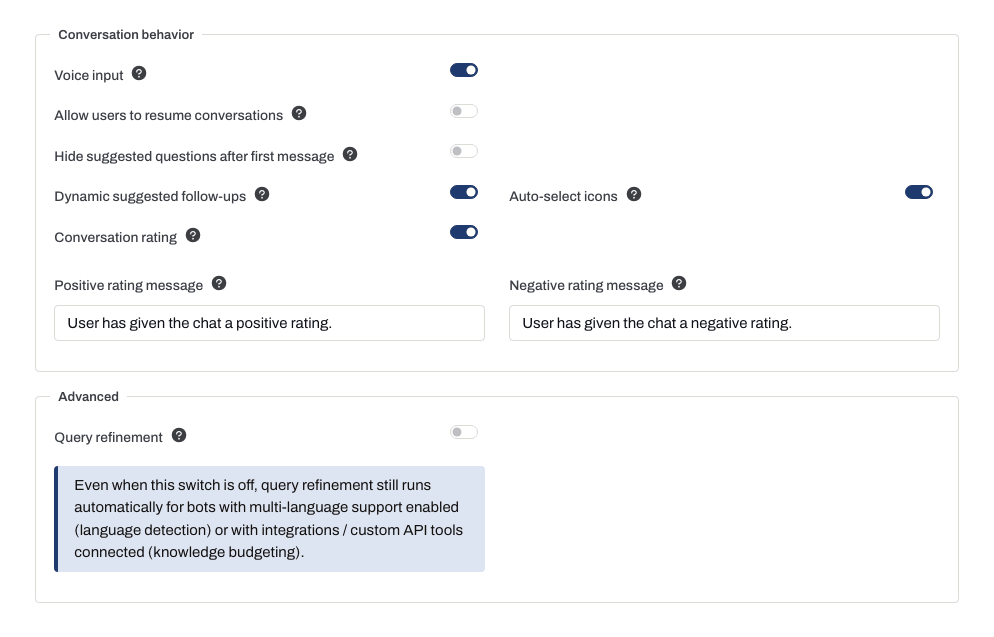
Spracheingabe (Voice input)
Wenn aktiviert, erscheint ein Mikrofonsymbol im Nachrichtenfeld, sodass Besucher ihre Frage diktieren können, anstatt sie einzutippen. Die Spracheingabe nutzt die Web Speech API des Browsers und richtet sich nach den Spracheinstellungen des Geräts. Die Unterstützung variiert daher je nach Browser und Betriebssystem. Weitere Informationen finden Sie unter Browser-Unterstützung für Spracherkennung. Für gesprochene Antworten sowie gesprochene Fragen konfigurieren Sie bitte Voice Conversation.
Wiederaufnahme von Konversationen erlauben (Allow users to resume conversations)
Wenn aktiviert, können wiederkehrende Besucher ihre vorherige Unterhaltung bis zu 7 Tage lang fortsetzen. Wenn deaktiviert, bleiben Unterhaltungen 1 Stunde lang erhalten, sodass Benutzer zwischen Seiten auf Ihrer Website wechseln können, ohne den Kontext zu verlieren.
Dynamische Folgefragen (Dynamic suggested follow-ups)
Lassen Sie Hide suggested questions after first message (Vorgeschlagene Fragen nach erster Nachricht ausblenden) deaktiviert, um diese Funktion zu nutzen. Wenn Sie diese Einstellung aktivieren, werden die statischen Fragen nach der ersten Nachricht des Besuchers ausgeblendet und dynamische Folgefragen für den Rest der Konversation deaktiviert.
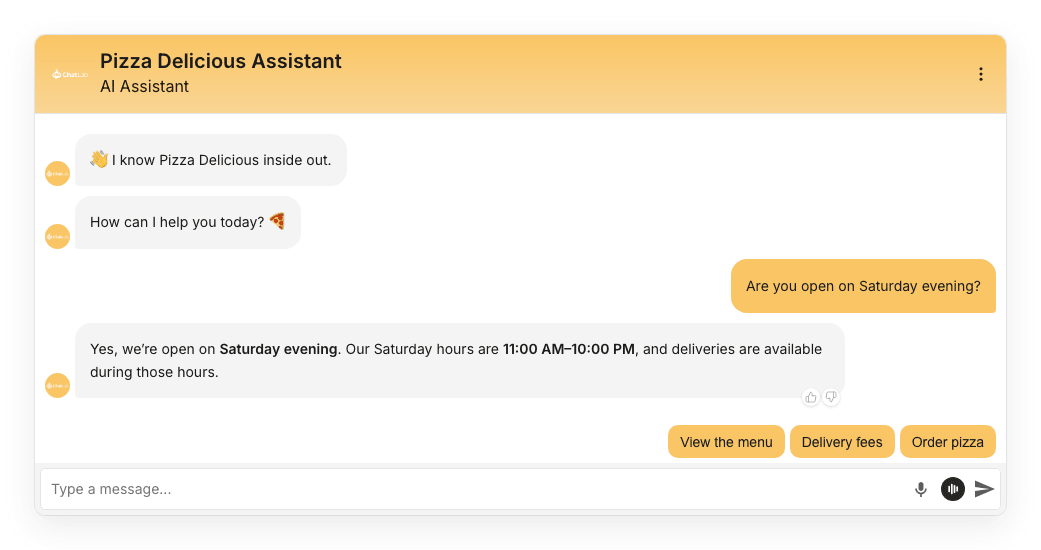
Wenn aktiviert, generiert der Chatbot nach jeder Antwort automatisch Schaltflächen für Folgefragen, basierend auf dem Kontext der Unterhaltung. Diese ersetzen die statischen vorgeschlagenen Fragen im weiteren Verlauf des Chats.
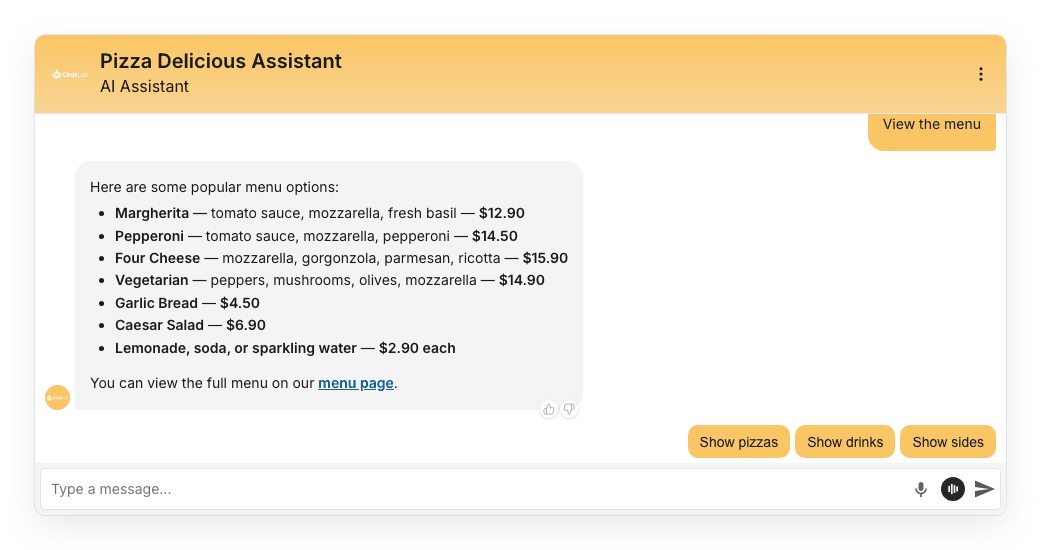
Diese Funktion hängt vom KI-Modell ab, das für Ihren Chatbot ausgewählt wurde (Settings > Model & Advanced / Einstellungen > Modell & Erweitert). Wenn das aktuelle Modell dies nicht unterstützt, ist die Option deaktiviert - wechseln Sie zu einem kompatiblen Modell, um sie zu aktivieren. Sie können das Verhalten der Vorschläge genauer anpassen, indem Sie Anweisungen unter Settings > Role & Behavior (Einstellungen > Rolle & Verhalten) hinzufügen.
Icons automatisch auswählen (Auto-select icons)
Nur verfügbar, wenn Dynamic suggested follow-ups (Dynamische Folgefragen) aktiviert ist. Wenn eingeschaltet, wählt die KI automatisch ein passendes Emoji für jede Follow-up-Schaltfläche aus. Deaktivieren Sie die Option, wenn Sie reine Textvorschläge bevorzugen.
Konversationsbewertung (Conversation rating)
Wenn aktiviert, erscheinen Daumen-hoch- und Daumen-runter-Symbole unter der neuesten Antwort des Chatbots. Besucher können die Unterhaltung jederzeit bewerten, und Sie können das Feedback unter Chatlogs und Analytics einsehen.
Über zwei Textfelder können Sie die Bestätigung anpassen, die angezeigt wird, nachdem ein Besucher eine Antwort bewertet hat:
- Positive rating message (Nachricht bei positiver Bewertung) - der Dankestext, der angezeigt wird, wenn ein Besucher einen Daumen nach oben vergibt.
- Negative rating message (Nachricht bei negativer Bewertung) - der Text, der angezeigt wird, wenn ein Besucher einen Daumen nach unten vergibt.
Advanced
Query refinement (Abfrageoptimierung)
Wenn diese Option aktiviert ist, formuliert der Chatbot die Frage des Nutzers anhand des Gesprächskontexts um, bevor er die Wissensdatenbank durchsucht. Dies führt in der Regel zu relevanteren Antworten, erfordert jedoch einen kurzen zusätzlichen KI-Aufruf (geringfügige Erhöhung der Latenz).
Selbst wenn dieser Schalter ausgeschaltet ist, wird die Suchanfragenoptimierung für Bots mit aktivierter Mehrsprachigkeit (Spracherkennung) sowie für Bots mit angebundenen Integrationen oder benutzerdefinierten API-Tools (Wissensbudgetierung) weiterhin automatisch ausgeführt - ein Hinweis unterhalb des Schalters erinnert Sie daran.
Verwandte Einstellungen
Änderungen werden automatisch gespeichert. Warten Sie auf Saved (Gespeichert), öffnen Sie dann Overview (Übersicht) und starten Sie eine neue Testunterhaltung. Prüfen Sie die Begrüßungsnachrichten, klicken Sie auf eine vorgeschlagene Frage und überprüfen Sie die Folgefragen sowie die Bewertungs-Bedienelemente nach der Antwort.
Einige Optionen, die sich früher auf dieser Seite befanden, sind umgezogen:
- Creativity / temperature (Kreativität / Temperatur) - jetzt unter Settings > Model & Advanced (Einstellungen > Modell & Erweitert).
- Placeholder for new message (Platzhalter für neue Nachricht) und Reset Conversation tooltip (Tooltip zum Zurücksetzen der Unterhaltung) - jetzt unter Settings > Appearance (Einstellungen > Erscheinungsbild).
- Voice Conversation (Sprachunterhaltung, ehemals der Tab Voice) - jetzt als eigener Tab in der Seitenleiste unter Settings (Einstellungen).