Beds24 to działający w chmurze system zarządzania obiektem (PMS), channel manager i silnik rezerwacyjny, z którego korzystają hotele, pensjonaty i obiekty na wynajem krótkoterminowy. Połączenie go z ChatLab pozwala Twojemu chatbotowi odpowiadać na pytania o pokoje, terminy i ceny na podstawie aktualnych danych z Beds24, zamiast ze statycznego tekstu, który trzeba stale aktualizować.
Uwaga: Beds24 wymaga odpowiedniej funkcji integracji. Jeśli Twój plan jej nie obejmuje, po otwarciu kafelka Beds24 zobaczysz krótką informację z linkiem do kontaktu z nami zamiast formularza połączenia.
Przykładowa rozmowa
Od dat podróży po oferty pokoi
Wymaga obsługiwanej integracji hotelarskiej oraz włączonej akcji sprawdzania dostępności. Oferta lub zapytanie nie stanowią potwierdzenia rezerwacji.

Odwiedzający: Pokój dla dwóch osób dorosłych, 14-16 sierpnia.
Odtwórz przykład lub przeczytaj go poniżej. Nie wykorzystano żadnych prawdziwych danych klientów.Zbierz wymagania dotyczące pobytu.
Odtwarzanie zatrzymuje się, gdy ten przykład znika z ekranu. To jest symulacja, a nie czat na żywo. Elementy sterujące widgetu wewnątrz odtwarzania nie są interaktywne.Przeczytaj cały przykład
- Zbierz wymagania dotyczące pobytu.
Odwiedzający: Pokój dla dwóch osób dorosłych, 14-16 sierpnia.
- Zapytaj o brakujące szczegóły daty przed rozpoczęciem wyszukiwania.
Asystent: Którego roku dotyczy pobyt?
- Gość podaje rok.
Odwiedzający: 2027.
- Wyślij zapytanie do połączonego systemu hotelarskiego.
Sprawdzam dostępność pokoi...
- Przedstaw oferty zwrócone dla tego pobytu.
Pokój dwuosobowy z widokiem na morze, €280 / stay. Przykładowa oferta dla dwóch dorosłych na dwie noce.
- Przejdź dalej, korzystając ze ścieżki rezerwacji obsługiwanej przez Twoją integrację.
Asystent: Sprawdź ostateczną cenę i warunki na stronie rezerwacji. W tej prezentacji nie dokonano żadnej rezerwacji.
Przykład ilustruje doświadczenie klienta. Dostępne akcje i zwracane informacje zależą od tej integracji oraz Twojej konfiguracji.
Co zapewnia integracja
Po połączeniu chatbot zyskuje trzy akcje rezerwacyjne. Osobna akcja AI room search (wyszukiwanie pokoi przez AI) jest dostępna, gdy chatbot ma przydzielony odpowiedni limit pokoi do wyszukiwania.
Beds24 - get properties (pobierz obiekty) - wyświetla listę wszystkich pokoi i typów pokoi w Twoim obiekcie. Dla każdego z nich chatbot może pokazać nazwę pokoju, opis, zdjęcie, maksymalną liczbę dorosłych i dzieci oraz cenę wyjściową.
Beds24 - find available rooms (znajdź dostępne pokoje) - gość podaje zakres dat oraz liczbę gości, a chatbot zwraca pokoje wolne w tych terminach wraz z cenami i, jeśli zostało to skonfigurowane, linkiem do rezerwacji dla każdego pokoju.
Beds24 - check room availability (sprawdź dostępność pokoju) - gość pyta o jeden konkretny pokój. Chatbot dopasowuje pokój na podstawie jego identyfikatora Beds24 room id lub po nazwie, a następnie zwraca dostępność i ceny dla wybranych dat, wraz z linkiem do rezerwacji.
Daty są rozumiane z języka naturalnego, więc gość może napisać "w kolejny weekend" lub "12-15 czerwca", zamiast stosować sztywny format daty.
Zanim zaczniesz
Potrzebujesz chatbota, do którego podłączysz integrację. Jeśli jeszcze go nie masz, sprawdź najpierw artykuł Jak utworzyć swojego pierwszego chatbota ChatLab.
Następnie przygotuj dwie wartości z Beds24:
- Kod zaproszenia (Invite code) - w panelu Beds24 przejdź do Settings > Marketplace > API (Ustawienia > Marketplace > API), wygeneruj kod zaproszenia i wybierz zakresy uprawnień
read:propertiesorazread:inventory. Wybierz dostęp tylko do odczytu dla obiektów i dostępności; integracja nie tworzy rezerwacji w Beds24. Zobacz Uwierzytelnianie i zakresy uprawnień API Beds24. - Property ID - identyfikator obiektu, dla którego chatbot ma odpowiadać na pytania.
Opcjonalnie przygotuj trzecią wartość:
-
Format adresu URL do rezerwacji (Booking URL format) - adres Twojej własnej strony rezerwacji z placeholderami, które ChatLab uzupełnia przy każdej odpowiedzi:
{roomId}- identyfikator pokoju w Beds24{arrival}- data zameldowania{departure}- data wymeldowania
Na przykład:
https://yourdomain.com/book?room={roomId}&arrival={arrival}&departure={departure}Jeśli zostawisz to pole puste, chatbot nadal będzie odpowiadać na pytania o dostępność i ceny, po prostu nie doda linku do rezerwacji.
Krok 1: Połącz z Beds24
- Wybierz swojego chatbota i przejdź do zakładki Connect (Połącz).
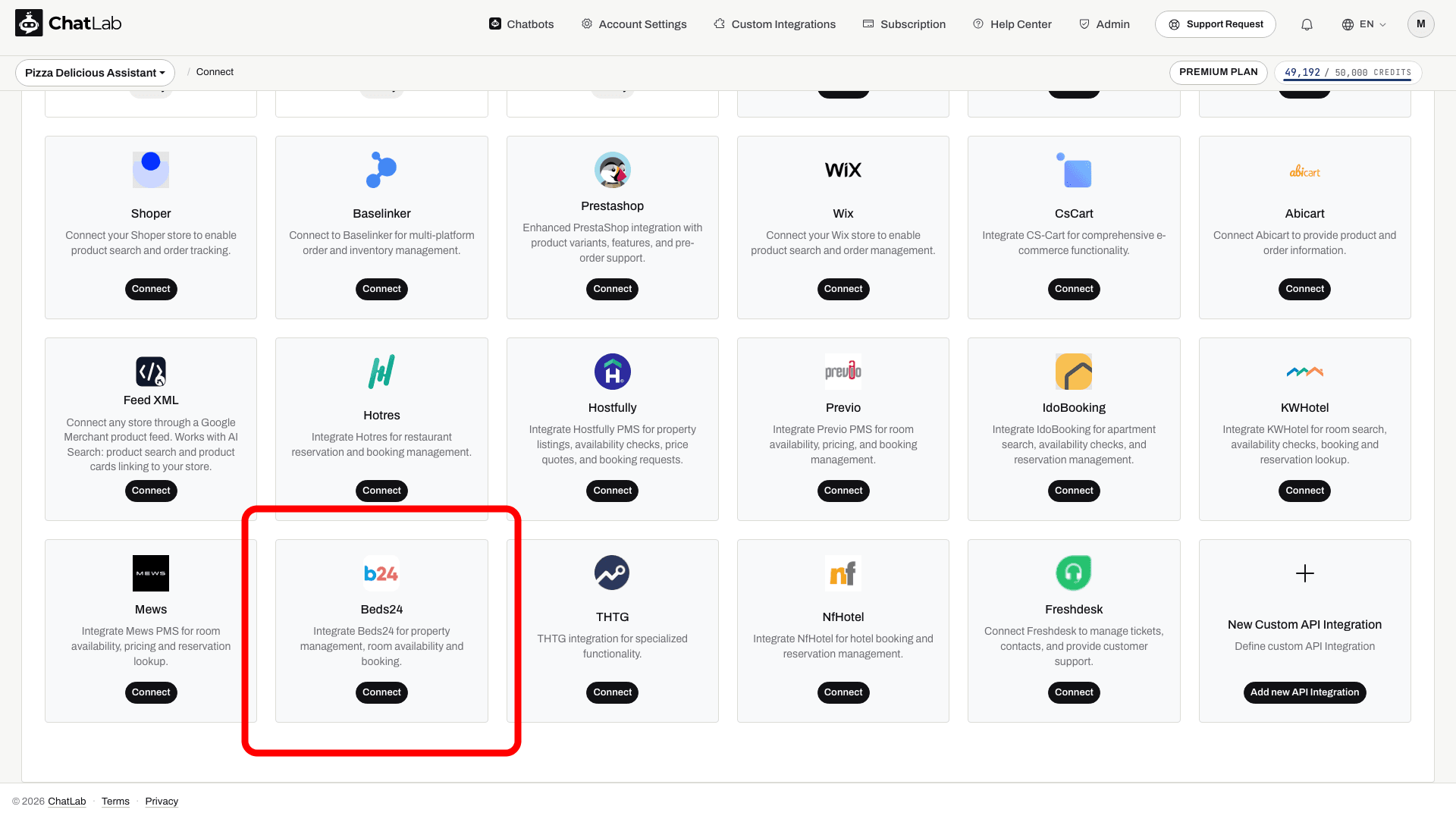
- Kliknij kafelek Beds24.
- Wklej swój kod zaproszenia (Invite Code), wpisz identyfikator obiektu (Property ID) oraz opcjonalnie format adresu URL rezerwacji (Booking URL format).
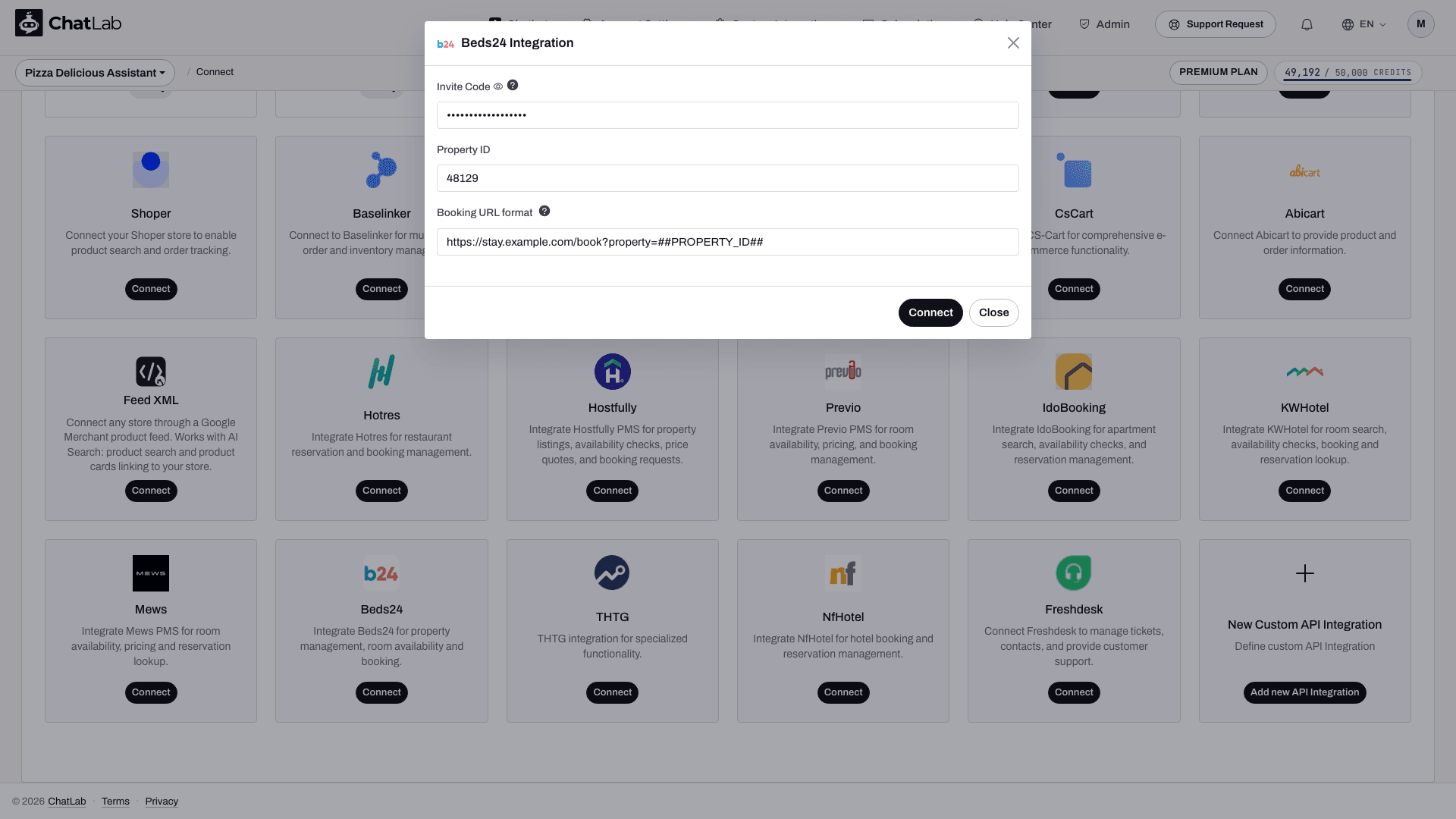
- Kliknij Connect (Połącz).
ChatLab wymienia kod zaproszenia na token dostępu (access token) oraz token odświeżania (refresh token), zapisuje je przy bocie, a następnie wykonuje wywołanie testowe do Twojego obiektu w Beds24. Jeśli kod zaproszenia jest nieprawidłowy lub wygasł, albo nie można odczytać danych obiektu, integracja zostaje ponownie wyłączona, a błąd pojawia się w formularzu - dzięki temu uszkodzone połączenie nigdy nie pozostaje włączone do połowy.
Kod zaproszenia jest używany tylko podczas tego kroku. Po nawiązaniu połączenia pole to znika z formularza i do edycji pozostają wyłącznie Property ID oraz Booking URL format. ChatLab samodzielnie odnawia token dostępu przy użyciu tokena odświeżania, dopóki zapisane dane uwierzytelniające pozostają ważne. Unieważnienie lub wygaśnięcie może wymagać podania nowego kodu zaproszenia.
Krok 2: Przejrzyj akcje Beds24
Połączenie włącza automatycznie wszystkie trzy akcje Beds24, dzięki czemu chatbot jest od razu gotowy do odpowiadania. Aby je przejrzeć lub dostosować, przejdź do Settings > Actions (Ustawienia > Akcje) i odszukaj grupę Beds24 Actions (Akcje Beds24). Możesz także kliknąć Beds24 w panelu Filter by Platform (Filtruj według platformy) po prawej stronie, aby wyświetlić tylko tę grupę:
- Beds24 - get properties - domyślna etykieta akcji "Ładowanie pokoi..."
- Beds24 - find available rooms - domyślna etykieta akcji "Sprawdzanie dostępności..."
- Beds24 - check room availability - domyślna etykieta akcji "Sprawdzanie pokoju..."
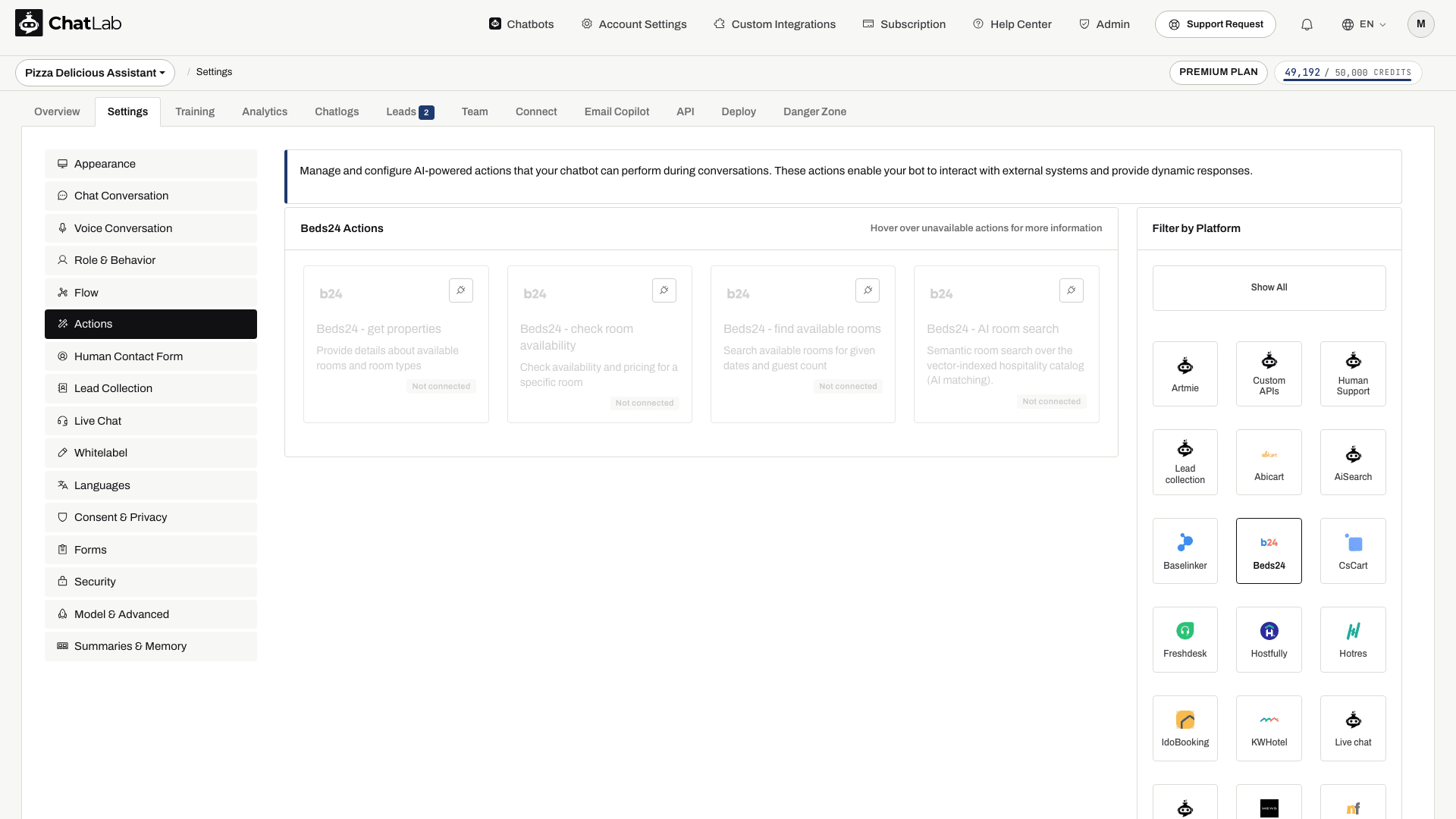
Powyższy zrzut ekranu przedstawia grupę przed połączeniem integracji: akcje rezerwacji i opcjonalne wyszukiwanie pokoi przez AI są widoczne na liście, ale oznaczone jako Not connected (Niepołączono) i niedostępne dla chatbota. Akcje rezerwacji włączają się po nawiązaniu połączenia. Wyszukiwanie pokoi przez AI zależy od przydzielonego limitu pokoi i automatycznego indeksowania katalogu; aktywacja tej funkcji nie jest gwarantowana przy każdym połączeniu.
Dla każdej akcji możesz edytować:
- Action Label (Etykieta akcji) - krótki komunikat widoczny dla odwiedzającego na czacie podczas wykonywania akcji.
- Instructions (Instrukcje) - opis działania akcji, na podstawie którego AI decyduje, kiedy ją wywołać.
- User Instructions (Instrukcje użytkownika) - Twoje własne dodatkowe zasady, na przykład pytanie o liczbę gości przed rozpoczęciem wyszukiwania lub informowanie o minimalnej długości pobytu.
Możesz także wyłączyć pojedynczą akcję, jeśli jej nie potrzebujesz. Przykładowo możesz pozostawić włączoną listę pokoi oraz wyszukiwanie dostępności, wyłączając sprawdzanie pojedynczego pokoju.
Akcja wyszukiwania dostępności ma także ustawienie limitu wyników: od 1 do 10 pokoi, domyślnie 5. Ogranicza ono zwracaną listę, więc odpowiedź nie musi zawierać pełnego zestawienia wszystkich dostępnych pokoi.
Krok 3: Przetestuj integrację
Otwórz Overview (Przegląd), rozpocznij nową rozmowę testową i wypróbuj pytania odpowiadające poszczególnym akcjom:
- "Jakie macie pokoje?" - uruchamia Beds24 - get properties
- "Co jest wolne od 12 do 15 czerwca w przyszłym roku dla 2 osób dorosłych?" - uruchamia Beds24 - find available rooms
- "Czy Deluxe Suite jest wolny w najbliższy weekend?" - uruchamia Beds24 - check room availability
Upewnij się, że nazwy pokojów i ceny zgadzają się z danymi w Beds24, a wszelkie linki do rezerwacji otwierają Twoją stronę rezerwacji z uzupełnionymi już datami.
Zarządzanie integracją
Aktualizacja ustawień - otwórz kafelek Beds24 w zakładce Connect (Połącz), zmień Property ID lub Booking URL format i zapisz zmiany. Nie potrzebujesz do tego nowego kodu zaproszenia.
Odłączanie - otwórz kafelek Beds24 i kliknij przycisk odłączenia. Trzy akcje Beds24 przestaną być dostępne dla chatbota. Aby połączyć integrację ponownie w przyszłości, wygeneruj nowy invite code w Beds24, ponieważ pierwotny został już wykorzystany.
Wskazówki
- Dbaj o regularne trenowanie bota na treściach z Twojej strony internetowej. Akcje Beds24 obsługują pokoje, terminy i ceny; wszystkie inne pytania gości (o śniadania, parking, godziny zameldowania, zwierzęta) są obsługiwane przez Twoją bazę wiedzy. Zobacz Trenowanie chatbota - podstawy i limity.
- Umieść reguły rezerwacji, takie jak minimalna długość pobytu lub zasady przedpłaty, w instrukcjach użytkownika (user instructions) danej akcji - dzięki temu chatbot wspomni o nich od razu przy sprawdzaniu dostępności, zamiast zostawiać to do momentu finalizacji rezerwacji.
- Dodaj sugerowane pytania, takie jak „Sprawdź dostępność” lub „Pokaż pokoje”, aby odwiedzający od razu wiedzieli, co potrafi chatbot.
- Każda odpowiedź wywołująca akcję Beds24 zużywa kredyty wiadomości tak samo, jak każda inna odpowiedź chatbota. Zobacz Czym jest kredyt wiadomości.
Powiązane artykuły
- Integracja z Hotres
- Integracja z IdoBooking
- Integracja z KWHotel
- Trenowanie chatbota - podstawy i limity
- Czym jest kredyt wiadomości
Katalog pokoi i przegląd hotelu
Jeśli na Twoim koncie widoczna jest zakładka Hotel, przejdź do Hotel > Rooms (Pokoje), aby przejrzeć katalog pokoi oraz status trenowania. AI room search (wyszukiwanie pokoi AI) działa niezależnie od sprawdzania dostępności na podstawie dat: dopasowuje opisy pokoi, podczas gdy akcje dostępności weryfikują konkretny termin pobytu. Automatyczne indeksowanie pokoi zależy od automatycznego indeksowania katalogu oraz przydzielonego limitu pokoi; w przeciwnym razie użyj opcji Train rooms (Trenuj pokoje), gdy jest dostępna. Sprawdź włączone akcje i poczekaj na zakończenie trenowania, zanim zaczniesz polegać na wyszukiwaniu pokoi AI.