Verbinden Sie Ihren ChatLab-Chatbot mit Ihrem KWHotel-Property-Management-System, um Ihren Website-Besuchern Zimmerverfügbarkeiten in Echtzeit, Buchungen und Reservierungsabfragen anzubieten. Die Integration nutzt die GuestSage-Booking-Engine für Zimmer- und Verfügbarkeitsdaten sowie die KWHotel Integrations API für die Reservierungsabfrage.
Beispielkonversation
Von Reisedaten zu Zimmerangeboten
Erfordert eine unterstützte Unterkunfts-Integration und eine aktivierte Verfügbarkeitsaktion. Ein Angebot oder eine Anfrage bestätigt noch keine Reservierung.

Besucher: Ein Zimmer für zwei Erwachsene, 14. bis 16. August.
Spielen Sie das Beispiel ab oder lesen Sie es unten. Es werden keine echten Kundendaten verwendet.Reisedaten und Wünsche erfassen.
Die Wiedergabe pausiert, sobald dieses Beispiel den sichtbaren Bereich verlässt. Dies ist eine Simulation, kein Live Chat. Die Widget-Bedienelemente innerhalb der Wiedergabe sind nicht interaktiv.Vollständiges Beispiel lesen
- Reisedaten und Wünsche erfassen.
Besucher: Ein Zimmer für zwei Erwachsene, 14. bis 16. August.
- Vor der Suche nach fehlenden Datumsangaben fragen.
Assistent: In welchem Jahr möchten Sie anreisen?
- Der Gast gibt das Jahr an.
Besucher: 2027.
- Das angebundene Unterkunftssystem abfragen.
Zimmerverfügbarkeit wird geprüft...
- Die für diesen Aufenthalt gefundenen Angebote anzeigen.
Doppelzimmer mit Meerblick, €280 / stay. Beispielangebot für zwei Erwachsene, zwei Nächte.
- Über den von Ihrer Integration unterstützten Buchungsweg fortfahren.
Assistent: Prüfen Sie die Buchungsseite für den endgültigen Preis und die Bedingungen. In dieser Demonstration wurde keine Reservierung vorgenommen.
Das Beispiel veranschaulicht das Kundenerlebnis. Die verfügbaren Aktionen und zurückgegebenen Informationen hängen von dieser Integration und Ihrer Konfiguration ab.
Was die Integration bietet
Mit aktivierter KWHotel-Integration kann Ihr Chatbot:
- Zimmertypen mit Beschreibungen, Kapazität, Fläche und Fotos auflisten
- Verfügbare Zimmer für einen bestimmten Zeitraum inklusive Preisen finden
- Die Verfügbarkeit für ein bestimmtes Zimmer und einen Zeitraum prüfen
- Neue Reservierungen mit Gastdaten erstellen
- Bestehende Reservierungen abfragen
Voraussetzungen
Bevor Sie die Integration einrichten, stellen Sie sicher, dass Sie Folgendes haben:
- Ein KWHotel-Konto mit aktiviertem GuestSage-Buchungssystem
- Ihre Hotel ID (UUID) aus dem GuestSage-Buchungssystem
- Für die Reservierungsabfrage: Ihre numerische Integrations Hotel ID und den von KWHotel ausgestellten Integrations API Key
- Ein ChatLab-Abonnement, das die KWHotel-Integrationsfunktion enthält
Ermitteln Ihrer Hotel-ID (UUID)
Die Hotel-ID ist eine UUID, die Ihrer Unterkunft in der GuestSage-Buchungsmaschine zugewiesen ist.
- Melden Sie sich bei cloud.kwhotel.com an
- Navigieren Sie zu Modules (Module) > Booking Engine (Buchungsmaschine)
- Suchen Sie im Tab General (Allgemein) das Feld Booking engine link (Link zur Buchungsmaschine)
- Kopieren Sie die UUID aus der URL
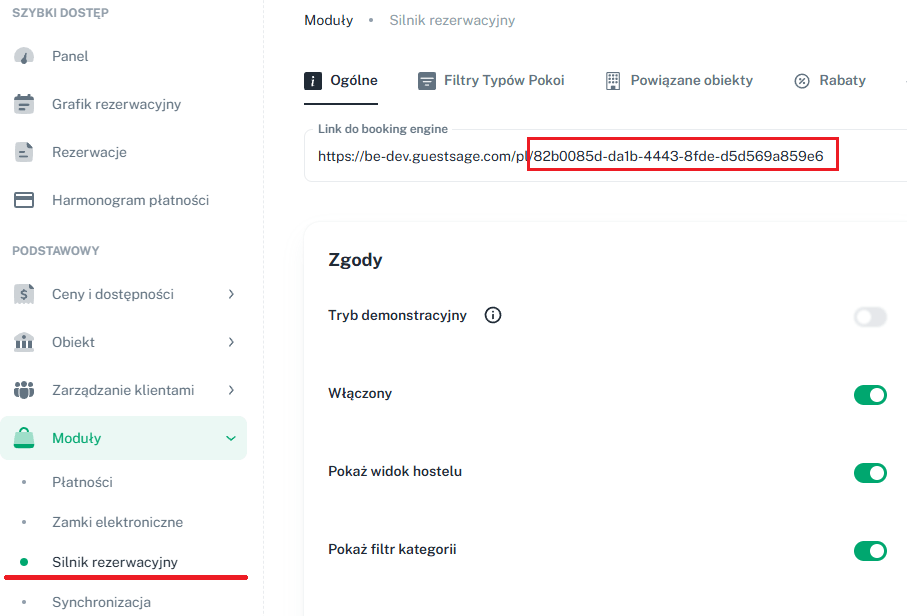
Im Link https://be.guestsage.com/en/82b0085d-da1b-4443-8fde-d5d569a859e6 lautet die Hotel-ID beispielsweise 82b0085d-da1b-4443-8fde-d5d569a859e6.
So finden Sie Ihre Zugangsdaten für die Integrations-API
Die KWHotel-Integrations-API verwendet eine andere Kennung als die GuestSage-UUID:
- Integrations Hotel ID - eine numerische ID (zum Beispiel
292) - Integrations API Key - ein geheimer Schlüssel, den Sie in KWHotel generieren
Numerische Hotel-ID
Sie finden die numerische Hotel-ID oben rechts im KWHotel-Admin-Panel.

Generieren des API-Schlüssels
Sie generieren den API-Schlüssel selbst in KWHotel:
- Melden Sie sich bei KWHotel an und öffnen Sie das Modul Synchronization (Synchronisierung)
- Klicken Sie auf die Schaltfläche Reset API key (API-Schlüssel zurücksetzen)
- Kopieren Sie den generierten Schlüssel und fügen Sie ihn in das Verbindungsformular von ChatLab ein
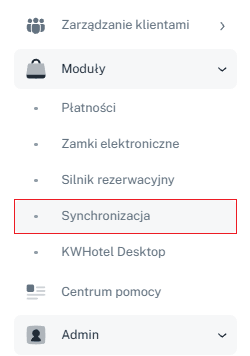
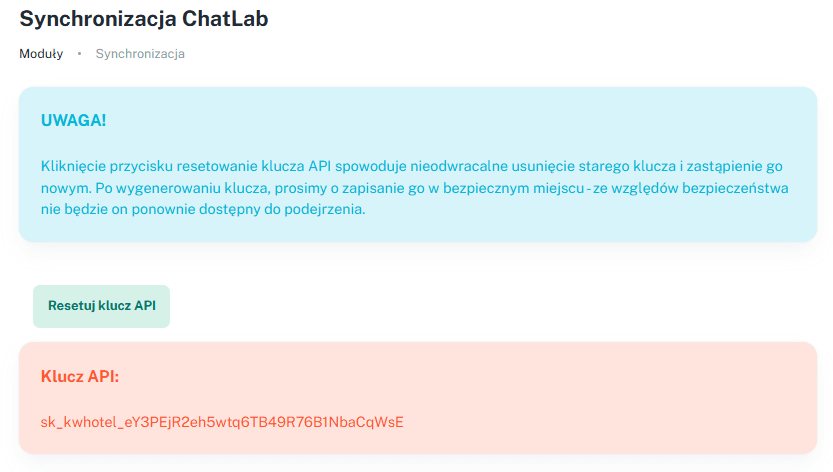
Durch Klicken auf Reset API key wird der vorherige Schlüssel entfernt (sofern bereits einer generiert wurde) und ein neuer erstellt. Jedes andere System, das den vorherigen Schlüssel verwendet, funktioniert nicht mehr, bis Sie ihn mit dem neuen Wert aktualisieren.
Einrichten der Integration in ChatLab
Schritt 1: Navigieren Sie zum Connect-Tab
- Melden Sie sich in Ihrem ChatLab-Admin-Panel an
- Wählen Sie den Bot aus, den Sie konfigurieren möchten
- Wechseln Sie zum Tab Connect (Verbinden)
- Suchen Sie in der Liste der Integrationen nach KWHotel und klicken Sie darauf
Schritt 2: Verbindungsdaten eingeben
Füllen Sie das Verbindungsformular aus:
- Hotel ID (UUID) - Ihre KWHotel-Hotel-GUID aus der Konfiguration der GuestSage-Booking-Engine
- Default Currency (Standardwährung) - die Währung, die für Preise verwendet wird, die Chat-Nutzern angezeigt werden (standardmäßig PLN)
- Default Language (Standardsprache) - die Sprache, die für Zimmerbeschreibungen und Angebotstexte verwendet wird (standardmäßig Polnisch)
- Integrations Hotel ID - die numerische Hotel-ID für die KWHotel Integrations API (unterscheidet sich von der obigen UUID)
- Integrations API Key - der geheime API-Schlüssel, der von KWHotel ausgestellt wurde
- Discount bot channel (Rabatt-Bot-Kanal) - optional. Wenn festgelegt, werden Angebote für diesen KWHotel-Rabattkanal abgerufen und von der KI sortiert. Leer lassen, um den Standardkanal zu verwenden.
Schritt 3: Verbinden
- Sobald die Felder ausgefüllt sind, wird die Schaltfläche Connect (Verbinden) aktiv
- Klicken Sie auf Connect (Verbinden), um die Konfiguration zu speichern. ChatLab testet die GuestSage-Verbindung und die Verbindung zur Integrations API.
- Bei Erfolg wird eine kurze Bestätigungsmeldung angezeigt.
Nach erfolgreicher Verbindung ändert sich die Schaltfläche Connect (Verbinden) zu Update Chatbot (Chatbot aktualisieren), und eine Schaltfläche Disconnect (Trennen) wird angezeigt, damit Sie die Integration später deaktivieren können.
Schlägt die Überprüfung der Integrations API beim Speichern fehl, wird die Aktion Get reservation (Reservierung abrufen) automatisch deaktiviert. Geben Sie die korrekten Zugangsdaten erneut ein und klicken Sie auf Update Chatbot (Chatbot aktualisieren), um sie zu aktivieren.
Zusätzliche Verbindungsoptionen
Suggest alternative dates when nothing is available for the requested dates (Alternative Termine vorschlagen, wenn für die gewünschten Daten nichts verfügbar ist) ist standardmäßig aktiviert: Die Suche kann nahegelegene Termine zurückgeben, wenn der angefragte Aufenthalt nicht verfügbar ist. Prüfen Sie die Daten bei jedem ausgegebenen Angebot.
Für mehrere Objekte aktivieren Sie die Multi-Hotel-Option und fügen jedes Hotel mit einem eindeutigen Anzeigenamen, seiner UUID und eventuellen optionalen objektspezifischen Einstellungen hinzu. Fügen Sie die entsprechenden Zugangsdaten für die Integrations API hinzu, falls eine Reservierungsabfrage erforderlich ist. Speichern Sie mit Connect (Verbinden) oder Update Chatbot (Chatbot aktualisieren), und testen Sie anschließend jedes Objekt separat.
KI-Aktionen konfigurieren
Beim Verbinden werden Aktionen zum Durchsuchen von Zimmern und zur Verfügbarkeitsprüfung aktiviert. Für die Reservierungsabfrage sind außerdem funktionierende Anmeldedaten für die Integrations-API erforderlich. Die Erstellung von Reservierungen wird nicht automatisch aktiviert; prüfen Sie vor der Veröffentlichung des Bots, welche Aktionen aktiv sein sollen.
Verfügbare KI-Aktionen
- KWHotel - get rooms - Listet Zimmertypen mit Beschreibungen, Bettenkonfiguration, Fläche, Kapazität und Fotos auf
- KWHotel - find available rooms - Sucht nach verfügbaren Zimmern für einen bestimmten Datumsbereich und gibt Angebote mit Preisen zurück
- KWHotel - check room availability - Prüft die Verfügbarkeit für einen bestimmten Zimmertyp und Datumsbereich
- KWHotel - create reservation - Erstellt eine neue Reservierung mit Gastdaten und Buchungsinformationen
- KWHotel - get reservation - Sucht nach bestehenden Reservierungen
Aktionen aktivieren und anpassen
- Klicken Sie nach dem Verbinden im Erfolgs-Modal auf Configure AI Actions (KI-Aktionen konfigurieren) oder gehen Sie zu Settings > Actions (Einstellungen > Aktionen) und suchen Sie die Kategorie KWHotel
- Aktivieren Sie die gewünschten Aktionen über den Schalter
- Passen Sie die Aktionsbezeichnung (den Text, der Benutzern während der Ausführung der Aktion angezeigt wird) und die Prompt-Anweisungen nach Bedarf an
- Bestätigen Sie den Aktionsdialog mit Enable (Aktivieren) oder Update (Aktualisieren), wie dargestellt.
Die fertige Einrichtung testen
Öffnen Sie Overview (Übersicht) und fragen Sie nach einem Zimmer für zukünftige Daten und eine bestimmte Gästeanzahl. Überprüfen Sie Unterkunft, Daten, Währung, Preis und den Buchungslink im Abgleich mit GuestSage. Testen Sie die Buchungssuche anhand einer Reservierung, zu deren Einsicht Sie berechtigt sind. Aktivieren Sie Create reservation (Reservierung erstellen) nur dann, wenn Sie möchten, dass der Chatbot echte Buchungen anlegt, und stimmen Sie jeden Buchungstest vorher mit Ihrem Unterkunftsteam ab.
Best Practices
Chatbot-Antworten optimieren
- Trainieren Sie Ihren Bot mit Informationen zur Unterkunft - Fügen Sie der Wissensdatenbank Beschreibungen Ihrer Zimmer und Hoteleinrichtungen hinzu, einschließlich Ausstattungsmerkmalen, Lage, Sehenswürdigkeiten in der Nähe sowie Check-in- und Check-out-Richtlinien
- Legen Sie klare Gesprächsabläufe fest - Konfigurieren Sie Begrüßungsnachrichten, die Gäste dazu anleiten, nach der Verfügbarkeit zu fragen, und nutzen Sie vorgeschlagene Fragen wie „Zimmerverfügbarkeit prüfen“ oder „Zimmer ansehen“
- Fügen Sie zimmerspezifische Seiten hinzu - Erstellen Sie auf Ihrer Website eigene Unterseiten für jeden Zimmertyp und trainieren Sie den Chatbot mit deren URLs für noch detailliertere Antworten
Integration der Booking-Engine
- Die KWHotel-Integration läuft für Zimmerbestand und Preise über die GuestSage-Booking-Engine
- Für den direkten Abschluss von Reservierungen außerhalb des Chats binden Sie das GuestSage-Buchungs-Widget parallel zum ChatLab-Chatbot auf Ihrer Website ein - der Chatbot kann Gäste zur Buchungsseite leiten, wenn sie reservierungsbereit sind
Fehlerbehebung
- Verbindung schlägt fehl - Überprüfen Sie, ob Ihre Hotel-ID die GuestSage-UUID ist (nicht die numerische Integrations-ID) und ob Ihre Unterkunft in der GuestSage-Buchungsmaschine aktiv ist
- Aktion „Get reservation“ (Reservierung abrufen) bleibt deaktiviert - Wenn der Verbindungstest der Integrations-API beim Speichern fehlschlägt, wird die Aktion automatisch deaktiviert. Geben Sie die Integrations-Hotel-ID sowie den Integrations-API-Schlüssel erneut ein und klicken Sie auf „Update Chatbot“ (Chatbot aktualisieren).
- Keine Zimmerdaten zurückgegeben - Prüfen Sie, ob Ihre Zimmertypen in KWHotel korrekt mit Beschreibungen konfiguriert sind und ob die Verfügbarkeit in GuestSage veröffentlicht ist
- Falsche Preise oder keine Angebote - Die Preisgestaltung stammt aus GuestSage. Aktualisieren Sie Preise und Angebotseinstellungen in KWHotel, um die aktuellen Preise widerzuspiegeln. Wenn Sie einen Discount-Bot-Kanal eingerichtet haben, stellen Sie sicher, dass dieser aktive Angebote enthält.
- Integration im Admin-Panel nicht verfügbar - Die KWHotel-Integration erfordert die entsprechende Funktion in Ihrem Abonnement; folgen Sie dem Upgrade-Hinweis oder kontaktieren Sie uns
Zimmerkatalog und Hotelübersicht
Wenn Ihr Konto den Tab Hotel anzeigt, verwenden Sie Hotel > Rooms (Zimmer), um den Zimmerkatalog und den Trainingsstatus zu überprüfen. Die KI-Zimmersuche (AI room search) ist von datumsbasierten Verfügbarkeitsprüfungen getrennt: Sie gleicht Zimmerbeschreibungen ab, während Verfügbarkeitsaktionen einen angefragten Aufenthalt prüfen. Die automatische Zimmerindexierung hängt von der automatischen Katalogindexierung und der zugewiesenen Zimmerkapazität ab; verwenden Sie andernfalls Train rooms (Zimmer trainieren), sofern verfügbar. Überprüfen Sie die aktivierten Aktionen und warten Sie, bis das Training abgeschlossen ist, bevor Sie sich auf die KI-Zimmersuche verlassen.