Mews ist ein cloudbasiertes Property-Management-System (PMS), das von Hotels, Hostels und Apartmentbetreibern genutzt wird. Durch die Verknüpfung mit ChatLab kann Ihr Chatbot Fragen zu Zimmern, Verfügbarkeiten, Preisen und bestehenden Reservierungen anhand Ihrer Live-Daten aus Mews beantworten - anstatt auf Basis von statischem Text, den Sie ständig manuell aktualisieren müssten.
Hinweis: Die Mews-Verbindung wird vom ChatLab-Team für Sie eingerichtet und erfordert ein Abonnement, das Hotel- und Reiseintegrationen enthält. Die Mews-Kachel im Tab Connect (Verbinden) sowie die Mews-Aktionen unter Settings > Actions (Einstellungen > Aktionen) sind nur für das ChatLab-Team sichtbar; Sie finden sie daher nicht in Ihrem eigenen Kundenkonto. Dieser Artikel erklärt, was auf Ihrem Chatbot konfiguriert wird und welche Funktion die einzelnen Einstellungen haben.
Beispielkonversation
Von Reisedaten zu Zimmerangeboten
Erfordert eine unterstützte Unterkunfts-Integration und eine aktivierte Verfügbarkeitsaktion. Ein Angebot oder eine Anfrage bestätigt noch keine Reservierung.

Besucher: Ein Zimmer für zwei Erwachsene, 14. bis 16. August.
Spielen Sie das Beispiel ab oder lesen Sie es unten. Es werden keine echten Kundendaten verwendet.Reisedaten und Wünsche erfassen.
Die Wiedergabe pausiert, sobald dieses Beispiel den sichtbaren Bereich verlässt. Dies ist eine Simulation, kein Live Chat. Die Widget-Bedienelemente innerhalb der Wiedergabe sind nicht interaktiv.Vollständiges Beispiel lesen
- Reisedaten und Wünsche erfassen.
Besucher: Ein Zimmer für zwei Erwachsene, 14. bis 16. August.
- Vor der Suche nach fehlenden Datumsangaben fragen.
Assistent: In welchem Jahr möchten Sie anreisen?
- Der Gast gibt das Jahr an.
Besucher: 2027.
- Das angebundene Unterkunftssystem abfragen.
Zimmerverfügbarkeit wird geprüft...
- Die für diesen Aufenthalt gefundenen Angebote anzeigen.
Doppelzimmer mit Meerblick, €280 / stay. Beispielangebot für zwei Erwachsene, zwei Nächte.
- Über den von Ihrer Integration unterstützten Buchungsweg fortfahren.
Assistent: Prüfen Sie die Buchungsseite für den endgültigen Preis und die Bedingungen. In dieser Demonstration wurde keine Reservierung vorgenommen.
Das Beispiel veranschaulicht das Kundenerlebnis. Die verfügbaren Aktionen und zurückgegebenen Informationen hängen von dieser Integration und Ihrer Konfiguration ab.
Bevor Sie beginnen
Stellen Sie sicher, dass Sie die Integration für Ihre Mews-Unterkunft autorisieren können, und kontaktieren Sie dann ChatLab für die unten beschriebene unterstützte Einrichtung. Halten Sie das Access Token der Unterkunft vertraulich; fügen Sie es niemals in den Embed-Code einer Website ein.
Was die Integration bietet
Nach dem Verbinden erhält der Chatbot vier Buchungsaktionen. Zu dieser Gruppe gehört auch Mews - AI room search, verfügbar, sobald die entsprechende Kapazität zur Zimmersuche zugewiesen ist.
Mews - get rooms - listet alle im Hotel verfügbaren Zimmerkategorien mit Beschreibungen, Bettenanzahl und Bildern auf.
Mews - find available rooms - der Besucher gibt ein Anreise- und Abreisedatum sowie die Anzahl der erwachsenen Gäste an, und der Chatbot gibt die verfügbaren Zimmerkategorien samt Preisen zurück.
Mews - check room availability - der Besucher fragt nach einer bestimmten Zimmerkategorie, und der Chatbot prüft deren Verfügbarkeit und Preise für die gewünschten Daten und die Gästeanzahl.
Mews - get reservation - ruft Reservierungsdetails anhand der Reservierungs-ID oder Bestätigungsnummer ab und gibt die Zimmerkategorie, Anreise- und Abreisedaten, Gästeanzahl und den Status zurück. So erhalten Gäste, die fragen „Was ist mit meiner Buchung?“, direkt im Chat eine Antwort.
Datumsangaben werden aus natürlicher Sprache verstanden, sodass Besucher beispielsweise „nächstes Wochenende“ oder „12-15 Juni“ statt eines strengen Datumsformats schreiben können.
So funktioniert die Einrichtung
Anders als bei den meisten ChatLab-Integrationen startet die Anbindung von Mews im Mews Marketplace, nicht im ChatLab-Adminbereich:
- Suchen Sie im Mews Marketplace nach ChatLab - AI Concierge for Hotels und gewähren Sie der Anwendung Zugriff auf Ihre Unterkunft.
- Mews sendet daraufhin die Verbindungsdaten für Ihre Unterkunft - einschließlich des Access Token (Zugriffstoken) der Unterkunft - direkt an ChatLab als Integrationspartner. Sie müssen das Token nicht selbst generieren; jede Unterkunft in Mews verfügt über ein eigenes Access Token, das Sie über ChatLab erhalten.
- Das ChatLab-Team nimmt Kontakt mit Ihnen auf, um die Einrichtung abzuschließen. Sie erstellen ein Konto auf chatlab.com, bestätigen Ihre E-Mail-Adresse und wählen einen Plan aus. Anschließend übernimmt ChatLab die vollständige Konfiguration: Der Chatbot wird angelegt, mit Ihrer Mews-Unterkunft verknüpft, anhand Ihrer Website-Inhalte trainiert und für Sie eingerichtet.
Falls Sie bisher noch nicht mit ChatLab gearbeitet haben, erklärt der Leitfaden So erstellen Sie Ihren ersten ChatLab-Chatbot die grundlegenden Bausteine eines Chatbots.
Die folgenden Abschnitte beschreiben, was ChatLab auf Ihrem Chatbot konfiguriert und welche Parameter die einzelnen Einstellungen steuern. So wissen Sie genau, wofür Ihre Mews-Daten genutzt werden und welche Anpassungen Sie bei Bedarf beim Support anfragen können.
Aufbau der Verbindung
Die Mews-Integration befindet sich im Tab Connect Ihres Chatbots als eine der Integrationskacheln:
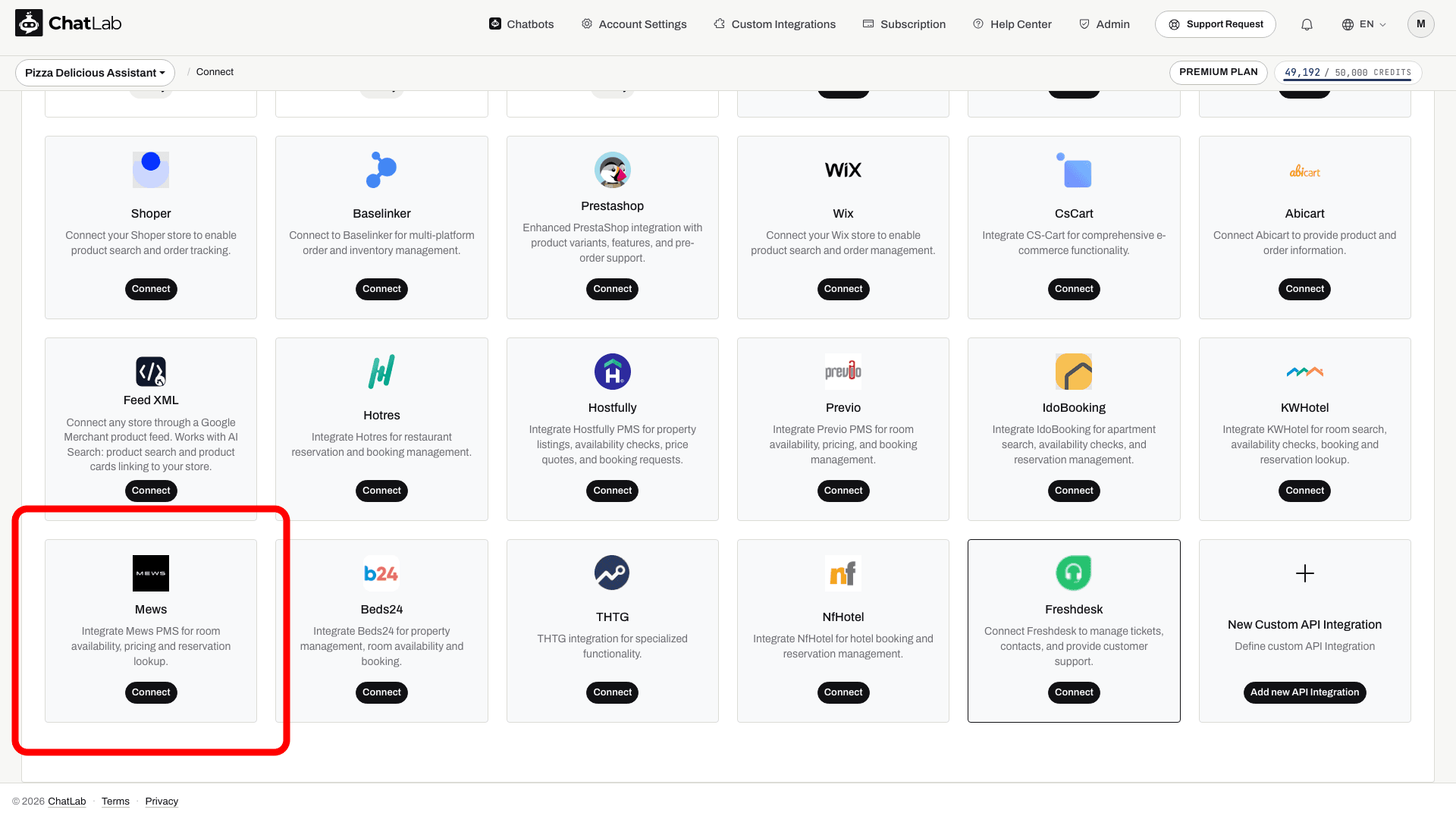
Beim Öffnen der Kachel erscheint das Formular Mews Integration, das von ChatLab für Sie ausgefüllt wird:
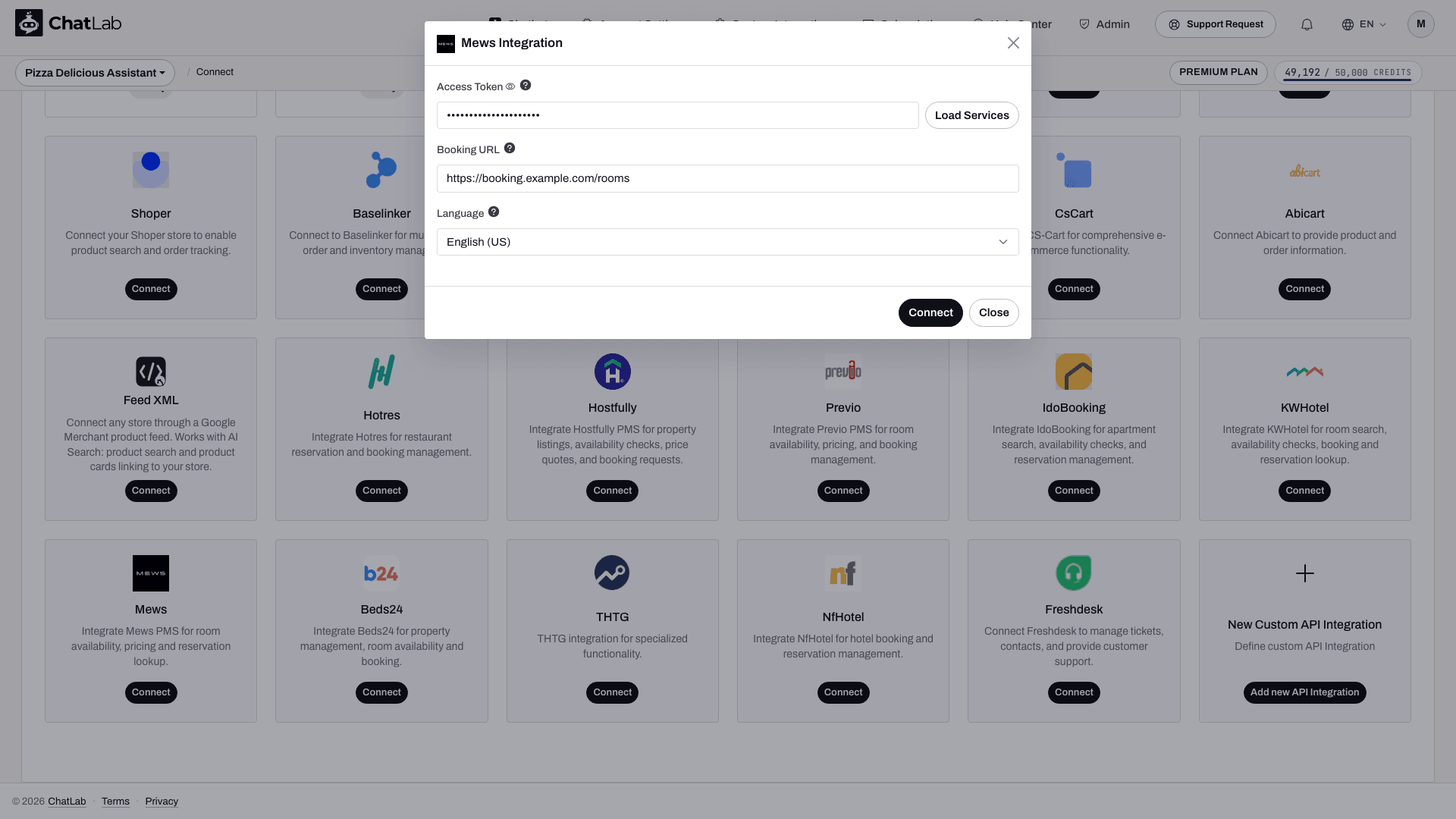
Erklärung der Verbindungseinstellungen
- Access Token - das Token, das Mews für Ihre Unterkunft ausgestellt hat, als Sie ChatLab im Mews Marketplace autorisiert haben. Jede Unterkunft in Mews besitzt ein eigenes Access Token. Das Feld ist maskiert; ein Klick auf das Augensymbol macht die Eingabe sichtbar. Sobald die Integration aktiv ist, kann dieses Feld beim Speichern von Änderungen leer bleiben - das zuvor gespeicherte Token bleibt erhalten, sodass Sie die übrigen Einstellungen anpassen können, ohne es erneut einzugeben.
- Load Services (Services laden) - ruft die Liste der Services aus Ihrer Mews-Unterkunft über das Access Token ab. Nach dem Laden erscheint das Dropdown-Menü Service, in dem der Beherbergungsservice ausgewählt wird, den der Chatbot nutzen soll - Unterkünfte können mehrere Services führen (z. B. Zimmer, Parkplatz, Spa). Bleibt die Einstellung auf Auto-detect (first available) (Automatisch erkennen: erster verfügbarer Service), wird automatisch der erste verfügbare Beherbergungsservice verwendet.
- Booking URL - der direkte Buchungslink zu Ihrer Unterkunft. Der Chatbot übergibt diesen Link an Gäste, sobald diese ein Zimmer buchen möchten. Ohne diese Angabe beantwortet der Chatbot zwar weiterhin Fragen zu Zimmern und Verfügbarkeiten, kann Gäste jedoch nicht direkt auf Ihre Buchungsseite weiterleiten.
- Language (Sprache) - die Sprache für Zimmernamen und -beschreibungen, die aus Mews übermittelt werden. Die Standardeinstellung Property default (Standard der Unterkunft) nutzt die Standardsprache Ihrer Unterkunft.
Klicken Sie auf Connect, um die Einstellungen zu speichern. ChatLab führt umgehend einen Testaufruf an Ihre Mews-Unterkunft durch. Ist das Token ungültig oder kann die Unterkunft nicht ausgelesen werden, schaltet sich die Integration wieder ab und der Fehler wird angezeigt - so bleibt keine fehlerhafte Verbindung unvollständig aktiv. Nach erfolgreicher Verbindung wechselt die Schaltfläche zu Update Chatbot (Chatbot aktualisieren) und eine Schaltfläche Disconnect (Trennen) erscheint.
Mews-Aktionen überprüfen
Durch das Verbinden werden alle vier Mews-Aktionen aktiviert, sodass der Chatbot sofort antwortbereit ist. Sie befinden sich unter Settings > Actions (Einstellungen > Aktionen) in der Gruppe Mews Actions (Mews-Aktionen):
- Mews - get rooms - Standard-Aktionsbezeichnung "Getting rooms..."
- Mews - find available rooms - Standard-Aktionsbezeichnung "Searching available rooms..."
- Mews - check room availability - Standard-Aktionsbezeichnung "Checking room availability..."
- Mews - get reservation - Standard-Aktionsbezeichnung "Looking up reservation..."
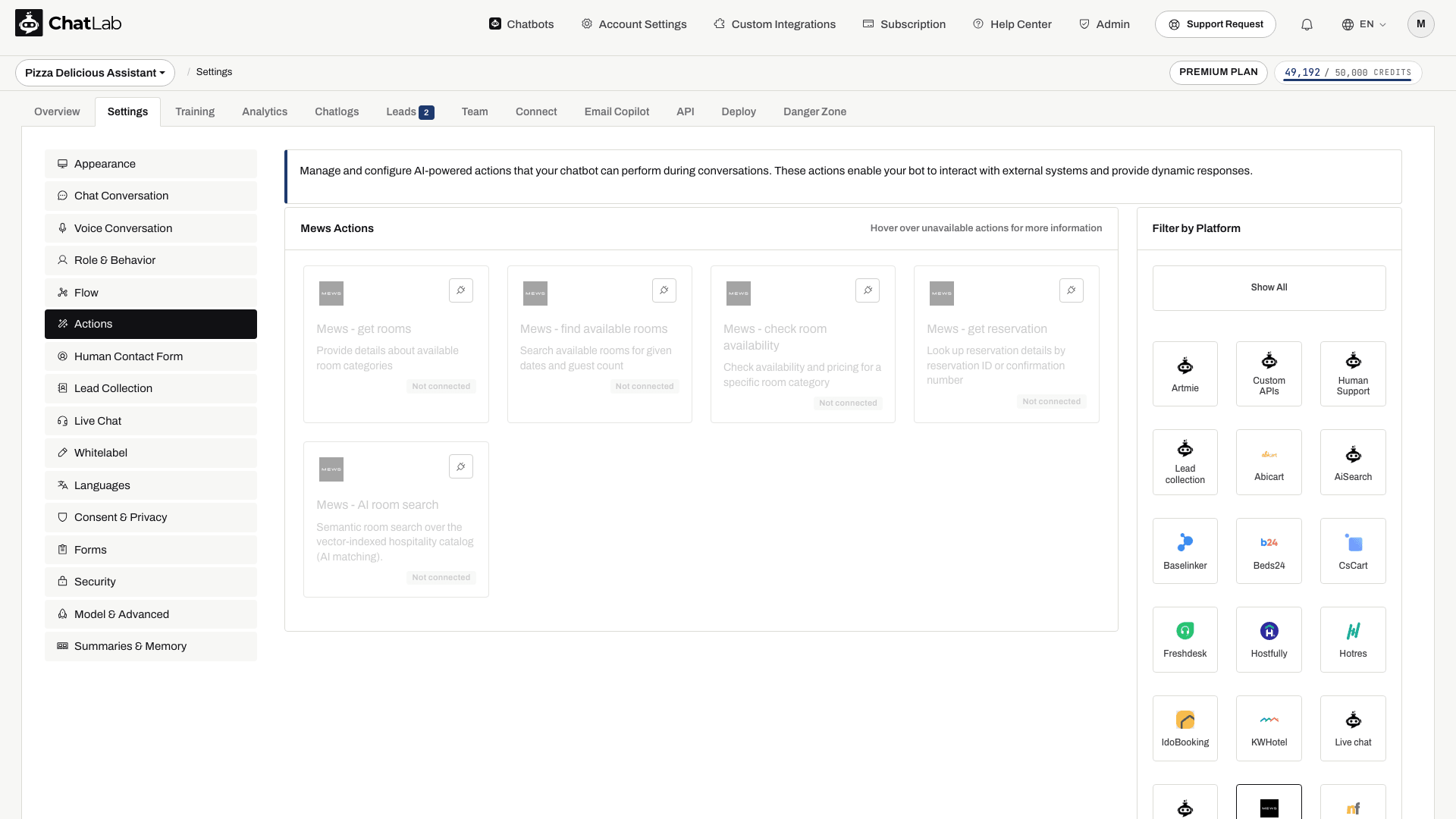
Der Screenshot oben zeigt die Gruppe vor dem Verbinden der Integration: Die vier Buchungsaktionen und die KI-Zimmersuche sind aufgelistet, aber als Not connected (Nicht verbunden) markiert und für den Chatbot nicht verfügbar. Die Buchungsaktionen werden beim Verbinden aktiviert. Die KI-Zimmersuche hängt von der Zimmerkapazität und der automatischen Katalog-Indexierung ab; es ist nicht garantiert, dass sie bei jeder Verbindung aktiviert wird.
Für jede Aktion kann ChatLab Folgendes anpassen:
- Action Label (Aktionsbezeichnung) - die kurze Nachricht, die der Besucher im Chat sieht, während die Aktion ausgeführt wird.
- Instructions (Anweisungen) - was die Aktion tut, anhand dessen die KI entscheidet, wann sie aufgerufen wird.
- User Instructions (Benutzeranweisungen) - Ihre eigenen Regeln darüber hinaus, zum Beispiel die Abfrage der Gästeanzahl vor der Suche oder der Hinweis auf Ihren Mindestaufenthalt.
Eine einzelne Aktion kann auch deaktiviert werden, wenn Sie sie nicht möchten. Beispielsweise können die Zimmerliste und die Verfügbarkeitssuche aktiv bleiben, während die Reservierungsabfrage ausgeschaltet ist. Teilen Sie dem Support mit, welches Verhalten Sie wünschen.
Testen
Öffnen Sie Overview (Übersicht), starten Sie eine neue Testunterhaltung und probieren Sie Fragen aus, die den einzelnen Aktionen entsprechen:
- "Welche Zimmer haben Sie?" - löst Mews - get rooms aus
- "Was ist vom 12. bis 15. Juni nächsten Jahres für 2 Erwachsene frei?" - löst Mews - find available rooms aus
- "Ist die Deluxe Suite am nächsten Wochenende frei?" - löst Mews - check room availability aus
- "Können Sie meine Reservierung ABC123 prüfen?" - löst Mews - get reservation aus
Prüfen Sie, ob die Zimmernamen und Preise mit Ihren Mews-Daten übereinstimmen und ob der Chatbot Ihre Buchungs-URL ausgibt, sobald ein Gast zur Buchung bereit ist.
Verwaltung der Integration
Einstellungen aktualisieren - Service, Booking URL und Sprache können jederzeit ohne neues Access Token geändert werden. Wenden Sie sich an den Support, und wir aktualisieren die Angaben für Ihren Chatbot.
Trennen - Bitten Sie den Support, die Integration zu trennen. Die vier Mews-Aktionen stehen dem Chatbot danach nicht mehr zur Verfügung. Die Verbindung kann später wiederhergestellt werden, sofern das Access Token noch gültig ist.
Tipps
- Trainieren Sie Ihren Bot kontinuierlich mit den Inhalten Ihrer Website weiter. Die Mews-Aktionen decken Zimmer, Reisedaten, Preise und Reservierungen ab; alle sonstigen Gästefragen (Frühstück, Parkplätze, Check-in-Zeiten, Haustiere) werden aus Ihrer Wissensdatenbank beantwortet. Siehe Chatbot trainieren - Grundlagen und Limits.
- Hinterlegen Sie Buchungsregeln wie Mindestaufenthalte oder Anzahlungsrichtlinien in den Benutzeranweisungen (User Instructions) der Aktion. So weist der Chatbot direkt zusammen mit den Verfügbarkeiten darauf hin, anstatt Gäste erst beim Checkout damit zu konfrontieren.
- Richten Sie vorgeschlagene Fragen wie "Verfügbarkeit prüfen" oder "Zimmer anzeigen" ein, damit Besucher direkt sehen, welche Funktionen der Chatbot bietet.
- Jede Antwort, die eine Mews-Aktion ausführt, verbraucht wie jede reguläre Chatbot-Nachricht Credits. Siehe Was ist ein Message Credit.